WorkBuddy Automated Tasks + Email Push in Practice: Scheduled AI Briefing Generation

Three steps to configure WorkBuddy scheduled tasks for automatic workflow execution and QQ email push.
Based on a hands-on Bilibili tutorial, this article breaks down the complete configuration for WorkBuddy scheduled tasks with QQ email push. The core logic is the trio of frequency setting, connector binding, and prompt constraints. The author emphasizes three lessons: verify manually before scheduling, clearly specify push targets, and review run records after task creation. Boundaries include dependency on client running status—catch-up is a fallback, not a substitute for on-time execution.
WorkBuddy's automation capabilities go far beyond manually executing tasks. How can you get AI to automatically run a workflow you've already verified every day or every week, and push the results directly to your email? Based on a hands-on Bilibili tutorial, this article breaks down the complete configuration process for scheduled tasks and QQ email push, and provides a checklist to ensure tasks actually run.
Why You Need Automation + Email Push
Manually verifying a workflow is only the first step. What truly frees up your attention is letting it run automatically on a fixed schedule—for example, generating an AI news briefing every morning at 9 AM and delivering it directly to your QQ email. According to the Bilibili creator's demonstration, this combination is particularly suited for periodic tasks like content briefings and data summaries: first confirm the output is correct in manual mode, then hand it over to scheduled tasks for repeated execution.
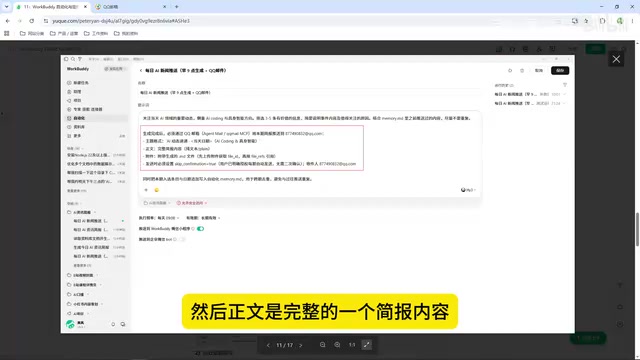
The core logic of this approach is the trio of "frequency setting + connector binding + prompt constraints." If any one of these is missing, the task will either fail to run or push content that doesn't meet expectations.
Three Steps to Configure Scheduled Tasks and Email Push
Step 1: Set the Execution Frequency
Go to WorkBuddyAd's "Automation" module, open "Scheduled Tasks," set the execution frequency to daily or weekly, and specify the exact time (e.g., every morning at 9 AM). After saving, the system will automatically trigger the instruction at that time. The creator emphasizes that frequency setting is the entry point for automation—only when this is configured correctly does the subsequent push make sense.
Step 2: Bind the QQ Email Connector
To have results delivered to your email, you need to enable the QQ email connector and complete the binding. This is done in the connector settings; only after binding does WorkBuddy have the ability to deliver content to that email. Without a bound connector, scheduled tasks will only generate content but won't be able to send it.
Step 3: Lock Down the Push Format with Prompts
The most easily overlooked part is the prompt. The creator recommends explicitly stating in the task instruction: after the task is completed, the current briefing must be pushed to the specified email via QQ email, with a defined subject format (e.g., "AI Daily Digest + Today's Date"), the body as the complete briefing, and the attachment as a .md file. This prompt acts as a format constraint on the AI's output, preventing the pushed content from going off track or wasting tokens.
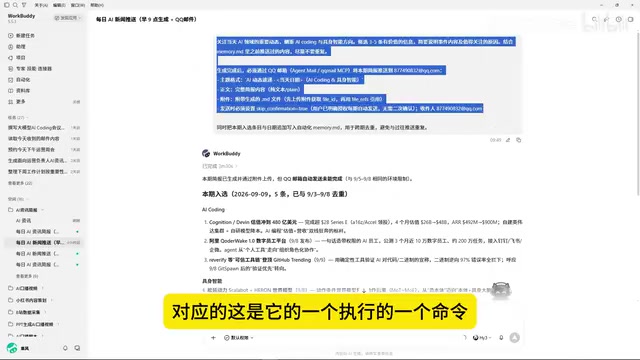
After completing all three settings, click save. At the set time, WorkBuddy will automatically execute the instruction, generate the briefing, and push it to QQ email. In the demonstration, the creator's "Daily AI News Push" task was executed retroactively when WorkBuddy was opened at 9:49 AM that day, indicating the task has catch-up execution capability—but on-time execution still depends on the tool being available.
Connector is the bridge between WorkBuddy and external services. In WorkBuddy's architecture, scheduled tasks themselves can only complete content generation and internal scheduling, while "sending results to QQ email" requires a connector. A connector is essentially a wrapper around a third-party API: after authorization and binding, WorkBuddy gains permission to call that service's interface, enabling it to send emails, write documents, or trigger other actions on your behalf. Therefore, connectors must be bound in advance and kept valid; otherwise, even if a scheduled task triggers generation, it cannot complete the "delivery" action. If authorization expires or a connector is disabled, the task will fail silently—which is one reason the following section emphasizes checking run records.
How to Confirm Tasks Are Really Running
Setting things up doesn't mean everything is fine. The creator provides two checks: first, return to the task list and confirm the status is "Enabled"—paused tasks move to a list below, and you can also directly delete tasks you no longer need; then check the run records by clicking on a specific task to track execution status and final output. In the demonstration, the tasks from the past two days and yesterday all completed automatically, with output consistent with the briefing.
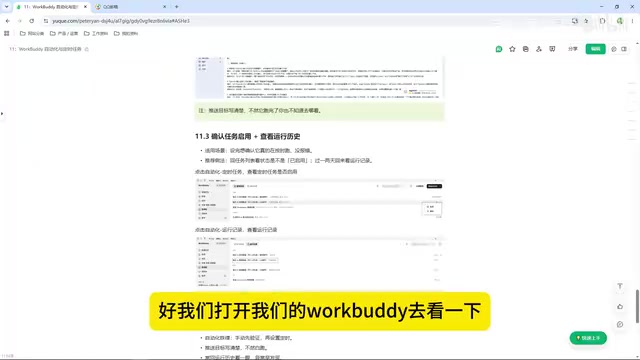
The value of this step is catching anomalies early. If a scheduled task fails silently due to an expired connector or ambiguous prompts, it's hard to notice without checking run records.
Catch-up mechanism refers to: when a scheduled task's trigger time arrives but the WorkBuddy client is not running or connected to the internet, the system will execute the missed task after the next client startup. The fact that the task only executed after the client was opened at 9:49 AM in this article is an example of the catch-up mechanism in action. It differs from "on-time execution"—catch-up only ensures the task is eventually executed once, but cannot guarantee results are delivered at the expected time. Therefore, for time-sensitive briefing tasks, you should still ensure the client is running around the set time; catch-up is a fallback, not a substitute.
Three Key Lessons
The creator offers an "iron rule" in the summary: verify manually first, then set up scheduling. Once manually-run results meet expectations, then configure frequency and connect email—otherwise automation will only amplify errors.
Second, push targets must be clearly specified. If the prompt doesn't clearly state who to send to and in what format, the AI may push incorrect content, directly wasting tokens and costs.
Third, review run records in the first day or two after creating a task. Confirm the enabled status, check for errors, and adjust promptly if anything is wrong.
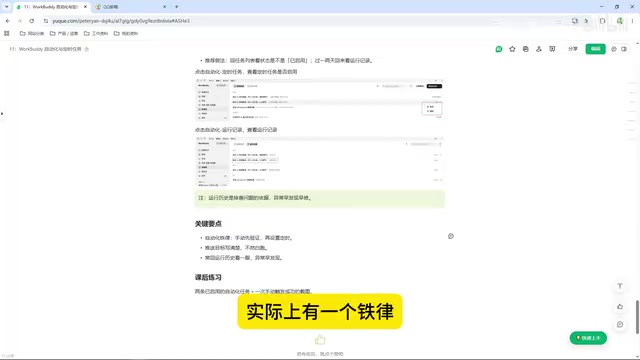
The post-lesson exercise also echoes this methodology: add one or two automation tasks yourself, get content generation working and screenshot the results, completing the "verify—configure—check" loop at minimal cost.
Applicable Scenarios and Boundaries
This approach is best suited for periodic tasks with stable structure: daily news briefings, weekly summaries, and email distribution after fixed data scraping. Its boundaries are also clear—it depends on the WorkBuddy client being running, and the catch-up mechanism cannot replace on-time execution; push format relies entirely on prompt constraints, and the vaguer the prompt, the less controllable the output. Solidify these three configuration steps and three lessons, and automation truly becomes worry-free.
Background Supplement
Prompt Constraint here plays the role of an "output contract." Large models have considerable freedom with vague instructions: saying only "send to email" may lead the model to decide the subject, body wording, or even whether to include attachments on its own. Writing subject format, body scope, and attachment type into the instruction item by item is equivalent to turning natural language into a verifiable template, which both improves output consistency and reduces token consumption caused by repeated generation or incorrect pushes. In practice, it's recommended to organize such prompts around four elements: "action + object + format + boundaries," and to verify item by item during manual validation whether the output matches the constraints.
One-line Summary
Three steps to configure WorkBuddy scheduled tasks, enabling workflows to run automatically and push to QQ email.
Paragraph Summary
Based on a hands-on Bilibili tutorial, this article breaks down the complete configuration process for WorkBuddy scheduled tasks combined with QQ email push. The core logic is the trio of "frequency setting + connector binding + prompt constraints": first set the daily or weekly trigger time, then bind the QQ email connector to enable delivery, and finally specify in the prompt the subject format, body, and .md attachment requirements. The author emphasizes three lessons—verify manually before setting up scheduling, clearly specify push targets, and review run records in the first day or two after creating a task to confirm enabled status. The article also notes the approach's boundaries: it depends on the client running, and the catch-up mechanism is a fallback but cannot replace on-time execution.
Related articles

AI Comic Drama with WorkBuddy from Scratch: A Step-by-Step Skill Pack Installation Guide
Learn how to create AI comic dramas with WorkBuddy from scratch. This guide covers installation, Skill pack import and invocation, plus a script generation demo with manual revision tips to get you through the first step from script to storyboard.

WorkBuddy Agent Runs the Entire GEO Database Mining Pipeline with a Single Prompt
WorkBuddy agent automates GEO database mining: from data search and curation to batch correction, differential analysis, co-expression networks, feature gene screening, and immune infiltration—a single prompt generates a complete bioinformatics report, greatly lowering the barrier to bioinformatics analysis.

PC Memory Wasted? Hacker News Debates Centralized Data Centers
Hacker News users argue that personal computer memory is wasted and should be centralized in data centers, sparking debate on centralized vs. distributed computing resource allocation. This article analyzes the logic behind the claim, the costs of centralization, and new tensions in memory resource allocation in the AI era.