WorkBuddy Beginner's Guide: A Complete Walkthrough of Tencent's Desktop AI Agent

Tencent's WorkBuddy is a desktop AI agent that executes tasks directly on your computer, not just gives advice.
WorkBuddy is Tencent's desktop AI Agent workbench that upgrades AI from a passive advisor to an active digital employee — capable of controlling your computer, breaking down complex tasks, and batch-processing files. It offers three work modes (Default, Plan, Ask) to match task complexity and credit usage. Its core capabilities — Experts (AI roles with domain experience), Skills (trained specialized abilities), and Connectors (authorization to operate third-party apps) — support multimodal content generation and scheduled automation. Compared to overseas alternatives, WorkBuddy has a low setup barrier and strong compatibility with Chinese office software, making it ideal for beginners looking to get started with AI Agents.
Tencent's desktop AI agent workbench, WorkBuddy, is quickly becoming one of the hottest tools in China's office automation space. Unlike traditional AI models that simply answer questions, WorkBuddy can directly control your computer, break down complex tasks, and batch-process files — functioning as a true "digital employee" that gets real work done. This guide is based on a comprehensive beginner tutorial series and walks you through everything from installation to advanced features.
What Is WorkBuddy: The Core Difference Between AI Agents and LLMs
WorkBuddyAd is an AI Agent, and the key distinction lies in whether it can actually take action. When a traditional large language model encounters a messy document, it will suggest how to fix the formatting — but you still have to do it yourself. WorkBuddy, on the other hand, can read files directly from your desktop and automatically clean up the layout. You just wait for the task to finish.
Think of it as a digital employee who follows your instructions — within the boundaries you authorize, it drives tasks all the way to completion. It can control your computer, call tools, and deliver finished outputs. Similar tools include Codex and other workflow-capable agents.
Compared to tools like Codex — which offer greater flexibility but require understanding code and setting up environments — WorkBuddy is far more beginner-friendly: just search the product name in a browser to download it, no complex configuration or phone verification required, and it's compatible with mainstream Chinese office software. New accounts receive free credits, keeping costs manageable. This low-barrier approach to getting a "digital employee" is its key advantage over subscription-based overseas alternatives.
The fundamental difference between an AI Agent and a traditional large language model comes down to whether it has the ability to act. A large model is essentially a text prediction system — it takes input and outputs text, stopping at the language layer. An Agent adds tool-calling, environmental awareness, and multi-step planning on top of language understanding. It can invoke a browser, file system, external APIs, and other tools; automatically decompose a vague goal into multiple executable steps; and dynamically adjust subsequent actions based on intermediate results. This "perceive → plan → act → feedback" loop is the core architecture that separates an Agent from a simple chatbot. WorkBuddy is built on exactly this architecture, combining a large model's reasoning ability with desktop control — making AI an executor of tasks, not just an observer.
Installation & Interface: Three Modules and a Four-Step Workflow
Installation is straightforward: download the Mac or Windows version, double-click to run, and you're ready to go. The default 2,000 free credits are more than enough to explore for a long time.
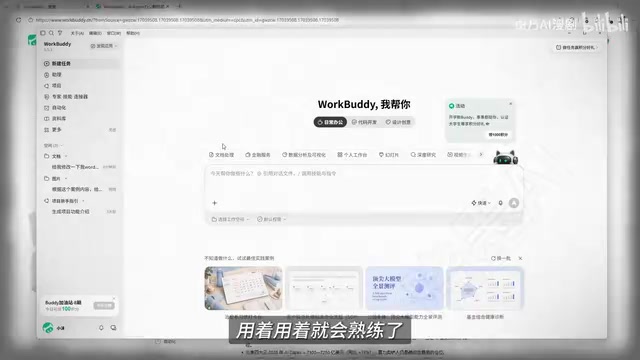
The interface is divided into three modules: the left panel contains quick-access entries (projects, experts, new tasks, etc.); the center is your workspace (send commands, watch execution unfold); and the right panel is the results preview (browse finished outputs).
The actual workflow can be summarized in four steps: Open the app → Enter a task → Select a project workspace → Receive the output. For example, to organize a messy folder, select it as your workspace, issue an instruction like "organize by date and category," and WorkBuddy will display its full reasoning and execution process — first inventorying file types (documents, videos, images, slides, etc.), then sorting and renaming them. This time-consuming job costs just 9 credits.
A note on safety: "Allow full access" is disabled by default, and the system will prompt you to confirm before any sensitive operation, preventing accidental file deletion.
Three Work Modes: Choose Based on Task Complexity
WorkBuddy offers three modes, each suited to a different type of work:
Default Mode (Execute)
The most commonly used mode, ideal for simple, clearly defined tasks. It gets straight to work. The built-in "enhanced prompt" feature automatically optimizes your instructions, making it very beginner-friendly.
Plan Mode
Designed for complex tasks. It will ask clarifying questions first, present a full plan, and only begin execution after you confirm. For example, if you ask it to build a game website, it will step through questions about the site type and visual style before getting started.
Ask Mode
The simplest mode — it answers questions, reads local files, and analyzes data, but doesn't take any action. Its main advantage is the lowest credit cost. For example, asking "how many assets are in this folder?" will get you a direct answer after it reads the contents.
Choosing the right mode is key to managing credit usage. Using Default mode for a simple question is overkill, and using Plan mode for a trivial task is completely unnecessary.
Multimodal Capabilities: Generate an Illustrated Storybook Video from a Single Prompt
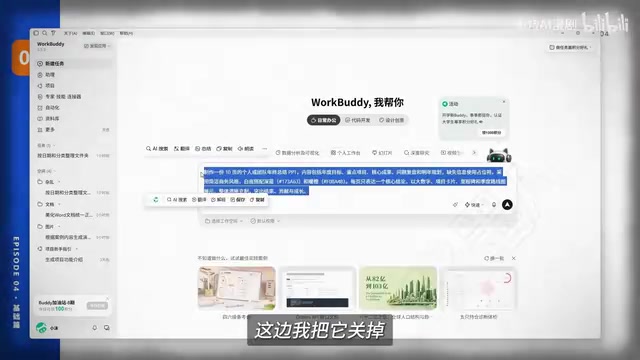
WorkBuddy supports multimodal generation across documents, images, and video. Here's an example using "The Little Match Girl" children's storybook video: start with a natural language instruction specifying a 16:9 ratio and illustrated storybook style. The system optimizes the prompt and generates multiple illustrations. Any unwanted elements (such as extra text) can be revised through conversation or handled with a selection tool.
You can then use those images to generate a video — specify landscape orientation and request transitions, subtitles, and narration — and the system renders a roughly 25-second animated storybook clip with auto-generated captions and voiceover.
The key takeaway here: the more detailed your prompt, the more accurate the result. Whether you're generating documents, presentations, images, or videos, the critical factor is describing your requirements clearly in natural language and iterating on the output.
Core Features: Experts, Skills, and Connectors
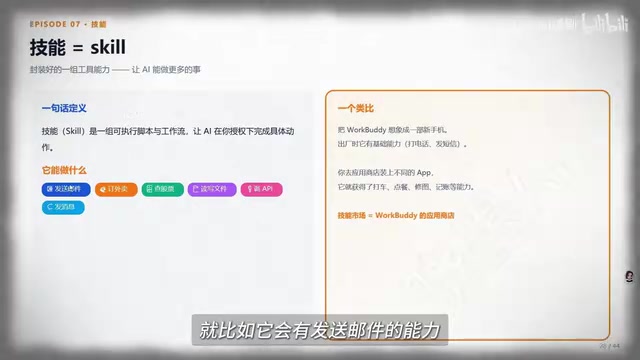
These three capabilities are the real heart of WorkBuddy. Think of them this way: Skills give the AI the ability to do something; Experts are AI roles with domain expertise; Expert Teams are collaborative groups of these roles.
Experts and Expert Teams
An Expert is essentially a "digital employee" with the skills and experience of a specific role — for instance, a "Senior Development Engineer" with 10 years of hands-on experience, available with a single click. An Expert Team is a complete crew: to build a Snake-style game, the team includes a product manager to define requirements, an architect to break down tasks, engineers to write code, and a QA to verify quality — faithfully replicating a real-world workflow. The result is a playable "Caterpillar Munch" game for just 45 credits.
Skills
Skills are trained, specialized capabilities — for example, creating, reading, and editing PowerPoint presentations. Once installed, they can be quickly invoked with a slash key or the plus button. In one demo, a game's HTML file was converted into a project showcase presentation. The system actually read the game content and generated a complete deck including gameplay screenshots, project background, core mechanics, and technical highlights.
Connectors
Connectors are the gateway to authorizing the AI to use a specific app or service. Connect your email and the AI can read, process, and send messages. Connect WeCom (Enterprise WeChat) and it can help reply to messages and organize chat history into documents. This is what truly makes it possible to "do all your work from one platform" without constantly switching between apps.
The technical foundation of Connectors is OAuth authorization and API integration. When a user authorizes WorkBuddy to connect to their email or WeCom, they're essentially delegating third-party service permissions to the AI Agent via standard protocols, allowing it to read and write data and trigger actions on the user's behalf. This differs fundamentally from traditional RPA (Robotic Process Automation), which simulates mouse clicks on screenshots. Connectors go through official API channels, offering greater stability without depending on a fixed UI layout. One important note: when authorizing connectors, pay attention to the scope of permissions. It's best practice to grant only the minimum permissions required for the task — avoid giving full read/write access to sensitive accounts (such as financial email) to an automated process. This is a universal security principle when connecting any AI Agent to enterprise services.
Advanced Features: Automation, Memory, and Personalization
Automation lets WorkBuddy execute recurring tasks on a schedule, so you don't have to issue instructions manually every day. Just configure a name, prompt, the expert or skill to invoke, a storage location, and an execution frequency (one-time / daily / weekly / at intervals). For example, a content creator can set up a daily trending topic analysis: the system automatically searches platform trends, filters topics with creative potential, and delivers a report. The most important part here is the prompt — be specific about the goal and expected output.
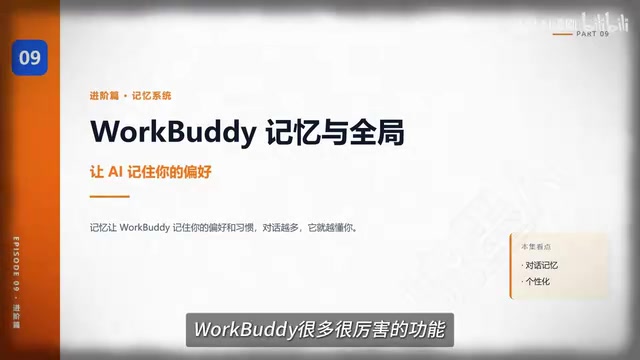
Conversation memory and personalization are two distinct concepts: conversation memory is "experience-based," accumulating over time but potentially becoming unreliable as the AI may misremember things after repeated exchanges. Global personalization instructions, on the other hand, are "hard rules" — for example, setting "lead with conclusions, break into bullet points, bold key terms, no robotic language" ensures this is enforced consistently in every interaction. The system also offers multiple response styles, such as blunt and sarcastic, efficient and pragmatic, or wildly creative.
Conversation memory and global personalization instructions operate at different technical layers. Conversation memory is typically stored as a "memory summary" — the system compresses historical dialogue and injects it into subsequent context. As conversations grow longer, these summaries may introduce inaccuracies or omissions, which is a known limitation of long-term memory in current large language models. Global personalization instructions, however, are hard-coded into the System Prompt of every request and are enforced regardless of memory drift. Understanding this distinction has practical value: rules that must always be followed (output format, tone requirements) belong in global instructions; personal background the AI should remember (your profession, preferences) relies on conversation memory, but should be verified periodically for accuracy.
Model Selection and Remote Control
WorkBuddy offers three performance tiers: Fast (low credit cost, quick response, best for simple tasks), Balanced (the recommended default for most use cases), and Ultimate (highest credit cost, best for complex tasks).
For model selection: DeepSeekAd works well for coding tasks; multimodal models are needed for image input. The model list indicates each model's strengths. Higher "thinking intensity" produces more thorough analysis but takes longer and costs more credits — the default setting is recommended for most users. Max mode should be enabled when full context preservation is needed.
To connect from your phone, first enable "Allow background running" in settings to keep the device active. You can then use the assistant interface to issue remote commands even when you're away from your computer.
You can also save mature conversations as custom Skills, or use the "Find Skills" feature to automatically install high-quality community skills, further expanding the tool's capabilities.
Conclusion
WorkBuddy transforms AI from a "consultant who gives advice" into an "employee who gets things done." Its low barrier to entry, compatibility with mainstream Chinese software, three core capabilities (Experts, Skills, Connectors), and automation and personalization features together form an office productivity solution that's easy for beginners to pick up. For users who want to get started with AI Agents or boost their daily efficiency, the key isn't how powerful the tool is — it's whether you're willing to learn by doing and actually integrate it into your work, rather than letting it collect dust in your bookmarks.
Related articles

Chain of Thought Isn't Just for AI: How Humans Can Use CoT to Improve Thinking Quality
Chain of Thought isn't just a prompt trick for large models. Starting from a Hacker News discussion, this article analyzes why CoT works for human thinking too, breaks down actionable ways to transfer it, and highlights the key differences between human CoT and machine CoT.
Cloudflare Teams Up with OpenAI: Closi…
Cloudflare Teams Up with OpenAI: Closing the Loop from Vulnerability Discovery to Defense with AI
Cloudflare uses OpenAI Daybreak to investigate security vulnerabilities and generate reviewable remediation plans, while developers use Codex to boost coding efficiency and quality.

Orca Multi-Agent Orchestration in Practice: A Guide to Parallel Collaboration with Claude and Codex
Orca is Stable AI's free open-source agent workbench supporting 34 agents like Claude Code and Codex in parallel. Learn its Git worktree isolation, multi-model orchestration, and mobile management.