WorkBuddy Beginner's Guide: Complete Walkthrough from Installation to Your First AI Office Task

WorkBuddy is a local AI agent that organizes your files — get started in five easy steps.
Based on a beginner-friendly Bilibili tutorial, this article walks through the complete onboarding flow for WorkBuddy, an AI agent that controls your local file system. Unlike chat-based AIs, WorkBuddy upgrades the experience from Q&A to task delegation. The workflow covers: downloading the correct OS version, logging in via phone number, claiming 100 free daily points, setting a workspace to define the AI's operating scope, and issuing a single natural language command to auto-organize a Downloads folder. The first task consumed just ~30.77 points, and sensitive operations like deletion require user confirmation by default.
The way AI is being applied in the workplace is shifting from "chat and Q&A" to "delegating tasks directly." As a domestic AI agent application, WorkBuddy makes this shift remarkably tangible — instead of asking AI questions, you hand it real work like organizing files and archiving documents, and it gets the job done. This article is based on a beginner-friendly tutorial series on Bilibili, walking through the complete process from downloading and installing WorkBuddy to completing your first hands-on task.
Why WorkBuddy's Agent Workflow
AI office automation has been exploding on Bilibili lately, with related tutorials racking up anywhere from a few hundred to over a million views. But according to the creators of this tutorial series, most existing content lacks structure and glosses over critical steps — making it easy for newcomers to hit frustrating roadblocks.
WorkBuddyAd's core value lies in being an AI agent that can control your local computer, not just a conversational chatbot. It upgrades AI from "answering your questions" to "completing tasks for you" — which is exactly the kind of real-world integration that makes AI genuinely useful in day-to-day work. For beginners, it has a low barrier to entry and delivers fast, visible results, making it an ideal first stop on the journey into AI automation.
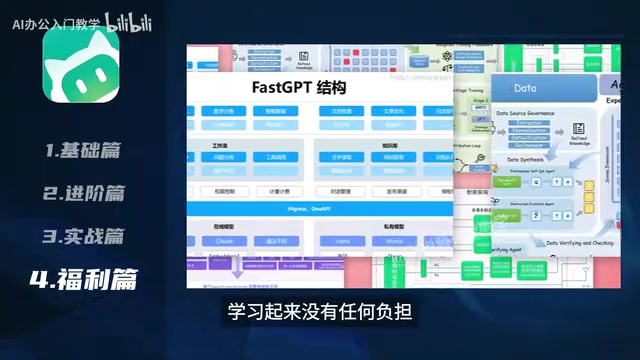
The fundamental difference between an AI agent and a standard conversational AI comes down to execution capability. Conversational AIs like ChatGPT or Wenxin Yiyan can only output text — you still have to do the follow-up work yourself. An agent, by contrast, can call tools, interact with the file system, and execute multi-step tasks in a complete "perceive → decide → act" loop. WorkBuddy is a desktop-level local agent: it requests operating system permissions and directly reads, writes, and organizes files and folders on your computer, with no need for you to intervene at each step. This category of software has grown rapidly in recent years internationally, with projects like AutoGPT and Claude Computer Use leading the way. WorkBuddy is one of the localized equivalents built specifically for users in China.
Download and Installation: Match Your OS Version
Installing WorkBuddy is straightforward, but there's one detail that's easy to overlook: the software comes in separate versions for different operating systems, and you must download the one that matches your machine.
Here's how to do it:
- Open a browser, search for WorkBuddy, and navigate to the official website
- Select the Mac version for Apple computers, or the Windows version for Windows PCs
- Click download and save the installer to your computer
- Open the installer and follow the setup wizard, clicking "Next" at each step
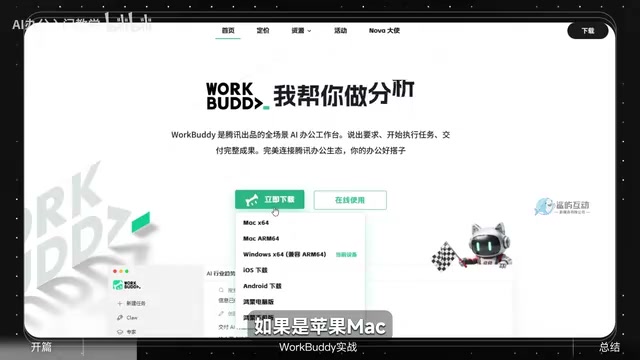
Once installation is complete, log in by entering your phone number and verification code. The entire installation and login process is very beginner-friendly — no additional configuration required.
Build the Habit of Claiming Your Daily Points
WorkBuddy runs on a points system, and you can claim 100 free points every day. The tutorial offers a practical tip: every time you open the app, don't rush to send a command — claim your daily points first.
It's simple: just click the claim button to check in, and your points balance will be visible on your profile page. This small habit ensures you always have enough credits to run tasks without hitting a wall halfway through.
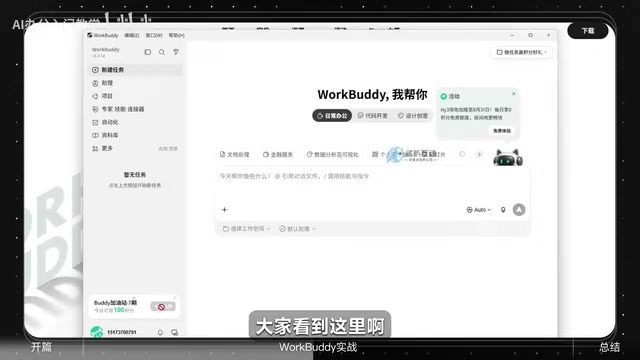
Key Concept: What Is a Workspace?
Before diving into hands-on use, there's one essential concept to understand — the workspace. Simply put, a workspace defines the area of your computer that the AI is allowed to operate in.
When you select a folder as your workspace inside the app, the AI's actions are locked to that directory. The tutorial emphasizes this clearly: always check that the correct workspace is selected before running any task. If it's wrong, the AI will work in the wrong folder. Get it right, and the AI will work exactly where you intend.
This concept is the foundation of WorkBuddy's safety and controllability — it won't stray outside the directory you've authorized.
The "workspace" is essentially a sandbox mechanism — a human-defined boundary that restricts the AI's operations to an authorized directory, preventing it from accidentally touching critical system files or accessing private data. This aligns with the "principle of least privilege" in operating system security: only grant a program the minimum permissions needed to complete the current task. For everyday users, it's a good practice to create a dedicated new folder as your workspace rather than selecting your desktop or entire user directory. This lets you verify results while keeping any potential risks to an absolute minimum.
First Real Task: Organize Your Downloads Folder with One Sentence
The first real task in the tutorial is organizing the computer's default Downloads folder. Most people's Downloads folders are cluttered messes that make finding anything a headache.
Here's the workflow:
- Set your Downloads folder as the workspace and confirm to lock the operating scope
- Send the AI this instruction: "Help me organize the Downloads folder — categorize and archive all the files"
- Hit send and let the AI take over
While the task runs, WorkBuddy displays its entire reasoning and execution process, so you can see exactly what the AI is doing at every step.
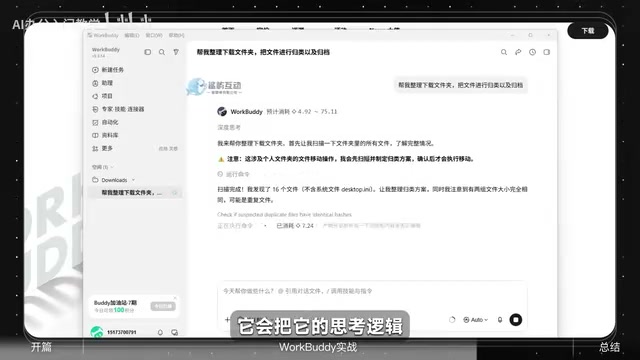
Will It Delete My Files?
This is the question every beginner asks first. The tutorial gives a clear answer: by default, the AI will not proactively delete files. When it encounters a sensitive action like deletion, it will pop up a confirmation dialog — you can choose "Keep All," and only then will it proceed.
If you want fewer prompts and more autonomous execution, you can enable "Allow Full Access" in the permissions settings. This is entirely up to you: keep the default for safety, or loosen permissions for efficiency.
Task Results and Points Used
Once the task is complete, WorkBuddy generates a summary. In this example, organizing the Downloads folder consumed approximately 30.77 points — less than a third of the daily 100-point allowance.
A previously chaotic folder, organized automatically with a single plain-language command. This vividly illustrates the essential difference between a desktop AI agent and a web-based chat AI — the mode of use shifts from "asking questions" to "assigning tasks."
Getting Started Beats Studying Theory
The tutorial repeatedly drives home one learning approach worth taking to heart: the fastest way to get comfortable with WorkBuddy is to simply start using it. The feature descriptions are clear, and a few runs will build familiarity naturally. Get it running first, then explore from there.
For complete beginners, rather than getting bogged down in how it all works, start with a small task like organizing a folder and experience firsthand what it feels like to have AI do the work for you. More advanced content covering WorkBuddy's three operating modes will make much more sense once you have this foundation.
Summary
WorkBuddy represents a distinct direction for AI in the workplace: connecting an agent to the local file system and replacing manual operations with natural language commands. The barrier to entry is genuinely low — install, log in, claim points, set a workspace, send a command. Five steps to your first completed task. For everyday users looking to try AI office automation, it's a fast-feedback, easy-to-start entry point.
Related articles

Felix Rieseberg Personal Homepage
Felix Rieseberg's personal homepage sparks attention on Hacker News. This article covers the Slack engineer's technical background, the rise and fall of nativefier, and the value of a developer homepage as a tech calling card.

@ai-sdk/vue 3.0.306 Patch Release Syncs with [email protected] Update
@ai-sdk/vue 3.0.306 released, synced with [email protected]. A routine patch release for the Vercel AI SDK ecosystem with no public API changes; the Vue adapter layer stays version-aligned with the core package.

Gemini 4 Argon API Launches: The Era of Million-Token Output Begins
Google launches Gemini 4 Argon with sparse MoE architecture, up to 1M output tokens, and a 68.90% Vals Index score, available across API, AI Studio, and the Gemini app.