WorkBuddy Beginner's Guide: Three Modes and Automation in Practice

A breakdown of Tencent WorkBuddy's three modes, six feature areas, and practical tips.
Based on a Bilibili creator's walkthrough, this guide covers Tencent AI agent WorkBuddy's onboarding path: the three work modes (Daily Office, Code Development, Design & Creative) and their boundaries, the six core feature areas (Projects, Experts, Skills, Connectors, Automation) and how they form reusable team workflows, a real case of generating and deploying an AI tool navigation website, and the key pitfall of always selecting a workspace when files are involved.
Tencent's AI agent WorkBuddy is becoming a handy assistant for everyday office work. For new users, however, there is often no clear path from installation and configuration to actually running a task end to end. This tutorial, based on a complete walkthrough shared by a Bilibili creator, breaks down WorkBuddy's three work modes and six core features, and includes a real deployment case study plus lessons learned to help you get started quickly.
Three Work Modes: Pick the Right Scenario First
The first thing to do when you open the WorkBuddyAd homepage is choose a work mode. There are currently three: Daily Office, Code Development, and Design & Creative. Daily Office covers routine needs like writing documents, building spreadsheets, and organizing materials; Code Development suits lightweight coding tasks such as writing a simple script or webpage, though for complex programming needs the creator recommends switching to CodeBuddy, Tencent's more specialized coding tool; Design & Creative is for design work like webpages and PPTs.
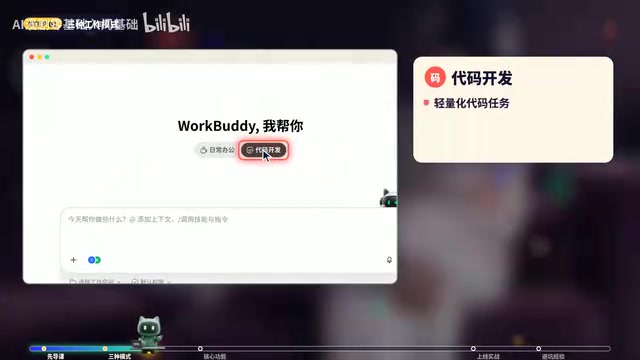
The mode you choose determines the default capability boundaries of the AI, and picking the wrong one often makes everything that follows twice the work for half the result.
Six Core Feature Areas: From Projects to Automation
The left-hand menu is WorkBuddy's core feature area: Assistant, Projects, Experts, Skills, Connectors, and Automation. Understand these six and you'll cover most common office scenarios.
Projects: Preserve Your Team's AI Conversation Assets
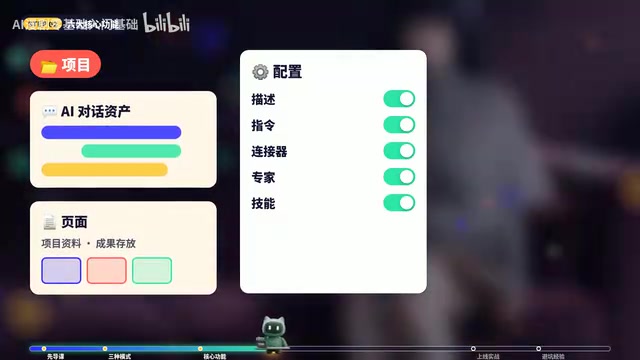
The Projects feature records a team's AI conversation assets. The page stores project materials and outputs, while the configuration panel on the right lets you uniformly adjust the project-wide description instructions, connectors, experts, and skills. This way, when the team handles tasks, these tools are applied automatically, saving the time of configuring each one separately and adjusting them by hand.
In AI agents, the "Workspace" is the default directory boundary for the AI's file reads and writes—essentially defining an accessible file scope for each task. It is both where the AI looks for input materials and where generated results are stored. Unlike ordinary conversations, agents need to actually operate on local or cloud files, so the workspace path must be specified first before the AI can locate materials, save outputs, and maintain context consistency across multiple rounds of a task. Without a designated workspace, the AI can only see content pasted into the conversation; it cannot proactively read files on disk, nor write generated results back to a specified location—which is exactly where things most often go wrong when file processing is involved.
On agent platforms that support team collaboration like WorkBuddy, the workspace also serves to isolate and reuse resources: different projects can bind their own workspaces to avoid files overwriting each other; when team members share the same workspace, documents, scripts, and website files produced by the AI can be managed uniformly, and subsequent automation tasks can reliably read from and write to the same directory. This is why the tutorial repeatedly stresses "when files are involved, pick the workspace first"—in essence, it establishes a clear file read/write context for the AI.
Experts and Skills: Give the AI a Professional Identity and Plugins
The Experts feature is essentially giving the AI a professional identity. In normal mode the AI is general-purpose—it knows a bit of everything, but the tacit knowledge and hands-on experience specific to an industry may not make it into your project; once you select an expert, the AI works with that domain's experience and methods, producing more professional results. Skills are like little plugins installed on the AI: Word, PPT, and Excel processing can be added with a single click, extending its concrete operational capabilities.
Connectors: Link Up Feishu, Email, and Knowledge Bases
Much of your material lives in Feishu, email, or knowledge bases, and having to download and re-upload it to the AI every time is cumbersome. Connectors bring these external platforms into WorkBuddy so the AI can read platform content automatically, with no need to manually attach files.

A connector is a standardized interface between an agent platform and external systems, typically implemented via the APIs or authorization mechanisms each platform exposes. It lets the AI, with the user's authorization, directly read content from Feishu documents, email, or an enterprise knowledge base without the user having to download and re-upload it manually. This mechanism solves the biggest real-world bottleneck for agents: the AI itself cannot access external data sources, and only by "plugging in" data through connectors can it complete tasks based on real materials.
When using connectors, pay attention to permission scope and data security: connecting a platform usually requires granting a specific scope of read permissions, and teams should confirm whether the authorization granularity is minimal and necessary; at the same time, content read through connectors becomes the AI's context, so when sensitive information is involved, assess whether it is appropriate to hand it to the agent. With connectors properly configured, the AI can automatically fetch the latest materials within a project and, together with automation, achieve unattended information organization and summarization.
Automation: Let Tasks Run Automatically on Schedule
Automation is what the creator considers the most practical and promising feature. Most of the features above are still "send a task, the AI does a task," whereas automation can execute automatically according to a set schedule and prompt. For example, have it organize the day's AI news before you go to sleep so you can check the results directly the next day.
Automation relies on a "scheduled task" mechanism, which triggers the agent to execute a pre-written prompt according to preset time rules (such as a fixed time each day or a specified interval). Unlike manually initiated conversations, scheduled tasks must complete the entire process—from reading materials and invoking tools to producing output—unattended, which places higher demands on the clarity of the prompt and the stability of the workspace. Common implementations include time scheduling based on cron expressions and event-triggered task flows.
In WorkBuddy, automation can be understood as solidifying "prompt + tool configuration + workspace" into a repeatable pipeline: at the appointed time the AI automatically reads the latest content from connectors, organizes it into the specified format according to the prompt, and saves it to the corresponding directory. This also explains why automation is considered the most promising feature—it turns a one-off AI conversation into a continuously running productivity tool, suited to repetitive scenarios like news roundups, daily report generation, and data inspections.
In Practice: Generate and Deploy an AI Tool Navigation Website
The creator demonstrated the complete process with a real task: having WorkBuddy generate a navigation website of commonly used AI tools, with the prompt stating "build me a navigation website for commonly used AI tools, deploy it online, and give me the access link." After the task completed, WorkBuddy provided an accessible link, and the navigation website opened and worked normally.
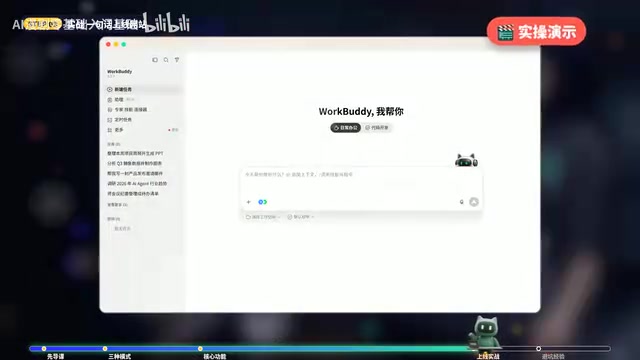
This case shows that WorkBuddy can not only generate content but also deploy the results online, producing a deliverable finished product. Clearly stating the goal and the delivery format (an access link) in the prompt is key to getting the task to run smoothly.
Lessons Learned: When Files Are Involved, Pick the Workspace First
The creator particularly emphasizes the most important lesson: processing files without selecting a workspace is the most common pitfall. Without a workspace, the AI doesn't know where to read files from, nor where to put the results. So whenever file reading is involved, be sure to select the workspace first.
Suggestions for Getting Started
WorkBuddy's value lies in organizing scattered AI capabilities into reusable workflows. Beginners should start with a specific small task—say, using Daily Office mode to organize a document—then, once familiar with project and expert configuration, try connecting external platforms with connectors, and finally use automation to hand repetitive tasks to the AI on a schedule. At every step, confirm the workspace first to avoid file read/write confusion.
One-line Summary
A breakdown of Tencent WorkBuddy's three modes, six feature areas, and practical pitfalls to avoid.
Paragraph Summary
Based on a Bilibili creator's walkthrough, this article systematically maps out the onboarding path for Tencent's AI agent WorkBuddy. It first introduces the three work modes—Daily Office, Code Development, and Design & Creative—and their applicable boundaries, recommending CodeBuddy for complex programming; then it explains each of the six core feature areas—Projects, Experts, Skills, Connectors, and Automation—showing how they combine into reusable team AI workflows, with automation seen as the most promising feature thanks to scheduled execution. The hands-on section demonstrates the complete process of prompting WorkBuddy to generate and deploy an AI tool navigation website and return an access link, and finally stresses that the workspace must be selected first when file processing is involved, along with a progressive onboarding path from small tasks to connectors to automation.
Related articles

GitHub Daily · October 30: Skills Ecosystem Explodes, Agents Start Provisioning Their Own Computers
GitHub Daily Oct 30: Skills ecosystem hits three layers (official, personal, vertical), agents get their own computers, and cross-session memory becomes essential.
AWS AgentCore Gateway: Connecting AI A…
AWS AgentCore Gateway: Connecting AI Agents to Enterprise Backends with MCP
How AWS AgentCore Gateway acts as a primary MCP server to aggregate REST APIs, Lambda, and existing MCP services? Analyzing its AST real-time mapping, zero cold start, semantic search for tool overload, session isolation, and key injection security design, plus the architectural approach to decoupling enterprise AI agents from backends.

One Link Gives Figma AI a New Skill: Hands-On with MCP Connectors
Paste one MCP server link and the AI Agent in Figma gains new tool capabilities. We break down the setup flow, 20+ one-click apps, read/write permissions and execution policies, and the public HTTPS requirement.