WorkBuddy One-Click Folder Organization: A Practical Guide to AI-Powered Office Automation

WorkBuddy organizes entire folders automatically using a single natural-language command, with Ask and Plan modes.
WorkBuddy is an AI office automation tool that organizes folders intelligently with a single natural-language instruction, sorting files by type and modification date into a multi-level structure. It offers Ask mode for clarifying goals and Plan mode for execution. The credit model is roughly "chat free, actions cost" depending on the model chosen. It supports parallel multitasking and auto-translates Chinese instructions to English under the hood. Always back up files or test on a small folder first, then save successful instructions for reuse.
Why You Need Automated Folder Organization
Day-to-day work generates an endless stream of files — images, PowerPoint decks, Word documents, Excel spreadsheets, and nested subfolders. Over time, a single working directory can balloon into dozens or even hundreds of scattered files. Manually sorting and archiving them is not only tedious but also a serious time sink.
The WorkBuddyAd tool demonstrated by this Bilibili creator tackles exactly that problem: using AI-powered office automation, a single natural-language instruction can sort and archive an entire folder. In the video, the creator used an AI image generation tool to produce a large batch of images saved to a local working folder, mixed in with various office documents. Manual organization would clearly be inefficient — but WorkBuddy can "get it done in one click."
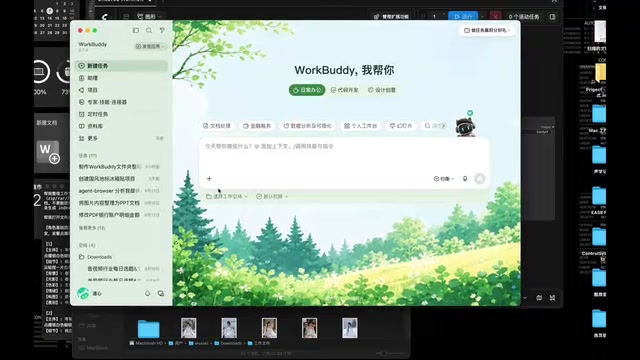
Two Modes: Ask Mode and Plan/Execute Mode
WorkBuddy offers two core operating modes. Understanding the difference between them is key to getting the most out of this tool.
Ask Mode
When your goal isn't clearly defined yet, use Ask mode. This mode is essentially a conversation with the AI: you describe your situation, and it guides you step by step to clarify your needs and figure out the best approach. Once your thinking is organized and your goal is clear, you can switch to execute mode to actually carry out the operation.
Plan/Execute Mode
Once your goal is well-defined (for example, "organize this folder"), go straight to Plan mode. In the demo, the creator selected the "balanced" tier and handed off the specific instruction to the AI for execution.
This design philosophy — clarify intent first, then execute — is known as an "intent clarification" mechanism in AI automation tools. Its purpose is to reduce the risk of errors caused by ambiguous instructions. For file organization tasks that directly alter local file structures, intent clarification is especially important: once files are moved or renamed, undoing the changes can be costly. So even if you're already familiar with the tool, it's still worth using Ask mode to describe your sorting logic clearly before switching to Plan mode for complex tasks — it'll save you from having to redo things.
Key Points About Credit Consumption
This is something the video repeatedly emphasized, and it's one of the most common pitfalls in real-world use — when credits are consumed, and when usage is free.
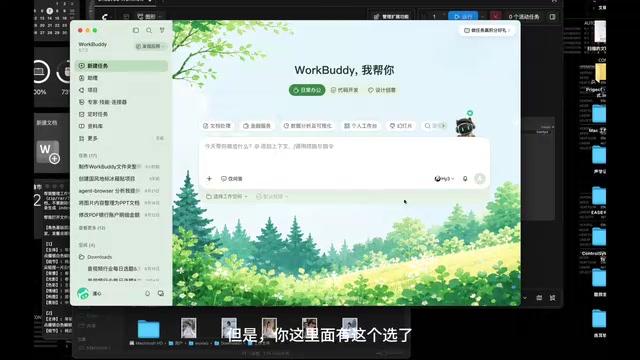
Here's a simple way to think about the rules:
- Using a zero-credit free model and only chatting (not executing any actions) does not consume credits;
- If you select a paid model for chat, credits are consumed even for conversation alone;
- Even with a free model, credits are consumed as soon as you execute a command (i.e., actually do something).
In short, the rough rule is "chat is free, actions cost credits" — but the specifics depend on which model you've selected. The creator recommends that daily free credits are more than sufficient for regular use and that paying for a membership isn't necessary. The key is remembering how modes and models interact.
In Practice: How to Issue an Organization Command
To have WorkBuddy organize a folder, there are two ways to specify the target:
- Tell it the folder path directly, then attach your organization instruction;
- Use the "Select Workspace" feature, open the target workspace, then issue your command.
In the demo, the creator opened a workspace and sent the instruction "Help me organize the files in the workspace folder." If you prefer the path-based approach, simply replace the workspace reference with your specific folder path and proceed.
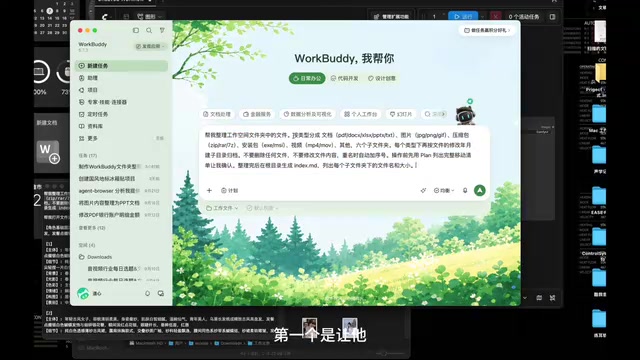
A good organization instruction typically includes three elements:
- Operational requirements: the rules you want it to follow;
- Specific instructions: a clear statement of what to do;
- Classification logic: what folder structure to create and how to sort files into it.
Execution takes a moment, and the AI may prompt you for confirmation along the way (e.g., "extended categorization with nesting"). Just make your selection and continue.
Execution Performance and Multitasking Capability
The results speak for themselves: WorkBuddy's categorization is impressively accurate. It created new folders on demand, sorted images, spreadsheets, Word documents, and PowerPoint files by type, and applied a second level of organization by the year and month each file was last modified — producing a clean, well-structured hierarchy.
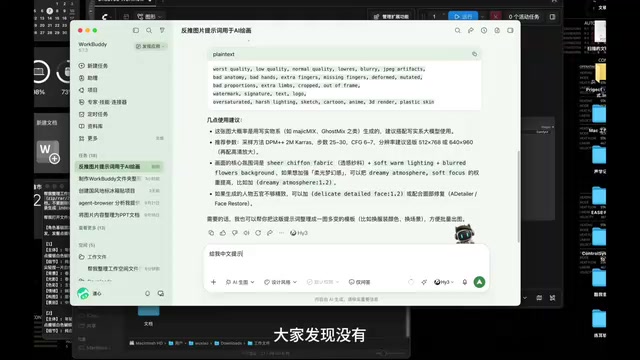
One capability worth highlighting is parallel multitasking. While organizing files, the creator launched additional tasks — writing code, building a presentation, generating a marketing poster — all running simultaneously without interfering with each other. It's also worth noting that the AI executes commands in English under the hood, even though users only need to send instructions in Chinese. This is entirely normal behavior.
One habit to develop, however: issue commands one at a time. The AI can handle multiple commands sent at once, but errors are more likely. Executing step by step is more reliable.
The reason the AI runs commands in English under the hood is that most major large language models follow instructions more reliably and consistently in English, and English prompts make up a larger share of their training data. Tools like WorkBuddy handle the translation and adaptation in the middle layer — you send instructions in Chinese, the tool converts them into English system commands, passes them to the model, and returns the results to you. This process is completely transparent to the user and requires no extra steps. That said, knowing this can be useful: if you notice folder names appearing in English, simply add "use Chinese for folder names" to your instruction to override the default behavior.
Usage Tips: Back Up First, Test First
This tool is well worth recommending, but the creator offered one important caveat — back up your files first, or test on a small folder before running it on anything important.
The reason is straightforward: automated organization physically moves your files. If the result doesn't match your expectations, a backup prevents data loss. Once you've tested an instruction and confirmed it works the way you want, you can save it as a reusable command for future use — just call it up whenever you need it, and you've truly set it and forgotten it.
Summary
WorkBuddy compresses the chore of file organization into a single sentence of instruction. Its core value lies in replacing repetitive manual work with a natural-language-driven automated workflow. Master three key points — switching between Ask and Plan modes, understanding the credit consumption rules, and backing up before testing — and you'll use it both cost-effectively and safely. For office workers who deal with large volumes of files every day, AI automation tools like this can deliver a substantial boost in efficiency.
Related articles

JobRunner MCP Server: AI Agents Can Now Fix Failed Java Jobs
JobRunner launches an open-source MCP server enabling AI agents to view cluster status, diagnose failures, and recover Java jobs—incident response from any cloud coding environment or existing agent.

MLAI Digital Launches 9 Security Agents: MCP Server Safeguards the Full Lifecycle of Agentic AI
MLAI Digital launches Security MCP Server with nine built-in specialized security agents covering vulnerability discovery, attack simulation, prompt injection detection, API and infrastructure assessment, and accelerated remediation—embedding security validation across the full Agentic AI lifecycle from development to production.

Running Isaac Lab on H100 GPUs: Exploring Better Approaches
Exploring optimization methods for running Isaac Lab on NVIDIA H100 GPUs, including MIG configuration, mixed precision, TensorRT acceleration, and community experience to improve robotics simulation and reinforcement learning efficiency.