WorkBuddy Setup Guide: A Complete Configuration Walkthrough for Beginners

A step-by-step WorkBuddy setup guide covering installation, privacy, tone, and memory configuration.
This article walks through the essential configuration steps for WorkBuddy, a Chinese AI agent tool. It covers redirecting the installation and workspace paths away from the C drive, disabling the default data-sharing option for privacy, and personalizing the AI's behavior through tone settings, custom instructions, and conversation memory — turning a generic tool into a tailored AI workstation.
As a domestically developed AI agent tool, WorkBuddy has virtually no barrier to installation — but getting it to work the way you want requires some upfront configuration. Bilibili creator Pange breaks down the full setup process in his training course, covering everything from downloading the software to personalizing your experience. This article summarizes that tutorial to help first-time users avoid common pitfalls around storage, privacy, and workflow preferences.
Installation: Don't Install to Your C Drive
WorkBuddyAd supports all major platforms. On the official download page, hovering over the download button reveals the available versions — covering Windows, Mac, HarmonyOS, Android, and iOS. Simply choose the version that matches your operating system.
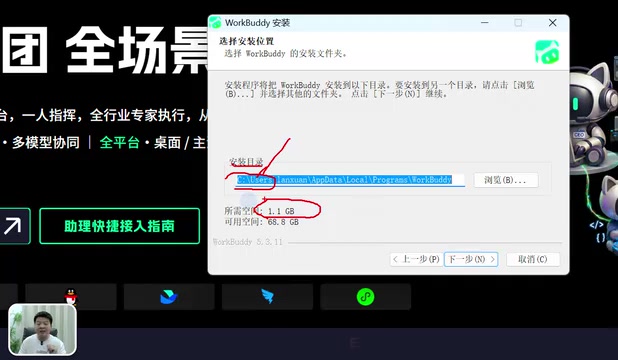
The installation itself is straightforward: double-click the installer and click "Next" through the prompts. However, there's one detail worth calling out: the default installation directory is on the C drive. Since WorkBuddy takes up a fair amount of space, and the C drive is typically your system drive with limited headroom, leaving it there can slow down your computer over time.
Pange recommends changing the installation directory to a different partition during setup. To do this, click "Browse" on the installation screen and select or create a dedicated folder on another drive (for example, a Tool folder on your D or F drive). It's a small habit, but it goes a long way toward preventing system sluggishness down the road.
After installation, you'll be prompted to log in the first time you open the app. Follow the on-screen instructions to sign in — your account information will appear in the bottom-left corner, and first-time users can also claim bonus credits. The tutorial notes that the built-in Hunyuan HY3 model is currently free to use, making it a great low-cost entry point for new users.
System Settings: Storage Path and Privacy
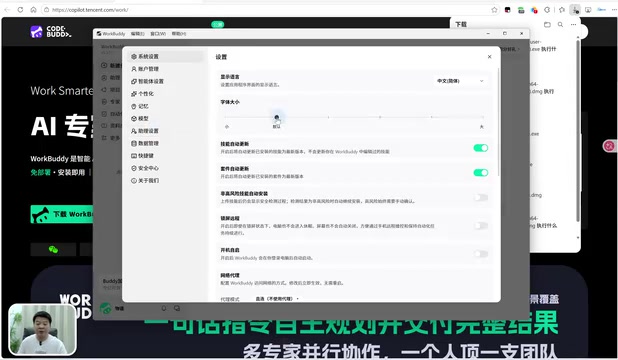
After logging in, go to the "Settings" menu under your account. There are two key configurations to address here.
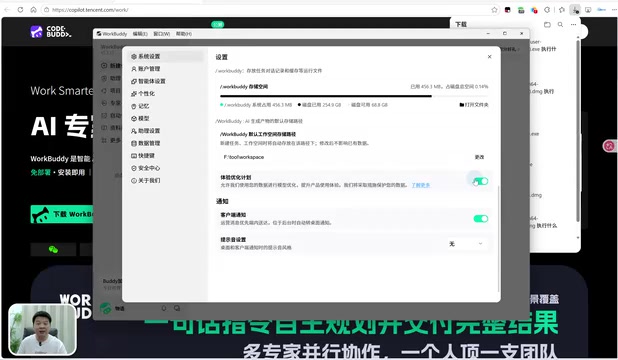
The first is the default workspace storage path. Files, videos, images, and other outputs generated during tasks are all saved to this directory. If it defaults to the C drive, your system partition will gradually fill up as your workload grows, eventually causing slowdowns. It's worth changing this to a dedicated folder on a non-system drive — the tutorial demonstrates using a WorkBase folder on the F drive. Changing the path won't affect any existing data, so there's no risk in making the switch.
The second setting is the Experience Optimization Program. This option may be enabled by default, and it means "allow your data to be used for model optimization" — in other words, your usage data will be sent to the developers for model training if this is checked. For privacy reasons, Pange recommends turning it off.
You can also adjust the font size in Settings using a slider. If the default text is too small to read comfortably, feel free to increase it — though there's no need to go overboard.
Personalization: Getting the AI to Cut the Fluff
The settings that will have the biggest impact on your day-to-day experience are found under "Personalization."
Tone and Style: No More Sycophantic Replies
Large language models have an inherent tendency toward flattery — responses often get padded with pleasantries and filler that carry no real information, all of which consumes tokens. WorkBuddy lets you adjust the basic tone and style in its personalization settings.
Pange doesn't recommend the default or verbose styles. Instead, he suggests choosing between "Blunt" and "Efficient & Pragmatic" — prioritizing maximum information density with minimal words. If you want even leaner output, "concise, no fluff, straight to the point" is also an option.
Custom Instructions: Setting Ground Rules for the AI
Over extended use, AI tools can "drift" — gradually producing responses that stray from your expected norms. Custom instructions let you define behavioral guidelines upfront.
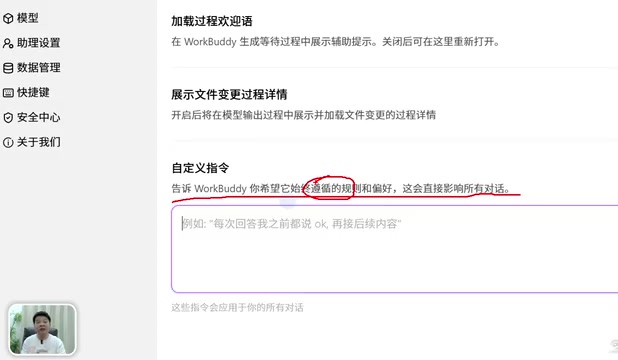
The example custom instructions in the tutorial cover two areas: response style (keep it concise, avoid openers like "Great question!" or "I'd be happy to help," and skip formulaic sentence structures like "It's not A, but rather B") and task execution rules (which you can customize to fit your own workflow). Once configured, these instructions can be reused by simply swapping in new content.
Memory: An AI That Gets to Know You Over Time
By default, AI tools have no memory — every conversation starts from scratch. Enabling "Generate Conversation Memory" in the Memory settings allows WorkBuddy to automatically extract and store key context from your interactions. Over time, it builds a better understanding of your preferences and habits, making conversations progressively smoother.
What is a token? Tokens are the basic unit large language models use to process text. Roughly 1–2 Chinese characters map to one token, while in English, about 4 characters equal one token. Most AI services charge or impose limits based on token usage, which means every piece of filler in a response — every "Great question! I'd be happy to help you with that..." — is consuming your quota without delivering any value. An opener like that alone can burn ten or more tokens while conveying zero useful information. Adjusting tone and adding custom instructions to constrain the AI's output style not only makes conversations more efficient, but can also meaningfully reduce token consumption in high-frequency use cases.
Why does memory matter? Large language models are inherently "stateless" — each conversation begins with no knowledge of previous ones. This is because the model's context window is finite; anything beyond that limit gets truncated and forgotten. WorkBuddy's conversation memory feature works around this by extracting key information after each session, storing it in a structured format, and injecting a summary at the start of the next conversation — simulating the effect of long-term memory. This means the AI can remember your professional background, preferred terminology, formatting preferences, and other personal details, so you don't have to re-explain yourself every time you start a new chat. It significantly cuts down on repetitive back-and-forth.
Configuration Checklist
Once you've completed this baseline setup, you'll notice a meaningful improvement in how WorkBuddy feels to use. The key points can be summarized in three steps:
- System Settings: Change the default workspace storage path away from the C drive; disable the Experience Optimization Program to protect your data privacy.
- Personalization: Set the tone to "Efficient & Pragmatic" or "Blunt"; use custom instructions to constrain how the AI responds.
- Memory: Enable conversation memory so the AI gradually learns your preferences over time.
None of these steps are technically demanding, but they're the essential groundwork for turning a general-purpose tool into one that actually fits the way you work. For users who plan to go deeper with WorkBuddy and build automated workflows, getting this foundation right is especially important.
Related articles

Python 3.15 New Feature: Is the sentinel Type Better Than None?
Python 3.15 adds the sentinel type, using named unique sentinel objects to replace None and bare object(), resolving confusion among missing values, explicit emptiness, and invalid input while avoiding type hint failures.

Deep Learning's Three Architectures and the Universal Approximation Theorem: A Complete Guide to MLPs, CNNs, and Transformers
Explaining the inductive bias differences among MLP, CNN, and Transformer, the existence meaning of the Universal Approximation Theorem (UAT), and the role of Taylor expansion in approximation analysis, while clearing up common misconceptions.

GitLab Emergency Patch Release: Analysis of Critical Security Fixes
GitLab releases critical patch 19.5.1, sparking 355 points of discussion on Hacker News. This article analyzes the background, upgrade steps for self-hosted instances, and verification points to help DevOps teams respond quickly to security updates.