Zero-Cost VibeCoding: Complete Guide to Connecting Local Ollama Models to Codex

Run Qwen3/Gemma locally with Ollama and connect to Codex via CC Switch for zero-token AI coding.
Learn how to set up a zero-cost AI coding environment using Ollama to run quantized open-source models like Qwen3 and Gemma locally, then connect them to Codex via CC Switch. Works on consumer GPUs with as little as 6GB VRAM. Use local models for simple tasks and save cloud tokens for complex ones.
Why Connect Local Models to Codex
Many developers have hit the same wall when using Codex: token consumption skyrockets, and costs stay stubbornly high. For basic small projects, calling full cloud-hosted models (like GPT or Claude Opus) every single time is just terrible value.
As shared by Bilibili creator "AI小王子," a more pragmatic approach is: use local open-source models for routine tasks. Experimenting with local AI coding, tweaking simple pages, generating small utilities — for these kinds of scenarios, open-source models are more than capable. The core advantage? Calling a local model only costs electricity, not a single token.
For developers doing day-to-day testing, quickly validating ideas, or handling low-complexity tasks, this setup can dramatically cut costs.
Clearing Up the Misconception: What Hardware Do You Actually Need?
When people hear "local LLM deployment," their first thought is usually: "Don't you need an RTX 5090, 80GB of VRAM, or some enterprise-grade GPU?"
The answer is: absolutely not.
The creator uses his own laptop as proof — equipped with only an RTX 4050 and 6GB of VRAM, it runs Qwen3 smoothly. There's an important distinction to make here: local open-source models are not the "full" versions. The true full-parameter versions of open-source models are indeed too large for consumer-grade GPUs. What we actually run are quantized versions of a manageable size.
Background on Quantization: Quantization is the process of compressing model weights from high-precision floating-point numbers (like FP32 or FP16) down to low-precision integers (like INT8 or INT4). A 70B-parameter model at FP16 precision requires roughly 140GB of VRAM; quantized to 4-bit, that drops to around 40GB. A smaller 7B model can run on just 6GB of VRAM after quantization. Common quantization formats include GGUF (the dominant format in the llama.cpp ecosystem) and GPTQ — Ollama uses GGUF by default. The trade-off is a slight loss in precision, but in practice, 4-bit quantized models perform nearly indistinguishably from the originals on most everyday tasks, making it an excellent engineering trade-off.

The creator also honestly acknowledges that local open-source models do fall behind full cloud-hosted models (like GPT or Claude Opus) in quality — there's a reason those services cost money. So local models are best positioned as supplementary tools for testing and basic tasks, not a full replacement for cloud-based solutions.
Popular Open-Source Model Options
The most commonly used open or open-weight models include:
- Qwen3 (top recommendation)
- Google Gemma (top recommendation)
- DeepSeekAd
- Mistral
- Llama
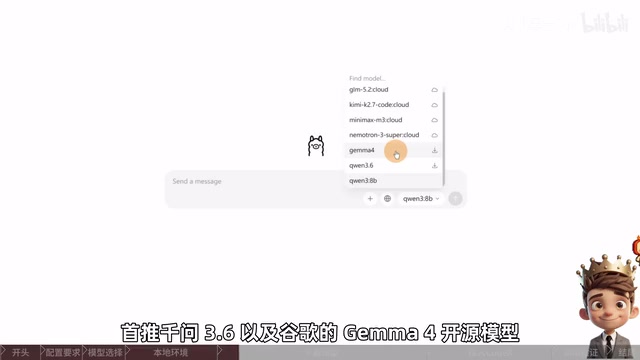
The creator personally recommends Qwen3 and Gemma because both rank at the top across code generation, logical reasoning, Chinese language understanding, and model governance.
Model Background: Qwen3 is a series of open-weight models from Alibaba Cloud's Tongyi Lab, ranging from 0.6B to 235B parameters. It supports a hybrid reasoning mode (switching between fast responses and deep thinking) and excels at code generation, Chinese comprehension, and multilingual tasks — with a license that permits commercial use. Gemma is Google DeepMind's lightweight open model series, distilled from the same technology behind Gemini. The latest Gemma 3 supports multimodal input and consistently ranks in the top tier on benchmarks at equivalent parameter scales. Both use developer-friendly open licenses, which is a key reason for the top recommendation — not just strong performance, but a solid compliance foundation for commercial use.
Users can choose based on their hardware specs and actual needs.
Step 1: Install Ollama
Think of Ollama as a runtime framework for local models. Normally, when we use large language models, we call cloud-based services via a browser or API. Ollama's role is to let you download, manage, and run these models directly on your own machine.
Ollama Architecture: Under the hood, Ollama uses llama.cpp as its inference engine — a highly optimized C++ framework that leverages hybrid CPU/GPU compute. On top of that, Ollama adds a model management layer (downloads, versioning) and an HTTP service layer, exposing a REST API compatible with the OpenAI specification (i.e., the
/v1endpoint). The value of this design: any client that supports the OpenAI API format — including Codex, Cursor, Continue, and other mainstream AI coding tools — can connect to local models with zero code changes, simply by swapping the Base URL and API Key.
Here's what to do:
- Go to the Ollama official website and click "Download" in the top left
- Select the version for your OS: Windows for Windows, macOS for macOS
- Download and install
Once installed, Ollama sets up the local runtime environment. All subsequent model downloads and calls go through it.
Step 2: Download and Run a Local Model
Open Ollama and go to the main interface to start downloading models. In the 4B to 40B range that consumer GPUs can handle, Qwen3 and Gemma are the top picks.
Let Ollama Auto-Recommend the Right Version
Not sure which version your machine can handle? It's simple:
- Select Qwen3 or another target model from the model list
- Type anything in the chat box (e.g., "hello") and hit enter
- Ollama will automatically recommend and download the appropriate model version based on your local hardware
Important: Make sure to turn off any VPN or proxy during this step, or the download may fail.
Manually Selecting a Specific Version
If you prefer to choose manually, browse the different parameter sizes and file sizes on the model page. For first-timers, start with a smaller version to get the whole workflow running before experimenting with larger models.
To manually download:
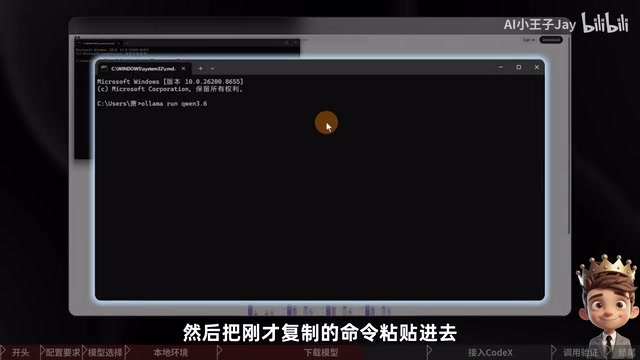
- Go to the version page, copy the CLI command
- Press
Win + R, typecmd, and hit enter to open the command prompt - Paste the command and press enter — the model will start downloading automatically
Mac users: Some model versions have an "MLX" suffix — Mac users should prioritize these, as they're optimized for Apple Silicon and run significantly more efficiently.
MLX Background: MLX is an open-source machine learning framework released by Apple in late 2023, designed specifically for Apple Silicon (M-series chips). Its core advantage lies in Apple's Unified Memory Architecture — the CPU and GPU on M-series chips share the same memory pool, eliminating the data copy overhead between CPU and GPU in traditional architectures. An M2 Max with 96GB of unified memory can theoretically run 70B-class quantized models. Model versions with the "MLX" suffix have undergone specific format conversion and operator optimization, and typically run 2–3x faster than the generic GGUF versions on Apple Silicon — this isn't just a compatibility suggestion, it's a meaningful performance gain.
Once the download is complete, go back to Ollama, select the model you just downloaded, and send "hello" as a test. If you get a normal reply, your local model is up and running — the base environment is ready.
Step 3: Connect to Codex via CC Switch
This step centers on configuring CC Switch (covered in a previous lesson — if you haven't installed it, go back and do that first). The process is similar to connecting a third-party API.
Create a New Provider Configuration
- Click the icon, then click "+" to create a new provider configuration
- Provider Name: Enter
OLLAMA - Website URL: Can be left blank
- API Key: Since Ollama is a local service, no real key is needed — just enter a placeholder (e.g.,
OLLAMA)
Key Step: Enter the Local Endpoint Address
The most important part is entering the API request address, which must match the local Ollama interface:
http://127.0.0.1:11434/v1

Breaking down the address:
127.0.0.1: The localhost loopback address, ensuring requests never leave your machine11434: Ollama's default listening port — the service is only accessible locally, providing basic network isolation security/v1: The OpenAI-compatible API endpoint — this is Ollama's OpenAI compatibility layer, allowing any tool that supports the OpenAI API to connect to local models with zero modifications
Once filled in, click "Fetch Models." If Ollama is running and the model has finished downloading, it will show the model version you just downloaded. Select the model and click Save.
Enable and Verify the Configuration
After saving, return to the model selection screen, enable the local model, and restart Codex. After restarting, a "Custom" option will appear in the model selector at the bottom right of the chat box. Type / to browse the model list — you'll see the Qwen3 model and its version.
At this point, Codex can call your local Ollama model through CC Switch. Switch to the local model anytime for daily testing or basic coding tasks — zero token consumption.
Summary: When to Use Local Models and the Optimal Strategy
If you have enough local storage space, deploying a local model as a supplementary tool for everyday development is highly recommended. It maintains solid usability while saving you a significant amount in token costs.
For developers aiming for "zero-cost VibeCoding," the Ollama + CC Switch + Codex combination offers a low-barrier, easy-to-set-up, cost-controlled path to local AI-assisted coding. The technical logic is clean: Ollama handles model inference and local API service; CC Switch acts as the routing layer managing multiple provider configurations; Codex calls local compute through a standardized OpenAI-compatible interface — each component has a clear role, and the stack is highly extensible.
That said, for complex logic or high-quality code generation, full cloud-hosted models remain the safer bet. The real optimal strategy is intelligently combining local and cloud models — simple tasks go local, complex tasks go to the cloud.
Key Takeaways
Related articles

AI Comic Drama with WorkBuddy from Scratch: A Step-by-Step Skill Pack Installation Guide
Learn how to create AI comic dramas with WorkBuddy from scratch. This guide covers installation, Skill pack import and invocation, plus a script generation demo with manual revision tips to get you through the first step from script to storyboard.

WorkBuddy Agent Runs the Entire GEO Database Mining Pipeline with a Single Prompt
WorkBuddy agent automates GEO database mining: from data search and curation to batch correction, differential analysis, co-expression networks, feature gene screening, and immune infiltration—a single prompt generates a complete bioinformatics report, greatly lowering the barrier to bioinformatics analysis.

PC Memory Wasted? Hacker News Debates Centralized Data Centers
Hacker News users argue that personal computer memory is wasted and should be centralized in data centers, sparking debate on centralized vs. distributed computing resource allocation. This article analyzes the logic behind the claim, the costs of centralization, and new tensions in memory resource allocation in the AI era.