26.5KB Tool Lets Local AI Models Be Shared Between Phone and PC

A 26.5KB tool turns your local model into a LAN-shared API, enabling cross-device calls in three minutes.
This article introduces a 26.5KB LAN sharing tool that solves the pain point of local large models being usable only on a single machine. It starts a gateway on the host machine and exposes the local model as an OpenAI-compatible API endpoint for phones and other computers on the same WiFi, without modifying the original model configuration. The tool handles auto-discovery, unified port allocation, auto-generated API keys, and request queuing. Setup takes about three minutes, and the author recommends using it only within the LAN.
Anyone who runs a local large language model has run into an awkward situation: the model only works on their own computer, and switching to another device means setting everything up again. A Bilibili creator has released a LAN sharing tool that is only 26.5KB, billed as "one-click launch, no gimmicks, works with all models," letting phones and computers on the same WiFi directly call a model running on the host machine. That's small enough to stash on any cloud drive or USB stick—so how does a 26.5KB script solve the problem of cross-device access?
From "Standalone Island" to "LAN Sharing"
Previously, when setting up a large model environment with LlamaCPP, the model was tightly bound to the machine running it, and you couldn't access it from another device. The approach behind this creator's sharing tool isn't complicated: start a gateway on the host machine, expose the local model as an OpenAI-compatible API endpoint, and let other devices on the LAN call it through that endpoint.
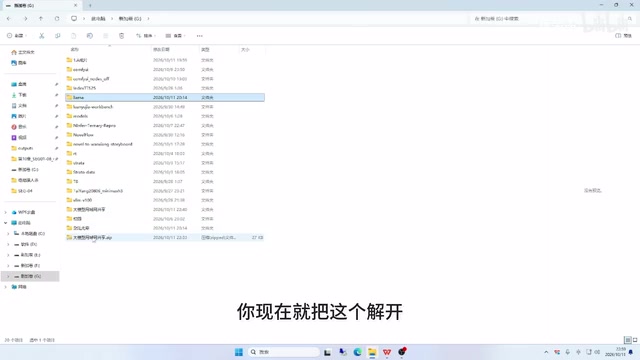
According to the creator's demo, the toolkit is only 26.5KB. Unzip it and place it on any drive letter, and it runs—no OS restrictions, no model restrictions. Whether you're using Llama, Ollama, Strata, or the LM series, as long as the model is already running on the host machine, the sharing tool will detect it automatically. This means users don't need to modify their existing model configuration or redeploy anything.
What Is This Tool Actually Doing Under the Hood?
Don't let the small size fool you—its automation logic is surprisingly complete. According to the creator, the script automatically handles four things in the background, plus unified management of one external port:
Auto-Discovery of Local Models
The tool scans the host machine's listening ports and automatically identifies whether the running model service is Ollama or LlamaCPP. Even if you're running the model on a custom port, it can still detect it. For users who frequently tweak their configuration, this saves a lot of hassle.
Only One External Port Is Exposed
All LAN devices access the model through a single unified port (starting at 18202 by default). The actual port your model runs on is never directly exposed to other devices on the LAN. If there's a port conflict, the tool automatically searches for the next available port, so even installing two versions on the same computer won't cause conflicts.
Auto-Generated API Key
Without key protection, anyone on the same subnet could use your host machine's model for free. Each time the tool starts, it automatically generates a 35-character key, and other devices must enter the correct key to make calls. The creator emphasized in the demo: "This key is absolutely required—without it, others can use your model for free."
API keys play the role of a "door access card" here: the client request header must carry the correct key, and only then will the gateway forward the request to the backend model. What it solves isn't encryption but identity verification and freeloading prevention—any device on the LAN that knows the address can send a request, and without a key, it's effectively open to everyone on the subnet for free. Therefore, keys should be randomly generated, avoid weak passwords, and the longer the better to resist brute-force attacks. Note that over plaintext HTTP, the key itself can be sniffed on the same subnet, so this kind of key is more suited to "preventing misuse" than "preventing attacks," which aligns with the article's advice not to expose it to the internet.
Automatic Queuing
Local models have limited concurrency. When multiple requests arrive simultaneously, the tool queues them instead of throwing errors. The creator demonstrated the queuing effect in a non-parallel scenario—"once number one finishes, it's the next one's turn."
Concurrency refers to the number of requests a model needs to handle at the same time. Local large models are limited by VRAM and compute, and typically can only generate one sequence at a time. If multiple requests flood in at once, at best they compete for resources and slow everything down, and at worst they trigger a VRAM overflow error. The queuing mechanism converts concurrent requests into a first-come, first-served serial queue, feeding them to the model one at a time—the previous one finishes before the next is released. The cost is higher latency for requests further back in the queue, but what you get in return is stable availability without dropped requests. For low-concurrency scenarios like a LAN (usually only one or two people using it at once), queuing is more worthwhile than forcing concurrency.
Auto-Detection of Route Address
The tool automatically detects the host machine's routing information and fills in the endpoint address. Users only need to manually enter the key and any model name to complete configuration.
An OpenAI-compatible API endpoint is a convention for exposing services in the format of OpenAI's chat completion API (such as /v1/chat/completions). Its value lies in decoupling: as long as the client sends requests in this format, it doesn't matter whether the backend is running Ollama, LlamaCPP, or some other inference framework. Common third-party clients, browser extensions, and mobile apps mostly natively support entering an "OpenAI endpoint URL + API Key," so once the gateway wraps the local model in this format, there's no need to develop a dedicated client for sharing—you can simply reuse the existing ecosystem. The tool in this article "exposes the local model as an OpenAI-compatible API endpoint," leveraging this universal language to make cross-device calls plug-and-play.
Step-by-Step: Done in Three Minutes
The creator compressed the entire process into under three minutes, provided three conditions are met: a computer already running a local large model (Python 3.7 or newer), and a phone or another computer on the same WiFi.
The operation breaks down into four steps:
- Start the local model—first get your local large model running the way you normally do;
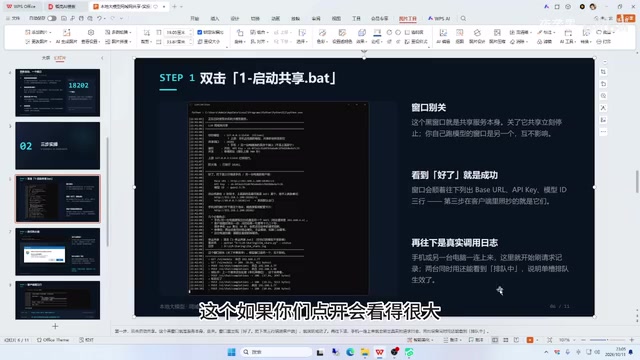
- Run the sharing tool as administrator—right-click and select "Run as administrator," then click "Allow through firewall" to let the tool automatically add firewall rules;
- Click "Start Sharing"—the tool will automatically search for the local model port, detect the route address, and generate the key and sharing port;
- Enter the endpoint address and key on the client—on your phone or another computer, enter the endpoint address generated by the tool, the 35-character key, and any model name, then click test connection.
Once connected, the interface will show request records from other device IPs at the bottom, proving that cross-device calls are working.
Can't Connect? 90% of Problems Come Down to These Three Things
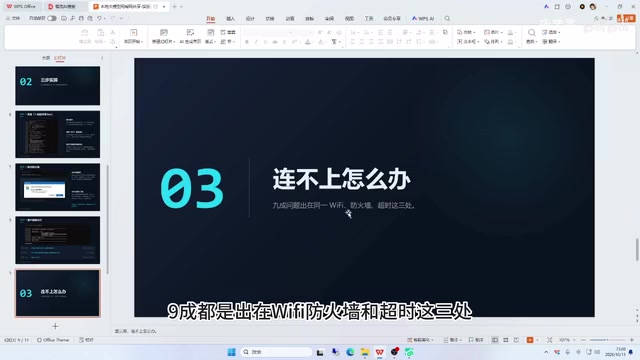
The creator repeatedly emphasized in the video that if the connection fails, 90% of the problems come down to three areas: whether the WiFi is on the same subnet, whether firewall rules allow it, and whether the request times out. Troubleshoot these three directions one by one, and the vast majority of problems can be resolved on your own.
The firewall is the most easily overlooked part. Windows blocks all incoming external requests by default, even from a phone on the same WiFi, and the symptom is the client just spinning. The tool provides a one-click firewall allowance feature, but it requires administrator permission to confirm.
The creator specifically reminded: "You absolutely must click to allow through the firewall—why? Because by default it blocks all incoming connections from outside."
A firewall is the network access control layer built into the operating system, and its default policy is usually "allow the local machine to initiate outbound connections, block incoming connections from outside." The sharing tool listens on a port on the host machine waiting for LAN devices to connect, which falls precisely under blocked inbound traffic, so the phone will appear to spin until it times out. Allowing it essentially means registering an inbound allow rule for that program or port in the firewall, and modifying firewall rules requires administrator privileges—which is exactly why the article says to "run as administrator." Also pay attention to the network profile type: if the WiFi is recognized by the system as a "Public network," its default rules are stricter than those for a "Private network," and you may need to adjust that as well.
Usage Tips and Caveats
The creator added a security reminder at the end of the video: it's not recommended to expose your gateway address to the internet. Although the tool itself has key protection, "the internet has everything," so it's best to just use it quietly within your LAN. Considering that the tool regenerates the key every time it starts, security is basically sufficient for LAN scenarios.
Another detail worth noting: once the window running the sharing tool is closed, sharing stops immediately. The creator recommends minimizing the window rather than closing it directly.
From a product design perspective, this tool solves a small but very practical pain point—cross-device access to local large models. It doesn't aim for a huge feature set; instead, it thoroughly nails "auto-discovery, auto-configuration, auto-encryption, and auto-queuing," trading an extremely small footprint for an extremely low configuration barrier. For users who don't want to fiddle with network settings but want to seamlessly use a local model between their phone and computer, it's a solution worth trying. The creator said they will upload the PPT and usage instructions afterward for those who need them.
One-line Summary
A 26.5KB tool turns your local model into a LAN-shared API, enabling cross-device calls in three minutes.
Paragraph Summary
This article introduces a LAN sharing tool that is only 26.5KB, designed to solve the pain point of local large models being usable only on a single machine and inaccessible from other devices. Its approach is to start a gateway on the host machine and expose the local model as an OpenAI-compatible API endpoint for phones and other computers on the same WiFi to call, without modifying the original model configuration. The tool automatically handles four tasks: scanning ports to identify model services like Ollama or LlamaCPP, assigning a unified external port with automatic conflict avoidance, generating a 35-character API key on each startup to prevent free use by others, and automatically queuing concurrent requests. Configuration takes about three minutes, with the core steps being: start the model, run the tool as administrator and allow it through the firewall, click to start sharing, and enter the address and key on the client. The author emphasizes that 90% of connection failures stem from being on different subnets, the firewall not allowing the connection, and timeouts, and recommends using it only within the LAN rather than exposing the gateway to the internet.
Related articles

Amphibious Transforming Drone: Beyond 100x Power Savings, What Are the Real Needs?
Is the amphibious transforming drone just a gimmick? Starting from the 100x power difference of the M4 Morphobot, explore real application scenarios and thesis topic ideas, analyzing boundary conditions where pure drones and pure ground robots both fail.

Warhound Raises $200 Million: Genetically Engineered "War Dogs" Paired with Anduril Gear
Warhound raises $200M, backed by Ben Lamm and Palmer Luckey, to genetically engineer dogs for military and law enforcement use and equip them with Anduril gear. This article analyzes its technology direction, funding logic, and ethical controversy.

Claude API Comes to Google Cloud: IAM Integration and SDK Access Guide
Anthropic hosts the full Claude API on Google Cloud with IAM-controlled permissions and unified billing. This guide covers the Vertex AI and Anthropic-hosted entry points, IAM role configuration, and SDK access.