Akiba SD Agent Edition: Running AI Video Short Dramas Locally on a GTX 2060
Akiba SD bundle lets a GTX 2060 extract and run, building a local AI video environment in three steps.
The article introduces the Akiba Stable Diffusion Agent Edition bundle shared by a Bilibili creator, which simplifies local AI video deployment into an extract-and-run process. Core steps: run the lightweight automatic main program installer, extract the model archive and copy it per the guide into the Models subfolder in the software root directory, and use pure English paths throughout to avoid read failures and crashes. After launch the software auto-detects the GPU and matches rendering parameters, and the built-in model management module allows adding, deleting, and updating models directly. Only basic models are pre-installed by default; specialty styles need manual import. Competition in local deployment has shifted from "can it run" to "is it easy to install," and freedom from credits is a cost advantage for bulk producers.
A Ready-to-Use Local AI Video Solution
The barrier to deploying AI video models locally is dropping fast. The Akiba Stable Diffusion Agent Edition shared by a Bilibili creator compresses what used to take hours of environment configuration into a "extract and run" process—it runs on a minimum GTX 2060 GPU, has a fully Chinese interface, and ships with 488 workflows and a director's console feature.
According to the creator's demo, importing novel text produces AI video with visuals and narration in sync, and the characters are detailed enough to approach live-action footage. The entire bundle is already organized; before installing, it's recommended to run a integrity check on the archive to confirm there were no interrupted downloads or missing files.
The Akiba Bundle and the Stable Diffusion Ecosystem
"Akiba" is the common name in China's AI art community for the bundle author (Bilibili creator "秋葉aaaki"), whose Stable Diffusion bundles are widely circulated in China. Its core value is solving Python runtime environments, the PyTorch framework, CUDA driver compatibility, common plugins (such as ControlNet and AnimateDiff), and dependency version conflicts all at once—tasks that would otherwise require users to troubleshoot manually for hours or even days are reduced to extracting the archive and double-clicking to launch.
It should be noted that Stable Diffusion itself is a text-to-image diffusion model and does not directly produce video. The so-called "AI video" capability in the bundle is typically implemented through extension workflows such as AnimateDiff, SVD (Stable Video Diffusion), or frame-by-frame generation followed by compositing. Therefore, the "director's console" and "488 workflows" are essentially pre-configured ComfyUI or WebUI flow graphs; users can reuse them by swapping in prompts and assets, lowering the learning cost of the pipeline.
Set Up Your Local Environment in Three Steps
Main Program: Lightweight Automatic Installation
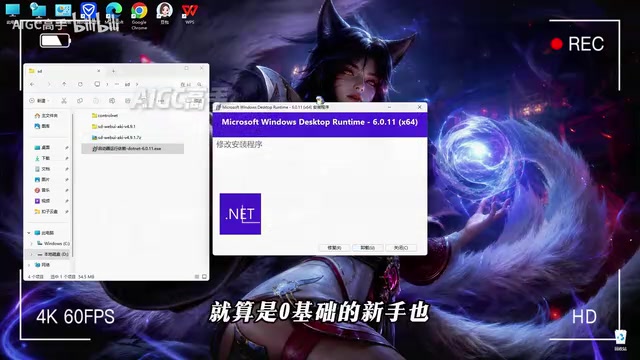
Locate the main program installer you saved earlier and right-click to install to bring up the official guide interface. This installer uses a minimal mode that runs fully automatically—no manual parameter tuning and no complex feature configuration. Complete beginners just need to wait for the progress bar to finish and click done.
Model Migration: Path Rules Are the Key
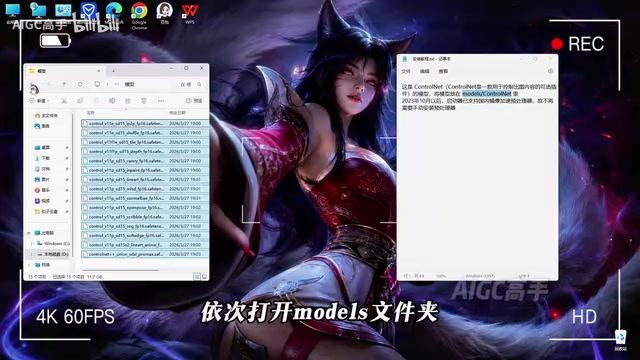
After the main program is installed, extract the model archive into the reserved storage folder, which will yield the complete model files plus a detailed operation guide. Following the guide, open the extracted model folder, press Ctrl+A to select all, Ctrl+C to copy, then go to the Models subfolder in the software's root directory (referred to in the original alongside "the Ctrl subfolder") and paste. You can skip this step if the corresponding files already exist.
Model Files and the Models Directory Structure
A "model" in the Stable Diffusion ecosystem is not a single file but multiple large weight files organized by purpose. Common ones include: base checkpoints (typically 2–7 GB, determining overall style and quality), VAE (responsible for color decoding), LoRA (style or character fine-tuning layers, tens to hundreds of MB), ControlNet (controlling composition and pose), and sampler and text encoder components.
The Models folder in the software root directory is the unified entry point for these files, usually further subdivided into subdirectories such as Stable-diffusion, Lora, VAE, and ControlNet. If a model is placed in the wrong subdirectory, the software won't recognize it in the corresponding list. This is why the original emphasizes "copy and paste following the guide"—the guide typically specifies which subfolder each model type belongs in, and pasting everything directly into the Models root directory may still require a second pass to sort things out.
Hard Rules You Must Follow
The software installation path, archive storage directory, and model storage folder must all use pure English paths—no Chinese characters, extra spaces, or special symbols. Non-compliant path formats can easily trigger a chain of problems including model read failures, rendering errors, and program crashes. This is the foundation for long-term stable operation and cannot be changed casually.
Why Pure English Paths Are Required
This isn't the author's personal preference but a legacy limitation of the underlying toolchain. Stable Diffusion depends on Python and its many C extension libraries, which generally use non-Unicode narrow-character encodings (such as GBK/ANSI on Windows) when handling file paths. When they encounter Chinese, Japanese, or special symbols, encoding conversion can fail, throwing UnicodeDecodeError or simply failing to find the file.
Spaces in paths are also problematic: some scripts don't escape spaces when concatenating command-line arguments, truncating a complete path into two segments and causing "file not found." The symptoms are often not clear errors but empty model lists, stuck loading, or silent crashes—which take considerable time to troubleshoot. Setting the installation directory to a short, pure-English path like D:\AI\SD is the least troublesome way to avoid this.
After Launch: Automatic Hardware Detection and Model Management
Once models are deployed, scroll down in the root directory, find the program icon, and double-click to launch. This tool is beginner-friendly—no manual runtime configuration and no extra dependency installation; it automatically completes environment detection and initialization at startup.
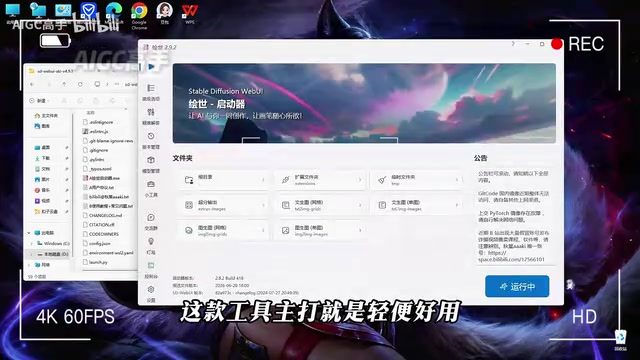
Two built-in auxiliary features are worth mentioning: intelligent hardware detection automatically reads GPU information and matches optimal rendering parameters; the integrated model management module lets you add, delete, and update models directly within the software without digging through local folders. The console updates resource loading progress in real time, and once the environment and models are fully loaded, the browser operation interface pops up automatically—installation and deployment are complete.
Few Default Models Is Normal
Many beginners open the software and find few built-in models—this is normal. Only basic general-purpose models are pre-installed by default; advanced specialty models like Chinese-style, anime, and creative styles need to be imported manually afterward. Each imported model comes with a preview image, making it easy to choose by creative style and visual needs while reducing trial and error.
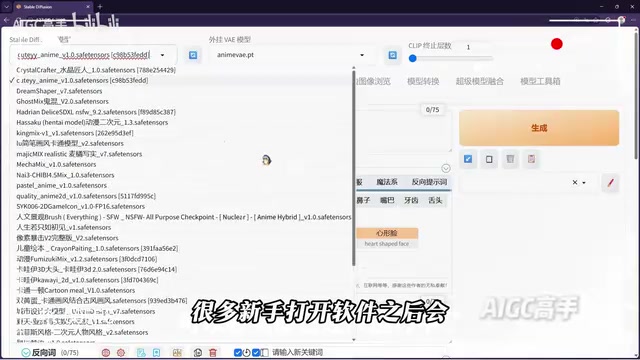
For generation, simply enter accurate visual prompts, adjust parameters, confirm, and click generate—the software automatically renders and outputs the final product. The process is simple and direct; as long as you follow the rules and avoid path issues, you can build a stable AI art environment. Once proficient, you can freely combine models, refine prompts, and produce high-quality work in batches.
The Basics of Prompts and Parameters
The original mentions "entering accurate visual prompts and adjusting parameters," and there are several key parameters worth understanding as a beginner. Positive prompts describe the elements you want (subject, style, lighting, camera angle), while negative prompts list what to exclude (such as low quality, extra fingers, watermarks). Used together, they significantly improve output stability.
Sampling steps determine the number of denoising iterations—typically 20–30 steps is sufficient; higher values yield diminishing returns and double the time. CFG Scale controls prompt constraint strength, generally around 7; too high causes oversaturated images and stiff compositions. The sampler (such as Euler a or DPM++ 2M Karras) affects convergence characteristics and image texture. Video tasks also require attention to frame count and inter-frame consistency parameters—precisely the main source of hardware load and the gap between "a 2060 can run it" and "it can run it smoothly."
A Few Judgments Worth Noting
Two trends emerge from this share. First, the competitive focus of local deployment has shifted from "can it run" to "is it easy to install"—bundles and automatic installers are absorbing the drudgery of environment configuration. Second, creative freedom is returning—no dependence on platform credits, with generation counts determined by local hardware, which is a real cost advantage for creators who need to produce AI short dramas in bulk.
At the same time, stay clear-eyed: 488 workflows is an advantage in quantity, but actual results still depend on model combinations and prompt skills; a 2060 running it doesn't mean it can run high-load video tasks smoothly, and the "optimal parameters" from hardware detection should also be validated against your own output requirements.
One-line Summary
Akiba SD bundle lets a GTX 2060 extract and run, building a local AI video environment in three steps.
Paragraph Summary
The article introduces the Akiba Stable Diffusion Agent Edition bundle shared by a Bilibili creator, which simplifies local AI video deployment into an extract-and-run process. Core steps include: running the lightweight automatic main program installer, extracting the model archive and copying it per the guide into the Models subfolder in the software root directory, and using pure English paths throughout to avoid read failures and crashes. After launch the software automatically detects the GPU and matches rendering parameters, the built-in model management module allows adding, deleting, and updating models directly, and the browser interface pops up automatically once loading completes. Only basic models are pre-installed by default; specialty models like Chinese-style and anime need manual import. The article notes that competition in local deployment has shifted from "can it run" to "is it easy to install," and that freedom from credits is a cost advantage for bulk producers—but the effect of 488 workflows still depends on model combinations and prompt skills, and the 2060's "optimal parameters" should be validated against actual needs.
Related articles

AI Can Read Neural Network Weights Directly: Do Models Already Exceed Expectations?
A Reddit developer experiment shows language models can directly read neural network weights and infer their function. Astra, Opus 5.5, and Muse Spark 1.3 all passed the test, sparking discussion on model generalization and training sources.

India's Microdrama Market Explodes: EloElo Secures $80M Investment from NBCUniversal
EloElo secures $80M from NBCUniversal to boost StoryTV, its microdrama platform with over 33M monthly active users, as India's microdrama market draws global capital.

Acoustic Detection of Multi-Rotor UAVs: Fusing Handcrafted Features with Pre-Trained Embeddings
Study reveals data leakage from random splits in UAV acoustic detection, proposes source-disjoint protocol with stacked ensemble of handcrafted features and YAMNet embeddings, achieving 95.29% accuracy for low-cost drone detection.