Android CLI Major Update: AI Agent Now Auto-Compares Figma Designs Against UI Implementation

Android CLI can now render Compose Previews as images, letting AI Agents auto-verify UI against Figma without launching the app.
Android CLI's new `render Compose preview` command tackles the most time-consuming part of AI Agent-driven Android UI development. The old approach required launching an emulator and navigating to each target screen state before screenshotting—prohibitively expensive for deep screens and multi-state variants. The new command renders Compose Previews directly to image files with no running app required, enabling Agents to compare renders against Figma exports in seconds and produce detailed discrepancy reports covering copy, components, and styles. This self-verification loop moves AI Agents from "can write code" to "can accountably deliver quality UI."
Android CLI's New Command Solves the Biggest Pain Point in Agent Development
If you've been using AI Agents to build Android apps in Android Studio, you've probably hit this wall before: the Agent handles business logic and data layers just fine, but the moment it needs to replicate a UI from a Figma design, things fall apart. Getting an Agent to consistently align with design specifications is genuinely hard.
Android CLI — Google's command-line tool that provides CLI access to Android Studio features like managing emulators and reading an app's current layout structure — recently received a quietly significant update. As one overseas Android developer blogger discovered through hands-on testing, most people haven't yet realized its value. The core change: you can now export Compose Previews directly as real image files.
To use this feature, run android update in your terminal to update the CLI, then re-run android init in your repository to pull in the updated Agent skills. You'll also need the latest stable version of Android Studio (the video demonstrates Android Studio Quail).
Why the Old Approach Was Slow and Expensive
Before this update, the primary way for an Agent to verify its own UI work was screenshot testing: the Agent would launch the app using CLI emulator commands, capture a screenshot, and compare it against a Figma export.
The problem? The Agent can only screenshot a running app, which means it first has to navigate the app to exactly the state you want to test. For an entry-level screen like a registration page, that's manageable — but if the target screen is buried deep in the app behind multiple pages, form inputs, and interactions, the Agent has to find its own way there. It repeatedly prints the UI hierarchy to figure out what to tap next, simulates clicks step by step, and the whole process burns both time and tokens.
Design specs add another layer of complexity: a single screen typically has multiple state variants — a pre-filled text field, a validation error state, a disabled submit button, and so on. Each state exists as a separate frame in Figma, and the old approach required navigating the app into each corresponding state, multiplying the cost for every variant.
It's worth understanding the fundamental limitation here: the Android emulator is a full virtual device. The app must go through compilation, installation, launch, and navigation before any given screen state can be rendered. The Agent relies on the UI Automator hierarchy tree — an XML serialization of every visible component and its coordinates on the current screen — reading it repeatedly to determine the current page and what to tap next. Every read and every tap is a tool call, which means token consumption. For a screen buried five navigation levels deep behind a login gate, the Agent might need dozens of interactions just to grab a single comparison screenshot. Compose Preview sidesteps this entire pipeline — rendering happens at compile time, not runtime, with no dependency on the emulator or the app's navigation state machine.
render Compose preview: Verify UI Without Launching the App
This update introduces the render Compose preview command (visible via android studio -h). It renders any Compose Preview as a real image saved to disk — with no need to launch the app at all.

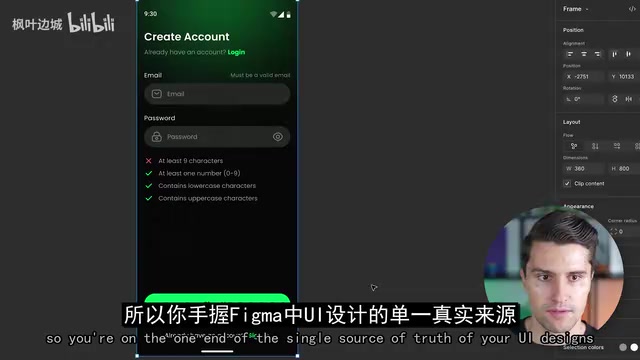
The workflow becomes dramatically simpler. The blogger's demo makes this concrete: he exported the registration screen from Figma as a PNG and placed it in the project root as the "single source of truth" for the design. He then gave the Agent a straightforward instruction — compare the splash screen Figma PNG in the project root against the Compose Preview of the register screen rendered via the Android CLI skill, and identify what the app is missing compared to Figma.
The Agent automatically calls render Compose preview to render the preview as an image, compares it against the Figma export, and outputs a list of discrepancies. That list is useful for human review, but its bigger significance is that the Agent can use it to self-verify before telling you "the UI is done."
Compose Preview (the
@Previewannotation) is a development-time feature of Jetpack Compose: developers annotate a Composable function with@Previewand construct any UI state directly in the annotation parameters — a pre-filled form, a disabled button, an input field showing an error — and Android Studio renders these previews in real time in the IDE sidebar. The key insight is that the preview state is entirely determined by code parameters, not by the app's runtime navigation path. Therender Compose previewCLI command essentially exposes this rendering capability to the command line, letting an Agent trigger renders and retrieve image files like any other tool call — converting what was previously only visible inside the IDE into a binary artifact that can be processed programmatically.
Real-World Results: Multiple Discrepancies Found in Under a Minute
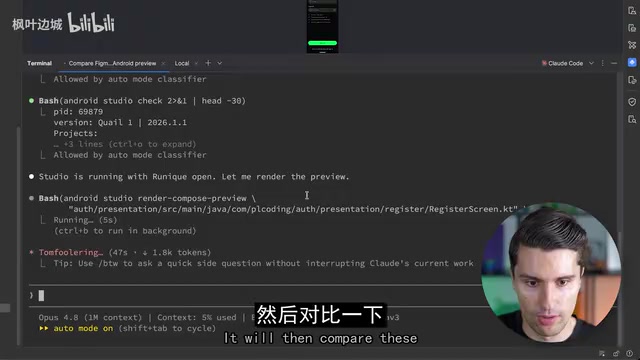
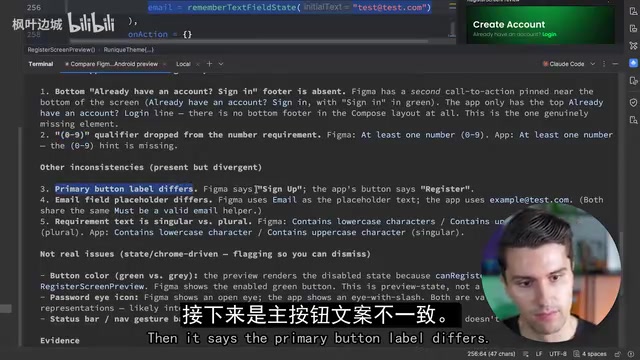
In under a minute, the Agent rendered both images and produced a detailed report, identifying discrepancies including:
- The "already have an account / sign in" link at the bottom was missing from the app entirely
- The password field's "(0-9)" numeric hint copy in Figma was absent from the app
- Button copy mismatch — Figma says "sign up," the app says "register"
- Email field placeholder differs — Figma uses "email," the app uses "example test"
- Validation hint pluralization — "contains lowercase characters" vs. "contains lowercase character"
- Differences in button color, password visibility icon state, and status bar styling
The blogger also honestly noted one thing the Agent missed: the button was aligned to the bottom of the form rather than the bottom of the screen — a layout deviation that went undetected. But on the whole, the vast majority of copy, component, and style discrepancies were accurately caught, and the Agent could act on that list autonomously without any human intervention.
Why This Is a Meaningful Leap for Agentic Development
The most immediate benefit of this update is speed and cost savings. Because preview state is defined by your Compose code, testing a variant like "email pre-filled" is as simple as adding a corresponding preview — the Agent can immediately render it and compare it against the matching Figma frame.
The savings are substantial: the Agent no longer needs to repeatedly print the UI hierarchy, infer a navigation path, and simulate a chain of taps to reach a screen buried inside the app — all just to grab one screenshot. For products with dense design specs and many state variants, this effectively compresses the verification step from "minutes + high token cost" to "seconds + low token cost."
For teams doing serious agentic development, this kind of self-verification loop is precisely what moves an AI Agent from "can write code" to "can deliver quality UI." With the design file as a single source of truth and the Compose Preview as an on-demand renderable snapshot of the implementation, automatic comparison between the two gives Agents the ability to be accountable for their own output.
Related articles

Random Pruning of the DPO Computation Graph: 1.4x Training Speedup and Lower Peak Memory
DPO training too slow and memory-hungry? This paper proposes a random pruning framework for the DPO computation graph, sampling independently across position, sequence, and branch dimensions; branch pruning achieves a 1.426x step-time speedup and cuts training time by about 30%, with in-depth attribution of memory and time gains.

Why Does JEPA Underperform MLM in Longitudinal EHR Representation Learning?
New study compares JEPA and MLM for longitudinal EHR representation learning on MIMIC-IV: three JEPA variants train stably without collapse but underperform MLM; target size, not heterogeneity, drives prediction error.

Transfer Learning + Visible Light Communication: A New Approach to Energy-Efficient Indoor Positioning
A study proposes a transfer learning-based visible light communication indoor positioning method, achieving 47% accuracy improvement on the BOSCH factory dataset, 67.5% model efficiency under high noise, and introducing the ME composite metric for energy-efficient positioning in energy-constrained industrial IoT scenarios.