Assist: Annotate Your Mac Screen with Voice and Turn the Notch into a Productivity Hub
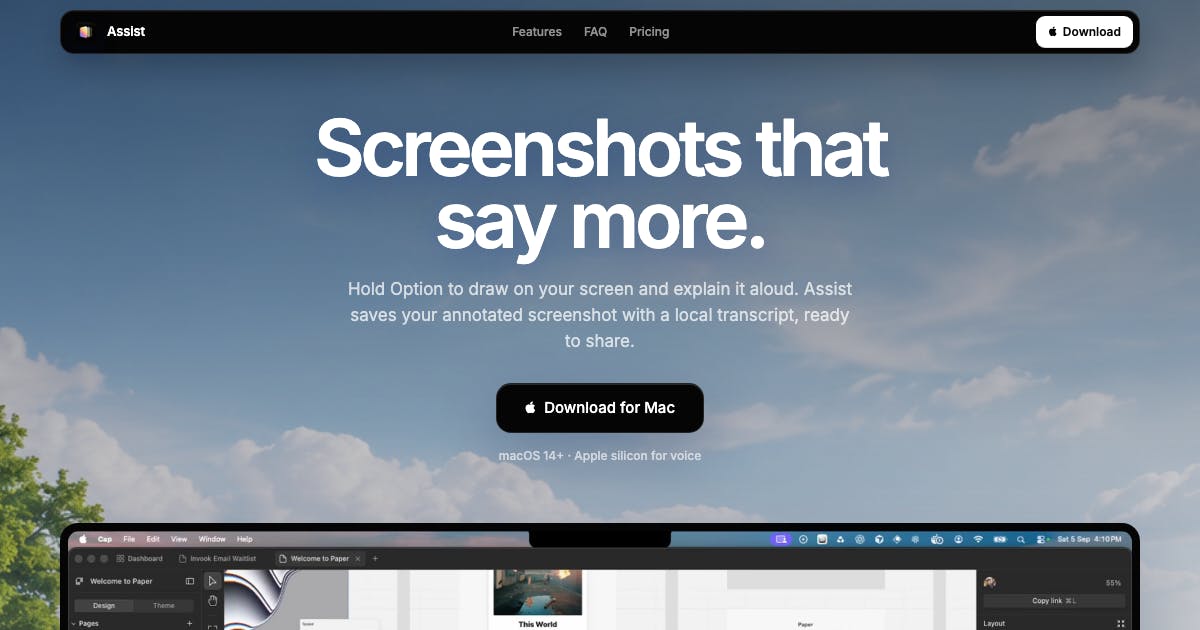
Assist turns your MacBook notch into a productivity hub with voice annotation, screenshots, and clipboard management.
Assist is a new Mac productivity app that lets users annotate their screen with voice, capture full-screen screenshots, and manage clipboard history — all from the MacBook's notch area. Ranked sixth on Product Hunt, it targets content creators, remote teams, and tech support staff by combining three high-frequency tasks into one lightweight tool that leverages previously idle screen space.
A Fresh Approach to Mac Productivity Tools
The macOS ecosystem is overflowing with efficiency tools, but most revolve around keyboard shortcuts, window management, or clipboard functionality. Assist, which recently climbed to the sixth spot on the Product Hunt daily chart, offers a refreshingly novel angle — annotating your Mac screen with voice. Built by developer Abhishek Kumar, the app earned 99 upvotes and 4 comments to land in the top tier, categorized under Mac, Productivity, and Audio.
Product Hunt Platform and Ranking Mechanism
Product Hunt is one of the world's most influential tech product discovery platforms, founded in 2013. The platform uses a community voting system to showcase the latest tech products, apps, and services daily. Products are ranked by the number of "upvotes" they receive, with the leaderboard resetting every 24 hours. Landing in the daily top ten typically requires at least several hundred votes, which is invaluable for a startup product's visibility and early user acquisition. While comment count doesn't directly affect rankings, it reflects the depth of community engagement. For developers, a Product Hunt launch has become a standard product marketing strategy.
Unlike traditional screenshot or annotation tools, Assist integrates three commonly used features into the MacBook's notch area: voice annotation, full-screen capture, and a reusable clipboard manager. This design philosophy of anchoring workflows to the notch at the top of the screen represents a noteworthy trend among Mac utility apps in recent years.
Breaking Down Assist's Core Features
Voice Screen Annotation: Efficient Markup While You Talk
Assist's most differentiating feature allows users to annotate their Mac screen using voice. In practical scenarios — whether recording tutorial demos, explaining UI operations to colleagues, or marking issues during design reviews — voice annotation significantly lowers the barrier to entry. Compared to traditional methods of drawing boxes and typing notes, voice lets creators talk while they look, maintaining a coherent train of thought.
How Voice Annotation Technology Works
Voice annotation typically relies on two core technology modules: real-time Automatic Speech Recognition (ASR) and screen coordinate mapping. On macOS, developers can call Apple's Speech framework for speech-to-text, or integrate third-party APIs like Whisper or Google Speech-to-Text. The key challenge lies in associating voice content with specific screen locations — this requires capturing mouse coordinates or user-specified regions and presenting transcribed text as overlays, markers, or timeline elements. For screen recording scenarios, audio streams must be synchronized with video frames to ensure annotations precisely correspond to the right screen position during playback. From a privacy perspective, well-implemented solutions should support local voice processing to avoid uploading recordings to the cloud.
This feature is especially valuable for content creators, remote collaboration teams, and technical support personnel — it liberates the act of "explaining" from tedious text input.
Full-Screen Capture: Record and Explain in One Step
Screenshots are among the most frequent operations for Mac users. Assist includes built-in full-screen capture that naturally pairs with voice annotation: capture first, then explain verbally — completing a seamless "record + explain" workflow. This combination transforms Assist from a mere screenshot tool into a lightweight communication and documentation hub.
Notch Clipboard Manager: Clever Use of Idle Space
The third feature is a clipboard manager, ingeniously placing its entry point in the MacBook's notch area. Text that users copy is retained and can be quickly accessed from the top of the screen for reuse at any time. Tucking clipboard history into the otherwise idle notch space avoids cluttering the main screen while keeping everything readily accessible.
The Technical Evolution of Clipboard Managers
Clipboard managers are a classic category in macOS productivity tools, with notable products including Paste, CopyClip, and Flycut. The core technology involves listening for change events on the system clipboard (NSPasteboard), storing copied content in a local database, and providing a quick-search interface. Early tools mostly used keyboard shortcuts to invoke floating windows, while recent years have seen new interaction patterns like menu bar residency, sidebar docking, and notch embedding. Technical challenges include: handling multiple data types (text, images, file paths), encrypting sensitive content (like passwords), preserving formatting during cross-application pasting, and obtaining clipboard access within macOS's sandbox mechanism. Assist's placement of the clipboard entry point in the notch essentially shifts the traditional menu bar icon downward, leveraging the visible area on both sides of the notch.
The MacBook Notch: Rediscovered Interface Real Estate
Since Apple introduced the notch design on MacBook Pro in 2021, this area has been a focal point of design controversy. Assist represents the developer community's response: instead of complaining that the notch blocks content, turn it into a functional entry point.
Technical Background of the macOS Notch Design
The MacBook Pro notch design debuted in 2021, with Apple integrating the Face ID sensor array and front-facing camera into a cutout at the top of the screen. The design sparked controversy because it obstructs content in full-screen applications, and macOS doesn't natively adapt UI elements for the notch area the way iOS does. From a technical perspective, the space on either side of the notch is actually an extension of the menu bar area, with resolutions of 3024×1964 (14-inch) or 3456×2234 (16-inch), with the notch occupying approximately 74 pixels of central width. Developers can access these areas through macOS's Safe Area API to display controls or information alongside the notch — this is the technical foundation for tools like Assist.
In recent years, several tools (such as NotchNook, MediaMate, and others) have attempted to activate the notch space for media controls, file staging, and notification display. Assist's consolidation of voice annotation, screenshots, and clipboard management within this space further validates the viability of this interaction paradigm. For users, the notch area's advantages lie in its fixed position, natural line of sight, and non-interference with regular window operations.
Target Users and Use Cases
Based on Assist's feature positioning, it primarily targets the following Mac user segments:
- Content creators and educators: Voice annotation dramatically improves efficiency when recording tutorials and creating presentations
- Remote collaboration teams: Quick screenshots with voice explanations are more intuitive than typed communication
- Technical support personnel: Annotating interface issues and guiding user operations
- Heavy clipboard users: Writers and programmers who frequently reuse text snippets
Trends in Remote Collaboration Tools
The normalization of remote work has driven collaboration tools to evolve from text-based to visual communication. The success of tools like Loom, Snagit, and CloudApp has validated the efficiency advantages of the "screen recording + voice explanation" model — compared to writing lengthy documents or holding meetings, a 5-minute annotated video can convey complex information far more intuitively. The typical tech stack for these tools includes: screen recording (AVFoundation), audio capture, real-time compression encoding (H.264/H.265), cloud storage, and share link generation. Assist differentiates itself by focusing on "lightweight annotation" rather than full screen recording, reducing both storage and sharing costs. Industry trends suggest these tools will further integrate AI capabilities in the future, such as auto-generating annotation summaries, smart keyframe cropping, and multi-language subtitle generation.
For these user groups, Assist consolidates operations that were previously scattered across multiple applications into one place, effectively reducing tool-switching costs.
Quick Assessment and Outlook
Judging from the early response on Product Hunt, Assist has identified a real pain point: Mac has long lacked a quality native voice annotation solution. Its product philosophy deserves recognition — rather than trying to do everything, it polishes three high-frequency micro-features and leverages the underutilized notch space.
Of course, as a newly launched tool, Assist still needs to prove itself in areas like speech recognition accuracy, annotation export formats, and privacy handling. Whether the voice feature supports Chinese and other languages, and whether annotations can be conveniently saved and shared, will directly impact its practical value.
Overall, Assist is a textbook example of "micro-innovation" in Mac productivity tools: it may not disrupt the industry, but it precisely solves specific problems for specific user groups. For Mac users who pursue seamless workflows, it's worth keeping an eye on and giving a try.
Key Takeaways
Related articles

AI Coding Tools Emerge as a New Attack Surface: Fake Claude Extension Steals Developer Information
A fake Claude code extension appeared in the Cursor marketplace, affecting up to 5,000 developers in 11 hours, stealing host information and implanting SSH backdoors. Learn the attack methods, self-check steps, and security defense strategies for AI coding tools.

ChatGPT Switches to Token Billing in December: Chat and Codex Share Quota — Who's Most Affected?
ChatGPT switches to Token billing in December, with chat and Codex sharing quota. Simple questions can use Instant for free; heavy Codex users are most affected.

ChatGPT and Codex Merge Usage Allowances: Who Runs Out First?
OpenAI merges ChatGPT and Codex paid allowances into one shared token pool in December. We break down the details, token metering ambiguity, OpenAI's financial motives, and how users should respond.