Build a Gmail → Google Sheets Automated CRM with n8n: A Step-by-Step Tutorial
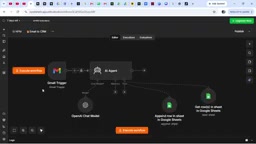
Use n8n + OpenAI to automatically parse incoming Gmail messages into structured tasks in Google Sheets.
This tutorial walks through building a no-code automation workflow in n8n: new Gmail messages trigger OpenAI (GPT-4o) to read the subject, sender, and snippet, identify any action items, and use mounted Google Sheets tools to check for duplicates before writing the task's what, who, and when into a spreadsheet. The system prompt can be generated with ChatGPT, while user messages dynamically reference each email's fields via expressions. The standout AI capability: it converts vague phrases like "by Sunday" into a specific date — demonstrating real semantic understanding rather than mechanical copying.
Why Turn Emails Into a To-Do List Automatically
For founders and business owners who receive a high volume of emails every day, missing critical messages or payment deadlines is a constant pain point. Invoices to pay, tasks to follow up on, and action items pile up — easy to get buried in your inbox until both the task and the deadline slip by.
This tutorial is based on a walkthrough shared by a YouTube automation creator. The core idea is to use the no-code automation platform n8n to build an AI agent: whenever Gmail receives a new message, a workflow is automatically triggered, OpenAI reads and understands the email content, determines whether it contains action items, and writes the extracted task information into Google Sheets — essentially a lightweight CRM or task management system.
The logic chain is straightforward: Gmail Trigger → AI Agent (OpenAI as the brain) → Google Sheets Tool. An incoming email triggers the flow, the AI reads and prioritizes it, then stores three pieces of information — "what to do, who's responsible, and when it's due" — into the spreadsheet.
Prerequisites
Before getting started, you'll need to complete two basic connections: link both your Gmail account and your Google Sheets account to n8n (the creator demonstrated how to connect Google app credentials in a previous video).
Next, create a new spreadsheet in Google Sheets — the author names it To-Do List — with three core columns: What (task description), Who (owner), and When (due date). This is the bare-minimum setup. You can absolutely expand it with more fields depending on your needs, such as extracting invoice amounts or adding work tags.
The author notes: "I only set up these three columns to show you the simplest possible approach. You can add or remove fields based on what you want your AI agent to accomplish."
Configuring the Gmail Trigger
After creating a new workflow, select Gmail's On message received event as the first trigger node. Use your already-connected credentials, set the event type to "message received," and leave the polling interval at the default of once per minute.
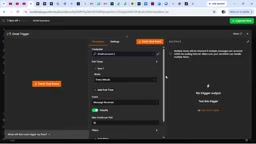
There's one key option here — the Simplify toggle. When enabled, it returns only the core fields most people need. If you need the full email body, attachments, or other fields, turn it off. Since this tutorial only handles to-do information and doesn't involve downloading attachments, keeping Simplify on is fine. However, if you want to download invoice attachments and extract amounts, you'll need to disable Simplify and add an attachment download option.
Once configured, you can fetch a recent email to test the connection. The author uses Schema (structured) view to inspect the returned data — more intuitive than raw JSON, letting you immediately see the email body, sender, subject, and more.
Configuring the AI Agent and Its Brain
Add an AI Agent node. It will automatically read the data from the preceding Gmail node as its input.
Setting the User Message (Prompt)
In the user message section, use expressions to map email fields — passing subject, from, and snippet to the AI. The author explains the core logic behind mapping: each new email has different content, but the expression (referencing things like $json.subject) dynamically pulls from the current email being processed rather than hardcoding the first email's content.
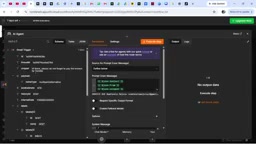
"You're telling the AI agent: every time an email comes in, here's how you should reference it. Even though it's a different email and a different execution each time, the reference point stays consistent — that's why it always accurately captures the content of whichever email it's currently processing."
Selecting the Model
For the brain (Chat Model), the author selects OpenAI and uses GPT-4o. He mentions that free credits appear because he registered his n8n account with the same email. You can also swap in Google Gemini, Anthropic, or other models.
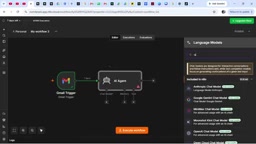
To configure OpenAI credentials, go to the API Keys page at openai.com, create a new key, copy it, and paste it into n8n. The Organization field is optional.
Writing the System Prompt
In the AI Agent's Options, add a System Message — think of it as a job description for your AI. The author's practical approach: go to ChatGPT, describe what you need — "I'm building an AI agent triggered by Gmail that reads incoming emails, identifies to-dos, and writes them into Google Sheets" — and let ChatGPT generate a well-structured system prompt. Then paste it back into n8n. You can also use expressions like {{ $now }} in the prompt to reference the current time, ensuring accurate date calculations.
The n8n AI Agent node is a special node type that combines a large language model (LLM) with external tools, allowing the AI to make autonomous decisions during execution — for example, first calling a "read" tool to check whether data already exists, then deciding whether to call a "write" tool. This "think-act" loop (the ReAct pattern) sets it apart from a standard LLM API call: a plain API call just takes text in and returns text out, whereas an Agent node can actively invoke mounted tools, process their results, and continue reasoning until the goal is complete. This is exactly why Google Sheets is mounted as a "tool" rather than a standalone node in this tutorial — only when mounted as a tool can the AI autonomously decide when to call it and which one to use at runtime.
Configuring the Google Sheets Tools
The AI agent needs two Google Sheets tools mounted to it, and the order matters:
- Get Rows: First checks whether the task already exists in the To-Do List to avoid duplicate entries. Select the To-Do List document and Sheet1.
- Append Row: Only after confirming the entry doesn't exist, appends the new task to the spreadsheet.
For the field value configuration in the Append node, the author chooses "Let the model define parameters." The reasoning: the system prompt already tells the AI what information to extract and how to save it, so there's no need to manually bind each field. If you manually drag and map the entire email body to a field, you'd end up dumping the full text into the cell and losing all the key details. Letting the AI decide means it extracts only what's meaningful.
"Let the model define parameters" is a configuration mode for Tool nodes in n8n. When enabled, the AI Agent decides for itself which values to pass into the tool based on the instructions in the system prompt, rather than requiring the user to manually bind expressions. This is fundamentally different from the traditional automation mindset of "data mapping": the traditional approach has the developer pre-define rules like "write the email body into column A," whereas the AI approach lets the model understand the semantics and extract the relevant content on its own. The underlying mechanism is Function Calling — models like OpenAI support outputting structured JSON parameters during inference. n8n passes the Sheets tool's field descriptions to the model, which fills in the appropriate values and then executes the write operation. This produces results that align much more closely with actual intent rather than mechanically copying raw text.
Live Test: The Power of an AI "Brain"
The author sends a test email with the subject "Invoice Due" and the body "please do not forget to pay the invoice by Sunday."
After running the workflow, the spreadsheet result clearly demonstrates the value of an AI agent:
- The What field reads "Invoice payment" — not a copy-paste of the full email body.
- The When field: even though the email only said "by Sunday," the AI automatically inferred the specific date (the 4th), rather than just copying the vague word "Sunday."
"What I love about AI agents is that they have a brain that thinks like a human. I only wrote 'Sunday,' but it figured out the exact date."
This is the core difference between AI automation and traditional rule-based engines: it understands semantics, distills key points, and makes reasonable inferences — instead of mechanically copying data.
Ways to Extend This
This tutorial covers the most minimal version. In practice, you can take it further:
- Add more spreadsheet columns to extract invoice amounts and auto-calculate totals
- Disable Simplify to download and parse email attachments
- Connect notification tools (like Slack) to proactively alert you when a task is logged
- Add priority classification to distinguish urgent from non-urgent emails
For individuals or small teams looking to get started with AI automation, this is a low-barrier, high-impact practical example — useful for real business workflows and equally well-suited as a learning project for n8n and AI Agents.
Related articles

Googlebook In-Depth Review: Can Google's New Laptop Replace the Chromebook?
In-depth Googlebook review: Google Book OS on Android 17, Pixel ecosystem integration, Gemini semantic search, and how it stacks up against Chromebook and MacBook Air on price and apps.

Python in Practice: Build an MCP Server from Scratch to Give LLMs Real-Time Web Data
Step-by-step guide to building an MCP server with Python and FastMCP, connecting it to Claude Code and Claude Desktop, and enabling LLMs to answer questions with live web data.

The Battle for ICANN's New Top-Level Domains: Meta and OpenAI Race to Claim .agent and .agi
Meta and OpenAI compete for .agent and .agi in ICANN's new TLD round; GTA VI nears launch amid leaks; Joe Rogan signs ~$250M Spotify renewal.