Build a No-Code n8n AI Customer Service Auto-Reply Workflow

No-code n8n workflow: AI routes customer inquiries, auto-drafts or forwards to humans
This article presents a no-code n8n workflow demonstrated by a YouTube creator for handling customer inquiries about login, refunds, and account security. Customers submit forms, a Text Classifier calls Claude to categorize requests into "can draft" and "needs human"; auto-handleable requests get AI-generated Gmail drafts for human confirmation, while high-risk issues go straight to a person. The "AI screens first, human catches the rest" boundary is key. Suited to small teams, but form-only entry and daily draft review are limitations.
Many teams are drowning daily in inquiries about login issues, refund requests, and account security. Human replies are slow and easy to miss. A YouTube creator demonstrated a completely code-free n8n workflow: after a customer submits a form, AI decides whether the request can be handled automatically. Handled ones get a reply draft generated directly, while the tough ones are forwarded to a human. The whole process can be completed by dragging and dropping nodes in n8n.
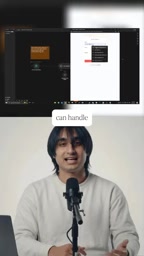
Overall Flow: Three-Step Routing
This workflow's logic is very clear: customer submits form → AI determines message type → two handling paths. One path has AI draft a reply and save it to the Gmail drafts folder; the other forwards it directly to the responsible person for manual handling. The presenter emphasized that this "AI screens first, human catches the rest" design preserves automation efficiency while preventing AI from making reckless promises on sensitive issues.
Step 1: Build the Form Entry Point
Add a Form node in n8n and set up three fields: sender, subject, and message. The presenter specifically reminds you to use lowercase field names for easier reference in subsequent nodes. This form is the entry point for customers to submit issues—it can be embedded in a website or shared directly as a link.

n8n's Form node is a built-in trigger node that, when run, generates a publicly accessible form page link through n8n. You can freely add or remove fields in the node, set field types (text, email, dropdown options, etc.), and mark them as required. After a user submits the form, the node's output is a JSON object containing each field's value—the field names are the keys used to reference data in subsequent nodes, which is why the presenter requires all field names to be lowercase to avoid reference failures caused by case inconsistency. Since the form is hosted by n8n, users don't need to build a frontend page or server themselves—just embed the link in a website, document, or send it directly to customers to collect structured input. This is also one of the reasons the entire solution can be code-free.
Step 2: Use a Text Classifier for AI Routing
This is the core node of the entire workflow—the Text Classifier. Drag subject and message into the classifier and set up two categories: can draft (can be drafted automatically) and needs human (requires manual handling). Login help and simple inquiries go into the former; unsubscribe, refund, and security-related issues all go into the latter. The classifier is backed by Claude or another LLM, which reads the content and determines the category.
This classification strategy is noteworthy: refunds and account security are high-risk scenarios, and an inappropriate AI reply could trigger disputes, so the presenter chooses to have these requests bypass AI entirely. This boundary setting is more important than classification accuracy itself.

The Text Classifier node is an AI node in n8n specifically for intent recognition and content categorization. It works like this: you provide a piece of text to be classified (here, the combination of subject and message) and pre-define several categories with their meaning descriptions. The node sends this content along with the category definitions to the underlying large language model, which returns the category that best matches the text. Compared to calling an LLM node directly and parsing the returned result yourself, the Text Classifier encapsulates "define categories—call model—parse assignment" into a single step, and the output is a structured category label that can be used directly for subsequent IF branch decisions. The more specific the category names and descriptions and the clearer the boundaries, the more stable the model's judgment. Conversely, if two categories' descriptions overlap semantically, the model tends to waver. This is exactly why the article emphasizes that classification performance depends on prompt quality.
Step 3: The Auto-Handleable Branch
Under the can draft branch, add an LLM node, connect Claude, and paste a short prompt requiring a friendly, appropriate reply. Then add a Gmail node, select the "Create a Draft" operation, and map the customer's email and Claude's generated reply into it. This way, every auto-handleable inquiry generates a pending reply in the Gmail drafts folder—a human just needs to glance and confirm before sending, rather than sending completely unattended. This is a compromise balancing efficiency and safety.

The Gmail node's "Create a Draft" and "Send a Message" operations correspond to different permissions and behaviors in the Gmail API. Creating a draft only writes an unsent email to the account's drafts folder without triggering any delivery; a human can review and click send. Sending a message delivers it immediately to the recipient. Using draft mode in automation is equivalent to inserting a human confirmation checkpoint between AI output and actual sending—even if the model generates inappropriate wording or incorrect information, it won't reach the customer directly. Note that the Gmail node requires OAuth authorization in n8n first, and the account used must have the appropriate email read/write permissions. If the same account handles both automatic drafts and manual forwarding, both branches write to the same mailbox, so you need to distinguish by operation type.
Step 4: The Requires-Human Branch
Under the needs human branch, add your own Gmail account, select the "Send a Message" operation, and send the subject and body to yourself. This way, refund, cancellation, and security requests appear in the responsible person's inbox immediately for a real person to take over. The two branches don't interfere with each other—if the classifier gets it wrong, it just means one extra draft or one fewer draft, and won't cause customers to receive incorrect replies.
Who This Solution Is For
Judging from the demo content, this workflow is best suited for small teams or independent developers: no customer service system budget, but scattered customer inquiries to handle every day. n8n's open-source nature and visual orchestration lower the barrier, LLM nodes handle language understanding, Gmail handles sending and receiving, and the entire system requires no servers or code.
The limitations are also obvious: the demo only covers the form entry point. If customers prefer to contact via email or chat tools, you'll need to add corresponding triggers. The classifier's category division depends on prompt quality and needs repeated adjustment based on business needs in actual use. Although draft mode is safe, you still need to manually go through the drafts folder every day—it's not exactly fully liberating manpower.
For those wanting to get started with automation, this workflow is a good practice project—few nodes, a complete logical loop, and you can adapt it to your own business scenarios by tweaking the classification rules.
One-line Summary
No-code n8n workflow: AI routes customer inquiries, auto-drafts or forwards to humans
Paragraph Summary
The article introduces a no-code n8n workflow demonstrated by a YouTube creator for handling customer inquiries about login, refunds, and account security. The process: customers submit forms via a Form node, a Text Classifier calls Claude or other LLMs to categorize requests into "can draft" and "needs human"; auto-handleable requests get LLM-generated replies saved to Gmail drafts for human confirmation, while refund, cancellation, and security high-risk issues are forwarded directly to the responsible person. The presenter emphasizes that the "AI screens first, human catches the rest" boundary setting is more important than classification accuracy. The solution suits budget-limited small teams and independent developers, but the entry point is form-only, classification performance depends on prompt tuning, and humans still need to review the drafts folder daily.
Related articles

Random Pruning of the DPO Computation Graph: 1.4x Training Speedup and Lower Peak Memory
DPO training too slow and memory-hungry? This paper proposes a random pruning framework for the DPO computation graph, sampling independently across position, sequence, and branch dimensions; branch pruning achieves a 1.426x step-time speedup and cuts training time by about 30%, with in-depth attribution of memory and time gains.

Why Does JEPA Underperform MLM in Longitudinal EHR Representation Learning?
New study compares JEPA and MLM for longitudinal EHR representation learning on MIMIC-IV: three JEPA variants train stably without collapse but underperform MLM; target size, not heterogeneity, drives prediction error.

Transfer Learning + Visible Light Communication: A New Approach to Energy-Efficient Indoor Positioning
A study proposes a transfer learning-based visible light communication indoor positioning method, achieving 47% accuracy improvement on the BOSCH factory dataset, 67.5% model efficiency under high noise, and introducing the ME composite metric for energy-efficient positioning in energy-constrained industrial IoT scenarios.