Build a Novel-Writing AI Workflow in Dify with Zero Coding: A 10-Minute Tutorial

A 10-minute beginner's guide to building a novel-writing AI workflow with Dify.
This article walks through the complete process of building a novel-writing workflow using the open-source LLM platform Dify, based on a hands-on Bilibili demo. Key steps include choosing a stable version or using the cloud platform, adding an API Key or connecting Ollama for local inference, creating apps from templates using Chatflow for conversational use cases, and writing system prompts with slash-referenced variables. It also highlights version compatibility issues and Dify's per-node debugging feature.
Dify is an open-source LLM application development platform that has iterated rapidly over the past two years. It lets people with no programming background build AI applications through a visual drag-and-drop interface. Based on a hands-on demonstration from a Bilibili creator, this article outlines a complete path — from installation to running a "novel-writing workflow" — to help beginners get up and running in ten minutes.
Installing Dify: Local Deployment or Cloud Platform?
Dify is an open-source project hosted on GitHub. If you open the repository, you'll see the version tags have accumulated to over 170 releases, with the latest being 17.1 (the demonstration uses version 17.0).
Here's a detail that's easy to overlook: differences between versions can be significant, primarily around plugin compatibility. If you install a newer version and find that a certain plugin fails to load, it's usually a version compatibility issue. So there's no need to chase the latest release — stability matters more.
Downloading is straightforward: go to the releases page, download the archive, unzip it, and run the installer. If you'd rather skip the local setup entirely, Dify also offers a cloud platform — just register and log in to start using it right away.
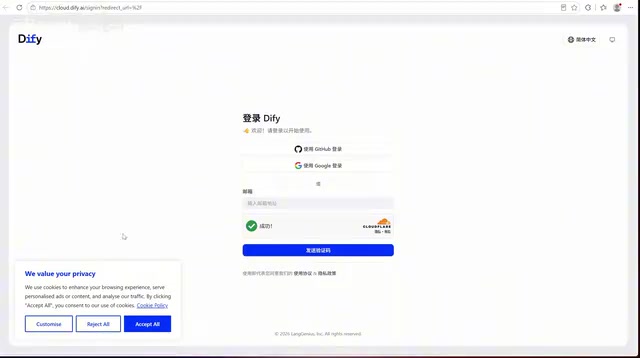
Dify's main interface has changed noticeably from last year to this year. Compared to the early 1.7 and 1.9 versions, it now includes trending "Scale"-related features such as Markdown documents and templates — worth exploring if you're interested.
Configuring Models: Adding Your API Key
Before building a workflow, you must configure a model. Without it, the nodes won't be able to make any calls.
In Settings, find "Model Providers." You'll see a large number of models available for integration — all of them exist as plugins. You can download a local deployment option (like Ollama) and install it with a single click, or you can connect directly to an online model's API.
Connecting to an online model is as simple as adding an API Key: enter the model name and the API Key obtained from the provider, and configuration is complete. This step is the foundation of the entire process — if the model isn't configured correctly, none of the downstream nodes will run.
Ollama is an open-source tool for running large models locally, allowing users to run various open-source language models (such as Llama, Mistral, Qwen, etc.) offline on their own machines — no internet connection required, no third-party API fees. It simplifies the complex local deployment process by packaging model weights and the inference engine into a single command. Integrating Ollama into Dify as a plugin means you can use a locally running model as the inference backend for your workflow, keeping data entirely on your machine — ideal for privacy-sensitive or network-restricted scenarios. The trade-off is that your local hardware (especially VRAM) must meet the minimum requirements for the chosen model. Generally, a 7B-parameter model runs smoothly on a consumer GPU with 8GB of VRAM.
Building the Workflow: From Template to Blank App
Dify offers three ways to create an application: create from scratch, import a file, or choose from a template.
For beginners, starting from a template is the fastest path. For example, select the "Text Translation" template and click Use — the system automatically generates a complete node structure. All you need to do is replace the model with the one you've configured, and it's ready to run.
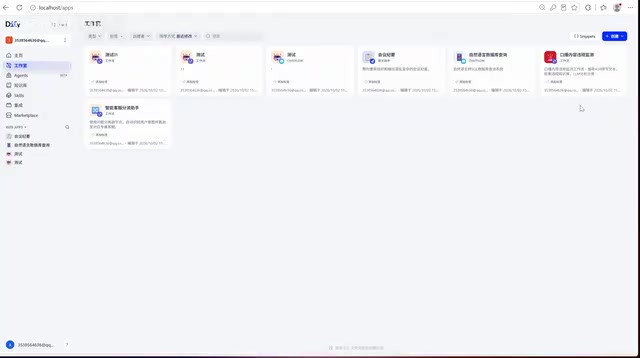
For building conversational applications, the demonstration recommends using Chatflow. A standard Workflow runs in a single-execution mode — "one input, one response" — while Chatflow is better suited for multi-turn conversations and is currently the most widely used type in practice.
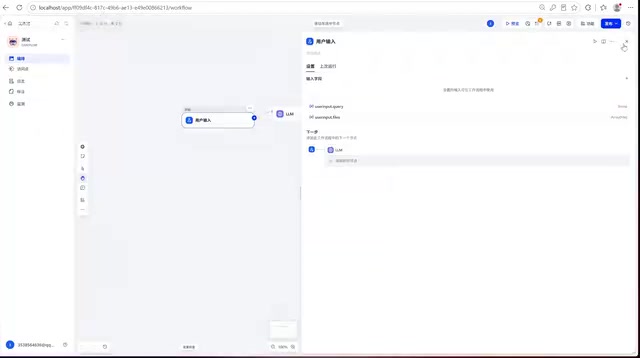
After creating the app, Dify automatically generates base nodes, including a "User Input" node that comes with a text-type query variable by default. You can also add more variables inside the input node, supporting types like text and files.
The core difference between Workflow and Chatflow lies in whether conversation history is maintained. A standard Workflow is stateless — each call is an independent execution, suitable for batch tasks with a fixed input-output format, such as document translation or data extraction. Chatflow, on the other hand, automatically appends context to the message history after each turn, so the model can "remember" what was said in previous rounds. This makes it ideal for conversational scenarios that require multi-turn clarification or cumulative information gathering. The most obvious symptom of choosing the wrong type is this: if you use a standard Workflow to build a chatbot, the model will "forget" everything from the previous turn every time, resulting in a disjointed conversation experience.
Defining Roles and Prompts: Teaching the AI to Write Fiction
The heart of any workflow is the LLM processing node in the middle — this is where you define what role the AI plays and how it should respond.
In the system prompt, you can define a character, for example: "You are a professional fiction writer with twenty years of experience." The more specific the character definition, the more controllable the output style.
Next, add a user message variable: type a forward slash / using an English-layout keyboard, and a list of available variables will pop up. Select the user input variable query, and whatever the user types in the chat box will be passed to the model.
You can also add constraints to the prompt — for example, "Limit output to 1,000 words" — to keep the output in line with expectations. In the demonstration, keywords like "milk, stir-fried noodles, Lao Wang is late" are used to prompt the AI to generate a sci-fi short story. The model (DeepSeekAd V4 in the demo) first displays its reasoning process, then outputs the result node by node.
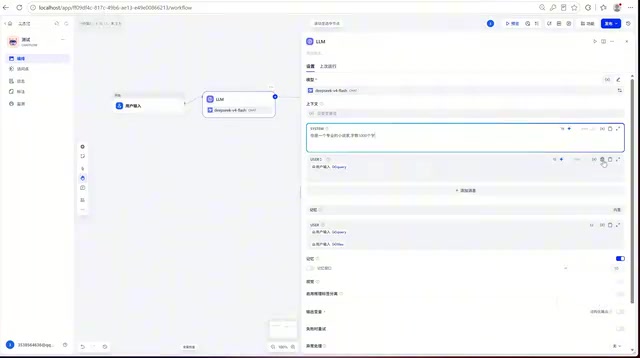
Prompts consist of two parts: the System Prompt and the User Message. The system prompt is passed to the model before the conversation begins — it locks in the role, tone, output format, and constraint rules, and remains in effect throughout the entire conversation. The user message represents the dynamic input for each turn. In Dify's node editor, the system prompt is written in the "System" area and the user message in the "User" area. Using the / slash to reference variables lets you inject dynamic content from previous nodes or user input directly into the prompt. The key design principle for producing stable, predictable output is to clearly separate "the unchanging role definition" from "the user's needs that change each time."
Testing and Debugging: Each Node Can Be Validated Independently
One of Dify's most practical features is that each node can be tested independently. From user input to LLM processing to final output, the way data flows between nodes is fully visible, making it easy to pinpoint issues.
Once you run the workflow, the model generates content step by step, and the complete novel text appears in the output node. Once the full flow runs successfully, you have a basic "novel-writing AI application."
Summary
The value of this workflow isn't in how impressive a novel it can produce — it's in how it demonstrates the core logic of Dify: configure a model → choose an application type → build nodes → define prompts → test output.
Once you have this core loop down, you can swap out "novel writing" for customer service Q&A, copywriting, translation assistance, or any other scenario. For users with no coding background, Dify reduces the barrier to AI application development to "drag, drop, and fill in prompts" — and that's exactly what makes open-source low-code platforms so compelling.
Related articles

Random Pruning of the DPO Computation Graph: 1.4x Training Speedup and Lower Peak Memory
DPO training too slow and memory-hungry? This paper proposes a random pruning framework for the DPO computation graph, sampling independently across position, sequence, and branch dimensions; branch pruning achieves a 1.426x step-time speedup and cuts training time by about 30%, with in-depth attribution of memory and time gains.

Why Does JEPA Underperform MLM in Longitudinal EHR Representation Learning?
New study compares JEPA and MLM for longitudinal EHR representation learning on MIMIC-IV: three JEPA variants train stably without collapse but underperform MLM; target size, not heterogeneity, drives prediction error.

Transfer Learning + Visible Light Communication: A New Approach to Energy-Efficient Indoor Positioning
A study proposes a transfer learning-based visible light communication indoor positioning method, achieving 47% accuracy improvement on the BOSCH factory dataset, 67.5% model efficiency under high noise, and introducing the ME composite metric for energy-efficient positioning in energy-constrained industrial IoT scenarios.