Building a Home Lab for Free: Turn Retired Hardware into a Private Cloud and Media Server

How to build a complete home lab with free retired enterprise hardware for media streaming and private cloud.
A Reddit user received 3 AMD FX PCs, 32GB DDR3 RAM, and 12 HDDs for free from a friend's company, jumpstarting their Homelab journey. This guide covers how to connect 12 drives using HBA cards, compares storage solutions (ZFS, Unraid, mergerfs+SnapRAID), and outlines a practical deployment path for Jellyfin media server and Nextcloud private cloud on legacy hardware.
An Unexpected Windfall: A "Lottery Win" in Hardware
For many tech enthusiasts, building a home lab (Homelab) is a long-held dream. A Homelab isn't simply "playing with computers at home" — it's a subculture born from IT professionals and tech hobbyists, centered on deploying enterprise-grade or near-enterprise-grade computing infrastructure at home to achieve data sovereignty, skill development, and self-hosted services. This movement accelerated in the mid-to-late 2010s as cloud service privacy concerns multiplied (Google Photos ending unlimited storage, various cloud drives scanning user files). Reddit's r/homelab and r/selfhosted communities boast over a million and several hundred thousand subscribers respectively, forming a massive knowledge-sharing ecosystem. It means you can freely control your own data, deploy various self-hosted services, and even practice enterprise-level operations skills. However, the biggest real-world barrier is often budget — especially against the backdrop of continuously rising memory and storage prices in recent years.
Recently, a Reddit user shared his "lucky moment." He had always wanted to start his self-hosting journey but was consistently limited by budget. He'd tried piecing together a PC from spare parts on hand, but skyrocketing RAM and storage prices shelved the plan. Just when he'd nearly given up, a friend working at a company called to ask if he wanted some idle PC components the company was getting rid of. The answer was, of course, yes.
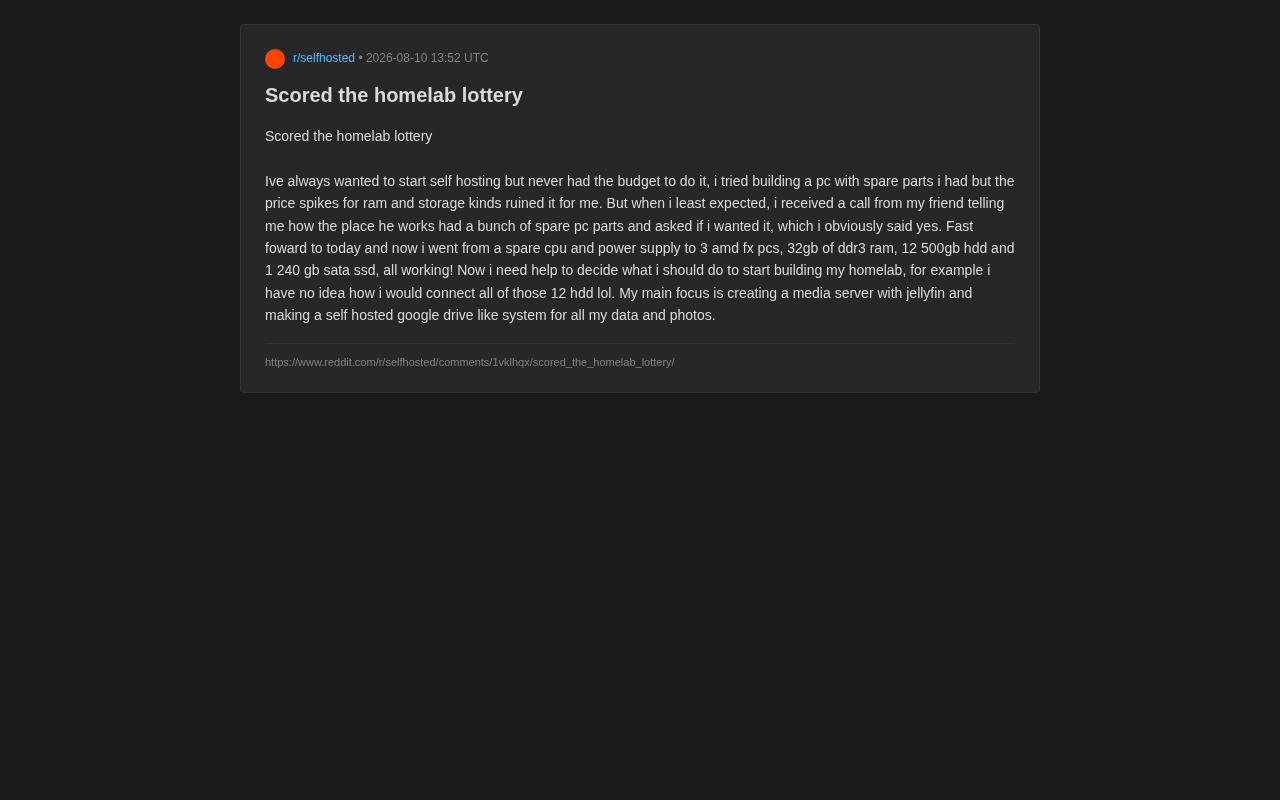
In the end, from initially having just a spare CPU and power supply, he suddenly owned: 3 AMD FX-platform PCs, 32GB of DDR3 RAM, 12 × 500GB mechanical hard drives (HDDs), and 1 × 240GB SATA SSD — all in working condition. This hardware configuration is enough to make any Homelab newcomer thrilled.
What This Hardware Can Do: Computing and Storage Resource Analysis
While the AMD FX series and DDR3 memory are considered "ancient" by today's standards, they're more than adequate for entry-level home lab scenarios.
Computing Resources: Role Assignment Across Three Machines
Three AMD FX machines can take on different roles. AMD FX-series processors are based on the Bulldozer/Piledriver microarchitecture, released between 2011-2014, using the AM3+ socket. This series was widely criticized at the time for significantly lagging behind Intel's contemporary Sandy Bridge/Haswell architectures in single-core IPC (Instructions Per Clock), but its multi-core design (up to 8 cores) remained somewhat competitive under multi-threaded workloads. Models like the FX-8350 feature 8 integer cores (4 modules, each module sharing a floating-point unit between 2 cores), with a 125W TDP. In today's server scenarios, the FX platform's power efficiency is far inferior to modern processors, but its multi-core nature remains useful for running multiple Docker containers or lightweight virtual machines. Moreover, DDR3 memory and AM3+ motherboards are extremely cheap on the secondhand market, making the value proposition surprisingly strong.
The DDR3 memory standard was introduced in 2007 and was gradually superseded by DDR4 starting in 2014, with typical frequencies of 1333-2133MHz and common stick capacities of 4GB and 8GB. 32GB of DDR3 has very low market value in 2024, but for Linux server workloads, memory capacity matters far more than speed. Linux itself requires only about 512MB to run, and Docker container memory overhead is relatively manageable — a typical Jellyfin instance needs 1-2GB, Nextcloud requires about 512MB-1GB, and remaining memory can be used by the Linux kernel as filesystem cache, significantly boosting disk I/O performance. 32GB of DDR3 distributed across three machines is sufficient to support multiple services running in parallel.
A common deployment approach is: one machine as the primary "service node" running core applications, one as a storage/NAS node, and the remaining one for experimentation and backups, or even forming a small cluster to learn Proxmox or Kubernetes.
Storage Resources: Planning 6TB of Raw Capacity
12 × 500GB HDDs provide approximately 6TB of raw capacity — the most valuable and planning-intensive part of this hardware haul. The 240GB SATA SSD is ideally suited as a system disk or cache disk to boost overall responsiveness.
The Key Challenge: How to Connect 12 Hard Drives
The user himself admitted: "I have absolutely no idea how to connect all 12 of these drives (lol)." This is indeed the most common practical obstacle for beginners. Typical consumer motherboards only provide 4 to 6 SATA ports, far insufficient for 12 hard drives.
Hardware Layer: HBA Cards Are the Most Economical Expansion Solution
The most common and economical approach is to purchase an HBA card (Host Bus Adapter), such as an LSI-based SAS card (e.g., LSI 9211-8i). An HBA card is a dedicated storage interface expansion card that connects to the motherboard via a PCIe slot to provide additional disk interfaces. Unlike hardware RAID cards, HBA cards operate in "IT mode" (Initiator Target Mode), passing each disk directly through to the operating system without performing any RAID computation — exactly what software RAID solutions like ZFS and Unraid require. The LSI 9211-8i is based on the LSI SAS2008 chip, providing 2 Mini-SAS (SFF-8087) internal connectors, each of which can connect 4 SATA drives via SAS-to-4xSATA breakout cables, totaling 8 drives. To connect 12 drives, you typically need one 8-port HBA card plus the motherboard's onboard SATA ports, or two HBA cards. These cards typically cost $15-30 on eBay and are the most classic recommendation in the Homelab community.
Additional considerations include:
- Power supply capacity: Mechanical hard drives draw much higher instantaneous current during startup (as platters accelerate from standstill to rated RPM) than during normal operation — this is called "inrush current." A typical 3.5-inch 7200RPM drive consumes about 6-8W at steady state but may require 25-30W during startup. 12 drives spinning up simultaneously could generate over 300W of instantaneous load on the 12V rail, posing a serious challenge to both the PSU's 12V output capability and the number of SATA power connectors available. Mitigation strategies include: enabling "Staggered Spin-up" in BIOS to let drives start sequentially; or selecting drives that support PUIS (Power-Up In Standby). Additionally, cheap SATA power splitters (Molex-to-multi-SATA) are one of the most common fire hazards in Homelabs due to contact resistance and poor solder quality — always use the PSU's original power cables when possible.
- Chassis space: Standard cases can't accommodate 12 × 3.5-inch drives. You may need to consider drive cages, old server chassis, or DIY open-frame drive racks.
Software Layer: Comparing Three Mainstream Storage Solutions
Once physical connectivity is sorted, the next question is how to organize these drives. For media server and data storage scenarios, the mainstream options include:
- TrueNAS + ZFS: ZFS (Zettabyte File System) was originally developed by Sun Microsystems for the Solaris operating system and later ported to Linux (the OpenZFS project). It combines a traditional volume manager and file system into one, with core features including: Copy-on-Write (CoW) ensuring data is never overwritten in place; end-to-end checksums that detect and automatically repair silent data corruption (Bit Rot); RAID-Z providing RAID5/6-like redundancy without the "write hole" problem; and near-zero-overhead snapshots and clones. For scenarios using old secondhand drives, ZFS's data integrity protection is particularly important — used drives are more susceptible to sector-level silent corruption that traditional file systems cannot detect, while ZFS verifies checksums on every read and auto-repairs when redundancy allows. TrueNAS is a ZFS-based NAS operating system with a web management interface and is the gold standard for NAS scenarios.
- Unraid: Unraid employs a unique storage architecture fundamentally different from traditional RAID. In traditional RAID, data is striped across all drives, requiring identical capacities and simultaneous online status. Unraid instead lets each data disk use its own independent filesystem (typically XFS or BTRFS), with parity information stored centrally on 1-2 dedicated parity disks. This design offers several significant advantages: you can mix drives of different capacities (parity disk must be ≥ the largest data disk); when a single drive fails, data on other drives remains directly readable; and new drives can be added for expansion at any time. The tradeoffs are lower write performance (each write must also update the parity disk) and inability to provide end-to-end data integrity verification like ZFS. Unraid is commercial software requiring a one-time license purchase (Basic edition ~$59), but is more beginner-friendly and suitable for home users who expand gradually.
- mergerfs + SnapRAID: mergerfs is a FUSE filesystem that merges multiple independent mount points into a single unified directory visible to users and applications as one large storage pool. SnapRAID is a "snapshot-style" parity tool that doesn't protect data in real-time but calculates and updates parity information on a scheduled basis (e.g., once daily at midnight). This means newly written data between syncs has no redundancy protection. This combination is particularly well-suited for media library scenarios — movies and music files are rarely modified once written, making SnapRAID's periodic sync perfectly adequate. Moreover, even if the entire system crashes, files on each individual drive can be read directly on any Linux system, making data recovery extremely simple.
Given the combination of 12 × 500GB drives, adopting a redundant RAID scheme can dramatically improve data safety at the cost of some capacity — after all, these are secondhand drives with some service life behind them, carrying relatively higher failure risk.
Defining the Goals: Building a Jellyfin Media Server and Nextcloud Private Cloud
This user's core objectives are crystal clear:
- Build a media server with Jellyfin
- Set up a self-hosted Google Drive alternative for personal data and photos
Jellyfin: A Free and Open-Source Media Center
Jellyfin is a fully open-source project (GPLv2 license) forked from Emby 3.5.2, community-driven with no paid feature locks. Its architecture includes: a backend server responsible for media scanning, metadata scraping, and transcode scheduling; and frontend clients covering Web, Android, iOS, Apple TV, Roku, and more. It can automatically organize movie, TV show, and music libraries while supporting multi-device streaming — a strong alternative to Plex and Emby.
Transcoding is the biggest computational bottleneck for media servers — when a client doesn't support a particular encoding format (like HEVC/H.265) or when network bandwidth can't handle the original bitrate, the server must convert video to a compatible format in real-time. Modern CPUs and GPUs (Intel Quick Sync, NVIDIA NVENC) can handle transcoding via hardware acceleration, but the AMD FX platform has neither an integrated GPU nor support for modern hardware transcoding instruction sets, leaving only CPU software transcoding as an option. An FX-8350 software-transcoding a single 1080p H.264 stream will roughly max out all cores, unable to serve multiple users simultaneously. Therefore, the best strategy is to ensure media file formats are compatible with clients, achieving Direct Play (transmitting the original stream directly with near-zero server load) and avoiding the high CPU load of server-side software transcoding.
Nextcloud and Immich: Self-Hosted Alternatives to Commercial Cloud Storage
For a "self-hosted Google Drive," the mainstream choice is Nextcloud. Nextcloud was forked by ownCloud founder Frank Karlitschek in 2016 and is now one of the world's largest open-source collaboration platforms, adopted by institutions like the German Federal Government and the French National Centre for Scientific Research. Its core functionality is file sync and sharing, but through its "App Store" it can be extended into a complete office collaboration suite — including OnlyOffice/Collabora online document editing, Talk video conferencing, calendar, email client, and dozens of other features, nearly fully replacing the core experience of commercial cloud drives.
Deployment notes: Nextcloud is sensitive to database performance — MariaDB or PostgreSQL is recommended over SQLite; PHP-FPM memory and process count configuration directly affects concurrent performance; and file storage paths should point to NAS shared directories rather than the system disk. On older hardware, placing the database on the SSD and bulk file storage on the HDD array is the best practice for balancing performance and capacity.
If you're focused solely on photo management, Immich is a highly acclaimed open-source project in recent years, with AI photo recognition and timeline experience approaching Google Photos quality.
A Practical Deployment Path Starting from Zero
For newcomers in similar situations, a pragmatic path is:
- Step 1: Get a single machine working first — Install Proxmox or go directly with Debian/Ubuntu on one machine, deploy Jellyfin and Nextcloud via Docker, and verify basic functionality. Proxmox VE (Virtual Environment) is a Debian Linux-based open-source virtualization management platform integrating both KVM virtual machines and LXC containers, with a web management interface. For Homelab users, Proxmox's value lies in: running multiple isolated virtual environments on a single physical machine, each capable of independently running different operating systems and services; supporting snapshots and backups for instant rollback when experiments fail; and allowing multiple Proxmox nodes to form clusters for live VM migration. LXC containers have minimal overhead compared to full VMs (virtually no performance loss), making them ideal for maximizing resource utilization on older hardware like the FX platform. Proxmox itself is free to use — paid subscriptions only provide enterprise-level technical support and stable update repositories.
- Step 2: Solve storage expansion — Purchase an HBA card, set up TrueNAS or Unraid, and bring all 12 drives into a unified storage pool.
- Step 3: Integration and optimization — Mount NAS shared directories for media services and cloud storage, forming a complete home data hub.
This case offers an important lesson for anyone wanting to get into Homelab: You don't need expensive new hardware — a batch of "junk" components retired by a company is more than enough to build a fully functional home server. The real barrier was never the hardware itself, but the willingness to plan thoughtfully and get your hands dirty.
Key Takeaways
Related articles

Amphibious Transforming Drone: Beyond 100x Power Savings, What Are the Real Needs?
Is the amphibious transforming drone just a gimmick? Starting from the 100x power difference of the M4 Morphobot, explore real application scenarios and thesis topic ideas, analyzing boundary conditions where pure drones and pure ground robots both fail.

Warhound Raises $200 Million: Genetically Engineered "War Dogs" Paired with Anduril Gear
Warhound raises $200M, backed by Ben Lamm and Palmer Luckey, to genetically engineer dogs for military and law enforcement use and equip them with Anduril gear. This article analyzes its technology direction, funding logic, and ethical controversy.

Claude API Comes to Google Cloud: IAM Integration and SDK Access Guide
Anthropic hosts the full Claude API on Google Cloud with IAM-controlled permissions and unified billing. This guide covers the Vertex AI and Anthropic-hosted entry points, IAM role configuration, and SDK access.