Building an AI Email Automation Agent with n8n — Full No-Code Workflow
Build a no-code AI Agent on n8n for Gmail auto-classification, tagging, and smart replies.
This article walks through building an email automation AI Agent with n8n in a no-code way: Gmail triggers the workflow, a Text Classifier using the Grok model sorts emails into four categories (product inquiry, return/exchange, complaint, order status), Gmail nodes auto-apply labels, and an AI Agent generates and sends replies based on each category's System Message. It covers OAuth setup, category descriptions, label/send node configuration, and real test results, completing in seconds.
Why Use an AI Agent to Handle Emails Automatically
Facing a flood of customer emails every day, manually sorting, replying, and tagging them is enormously repetitive work. A YouTube creator shared his solution: building an AI Agent on n8n in a no-code way to achieve a full closed loop of automatic email classification, auto-tagging, and auto-generated and sent replies.
The core logic of the whole approach isn't complicated — when Gmail receives a new email it triggers the workflow, AI performs text classification on the email content, tags the email according to the classification result, and then an AI Agent generates a personalized reply and sends it automatically. No coding is required throughout — everything is done by dragging and dropping in n8n's visual interface.
This article, based on the practical demonstration in that video, lays out the complete technical path and key configuration details.
Preparation: n8n Deployment and Gmail Credential Configuration
Starting the n8n Environment
The video's author suggests deploying n8n locally first. If you haven't done this step yet, you can refer to his previous video, which has a step-by-step tutorial on local hosting. After starting n8n, create a new workflow and you're ready to begin.
n8n is an open-source workflow automation tool that adopts a visual "nodes + connections" paradigm. Users orchestrate automation flows by dragging nodes and connecting data streams without writing code. Its positioning is similar to Zapier and Make (formerly Integromat), but it supports self-hosting, with data stored on your own server or local machine, which is friendlier to privacy-sensitive businesses. n8n ships with hundreds of built-in integration nodes (Gmail, Slack, databases, HTTP requests, etc.) and also provides AI-related nodes, such as the Text Classifier and Agent used in this article. Self-hosting typically has two paths: one is running the official image via Docker, and the other is installing globally with npm and executing a start command. Once started, you can access the workflow editing interface in your browser on a local port, and after creating a new workflow you can start adding nodes to the canvas.
Gmail Node and OAuth Credentials
Add the first node to the workflow — a Gmail node, with the trigger set to "On Message Received," i.e., triggered when a new email arrives.
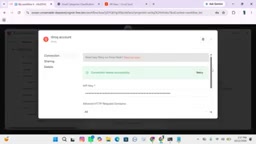
Here you need to configure Gmail's OAuth credentials, including the Client ID and Client Secret. You obtain them by generating these credentials on the Google Cloud Platform and then copy-pasting them into n8n. The author mentions that this process has quite a few steps, and his previous video demonstrates it in detail.
After configuration, the author sent a test email from another mailbox (with the content "Hi, how are you doing?"), then manually executed the workflow to confirm that the Gmail node could correctly fetch the latest email. Once the test passed, he moved on to the next step.
OAuth 2.0 is an authorization framework that allows third-party applications to access a user's account resources on their behalf without obtaining the user's password. In this scenario, n8n needs to obtain permission via OAuth to access your Gmail inbox, so you need to create a project in the Google Cloud Console, enable the Gmail API, configure the OAuth consent screen, and generate a pair of Client ID and Client Secret. When connecting the Gmail node, n8n will redirect to Google's authorization page; after the user confirms, an authorization code is returned, which n8n uses together with the Client ID/Secret to exchange for an Access Token and Refresh Token so it can continue to access Gmail in subsequent calls. Understanding this helps troubleshoot common connection failures such as "token expired" and "insufficient permission scope."
Text Classifier: Letting AI Determine Which Category an Email Belongs To
Setting Up Classification Categories
Add a Text Classifier node. Drag the email content (the message field) output by the previous Gmail node into the classifier's input.
The core of the classifier is defining categories and a description for each category. Using an online shoe store business as an example, the author set up four categories:
- Product Inquiry
- Return and Exchange
- Complaints
- Order Status
The description for each category can be generated with ChatGPT, with the goal of letting the AI Agent understand under what circumstances an email should be classified into that category. For example, the description for Product Inquiry is "Classify the email as a product inquiry when a customer asks questions about shoes and other products."
Text Classifier is a specialized node in n8n based on a large language model. It takes a text input and, according to a user-predefined list of categories and category descriptions, has the model determine which category the text belongs to and outputs the corresponding category name. Its working mechanism is essentially "zero-shot/few-shot classification" — the model doesn't need special training; it only needs to read the category descriptions to make a judgment, so the clarity of the category descriptions directly determines classification accuracy. Descriptions should clearly state "under what circumstances this category applies" and "where the boundary with other categories lies." For example, complaints and returns/exchanges are easily confused, so the descriptions need to emphasize that complaints focus on expressions of dissatisfaction with the product or service, while returns/exchanges focus on specific return or exchange requests. The number of categories shouldn't be too large; usually 3–6 covering high-frequency scenarios is enough.
Binding a Model and API Key
The classifier needs to be bound to a language model. The author chose Grok's free model. Configuration requires providing Grok's API Key — search "Grok API keys" on Google, log in to Grok with Gmail, and create an API Key.
After selecting the model as GPT-120P, the classifier node is fully configured.
Verifying Classification Results
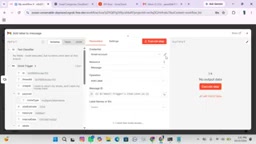
The author sent a test email from another mailbox: "I want to return my shoes and I want my money back." After executing the workflow, the classifier correctly routed this email to the "Return and Exchange" branch, the node was highlighted in green, and the classification result was accurate.
Auto-Tagging: Chaining Gmail Nodes
After classification is complete, the email needs to be automatically tagged with the corresponding label. First create four labels in Gmail corresponding to the classification categories, and you can set a different color for each label. This way you can tell at a glance which business category an email belongs to.
Back in the n8n workflow, add a Gmail node after each classification branch, with the operation set to "Add Label to Message." During configuration, drag the message ID output by the previous node into the corresponding field, then select the corresponding label name.
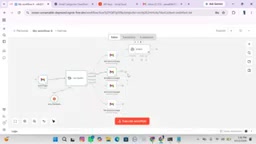
After configuring their respective labels on all four branches, execute the workflow to verify. Refreshing Gmail shows that the test email has been correctly tagged with the "Return and Exchange" label.
AI Agent Generates a Reply and Sends It Automatically
Configuring the Agent Node
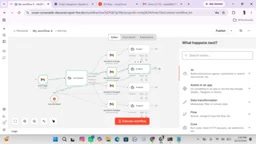
After the label node in each classification branch, add an Agent node. The Agent needs to be bound to a Chat Model (you can directly reuse the model connection configured earlier).
The Agent's configuration consists of two parts:
- Input message: pass the email content from the Gmail trigger to the Agent
- System Message: add a system prompt via "Add Option" to tell the Agent how it should generate a reply for that type of email
The author likewise used ChatGPT to generate a corresponding System Message for each category. Taking product inquiries as an example, the system prompt guides the Agent to reply to customer inquiries in a professional and friendly manner.
An AI Agent differs from a simple Chat Model call in that it is an execution entity with "system prompt + tool calling" capabilities. The System Message (system prompt) is the Agent's code of conduct, used to set its role, tone, reply style, and rules it must follow, such as "You are a customer service representative for an online shoe store; please reply to customers in a professional and friendly tone." The key to writing a good system prompt is specificity: clarify the identity, clarify the tone, clarify the output format, and clarify prohibitions (such as not promising refund timelines that can't be delivered). In this approach, each email category corresponds to its own independent system prompt, enabling the Agent to generate replies with distinctly different styles yet appropriate in different contexts such as returns and complaints. Prompt quality often affects the final reply more than model choice, so it's worth testing and refining repeatedly.
Automatically Sending the Reply Email
After the Agent generates a reply, add a Gmail node with the operation set to "Send Message." Key configuration points:
- To: use the "from" field from the triggering email, i.e., reply to the original sender
- Subject: customizable, for example adding a "Re:" prefix
- Email Type: select Text
- Message: drag in the reply content output by the Agent
The author also mentions a practical detail: in the send node you can use "Add Option" to add the "Add Attribution" option to turn off the automatic signature at the bottom of the email and keep the reply professional.
Real-World Test Results and the Complete Closed Loop
After configuration is complete, execute the entire workflow; from receiving the email to the automatic reply, the whole process takes just a few seconds. The author demonstrated the test results for two scenarios:
Return scenario: The Agent's reply not only expressed an apology but also proactively asked for information needed for the return, such as the order number and purchase date, with natural and fluent wording.
Complaint scenario: The Agent replied "We're very sorry to hear that the shoes did not meet your expectations," with an appropriate tone and a targeted response to the customer's dissatisfaction.
The complete automation flow that ultimately takes shape is: receive email → AI classification → tagging → Agent generates reply → automatic sending, all implemented without code in n8n.
Applicability and Limitations of This Approach
For small and medium-sized e-commerce businesses or personal operations, this approach can significantly reduce email handling time. The four classification categories cover high-frequency scenarios such as pre-sales inquiries, after-sales handling, complaints, and order inquiries, basically meeting daily operational needs.
There are a few key points to note in practice: configuring Gmail OAuth credentials is fairly cumbersome and needs to be done in Google Cloud in advance; the quality of the System Message directly determines the reply quality, so it's advisable to carefully design prompts for each category; classification categories and labels need to stay consistent, otherwise tagging failures can occur.
In addition, the author also reminds viewers in the video that the auto-send function can be turned off as needed and changed to generating a draft for human review before sending, finding a balance between efficiency and risk control.
One-line Summary
Build an AI Agent on n8n in a no-code way to achieve a complete closed loop of Gmail email auto-classification, tagging, and intelligent replies.
Paragraph Summary
Based on a YouTube creator's practical demonstration, this article lays out the complete path to building an email automation AI Agent with n8n in a no-code way. The core flow is: a new email in Gmail triggers the workflow, the Text Classifier based on the Grok model sorts the email into one of four categories — product inquiry, return/exchange, complaint, or order status — then a Gmail node automatically applies the corresponding label, and an AI Agent generates a personalized reply based on each category's System Message and sends it automatically. The article documents key steps in detail, including OAuth credential configuration, writing classification category descriptions, and setting up label and send nodes, and shows the test results for the return and complaint scenarios, all completed within seconds. The author also notes that OAuth configuration is cumbersome, prompt quality determines reply quality, and auto-send can optionally be turned off in favor of draft review.
Related articles

Chain of Thought Isn't Just for AI: How Humans Can Use CoT to Improve Thinking Quality
Chain of Thought isn't just a prompt trick for large models. Starting from a Hacker News discussion, this article analyzes why CoT works for human thinking too, breaks down actionable ways to transfer it, and highlights the key differences between human CoT and machine CoT.
Cloudflare Teams Up with OpenAI: Closi…
Cloudflare Teams Up with OpenAI: Closing the Loop from Vulnerability Discovery to Defense with AI
Cloudflare uses OpenAI Daybreak to investigate security vulnerabilities and generate reviewable remediation plans, while developers use Codex to boost coding efficiency and quality.

Orca Multi-Agent Orchestration in Practice: A Guide to Parallel Collaboration with Claude and Codex
Orca is Stable AI's free open-source agent workbench supporting 34 agents like Claude Code and Codex in parallel. Learn its Git worktree isolation, multi-model orchestration, and mobile management.