Building an AI Second Brain with n8n: Agent + Memory + Vector DB in Practice
Build a self-hosted AI second brain with n8n, integrating Telegram, Notion, Qdrant, and Gmail.
This article presents a self-hosted AI second brain solution based on n8n, composed of three coordinated workflows: the main workflow receives Telegram messages and routes them to an AI Agent, the knowledge ingestion workflow performs structured extraction and writes to Notion and Qdrant, and the email workflow periodically polls Gmail and processes attachments. It covers self-hosted deployment, ngrok callback configuration, message format normalization, Agent memory and tools, Notion field mapping, vector indexing, and email channel details, and summarizes the design value of workflow division and replaceability.
Building an AI Second Brain with n8n: Agent + Memory + Vector DB in Practice
What's the difference between a second brain and a personal assistant? The former is more like an external memory that continuously absorbs and can be retrieved from, while the latter leans toward real-time conversation. In this n8n tutorial from the YouTube channel NeuralNine, a self-hostable, component-swappable second brain setup is demonstrated: Telegram as the input entry point, Notion as structured storage, Qdrant as the vector database, and an AI Agent responsible for routing and tool calling.
It should be noted that n8n is a sponsor of the video. The tutorial uses a local self-hosted version, and all workflows can be swapped to channels like Slack or WhatsApp as needed.
Overall Architecture: Three Workflows Working Together
This setup is split into three mutually calling workflows rather than one giant flow.
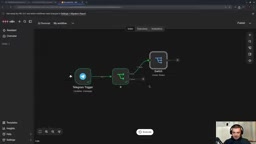
The main workflow receives Telegram messages, first verifies whether the sender ID is the user themselves, then routes by content type into three branches: voice, plain text, and image plus text. After unifying them into the same data format, it hands off to the AI Agent. The Agent is equipped with an OpenAI chat model, Simple Memory, Qdrant vector retrieval, Gmail search, Google Calendar queries, and a tool that calls the second workflow. It always replies via a Telegram text message.
The knowledge ingestion workflow is triggered by calls from other workflows and is responsible for structured extraction, writing to Notion, and vector indexing.
The email workflow runs on a schedule, fetches Gmail messages with a specific label, processes attachments and uploads them to Google Drive, then calls the ingestion workflow, and finally removes the label to avoid duplicate processing.
Qdrant is an open-source vector database designed specifically for storing and retrieving high-dimensional vectors (i.e., embeddings). In this setup, every piece of knowledge content (such as notes, links, emails) is first converted into a 1536-dimensional vector through OpenAI's embedding model, then stored in Qdrant. When the Agent needs to answer questions like "what links have I saved," it first converts the question into a vector as well, then performs a similarity search in Qdrant to find the most relevant historical records as context. Unlike traditional full-text search, vector search understands semantic similarity—even if the user's wording differs from the original text, relevant content can still be recalled. Qdrant supports self-hosting (Docker deployment), and data is fully local and controllable, making it suitable for privacy-sensitive scenarios like a second brain.
Self-Hosted Deployment and Callback URL Configuration
Installation only requires copying a single curl command from the n8n.io documentation page. The script automatically detects Docker and Docker Compose and starts the service, which by default runs at localhost:5678.
The key point is that Google services require a callback URL, and localhost won't work. The tutorial recommends using ngrok to establish a public tunnel (Cloudflare Tunnel also works), and writing the public address into the webhook URL entry in the ~/.n8n configuration file.
There's an easy pitfall here: after modifying .env, running docker compose restart does not reload the configuration—you must run docker compose down and then docker compose up -d. During the tutorial demo, this detail caused the Telegram trigger to fail temporarily.
At the same time, mount an additional Qdrant service and corresponding data volume in docker-compose.yml as vector storage, keeping the rest at default.
Input Routing: Normalizing Three Message Formats
Whether Telegram sends text, image, or voice, the structure is completely different. The tutorial uses a Switch node for routing:
- The presence of a
file_idfield is treated as voice, going through a Telegram get-file node; - A non-empty text field is treated as plain text;
- An expression returning
photoor an empty string serves as the condition for the image branch.
There's a detail in the voice branch: the file extension returned by Telegram is oga, which the OpenAI transcription API rejects. A piece of JavaScript is needed to replace oga with ogg, then use the OpenAI transcription node to convert it to text. The image branch takes the file_id of the last photo and handles the case where caption may be empty—when empty, give the model a default prompt.
The three branches are ultimately merged through a Merge node, then a code node attaches the image's binary data to the same item, forming a unified text plus optional image structure.
Agent Memory and Tool Configuration
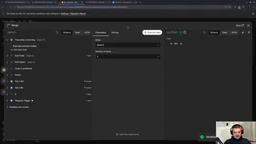
The Agent's prompt directly takes the merged text field. The system prompt injects the current date expression and explains the role: capture content when received, append when receiving supplementary notes, and check the calendar when necessary.
Memory uses Simple Memory, with the session ID bound to the Telegram chat ID, so subsequent messages in the same conversation can carry context. The context window length is set to 20. This is what makes it meaningful to ask "what links have I saved" after "save youtube.com for me."
According to the video demo, after adding the Qdrant retrieval tool, the Agent can answer with all saved links; without the vector database, it can only see the last message in the current conversation. This is the watershed between a second brain and an ordinary chatbot.
Simple Memory is a lightweight conversation memory node in n8n. It does not rely on an external database but stores historical messages in the workflow's memory (or temporarily via n8n's persistence mechanism), using the session ID as the grouping key. Each session ID corresponds to an independent conversation context, and the node maintains a fixed-length message window (20 in this example), automatically discarding anything beyond it. The advantage of this design is that no additional database configuration is needed, making it suitable for personal self-hosted scenarios; the limitation is that memory does not sync across workflows or devices and may be lost after restarting n8n. For knowledge that requires long-term memory, the Qdrant vector database is still relied upon for persistent storage and retrieval—Simple Memory only maintains the coherence of the current session.
Structured Ingestion: From Messy Text to Notion Fields
The first step of the ingestion workflow is structured output extraction. The Notion database predefines fields: type (with options note, idea, insight, quote, link, email), tags, source, url, author, files. The attribute descriptions of the extraction node must strictly correspond to these field types—for example, the description of type is written directly as "exactly one of these words" plus an enumeration list.
Then use the Notion node to create a database page, mapping each property via $json.output.* expressions. A real error was encountered here: when url and author were empty, the request returned a bad request. The solution was to have these two optional fields return an empty string instead of null when missing.
After the page is created, the same content must also be written into Qdrant. The collection's vector dimension is set to 1536, corresponding to the output dimension of the chosen embedding model. The body text is chunked at 2000 characters (the length limit of Notion text blocks), and each chunk is appended to the page using append block.
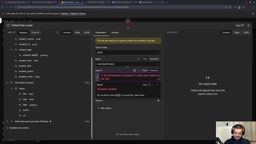
Finally, four fields—saved, title, type, notion_url—are returned to the caller, so the main workflow's Agent can pass the Notion link back to the user.
Structured output extraction refers to having a large language model extract structured information from free text according to a predefined JSON Schema or field descriptions. In this setup, each field of the Notion database (type, tags, source, etc.) has clear types and allowed values, and the extraction node's attribute descriptions must strictly correspond to these definitions—for example, the type field's description is written as "exactly one of these words" with enumerated values listed. Only then can the model's output be directly mapped by the Notion node, avoiding API errors caused by type mismatches or missing values. The core of this approach is transforming "unstructured input" into "structured data," which is a key step in building a searchable knowledge base. Note that the more precise the field descriptions, the higher the model's extraction accuracy—but you should also reserve fallback logic with empty strings for optional fields.
Email Channel: Scheduled Polling and Attachment Handling
The email workflow uses a Schedule Trigger to run every 15 minutes, with Gmail label filtering configured. The tutorial's approach is to create a filter in Gmail: emails sent to "your-email+brain@gmail.com" are automatically labeled, and then n8n fetches by label.
There's a pitfall with the Gmail node: when simplify is enabled by default, attachments are not downloaded. You must turn it off and explicitly enable the download attachments option, otherwise the subsequent logic for checking whether attachments exist will always be false.
The flow loops within a Loop node: if there are attachments, extract the file list and upload to Google Drive, then use an aggregate node to collect share links; if no attachments, give an empty array. After the two branches merge, concatenate the content and files fields, call the ingestion workflow, and finally use the Gmail node to remove the label, returning to the start of the loop until there are no more labeled emails.
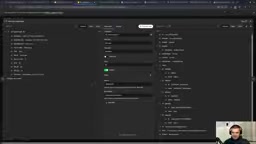
On the Google side, three things need to be done at once: enable the Gmail, Calendar, and Drive APIs in the Google Cloud project; configure the OAuth consent screen and add the test account to test users (otherwise an unpublished app cannot authorize); create an OAuth client of type Web application, with the authorized redirect URI set to {ngrok address}/rest/oauth2-credential/callback. The same client ID and secret are reused across the Gmail, Drive, and Calendar nodes, but each service must go through the authorization flow separately.
Gmail's label filtering combined with n8n's Schedule Trigger implements a "pull-based" email ingestion mechanism. Specifically, create a filter in Gmail: when an email is sent to an alias address with a plus sign like "your-email+brain@gmail.com," automatically apply a specified label. n8n searches by label every 15 minutes, processes only labeled emails, and removes the label after processing to avoid duplicate ingestion. This design delegates "triggering" to the email system, with n8n only responsible for polling, reducing real-time requirements and avoiding complex webhook configuration. The plus alias is a native Gmail feature—a single inbox can spawn unlimited aliases, making it convenient to categorize by source. For other email providers, you may need to use IMAP polling or rule forwarding to achieve a similar effect.
What's Worth Borrowing from This Setup
The tutorial explicitly states that this is not a polished finished product but a demonstration of how to build your own. What's truly valuable is its division of labor: the main workflow only handles routing and conversation, the ingestion logic is separated into a reusable sub-workflow, and the email channel is scheduled independently. The three call each other via workflow IDs, and any part can be replaced independently—swap Notion for another database, Qdrant for another vector store, Telegram for Slack—changes are confined to a single point.
Another practical lesson is the learning path: the author recommends building it manually once before considering using n8n's built-in AI assistant to generate workflows, otherwise you won't know what went wrong when problems arise.
The video also demonstrates a scenario of saving quotes with images: send an image with a quotation and say "save this quote," and the Agent will recognize the image content, extract it as a quote type, and write it to Notion. After the system prompt injects the current date, calendar queries can also correctly parse relative time expressions like "what's on November 12."
For developers who want to automate personal knowledge management, this structure provides a clear enough starting point—the rest is adding or removing tools according to your own usage habits.
One-line Summary
Build a self-hosted AI second brain with n8n, integrating Telegram, Notion, Qdrant, and Gmail.
Paragraph Summary
This article introduces a self-hosted AI second brain solution based on n8n, consisting of three coordinated workflows: the main workflow receives Telegram messages and routes them to an AI Agent, the knowledge ingestion workflow handles structured extraction and writes to Notion and Qdrant, and the email workflow periodically polls Gmail and processes attachments. The article explains in detail the practical aspects of self-hosted deployment, ngrok callback configuration, normalizing three message formats, Agent memory and tool configuration, Notion field mapping, vector database indexing, and the email channel, and summarizes the design value of workflow division of labor and replaceability.
Related articles

E-Readers Enter Their Best Era Yet: How to Choose Between Kindle, Kobo, and Chinese Android E-Ink Devices
The Vergecast guests compare the new Kindle, Kobo, XTE Ink mini e-ink devices, and Android readers like the Boox Palma—covering rising prices, color vs. black-and-white, the KDP Select ecosystem trap, and the page-turn buttons and stylus annotations readers really want.
A One-Person IT Security Team: How ESET Covers Protection All Day
Follow Alex, an admin handling IT and security alone, through a full day: threat briefing, third-party patch management, cloud sandbox analysis, AI governance, and MDR response—see how ESET enables a one-person team to cover all-day protection at a hundred-person company.
AI Agents Invent Mysterious Language Humans Can No Longer Understand
AI agents invent secret language with mysterious codes like o3 t12 in trading scenarios, baffling humans. Video reveals emergent communication phenomenon, raising questions about AI transparency and regulation.