Building an Android App with AI: A Complete Guide to Real AdMob Ads and In-App Purchases

A full workflow for non-developers to build, monetize, and publish an Android app using AI tools.
This tutorial presents a complete path for non-developers to publish an Android app: use ChatGPT to generate a structured prompt, feed it to an AI coding platform for a native Android project, then integrate real AdMob ads (including test device registration), host app-ads.txt via Termux and Firebase for free, configure in-app purchases, and recruit 12 testers for Google Play's closed testing requirement. The core value lies not in AI code generation itself, but in systematically bridging the three stages — ad compliance, payment integration, and review thresholds — that most commonly block newcomers from reaching a live, monetized app.
From Zero to Launch: A Complete Path for AI-Generated Android Apps
With AI tools, building a publishable Android app is no longer exclusive to developers. This tutorial walks through a complete, practical workflow: using ChatGPT to write detailed prompts, generating a native Android project with an AI coding platform, integrating real AdMob ads, configuring in-app purchases, and finally pushing the app to production through Google Play Console's testing process.
The tutorial author backs this up with their own Google Play Console account — one that already has multiple apps in production, including the demo app used as a template in this guide, which has accumulated over 100 million downloads and a 4.7 rating on the store. The core message is clear: generating the app with AI isn't the hard part — monetization, in-app purchase integration, and passing Google's testing review are where the real challenges lie.
The Critical Starting Point: A High-Quality Prompt
The author emphasizes that every app build starts with a comprehensive prompt generated by ChatGPT. This prompt is substantial — it needs to explicitly define the app's core functionality, required options, ad integration method, payment integration, and how the billing library should be wired in. When handing this structured brief to an AI coding platform, always confirm you're selecting Android rather than React — otherwise the generated code will go in an entirely wrong direction.
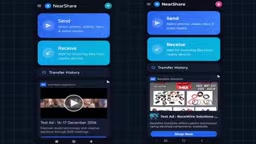
The more complete the prompt, the closer the AI-generated native Android code will be to a usable state. In the author's demo, running the output immediately shows AdMob test ads at the bottom, confirming that ad placements were correctly embedded.
Choosing "Native Android" rather than React Native or Flutter in the AI code generation platform directly determines the final tech stack. Native Android projects written in Kotlin or Java can call Google's official Billing Library and AdMob SDK directly, without any bridging layer, making integration with Play Console more straightforward. While React Native supports cross-platform development, the quality of its ad and payment plugins varies widely, and some features require manually handling native module configuration — which actually increases debugging difficulty for non-developers. This is why the tutorial stresses explicitly locking in the native Android framework in both the prompt and platform settings, as a prerequisite for successfully integrating AdMob and in-app purchases later on.
Integrating Real AdMob Ads: From Test Ads to Real Revenue
The generated app displays test ads by default. Switching to real ads that generate revenue requires several configuration steps. First, sign up in the AdMob dashboard with a Gmail account and add a new app, selecting Android as the platform and choosing "No" for whether the app is already live in a store. For ad format, select Native Advanced, and when creating the ad unit ID, no extra toggles need to be enabled — just generate it directly.
Feed the generated ad unit ID back to the AI, and it will automatically replace the test ID in the code. The author does flag one easily overlooked risk: to avoid accidentally clicking real ads while testing and getting your AdSense account suspended, you must register your test device in the AdMob dashboard.
Registering a Test Device: Step-by-Step
To do this, go to your phone's system settings, scroll to the very bottom to find "Advertising ID," and long-press to copy it. Then go to the settings page in the AdMob dashboard, click "Add test device," enter a device name, select Android, paste the ID, and save. Once configured, the author's own phone continues to show test ads, while other users installing the same app see real ads — which is exactly the correct state for protecting your account.
Hosting app-ads.txt: The Hidden Prerequisite for Real Ads
Many developers integrate real ads only to keep seeing test ads — and the reason is almost always a missing app-ads.txt file. The author is explicit: without hosting this file, users will always see test ads, real ads will never serve, and no revenue will be generated.
In the AdMob dashboard under "All Apps," you can find the relevant app-ads.txt code line — copy and save it. The tutorial then walks through a fairly hands-on step: completing the entire hosting process on a phone, for free and securely, using Termux and Firebase.
Free Hosting with Termux + Firebase
The workflow requires running a series of commands in a specific order: update Termux, install Node.js and verify the version, install the Firebase CLI and verify the version (15.31.0 in the demo), then log in to Firebase. The login process generates an authorization link — copy it into a browser, select a Gmail account that already has a Firebase account, authorize it, then paste the returned authorization code back into Termux to complete the login.
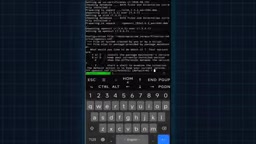
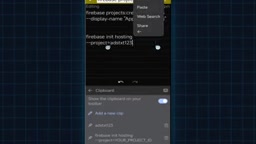
Next: create a Firebase project (with a custom Project ID like "adstxt123"), create a local project folder, run firebase init (press Enter to keep the default public directory, and select N for remaining prompts), replace the ID copied from AdMob into the config and verify it, then deploy. A successful deployment yields a hosting URL like "adstxt123.web.app" — this is the app-ads.txt address you'll enter in the Play Store dashboard.
app-ads.txt (Authorized Sellers for Apps) is an industry-standard file defined by IAB Tech Lab, used to declare which ad networks are authorized to sell a given app's ad inventory. Before bidding, advertisers' DSPs (Demand-Side Platforms) fetch and verify this file. If the file is missing or its contents don't match, programmatic ad buyers will refuse to bid on that app's traffic — causing real ads to fail to fill and the system to fall back to test ads. Unlike the web version ads.txt, app-ads.txt must be hosted at the root of the developer's official website (i.e., the domain associated with the Play Store developer page), not on the app's own server. This is why the tutorial requires setting up a separate Firebase static hosting site — it provides a publicly accessible URL that AdMob and ad buyers can crawl, specifically for storing this one line of compliance declaration.
Configuring In-App Purchases and Passing Google's Testing Review
In-app purchases rely on the billing library already pre-wired into the generated code. In Play Console, navigate to "Monetize with Play," then select Product > One-time product to create a one-time purchase item. It's also recommended to let the AI generate the Product ID — just tell the AI that generated your code: "I want to configure payments in the Console, please give me a Product ID, name, and description," and it will provide all three.
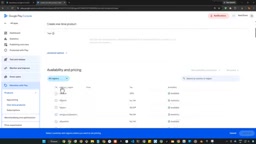
In the demo, the product is named "near share Pro Lifetime Ads Free," with pricing set uniformly across all countries via bulk edit. The India price is set to 99 rupees (the system defaults to 100, which must be manually changed to 99), then saved and activated.
Testing Payments: Avoid Real Charges
To test in-app purchases on your own device without being charged, go to Console settings and find "Payment profile > License testing," then add the Gmail address currently logged into the Play Store to the license testing email list. After this, the purchase flow will only show a test card and won't request real payment. In the demo, after clicking "Remove Ads" and paying 99 rupees, ads are permanently removed from the device and core functionality (cross-device transfer of files, video, and audio) works correctly.
Where to Find 12 Testers
Google's Closed Testing requires at least 12 testers to test the app continuously for 14 days — arguably the most frustrating hurdle for indie developers. The author's solution is a mutual-testing Android app developed by their team, which claims to provide up to 27 testers. Developers install and test each other's apps, collectively meeting the headcount requirement and completing the 14-day testing cycle together. The app link is in the video description and pinned comment.
Google's 12-person threshold and 14-day duration requirement for closed testing exist fundamentally to prevent developers from bypassing review and directly publishing low-quality or malicious apps. Only after meeting testing requirements does Play Console unlock the option to apply for production release. This policy has been enforced for some new accounts since August 2023 and is considered one of the highest-friction barriers for indie developers — especially first-time publishers. Testers must use real Google accounts, accept invitations, and install the app through the closed testing channel. Each tester must keep the app installed on their device for more than 14 calendar days — simply accepting the invitation without installing does not count. Mutual testing communities exist specifically as a workaround to lower this barrier.
Final Steps Before Going Live
Before an app enters Production, Play Console requires completing a series of tasks under "Finish setting up your app" — only after completing each item can you proceed to closed testing, and only after passing closed testing can you submit for production release. The author acknowledges that filling out the app listing (privacy policy setup, login credential entry, etc.) involves quite a bit of detail, and has produced a separate full tutorial covering that process.
Overall, this workflow takes "AI writes the code" from a concept to a real, publishable, monetizable product. Its value isn't in AI-generated code itself — it's in bridging the two stages that most commonly trip up newcomers: monetization and compliance review.
Related articles

Amphibious Transforming Drone: Beyond 100x Power Savings, What Are the Real Needs?
Is the amphibious transforming drone just a gimmick? Starting from the 100x power difference of the M4 Morphobot, explore real application scenarios and thesis topic ideas, analyzing boundary conditions where pure drones and pure ground robots both fail.

Warhound Raises $200 Million: Genetically Engineered "War Dogs" Paired with Anduril Gear
Warhound raises $200M, backed by Ben Lamm and Palmer Luckey, to genetically engineer dogs for military and law enforcement use and equip them with Anduril gear. This article analyzes its technology direction, funding logic, and ethical controversy.

Claude API Comes to Google Cloud: IAM Integration and SDK Access Guide
Anthropic hosts the full Claude API on Google Cloud with IAM-controlled permissions and unified billing. This guide covers the Vertex AI and Anthropic-hosted entry points, IAM role configuration, and SDK access.