Capnot: A Mac Screen Presentation Tool That Works Even on Mute
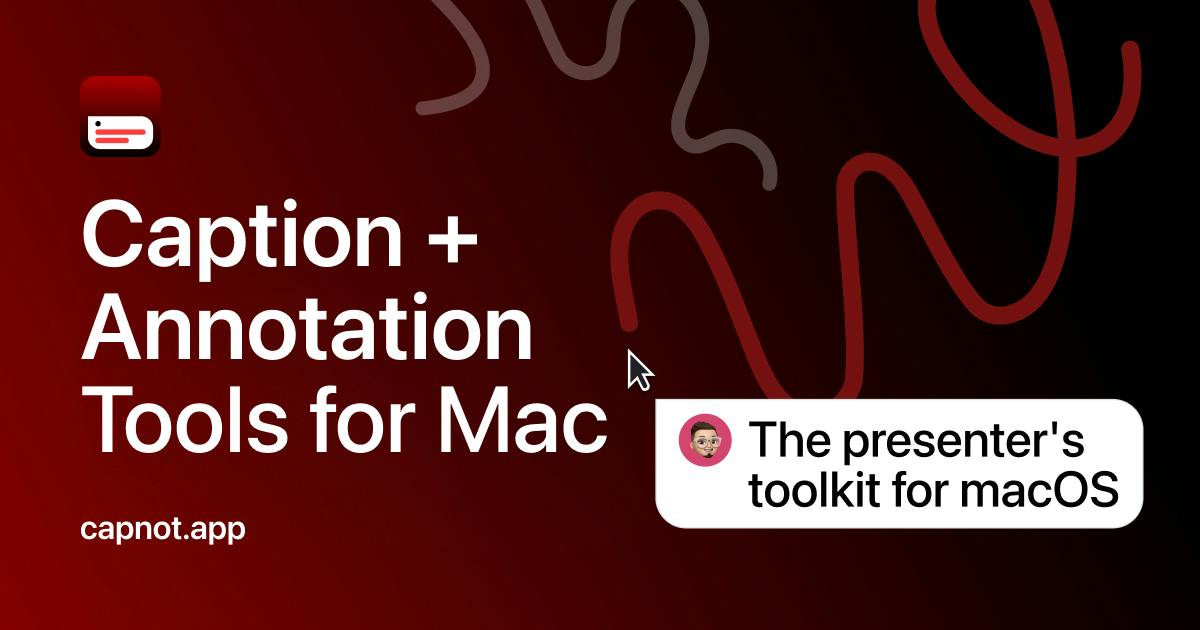
Capnot overlays captions, annotations, and a pointer on any Mac app, keeping silent presentations understandable.
Capnot is a real-time presentation assistant for Mac that overlays captions, shape annotations, and pointer emphasis on any app to solve the problem of lost key information when viewers watch on mute. It offers manual captions, cursor-following speech bubbles, and real-time speech-to-caption, plus arrows, boxes, numbered steps, privacy blur, spotlight, and magnify—all via keyboard shortcuts. Positioned as a lightweight overlay rather than a full video editor, it works with any screen recorder or sharing tool, with no post-editing or subscription. Ranked #12 on Product Hunt with 71 votes, it's still early-stage, with pricing, system compatibility, and caption accuracy undisclosed.
Screen recording and presentations often run into an awkward problem: when viewers watch on mute, key information is completely lost. Capnot, a new product ranked #12 on Product Hunt, aims to solve this with captions, annotations, and pointer tools.
The pain point of silent presentations and Capnot's solution
Most people who make screen presentations have run into this situation: you record a tutorial, publish it, and viewers play it on mute in the office—all they see is a mouse moving back and forth, with no idea what you're saying. Adding captions after the fact means re-editing, and during live screen sharing there's no chance to fix it at all.
Capnot's approach is to overlay an assistance layer directly on top of any Mac app. It isn't tied to a specific recording tool—it exists as an overlay layer, so it can work with any screen recorder or screen-sharing tool. The two selling points the official page emphasizes are "no post-editing" and "no subscription."
Screen sharing and screen recording are two different technical paths, which determines how an assistance tool integrates. Screen sharing (like Zoom or Tencent Meeting) typically transmits frames in real time via capture cards or system-level APIs, and the annotation layer needs to be mixed into the video stream as a window overlay or virtual camera; screen recording (like OBS or QuickTime) directly captures the framebuffer, and compatibility with overlays depends on the capture mode (full-screen capture vs. window capture). Capnot claims compatibility with any recorder or sharing tool, which in practice depends on macOS's window layering and screen capture permission mechanisms—whether the overlay gets recorded into the final file depends on whether the recorder captures that window layer, which is why the article notes that whether the annotation layer appears in the final recording file has not yet been disclosed.
Core features: captions, annotations, and pointer
According to the product page, Capnot offers three main capabilities.
Captions and speech bubbles: You can type captions manually, create a speech bubble that follows the cursor, or simply speak and let the tool generate captions in real time. These three approaches cover different presentation rhythms—pre-written captions suit scripted content, while real-time captions suit impromptu explanations.
Shape annotations: Supports drawing arrows, boxes, and numbered step markers. For step-by-step operation demos, numbered steps can significantly reduce the viewer's cognitive load.
Privacy and emphasis: You can blur sensitive information and highlight or magnify key areas with a spotlight. Both are very practical in real presentations—the former prevents leaking passwords, account details, and similar information, while the latter guides the viewer's attention.
All tools are invoked through a single keyboard shortcut, which is the key design that sets it apart from traditional post-production software: it's available on the fly during a presentation, rather than being handled after recording.
Real-time speech-to-caption is an automatic speech recognition (ASR) task, and its accuracy is significantly affected by the acoustic environment, accents, speaking rate, and coverage of technical terminology. General ASR models can achieve word error rates as low as 5%–10% in quiet environments, but accuracy rises noticeably in noisy environments or scenarios with many product names, abbreviations, and code identifiers. Some tools mitigate this with custom vocabularies or domain fine-tuning, but Capnot's product page doesn't mention whether such configuration is supported. In addition, real-time captions face latency and sentence-segmentation issues: streaming recognition must balance waiting for context against immediate output, and overly low latency leads to frequent segmentation and reduced readability. These factors together determine the usability boundaries of "real-time captions" in real presentations.
Product positioning and target users
Judging from the feature set, Capnot targets people who need to produce screen content frequently but don't want to spend time editing: developers giving product demos, creators recording tutorials, teams conducting remote training, and pre-sales staff who need to walk clients through operations.
Its trade-offs are also clear—it isn't a full video editor, just a real-time assistance layer during presentations. This "lightweight overlay" positioning lets it avoid head-to-head comparison with professional editing software, at the cost that complex post-production needs still require other tools.
On Product Hunt, the product received 71 votes, ranked #12, with 2 comments. The numbers are modest, indicating it's still in an early exposure stage, and real-world feedback still needs validation from more users.
"Overlay tools" and "video editors" are two different product categories. Video editors (like Final Cut Pro or CapCut) perform non-destructive editing of recorded footage on a timeline, suited for fine-tuning; overlay tools intervene in real time during capture, rendering annotations and captions directly onto the frame, saving the post-production step but sacrificing the ability to revise later. This trade-off means Capnot is better suited to one-shot, time-sensitive scenarios (like live demos or instant tutorials) rather than content creation that requires iterating on scripts and adjusting pacing. Understanding this boundary helps you judge whether it's the right tool, rather than expecting it to replace editing software.
Things to note
The product page doesn't disclose pricing details, the range of system compatibility (whether it supports Intel Macs or is Apple Silicon only), the accuracy and language support of real-time captions, or whether the annotation layer appears in the final recording file. This information significantly affects purchase decisions, so it's worth confirming further on the official website.
Also, real-time speech-to-caption relies on speech recognition capability, and there's currently a lack of public reviews on how it performs in noisy environments or with heavy technical terminology.
Summary
Capnot captures a real but often overlooked need: making screen content self-explanatory even without sound. Its real-time overlay approach is less hassle than adding captions afterward, and the shortcut-driven design fits presentation scenarios well. Whether it's worth buying depends on your tolerance for real-time caption accuracy and whether you need the additional system-level support it hasn't yet disclosed.
One-line Summary
Capnot overlays captions, annotations, and a pointer on any Mac app, keeping silent presentations understandable.
Paragraph Summary
Capnot is a real-time presentation assistance tool for Mac that provides captions, shape annotations, and pointer emphasis as an overlay on top of any app, solving the problem of lost key information when viewers watch on mute. It supports three caption methods—manual input, a cursor-following speech bubble, and real-time speech-to-caption—and offers annotation tools including arrows, boxes, numbered steps, privacy blur, spotlight, and magnify, all invoked via keyboard shortcuts. Positioned as a lightweight overlay rather than a full video editor, it works with any screen recording or sharing tool and emphasizes no post-editing and no subscription. The product received 71 votes and ranked #12 on Product Hunt, is still in an early stage, and key details such as pricing, system compatibility, and caption accuracy remain undisclosed.
Related articles
 Tech Frontiers
Stylome Bot Slammed as Useless Junk: Why Do AI Detection Tools Keep Failing?
Reddit users test the Stylome AI detection bot: Gemini-rewritten text judged human-written, consistently low confidence. An analysis of AI text detection's technical dilemmas, privacy concerns, and credibility crisis in community governance.
 Tech Frontiers
When AI Becomes a Productivity Divide: Clarity or "AI Psychosis"?
A civil engineer's deep use of agentic AI boosted efficiency but bred contempt for peers who refuse to learn. Is this clarity or AI psychosis? An analysis of the cognitive and psychological challenges behind the AI productivity divide.
 Tech Frontiers
Opus 5.5 Benchmark Scores Climb, Community Says Its "Weights Are Blessed"
Reddit community discusses Opus 5.5's rising scores on the Benchmaxxing Bench, with users describing its performance as "weights are blessed." This article interprets the community reaction and cautions against conflating benchmark scores with real capability.