Chrome DevTools Adds WebMCP Support: AI Tool Debugging Made Clear
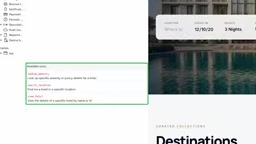
Chrome DevTools adds a WebMCP panel to view, trace, manually trigger, and debug tools that web pages expose to AI agents.
Chrome DevTools adds a WebMCP entry under the Application panel, bringing tools that web pages expose to AI agents into the everyday debugging workflow. The panel offers three capabilities: a real-time list of tools available in the current context that updates on context switch; a tool activity section recording each agent call's inputs, outputs, and details to troubleshoot multi-step calls; and direct jumps from activity records to the JavaScript code registering the tools, enabling breakpoints and stepping just like debugging regular JS. Tools can also be manually triggered to reproduce specific queries. This marks a shift from debugging traditional request-response to tool registration and call chains, and the team is openly soliciting feedback.
Chrome DevTools is bringing AI agent tool calls into front-end developers' everyday debugging workflow. According to a feature demo posted on YouTube, DevTools now supports WebMCP, allowing developers to see at a glance which tools are available in the current context through the WebMCP entry under the Application panel, and to trace and manually trigger tool calls.
Context Changes, Tool List Updates in Real Time
The first practical capability of WebMCP in DevTools is letting developers see clearly "which tools the current page actually exposes." In the demo, when the page context switches, the tool list updates accordingly. This means developers no longer have to guess or dig through code to confirm whether a given area has registered a corresponding AI tool—just open the panel and get a real-time list.
For those building web applications aimed at AI agents, this view solves the "visibility" problem: whether a tool exists and in which context it takes effect now have a direct observation entry point.
What is WebMCP
WebMCP (Web Model Context Protocol) is a protocol convention that lets web pages expose callable tools to AI agents. Traditionally, AI agents interacting with web pages could only rely on indirect means such as DOM parsing, simulated clicks, or screenshot recognition—fragile and hard to express intent with. WebMCP's approach is to have sites proactively declare a set of structured tools—each containing a name, description, parameter schema, and execution logic—which agents discover and invoke through the protocol rather than guessing at page structure. The "context" in the protocol refers to the scope in which tools are visible, such as a particular page, a route, or an iframe; when the context switches, the set of available tools changes accordingly. The DevTools WebMCP panel is precisely a runtime mapping of this mechanism, turning the abstract tool registry into an observable list.
Tool Activity Tracing: See Every Call Clearly
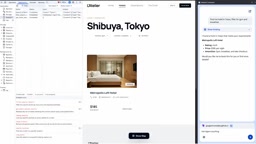
The second capability is the tool activity section. In the demo, the user sends a request to the agent—"Help me find hotels in Tokyo, with gym and breakfast filters"—and the left panel immediately lists the WebMCP tools that were called, along with the input, output, and further details of each call.

This level of granularity is critical for troubleshooting. AI agent behavior is often a chain of multi-step tool calls; if one step has wrong input parameters or returns unexpected results, the final answer will deviate. Only by laying out inputs and outputs can developers determine whether the problem lies in model understanding, parameter construction, or the tool implementation itself.
Beyond passive observation, the demo also shows how to manually trigger a tool—directly querying hotel information for New York. This makes it convenient to reproduce specific scenarios without having to trigger the chain through natural-language conversation every time.
Tool Call Chains and the Input/Output Boundary
In agentic applications, a single user request is typically broken down into multiple rounds of a "reason—call—observe" loop: the model first decides which tool to call, constructs parameters, waits for the result, and then decides the next step based on it. The tool activity section records precisely each call event in this loop, including metadata such as tool identifier, input arguments, return value, and duration. The key to troubleshooting is distinguishing three sources of failure: the model choosing the wrong tool or misinterpreting the request, parameter construction violating the tool's schema constraints, and the tool implementation itself returning an error. Only by presenting the input and output of each step independently can you determine which layer the error occurred at, rather than broadly attributing the problem to "the AI's answer being wrong."
Jump from Call Records to Tool Source Code
The third capability is aimed at code location. Developers can jump directly from a tool's activity record to the tool's registration location, such as a piece of JavaScript code. The demo explicitly states that these tools can be tested and debugged just like any other JavaScript code.
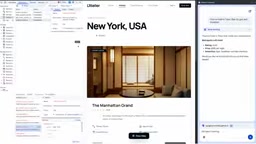
This brings WebMCP debugging back into a workflow familiar to front-end developers. Tools are essentially still JavaScript in the page, and techniques like breakpoints, stepping, and scope inspection apply just as well, keeping the learning curve very low.
Tool Registration Location and Source Mapping
WebMCP tools are registered in the page via JavaScript, typically binding a handler function and a parameter schema description at registration time. DevTools' ability to jump from an activity record to the registration code relies on registration source information retained at runtime—that is, recording which script and which line declared a given tool. This makes tools no longer a black box: developers can set breakpoints in the handler function, observe the actual parameters passed in by the agent, step through the tool logic, and inspect variable state in scope. For sites using bundlers, this jump relies on source maps to restore the original source code; if the build output does not include source maps, location precision degrades, so retaining source maps is a practice worth noting when debugging WebMCP applications.
Significance for Web AI Development Workflows
Building WebMCP support into DevTools reflects browser vendors' attention to the "web page as AI tool provider" paradigm. As websites begin exposing callable tools to agents, the debugging target expands from traditional request-response to tool registration, call chains, and parameter passing. DevTools providing a unified observation window can bring the development experience of such applications closer to that of traditional web development.
At the end of the demo, the team also solicited feedback from developers, asking what needs to be changed or added. For teams experimenting with WebMCP, this is a window of opportunity to directly influence the direction of the toolchain.
FAQ
Where is the WebMCP panel? It is located under the Application panel in DevTools, named WebMCP.
What information can I see? The list of tools available in the current context, input/output details of tool calls, and the registration location of tools.
Can I manually invoke tools? Yes—the demo directly initiated a query for New York.
Is debugging the same as for regular JS? Yes, the demo emphasizes that these tools can be tested and debugged just like any JavaScript code.
Related articles

Zero-Cost Local Jarvis: Open-Source Voice Cloning and Task Automation in Practice
AI Workshop shows how to build a zero-cost local Jarvis with Ollama and Voice Studio: local model switching, open-source voice cloning, file retrieval, and tool-calling tests, with setup steps and hardware trade-offs.

Mistral Large 4 Released: 1T-Parameter MoE Tops Western Open-Source Leaderboard
Mistral releases its flagship Mistral Large 4: a 1T-parameter MoE architecture activating only 49B parameters at inference, trained from scratch on 3,800 Grace Blackwell GPUs, topping the Western open-weight leaderboard with third-party endorsements in law, finance, and cybersecurity.

Mistral Large 4 Review: Can Europe's Strongest Open-Source Model Challenge the US and China?
Mistral Large 4 (L-Charm) review: trillion-parameter MoE, standout cybersecurity benchmarks but behind Kimi K3 in software engineering, 3,800 GPUs, a key step for European sovereign AI.