Claude Code Beginner's Guide: From Installation to MCP and Skills
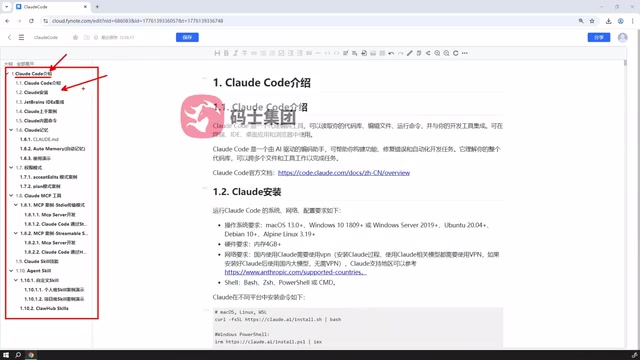
A complete beginner's guide to Claude Code covering installation, IDE integration, MCP, and Skills.
Claude Code is an AI-assisted programming tool designed for Vibe Coding, supporting everything from code generation to project structure organization. It integrates with popular IDEs like PyCharm and VS Code, and offers three permission modes — Full Auto, Confirmation, and Planning — letting developers balance automation with control. The CLAUDE.md file enables persistent project context, while MCP (Model Context Protocol) extends tool capabilities via Stdio or HTTP/SSE. Skills allow reuse of community workflows or custom-built automations.
What Is Claude Code: The Next-Generation AI Programming Assistant
Claude Code is an AI-assisted programming tool built for Vibe Coding (AI Coding). Its purpose is straightforward: during development, you can delegate code logic generation to it, or use it as a supporting tool in large-scale projects — from generating modules to organizing project structure.
In terms of development pace, Claude Code iterates rapidly and delivers strong real-world results. That said, there's an unavoidable pattern with AI coding tools — the better the results, the higher the demands on the underlying model, and the more significant the token consumption. This cost tradeoff is something every user needs to weigh upfront, and it's a practical consideration that will come up throughout this guide.
Environment Setup: Windows, Mac, and IDE Integration
Installation is the first step. Using Windows as an example, the Claude Code installation process is quite straightforward. If you're on macOS or a Linux distribution, the steps are equally simple — there's virtually no barrier to entry.
Once installed, there are two ways to use it. The first is to call Claude Code directly from PowerShell or CMD. While this works, the interaction experience isn't ideal. The second — and recommended — approach is to use it alongside an IDE. With PyCharm, for example, installing the corresponding plugin lets you invoke Claude Code directly within your familiar development environment.
It's worth noting that whether you use JetBrains IDEs for Java development or VS Code, the same logic applies: install the plugin, complete the configuration, and get started. IDE integration allows AI-assisted programming to become a natural part of your daily workflow, rather than an isolated command-line tool.
Getting Started: Auto-Generating Code and Built-in Commands
Once your environment is set up, you can explore how Claude Code assists with programming through hands-on examples. It can automatically write code based on your requirements, understand context, and generate the corresponding implementation logic — which is the most tangible value these tools offer.
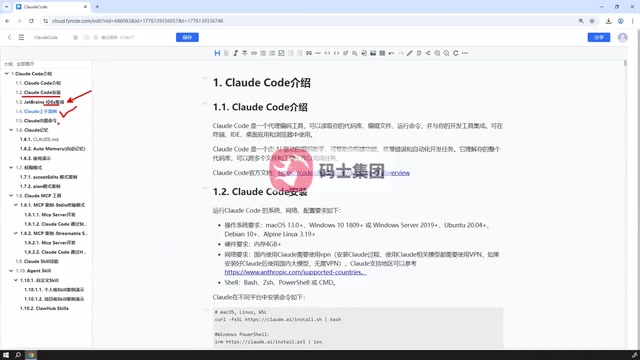
Beyond code generation, Claude Code provides a set of built-in commands to help you control your workflow more efficiently. These commands work in conjunction with its "memory" mechanism, significantly improving continuity during long-term collaboration.
Memory Mechanism: The Role of CLAUDE.md
Memory is a core capability of Claude Code. It includes automatic in-context memory as well as explicit memory configuration through the CLAUDE.md file. The former allows the tool to retain context throughout a conversation, while the latter lets developers write project conventions, coding standards, commonly used commands, and other information into a dedicated configuration file — which Claude Code reads and follows at the start of every task. This mechanism is especially valuable for large projects, as it eliminates the need to repeatedly re-explain background information.
CLAUDE.md is essentially a Markdown-formatted text file placed in the project's root directory (or a specified path). Claude Code automatically reads it and injects its contents into the context each time a task is initiated. Developers can include information such as the project's tech stack, code style guidelines, restricted file paths, commonly used script commands, and domain-specific terminology. The key advantage is that it turns "persistent instructions to the AI" into version-controlled artifacts — you can commit it to a Git repository so that all team members' Claude Code instances share the same contextual conventions, eliminating inconsistencies caused by individual prompt variations. For large collaborative projects, CLAUDE.md effectively serves as the "AI collaboration spec document" and is a cornerstone of using Claude Code in a production-ready, engineering-minded way.
Permission Modes: Three Collaboration Styles and Their Tradeoffs
Claude Code offers three permission modes, each reflecting a different level of human-AI collaboration:
- Full Auto Mode: Claude Code completes programming tasks from scratch with no human intervention — best suited for high-trust scenarios with clearly defined task boundaries.
- Confirmation Mode: During coding, key operations such as file modifications or plugin installations require user confirmation before proceeding. This mode strikes a balance between safety and automation.
- Planning Mode: Claude Code provides a plan only — it makes no actual file changes and issues no modification prompts. This is ideal for the early-stage review of a proposed approach.
Choosing the right permission mode is fundamentally about trading off automation efficiency against controllability. For beginners, starting with Confirmation Mode is the safer choice.
The three permission modes correspond to the classic "autonomy vs. trustworthiness" tradeoff in the AI Agent domain. In Full Auto Mode, Claude Code can execute multi-step operations in sequence — reading files, modifying code, installing dependencies, running tests — achieving maximum efficiency. However, if the model makes a misjudgment, errors may propagate across multiple files before being caught. Confirmation Mode inserts a human approval checkpoint before each operation with side effects, effectively placing a supervision node within the Agent's "action loop" — the most common pattern in production environments today. Planning Mode eliminates execution risk entirely, making it ideal for validating the AI's understanding and proposed approach before any actual code changes begin, particularly when modifications to an existing system are substantial or when requirements are still ambiguous.
MCP Tools: Extending Claude Code's Capabilities
Claude Code includes a set of built-in tools — such as file operations, viewing files, and writing code — which are sufficient for most everyday scenarios. But when you need more specialized capabilities — such as code linting, GitHub commits and pulls, or various analytics tools — you can extend Claude Code using MCP (Model Context Protocol).
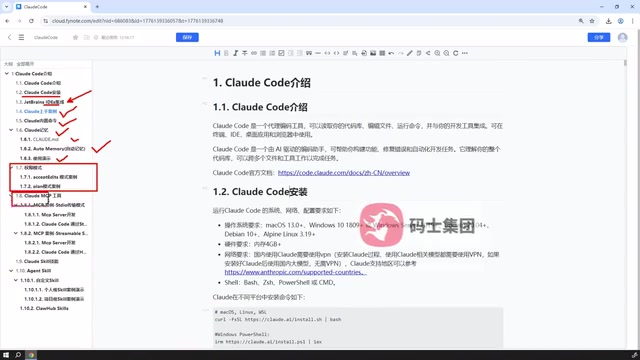
MCP supports both custom-developed tools and third-party integrations, and configuration is straightforward. The tutorial demonstrates two communication modes: one using Stdio to define an MCP server and integrate it into Claude Code; the other using HTTP (Streamable SSE mode) for communication with a corresponding MCP Server. Both sections walk through a complete, hands-on process of creating tools from scratch, starting them, and connecting them to Claude Code.
MCP (Model Context Protocol) is an open protocol standard proposed by Anthropic, designed to establish a unified interface for communication between large language models and external tools or data sources. Its core idea is to decouple AI models from tools — the model itself doesn't need to embed the calling logic for every tool; it simply follows the protocol to dynamically discover and invoke any compliant MCP Server. Stdio mode communicates with local processes via standard input/output streams, suitable for tools running on the same machine. HTTP/SSE (Server-Sent Events) mode connects to remote services over the network, supporting real-time data stream pushing — ideal for distributed or cloud-deployed tool services. Since MCP is an open protocol, the community has accumulated a large number of ready-made MCP Server implementations (e.g., GitHub, databases, browser automation), which developers can use directly or build themselves in any language following the protocol specification.
Skills: Reusing and Customizing Your Workflows
Skills are another important component of Claude Code. You can configure ready-made skills from the internet or develop your own for Claude Code to call upon.
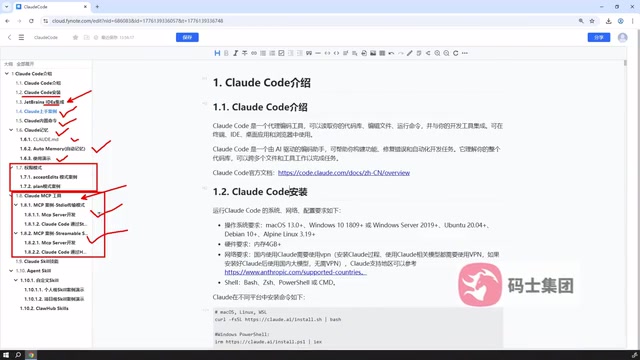
In theory, virtually any skill you find online can be used within Claude Code — there are no compatibility barriers. To get started, you need to master two things: how to define and write custom skills, and how to pull in external skills from the web and apply them directly. This part has a relatively low learning curve and is something most developers can pick up quickly.
Summary: A Complete Claude Code Learning Path
Taken together, the above content outlines a clear learning path: start with installation and IDE integration, build understanding through hands-on coding examples, improve collaborative efficiency with built-in commands and the memory mechanism, select the appropriate permission mode based on your needs, and finally use MCP tools and Skills to tailor Claude Code into a personalized assistant that fits your workflow.
For developers looking to systematically master AI-assisted programming, Claude Code is worth the time investment. It can reduce repetitive work and provide meaningful support in complex projects — as long as you understand its capability boundaries and cost characteristics.
Related articles
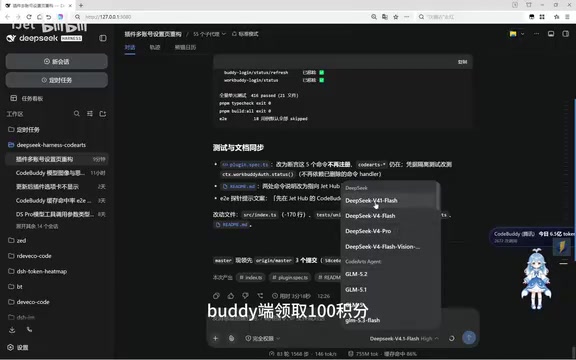
Free DeepSeek V4.1 Flash via DSH: Bulk Point Collection & International WorkBuddy Tested
DSH project update tested: WorkBuddy now offers 100 points per claim, rate limits raised beyond 80M tokens with faster resets, and international WorkBuddy supports free Hunyuan 4 and DeepSeek V4.1 Flash.
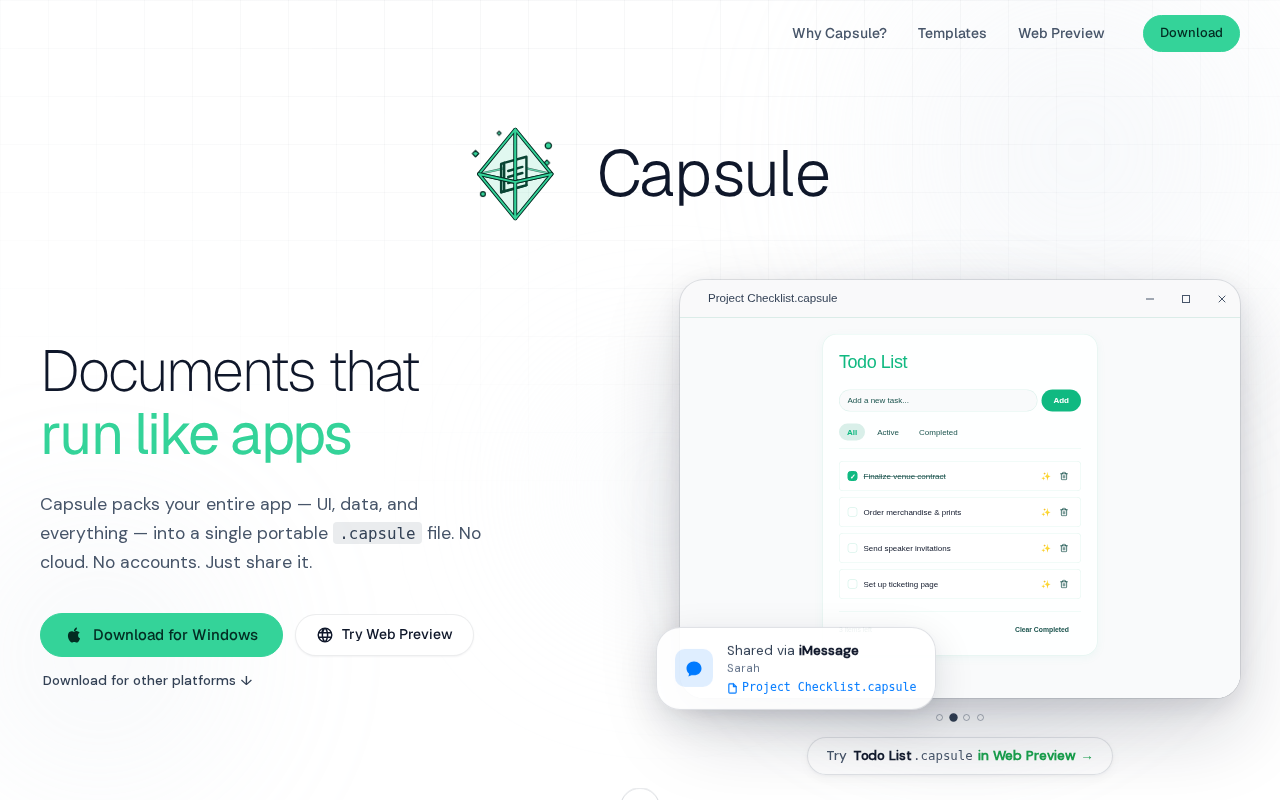
Capsule: Pack Web Apps and Data into a Single SQLite File
Capsule is a Rust/Tauri 2.0 tool that packs HTML web apps and data into a single SQLite file — privacy-first, local storage, portable sharing, with AI support.
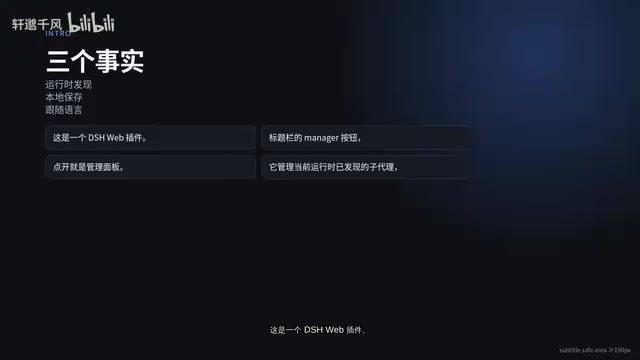
DSH-SUBAGENT-UI Plugin: The Ultimate Sub-Agent Manager for DeepSeek Harness
DSH-SUBAGENT-UI is a DeepSeek Harness browser plugin offering sub-agent overview, search, local categorization, and completion snapshots — install with one command.