Claude Code Complete Beginner's Guide: From Installation to MCP and Skills in Practice

A complete guide to Claude Code — from installation and IDE setup to MCP tools and the Skills system.
Claude Code is Anthropic's AI coding assistant, usable from the terminal or integrated into IDEs like PyCharm and VS Code. Key mechanisms include cross-session memory via CLAUDE.md, three permission modes (full auto, confirmation, planning), and MCP-based tool extensions supporting both Stdio and HTTP communication. The Skills system lets developers encapsulate and reuse standardized workflows. The guide notes that stronger tool performance means higher token consumption — a real cost to manage.
What Is Claude Code: A New Choice for AI-Assisted Development
Claude Code is an AI-assisted programming tool built for AI Coding scenarios — often referred to as Vibe Coding. Its purpose is clear: to take on part of the code generation work during development, and to serve as a coding assistant on larger projects. Whether you're writing a quick script or pushing through a full-scale project, Claude Code can step in and help.
In terms of speed of improvement and real-world results, Claude Code is performing remarkably well. That said, there's a tradeoff worth acknowledging: the better an AI coding tool performs, the more powerful the underlying model it relies on — and the more tokens it consumes. This is an unavoidable cost consideration when using tools like this, and remains one of its current pain points.
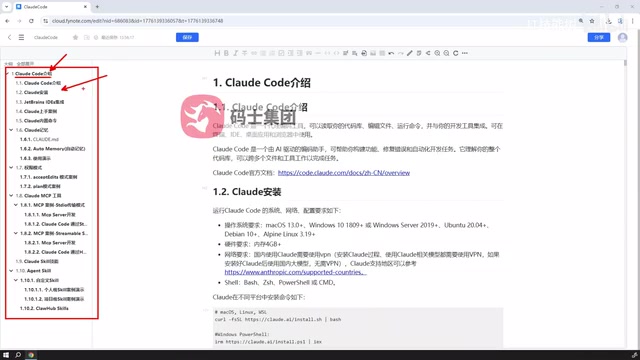
This tutorial provides a structured learning path for Claude Code, starting from installation and progressively covering IDE integration, hands-on examples, built-in commands, memory mechanisms, permission modes, MCP tools, and the Skills system — guiding you through a complete journey from beginner to advanced user.
Installation and IDE Integration: From the Command Line to PyCharm
The installation walkthrough focuses on Windows, but don't worry about platform differences — Claude Code is equally straightforward to install on macOS and Linux.
On the topic of usage, there's a choice worth considering. After installation, you can absolutely run Claude Code directly from PowerShell or CMD. However, pure command-line interaction isn't the most comfortable experience for most developers, so this tutorial uses PyCharm to demonstrate IDE integration.
This approach generalizes well: if you use other JetBrains IDEs (like IntelliJ for Java) or VS Code, you can follow the same steps to install the plugin and connect Claude Code. In other words, the logic behind IDE integration is consistent across editors — learn one, and you can apply it anywhere.
Hands-On Examples and Core Mechanisms: Commands, Memory, and Permission Modes
Beyond basic usage, a few key mechanisms fundamentally shape the Claude Code experience.
Built-in Commands and Memory
The hands-on examples focus on observing how Claude Code assists with programming and generates code automatically. Building on that, the tutorial covers its built-in command system and — particularly important — its "memory" capabilities.

The memory mechanism has two components: automatic memory, and explicit memory configuration via a CLAUDE.md file. The former has the tool maintain context on its own; the latter lets developers write project conventions, standards, and key information into a dedicated file that Claude Code references throughout future sessions. This mechanism is especially valuable for long-running, multi-session projects, significantly reducing the cost of repeated explanations.
The
CLAUDE.mdfile is the core carrier of Claude Code's memory system — essentially a Markdown file placed in your project's root directory. Claude Code automatically reads it at the start of each session and injects its contents as system-level context into the conversation. Developers can use it to document the project's tech stack, coding style guidelines, file paths that should not be modified, commonly used commands, and more. This design addresses the inherent "statelessness" of large language models — models don't retain memory across sessions, butCLAUDE.mdrestores project context at the start of every interaction, effectively simulating persistent memory. For collaborative projects,CLAUDE.mdcan also be version-controlled, allowing team members to share a unified set of AI collaboration guidelines.
Three Permission Modes
Permission modes are the core design through which Claude Code controls its degree of automation. They fall into three broad categories:
- Full Auto Mode: Requires zero human intervention from start to finish. Claude Code handles everything independently.
- Confirmation Mode: Prompts the user to approve key actions during the process — such as whether to modify a specific file or install a package — keeping a human in the loop.
- Planning Mode: Produces a plan only, without actually modifying any files or prompting for changes. Ideal for thinking things through before taking action.
The difference between these three modes is fundamentally a tradeoff between control and efficiency. Developers can switch between them freely based on project risk and how much they trust the output.
MCP Tools: Extending Claude Code's Capabilities
Claude Code ships with a set of built-in tools — file operations, file viewing, code writing, and so on — which are sufficient for most scenarios. But when you need more specialized capabilities — code linting, GitHub-related commits and pulls, various analytics tools — you'll need to extend it using MCP (Model Context Protocol).
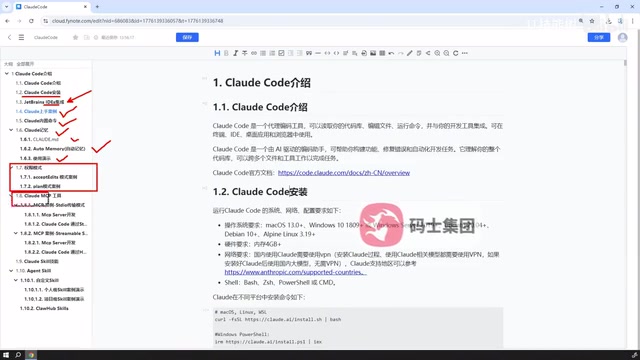
MCP tools can be built from scratch or integrated from existing external services, and Claude Code's support for this is quite robust, with a reasonably convenient configuration process.
The tutorial demonstrates two communication modes:
- Stdio mode: Communicates via standard input/output. You build a custom MCP server and observe how Claude Code integrates with it.
- HTTP mode (Streamable / SSE mode): Communicates over HTTP. This demonstrates how to configure this type of MCP Server into Claude Code.
Both sections emphasize fully manual implementation — from creating the tool to launching and connecting it, every step done by hand. The goal is to give users a genuine understanding of how MCP works, rather than just importing a library and moving on.
MCP (Model Context Protocol) is an open protocol introduced by Anthropic in late 2024, designed to provide large language models with a standardized "tool-calling" interface specification. Think of it as a "USB port" between AI models and the outside world — as long as a server implements the corresponding tool descriptions and invocation logic according to the MCP protocol, the model can discover and call those tools in a unified way, without needing a custom adapter for each integration. Stdio mode suits local process communication — low latency, simple to deploy, commonly used for on-machine custom tools. HTTP mode (SSE, or Server-Sent Events) is better suited for deploying MCP Servers as standalone services with cross-network support, closer to production use cases. Understanding the distinction between these two communication modes helps you choose the right integration strategy for real projects.
Skills: Reusability and Customization
Skills are another important capability within Claude Code. They allow you to configure skills available on the internet, or define your own custom skills for Claude Code to invoke.

In theory, almost any skill you find online can be used directly in Claude Code — compatibility is quite friendly. The tutorial covers both how to define and write custom Skills, and how to pull in ready-made Skills from external sources. The learning curve here is gentle, making it a high-value area to explore.
Skills in Claude Code function similarly to "reusable prompt templates combined with tool-call sequences." A Skill typically encapsulates an operational workflow for a specific scenario — for example, "generate unit tests for the current function and write them to the corresponding test file," or "submit a Git commit following the team's conventions." The core of a custom Skill is describing the task's trigger conditions, execution steps, and output format in a structured way; Claude Code will automatically invoke it when it detects a matching scenario. Compared to typing natural language instructions each time, predefined Skills can significantly reduce token consumption per interaction while ensuring operational consistency — especially valuable for standardized development tasks that need to be performed repeatedly.
Summary: A Clear Learning Path
The full body of content maps out a complete journey with Claude Code, from beginner to advanced:
Installation → IDE Integration → Hands-On Examples → Built-in Commands & Memory → Permission Modes → MCP Tools → Skills
For anyone who wants to genuinely incorporate AI coding into their daily development workflow, understanding these mechanisms matters far more than simply "having AI write code." The memory mechanism determines collaboration continuity; permission modes determine controllability; MCP and Skills determine the upper bound of what the tool can do. Only by connecting all these pieces can you truly enjoy the efficiency gains while maintaining control over token costs and code quality.
Related articles

Gaussian Process Bandit Optimization: Exploration Strategies and Inference Regret Guarantees
Cumulative regret guarantees in Bayesian optimization fail to reflect final recommendation quality. This article examines a new study that provides inference regret guarantees for Gaussian process bandit optimization through exploration query strategies and fill distance analysis, validated on hyperparameter optimization and control tasks.
The Most Detailed Codex Guide on Bilibili: From Installation to Real-World Practice
The most detailed Codex guide on Bilibili: from app store installation to daily work mode configuration, with a real coffee shop project demonstrating file organization, data extraction, dashboard creation, and other practical tasks. Learn to use Plan Mode and desktop pets to leverage Codex efficiently.

Appearance Compensation in Volume Rendering: Why RGB Accuracy Cannot Guarantee Density Correctness
Volume rendering research reveals that volumetric data perfectly reproducing external RGB views may still contain density errors: appearance compensation can double central density and keep external rays unchanged even when L2 error exceeds 14.52%. Density recovery depends on appearance capacity, spatial resolution, and measurement design.