Claude Code + Cursor Dual-Tool AI Programming Workflow: A Practical Guide
Terminal Agent handles big tasks, editor handles fine-tuning—a closed-loop workflow from planning to review.
The article presents an AI programming workflow combining Claude Code and Cursor. The core idea is division of labor: Claude Code in the terminal excels at large multi-file tasks and command/test loops, while the VS Code-based Cursor is more flexible for inline editing, autocompletion, and code understanding. The five-step workflow: generate a concise claude.md memory file with init, have the Agent propose a plan before editing, build in small steps with continuous testing and commit on success, polish details in Cursor with diffs and inline editing, then review every change and own the code. The article also covers tool selection criteria, cost control, and four common pitfalls, stressing that the real value lies in developing the engineering habit of plan—execute—review.
Claude Code + Cursor Dual-Tool AI Programming Workflow: A Practical Guide
When Claude Code in the terminal meets Cursor in the editor, the two are not competitors—they can form a highly efficient programming workflow with a clear division of labor. The core logic of this combination is simple: hand large tasks to the terminal Agent, and leave fine-tuning to the editor.
Before diving into the specific steps, it's important to understand the essential differences between the two tools. Claude Code is a terminal Agent launched by Anthropic, skilled at larger tasks spanning multiple files, and capable of directly running commands and tests. Cursor is an AI code editor built on VS Code, developed by AnySphere, excelling at inline editing, autocompletion, and codebase conversations, and allowing users to choose models from multiple providers—including the Claude series. Both require payment for serious use.
How the Two Work Together: Setting Up the Foundation
The setup process itself isn't complicated. Open your project folder in Cursor, bring up the built-in terminal, and run Claude Code there. This way both tools operate on the same set of files: Claude Code executes tasks in the terminal, while Cursor's editor and AI features provide assistance around those files. In addition, Claude Code offers an extension for VS Code-family editors that displays its changes as diffs for easy visual review.
The flowchart below illustrates the complete loop from initializing project memory to final review.
On the difference between "terminal Agents" and inline completion: Claude Code is an agentic programming tool that autonomously decides which files to read, which commands to execute, and how to iterate based on test output within a controlled loop, making it better suited for tasks requiring multiple rounds of trial and error. Cursor's inline editing is essentially a short-chain interaction of "select code → describe intent → localized rewrite," with low latency and strong predictability, but it's not good at autonomous planning. Understanding this difference explains why the article emphasizes "large tasks to the Agent, details back to the editor"—it's not a matter of capability level, but of different interaction paradigms.
On the mechanism of claude.md and Cursor Rules: These files work because they are injected into the model's context at the start of each session (or as part of the system prompt), essentially providing the Agent with a "project manual." Their value depends on information density: clearly stating directory responsibilities, common commands, and naming and testing conventions is sufficient—piling up lengthy explanations will crowd out the context window and dilute key information.
Five-Step Workflow: From Planning to Delivery
Step 1: Establish Project Memory for the Agent
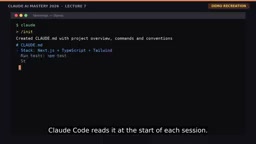
Using the init command in Claude Code generates a file called claude.md, which describes the project structure, common commands, and coding conventions. Claude Code reads this file at the start of each session. Cursor also has its own rules files for the same purpose. The key principle is: keep these files short and accurate, so consistency improves significantly. The original video creator emphasized that these memory files are the foundation for consistency across sessions.
Step 2: Plan First, Then Act
Ask Claude Code to propose a plan before editing. The example in the video is adding dark mode, broken down into four clear steps: theme context, toggle button, saving the selection, and testing. Reviewing a plan is far faster than reviewing a large chunk of unexpected changes, and it lets you correct course deviations early. This is exactly the value of "planning first"—minimizing rework costs.
Why "plan first" is especially important for Agents: An Agent's edits proceed autonomously and continuously. Once it goes off track, it has often already produced cascading changes across multiple files, making rollback far more costly than manual line-by-line editing. Having it output a plan before acting is equivalent to making the "implicit decision process" explicit—you can correct misunderstandings of requirements at a zero-cost stage. This aligns with the thinking behind Plan mode (research only, no editing), essentially moving verification points earlier rather than relying on post-hoc review as a safety net.
Step 3: Build in Small Steps and Test Continuously
Claude Code edits files, runs the test suite, and fixes any issues it finds. Once tests pass, have it commit with a clear commit message. Small, test-backed commits make any problematic change easy to roll back. The principle here is: don't accumulate a large batch of untested changes.
Step 4: Polish Details in Cursor
Open the changed files and review them with visual diffs. For small details like renaming or adjusting styles, use inline editing. When you encounter unfamiliar code, let Cursor's chat feature explain it. Autocompletion speeds up those tiny adjustments. This division of labor—large tasks to the Agent, fine details back to the editor—is exactly where the combination shines.
On visual diff review: Claude Code's VS Code-family extension presents the Agent's changes in a diff view, annotating additions, deletions, and modifications block by block. Compared to reading text output directly in the terminal, the diff view lets you accept or reject by hunk (change block) and quickly locate specific lines. Cultivating the habit of "always review the diff for changes" is a key part of bringing Agent output into engineering discipline—it turns review from an optional action into a fixed step in the process.
Step 5: Review and Edit Again
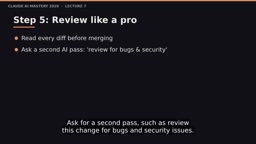
Read every diff before merging. You can ask for a second pass, such as "review this change and find bugs and security issues." Run the linter, type checks, and tests. Most importantly: you are responsible for the code you deliver. If you don't understand a change, keep asking until you do.
When to Use Which Tool: A Quick Decision Guide
When facing a specific task, you can refer to the following criteria:
- Large multi-file refactoring or new features: Claude Code
- Quick fixes within a single file: Cursor inline editing
- Understanding code logic: Either works
- Loop-running scripts and tests: Claude Code
Over time, you'll develop your own intuition. There are no absolute rules here—only scenario fit.
Cost Control and Common Pitfalls
Claude Code requires a Claude Pro or Max subscription, or API credits. Cursor offers a free tier and paid plans. Agent loops can consume a lot of tokens on large tasks, so keeping tasks focused and monitoring the usage dashboard is a necessary cost discipline.
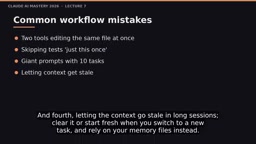
Common mistakes are worth guarding against one by one. First, both tools editing the same file simultaneously, which produces confusing conflicts. Second, skipping tests "just this once", which is exactly when bugs slip in. Third, giving a giant prompt containing ten tasks at once, which should be split up. Fourth, letting context grow stale during long sessions—when switching to a new task, clear or restart, and rely on memory files instead.
On token consumption and context windows: Each Agent loop resends the conversation history, the contents of files read, and command output, so token consumption in long sessions accumulates quickly with each turn—costs do not grow linearly. This is also the economic reason the article recommends "clearing context when switching tasks and relying on memory files for continuity": rather than carrying a large amount of stale context into continued conversation, it's better to start fresh with a concise claude.md—saving money while reducing the risk of the model being distracted by irrelevant information.
Suggested Daily Work Rhythm
An actionable daily routine looks like this: in the morning, review outstanding issues and pick one to three tasks; for each task, first plan with Claude Code, then build and test, and commit once tests pass; polish and review in Cursor; at the end of the day, update claude.md or your notes with new information the Agent needs to know. This cycle keeps every session efficient and consistent.
Claude Code Features Worth Knowing
The init command creates the claude.md memory file; the clear command resets the conversation context when switching tasks; Plan mode lets Claude research and propose plans without editing anything, suitable for use before major changes; you can also create custom slash commands for frequently reused prompts, and set up hooks to automatically run scripts like formatters after each edit. Since new features are released frequently, it's recommended to check the official documentation for a complete and up-to-date list.
Back to the core of the workflow: establish project memory files, plan before editing, make small test-backed commits, polish and review in Cursor, and always understand every change you deliver. The value of this combination lies not in the tools themselves, but in how it forces you to develop the engineering habit of "plan—execute—review."

One-line Summary
The terminal Agent handles large tasks while the editor handles fine-tuning, forming a closed-loop workflow from planning to review.
Paragraph Summary
The article introduces an AI programming workflow that combines Claude Code with Cursor. The core idea is division of labor: Claude Code in the terminal excels at large multi-file tasks and command/test loops; Cursor, built on VS Code, is more flexible for inline editing, autocompletion, and code understanding. The workflow has five steps: use init to generate a concise claude.md project memory file, have the Agent propose a plan before editing, build in small steps with continuous testing and commit once tests pass, return to Cursor to polish details with diffs and inline editing, and finally review every change and take responsibility for the code. The article also provides decision criteria for tool selection, cost control advice, and four common pitfalls, emphasizing that the real value of this combination lies in cultivating the engineering habit of "plan—execute—review."
Related articles
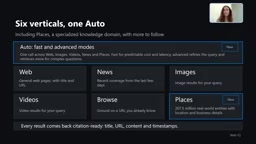
Microsoft WebIQ: Verifiable Real-Time Web Grounding for AI Agents
Microsoft WebIQ gives AI Agents real-time, citable web grounding across web, news, images, videos, and Places—164ms P95 latency, 50% fewer tokens, Scopes source control, and MCP integration.
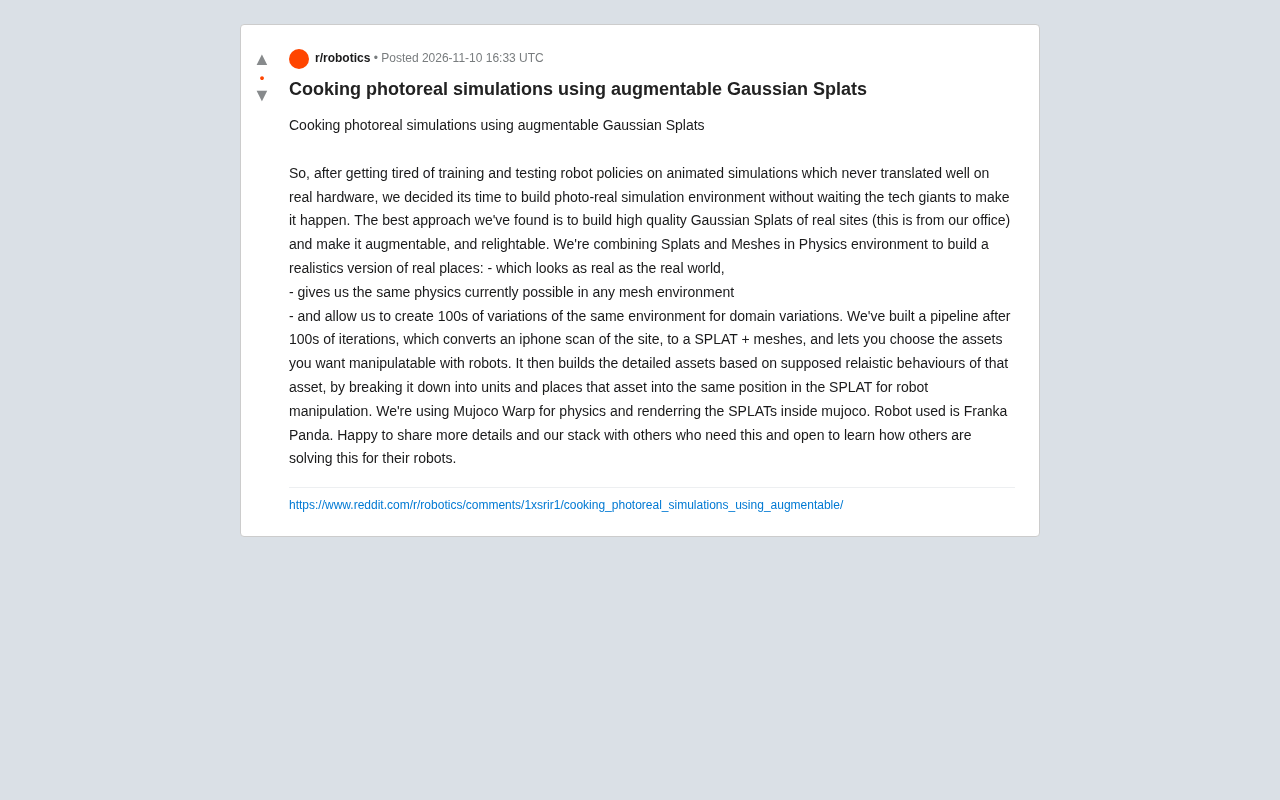
Augmentable Gaussian Splatting: Building Photorealistic Simulation Environments for Robot Training
Team combines Gaussian Splatting with meshes to build photorealistic robot simulation environments, integrating MuJoCo Warp physics and Franka Panda for augmentable, relightable real-site simulation.
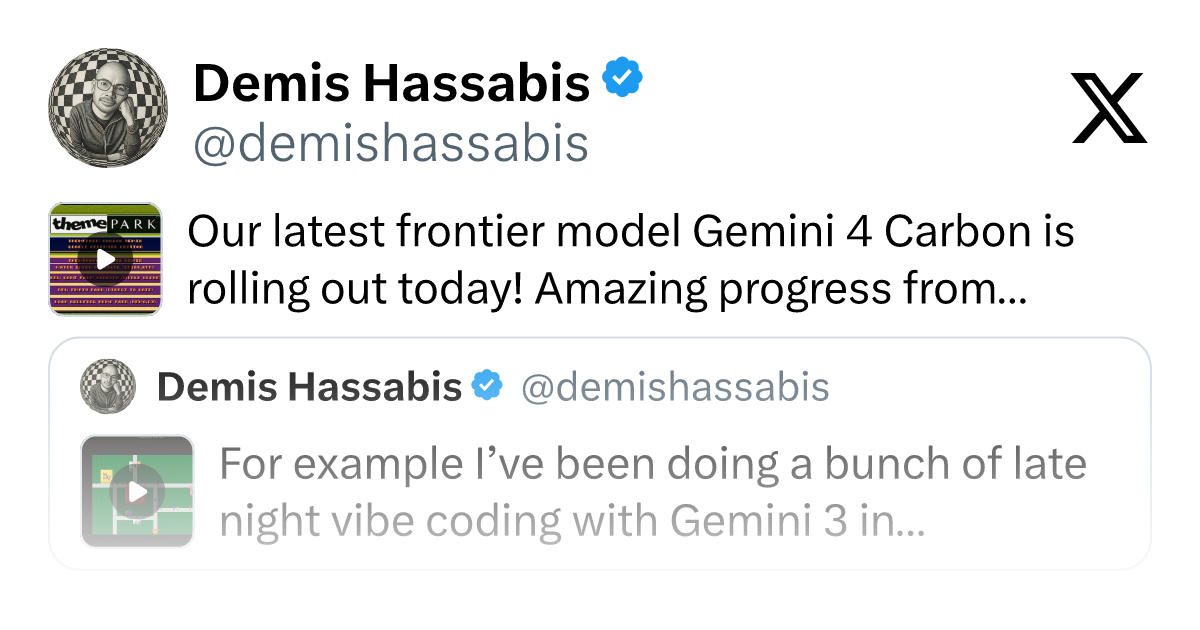
Gemini 4 Carbon Released: The Leap from Gemini 3 to Gemini 4 in Under a Year
Google releases Gemini 4 Carbon, less than a year after Gemini 3. In the official demo, Carbon reverse-engineered the Theme Park binary, added a new DeepMind-themed ride, and ported it to the web in one shot.