Claude Code Desktop Installation Guide: Complete CCswitch Configuration for Third-Party APIs

Complete guide to installing Claude Code Desktop and configuring third-party APIs with CCswitch.
This tutorial walks through the full process of installing Claude Code Desktop and using the CCswitch tool to configure third-party API proxy services. It covers downloading both applications, filling in provider details (with critical tips like avoiding trailing slashes in URLs), enabling developer mode, and verifying connections—helping developers in restricted regions get started with this lag-free AI coding assistant.
Introduction: Why Choose Claude Code Desktop
As AI coding assistants become mainstream, Claude Code is rapidly gaining popularity among developers thanks to its stable performance and plug-and-play experience that requires no additional extensions. AI Coding Assistants represent one of the fastest-growing categories in the developer tools space over the past two years. From GitHub Copilot igniting the market, to editor-level products like Cursor and Windsurf emerging, to OpenAI's Codex CLI and Anthropic's Claude Code, this space has developed a multi-layered competitive landscape. Claude Code is developed by Anthropic, built on their Claude large language model series, and positioned as a terminal-based coding assistant—its core philosophy is to let AI run directly within the developer's working environment, capable of reading project files, executing commands, and writing or modifying code, rather than merely providing code completion suggestions.
Compared to similar products, Claude Code Desktop has one notable advantage—it doesn't lag. Based on real-world testing feedback from content creators, many users experience noticeable lag when using Codex, while Claude is much smoother in terms of response speed. This experience difference typically involves two layers: API response latency (the time from sending a request to receiving the first token, known in the industry as TTFT—Time To First Token), and client-side rendering performance. OpenAI's Codex CLI in its early versions adopted a sandboxed execution environment and multi-step verification mechanism, requiring additional security checks for each code execution, which can cause perceived delays. Claude Code, on the other hand, uses a more direct Streaming Response architecture, where model-generated content is pushed to the terminal in real-time as a token stream, allowing users to see output results almost instantly, resulting in a subjectively smoother experience.
This article provides a complete hands-on tutorial covering the Claude Code Desktop installation process and how to configure third-party APIs (proxy services) through the CCswitch tool, helping users who cannot directly access official services get up and running smoothly.
Note: This tutorial involves configuring third-party proxy APIs. Please evaluate account and data security risks on your own and choose service providers carefully.
Claude Code Desktop Installation Steps
Pre-Installation Preparation
Before getting started, you need to have a stable network environment (i.e., a VPN or proxy tool) to ensure smooth access to the Claude website and complete the download. Since Anthropic does not currently provide direct services in mainland China, users need proxy tools to access the Claude website and API endpoints. Technically, this usually means routing network traffic through overseas servers using protocols and clients such as VPN (Virtual Private Network), Shadowsocks, V2Ray, Clash, etc., to bypass network access restrictions. In API call scenarios, proxy stability directly affects request success rates and response speed—if proxy nodes are unstable or bandwidth is insufficient, API calls may time out or connections may drop. Therefore, choosing low-latency, high-availability proxy nodes is crucial for the development experience.
Downloading and Installing Claude Desktop
Once you're on the Claude website, select the version corresponding to your operating system:
- macOS users: Select the macOS version
- Windows users: Select the Windows version
Click download and run the installer. The entire installation process is fairly automated—just follow the prompts and click through to complete. When new users first open the interface, they'll see several options; select Claude Desktop to proceed.

It's worth noting that one major advantage of Claude Code is that no additional plugins are required—it's ready to use right after installation, which is much more user-friendly compared to other tools that require tedious configuration.
CCswitch Download and Configuration
What Is CCswitch?
CCswitch is an open-source tool for managing and switching Claude API providers, available on GitHub. Its primary function is to automatically populate third-party API configurations, taking over Claude Code's provider settings and eliminating the hassle of manually filling in numerous parameters.
From a technical perspective, CCswitch is essentially an API gateway configuration manager. Claude Code is designed to support custom API endpoints (Base URL) specified through environment variables or configuration files, redirecting requests originally meant for Anthropic's official servers to third-party compatible API services. CCswitch provides a graphical interface for this configuration process—users don't need to manually edit environment variables (such as ANTHROPIC_BASE_URL, ANTHROPIC_API_KEY, etc.) and can simply fill in provider information through the GUI. It also supports quick switching between multiple provider configurations, which is very practical in real-world use—for example, when one proxy service experiences issues, you can switch to a backup provider with one click without reconfiguring the entire environment.
How to Get CCswitch
Search for "ccswitch" on GitHub, go to the project page, scroll down to find the Release page, and download the version that matches your system. Windows users can simply download and install the corresponding version—double-click to run and follow the installation prompts.

Troubleshooting Common Issues
According to user feedback, some new users may find that the "+" (add) button in the upper right corner doesn't appear immediately when first opening CCswitch. If you encounter this, try resizing the window by dragging its edges—the button usually appears afterward. This is a known minor quirk that can be resolved with a simple adjustment.
Filling in Third-Party API Provider Information
Configuring CCswitch is the most critical step in the entire process. Before diving into configuration, it's helpful to understand how third-party API proxy services work. Proxy service providers deploy servers overseas, pre-purchase API quotas from AI companies like Anthropic, and then offer compatible services under their own domains and interface formats. User requests are first sent to the proxy server, which then forwards them to Anthropic's official API, receives the response, and returns it to the user. This model solves the access problem for users in restricted regions but also introduces additional risks: first, data privacy risks—your code and conversation content passes through third-party servers; second, service stability risks—proxy services may cease operations at any time; third, pricing risks—some providers may overcharge or engage in quota fraud. Therefore, choosing reputable, transparent service providers is essential.
Click the "+" button in the upper right corner to create a new provider configuration. You'll need to fill in the following key fields:
Key Configuration Fields Explained
- Provider Name: Customize as you wish for easy identification
- Website URL: Enter the address of the proxy service you're using
- Request URL: This is where errors most commonly occur—make sure the URL does NOT end with a trailing slash (/). This seemingly minor detail can actually cause serious path concatenation errors. When Claude Code constructs the full API request URL, it concatenates the Base URL with the specific API path (e.g.,
/v1/messages). If the Base URL already ends with a slash (e.g.,https://api.example.com/), the concatenated result becomeshttps://api.example.com//v1/messageswith a double slash. Different web servers and reverse proxies handle double slashes differently—Nginx may merge them by default, but many API gateways treat them as different paths and return 404 Not Found or other errors. - API Key: Paste the key you created on the proxy service
- Group: Select the corresponding Claude group
- Model Mapping: The tutorial recommends leaving this empty, as model mapping results in double consumption and is unnecessary for regular use. Model Mapping refers to mapping one model name to another in the proxy configuration. Some proxy services offer "enhanced" model services through mapping, but this may lead to double consumption—certain providers' billing logic charges separately for mapped models, or the mapping process itself triggers additional pre-processing/post-processing workflows (such as extra context injection or safety filtering), generating double token consumption. For regular developers, using the default model name is sufficient.
Verifying API Configuration
After filling in the fields, expand the configuration entry and click "Get Model List". If the model list loads successfully, your configuration is correct. Then click "Add" and "Enable," and test with any value to confirm the connection is working.
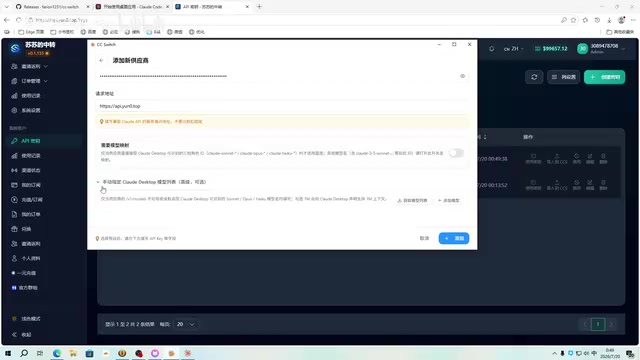
This step is the most direct way to verify configuration correctness. If it fails, the issue is usually with the request URL or API Key—double-check whether the URL has an extra trailing slash.
Enabling Claude Developer Mode
Activating Developer Mode
Return to Claude Desktop, click the hamburger menu (three horizontal lines) in the upper left corner, find the Help option, then enable Enable developer mode. The application will restart immediately after clicking.
Claude Desktop's developer mode essentially unlocks the application's advanced configuration interface, allowing users to customize API endpoints, proxy settings, model parameters, and other low-level options. In regular mode, these configuration items are hidden to simplify the user experience and prevent accidental changes. After enabling developer mode, the application exposes the provider configuration panel where users can specify custom API Base URLs and authentication keys—this is also the prerequisite for CCswitch to take over the configuration.
Tip: Different versions and users may see slightly different interfaces. If the developer option doesn't appear immediately, try clicking again or restarting the application.
CCswitch Automatic Configuration Takeover
After restarting, go to the Developer settings where you'll see options related to "configuring third-party providers." Since CCswitch has already taken over the configuration with highest priority, many fields here will appear grayed out and non-editable—this is normal behavior, as CCswitch has already auto-filled all the content for you. CCswitch uses a system-level configuration injection mechanism that automatically writes its managed provider information into Claude Code's configuration storage after developer mode is enabled, achieving seamless provider switching.
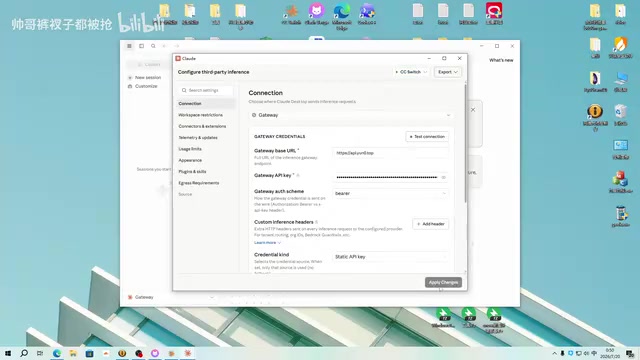
If you want to confirm whether the configuration was successful, simply click the "Test" (Test Connection) button. When you see a successful connection message, everything is ready.
Start Using Claude Code
Once configuration is complete, simply click "New Task" to get started. On first use, Claude will ask you to select a working folder. After selecting one, press Enter to send a command, and it will run normally.
The overall experience is very smooth. As mentioned earlier, Claude Code requires no additional plugins and rarely experiences lag, making it a hassle-free choice for daily coding assistance.
Summary
Claude Code Desktop combined with CCswitch's third-party API configuration provides a viable path for users who cannot directly access official services. The entire process can be summarized as:
- Install Claude Desktop
- Download and configure CCswitch provider information
- Ensure the request URL does NOT end with a trailing slash
- Enable developer mode to let CCswitch take over configuration
- Test the connection and start using
Compared to other AI coding tools, Claude Code has clear advantages in being plugin-free and lag-free. However, it's important to note that using third-party proxy services involves the risk of data passing through third-party servers. Developers are advised to weigh security considerations for production projects and prioritize official channels when possible.
Key Takeaways
Related articles

Gaussian Process Bandit Optimization: Exploration Strategies and Inference Regret Guarantees
Cumulative regret guarantees in Bayesian optimization fail to reflect final recommendation quality. This article examines a new study that provides inference regret guarantees for Gaussian process bandit optimization through exploration query strategies and fill distance analysis, validated on hyperparameter optimization and control tasks.
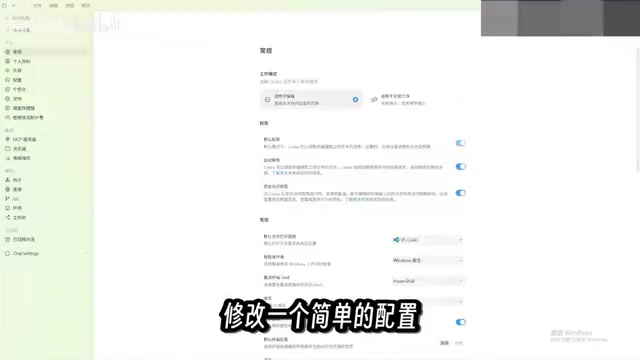
The Most Detailed Codex Guide on Bilibili: From Installation to Real-World Practice
The most detailed Codex guide on Bilibili: from app store installation to daily work mode configuration, with a real coffee shop project demonstrating file organization, data extraction, dashboard creation, and other practical tasks. Learn to use Plan Mode and desktop pets to leverage Codex efficiently.

Appearance Compensation in Volume Rendering: Why RGB Accuracy Cannot Guarantee Density Correctness
Volume rendering research reveals that volumetric data perfectly reproducing external RGB views may still contain density errors: appearance compensation can double central density and keep external rays unchanged even when L2 error exceeds 14.52%. Density recovery depends on appearance capacity, spatial resolution, and measurement design.