Cline + MCP: A Beginner's Guide to Building an AI Programming Automation Workflow
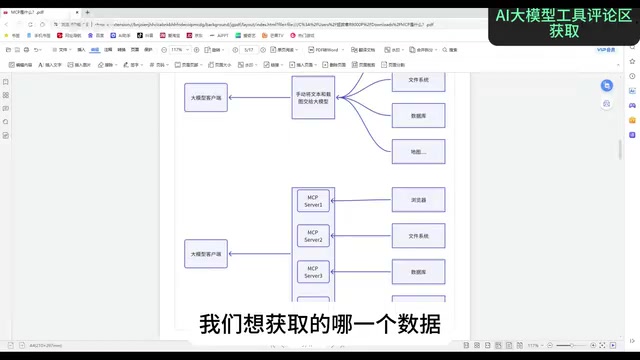
Build an AI automation workflow in VSCode using Cline and MCP across five service categories.
MCP (Model Context Protocol), an open standard from Anthropic, uses a client/server architecture to give LLMs a unified interface for accessing external data and tools — bridging the gap that prevents models from retrieving real-time information. This guide walks through building an MCP workflow in VSCode with the Cline plugin: set up Node.js and Python, configure a free DeepSeek model via OpenRouter, then connect five MCP services — Fetch (web scraping), Playwright (browser automation), Baidu Maps, local Filesystem, and MySQL. Key gotchas include using cmd/npx syntax on Windows, restarting services on errors, and writing precise prompts to reliably trigger external service calls.
What Is MCP and Why It Matters
No matter how capable a large language model is, it has long been trapped within an awkward boundary: it only knows what it was trained on and cannot actively read your local files, query real-time data, control a browser, or access a database. In the past, breaking out of this "data silo" required either plugging in a knowledge base or fine-tuning — both costly and cumbersome.
MCP (Model Context Protocol) was created to solve exactly this problem. It is an open standard introduced by Anthropic that defines a unified communication specification between large language models (LLMs) and external data sources. In plain terms, it gives AI applications a "connect to everything" standard interface, enabling models to securely access and interact with both local and remote data.
This article is based on a hands-on tutorial and walks through how to use the Cline plugin + MCP services to build a functional AI programming automation workflow inside VSCode — covering five categories of services: search, browser automation, maps, local files, and databases.
How MCP Works — and How It Differs from Function Calling
MCP is fundamentally a client/server (C/S) architecture. An AI application acts as the Host (a local chat or development tool) and connects to MCP servers through an MCP client. These servers are programs that expose specific capabilities — such as fetching data or running tools. Think of MCP as a "middleware broker": when a model needs a certain capability, MCP calls the service provided by a third-party vendor on its behalf, then returns the result to the model.
Without MCP, you have to manually copy-paste external content into the model. With MCP, the model can autonomously choose which services to invoke based on the task at hand — enabling true automation.
MCP shares some similarities with Function Calling in that both enhance an AI's ability to interact with external data, but there are clear differences:
- Function Calling is a direct in-process call — the model invokes functions written locally. It is a synchronous mechanism.
- MCP is an indirect message-passing mechanism for inter-system communication. It can call both local and remote services and is asynchronous, capable of handling multiple tasks concurrently, much like multi-processing.
MCP's async nature relies on inter-process communication. Each MCP server runs as an independent subprocess (or remote service), and the Host exchanges JSON-formatted messages with it via standard input/output (stdio) or HTTP/SSE. This means even if a service call takes a long time (e.g., scraping a webpage), the Host process is not blocked and can continue processing other tasks — merging the response once the service returns. This is the fundamental reason MCP is better suited for complex automation scenarios than traditional Function Calling, which typically executes synchronously within the same process and cannot easily handle multiple concurrent external calls. MCP also defines a unified "Tool Schema" format: servers declare to clients during the handshake exactly which tools they provide and what parameters they accept, allowing the model to autonomously decide when and how to call them — no need for developers to write glue code for each individual tool.
Environment Setup and Cline Configuration
Before building the workflow, you need three foundational components:
- Node.js: Download and install from the official website.
- VSCode: Your primary development environment.
- Python: Some MCP services (such as the search service) rely on
pipfor installation.
Once ready, search for and install the Cline plugin from VSCode's extension marketplace. After installation, a Cline icon will appear in the left sidebar. Click it to open the settings page and choose your model provider. The tutorial recommends OpenRouter, as it provides free DeepSeekAd model credits — simply select DeepSeek Chat from the model list for free access. You can also use the DeepSeek official API directly (paid), but both options require registering on the respective platform and obtaining an API Key.
With the model configured, you can begin adding MCP services one by one. All service configurations are written in a single JSON file, and multiple services can be mounted simultaneously.
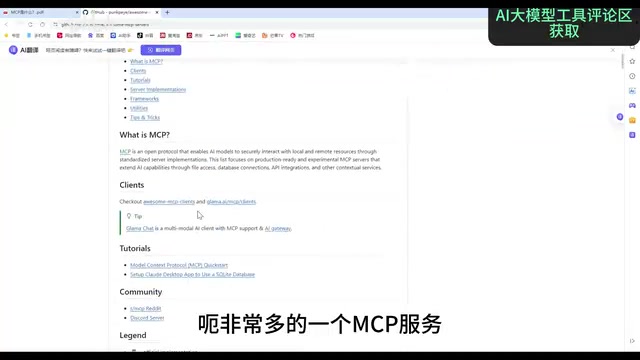
Cline is an open-source VSCode extension designed to deeply integrate large models with the local development environment. It can read and write project files, execute terminal commands, and natively supports the MCP protocol — allowing you to manage the start, stop, and configuration of multiple MCP services from a single interface. OpenRouter is a model aggregation platform that unifies the APIs of dozens of model providers into a single interface. Developers need only one API Key to switch between models on demand, eliminating the hassle of registering on multiple platforms. Its free tier includes DeepSeek Chat (i.e., the DeepSeek V3 series), which is sufficient for lightweight automation tasks. Note that free requests on OpenRouter typically have rate limits (e.g., a cap on requests per minute). For high-frequency use cases, connecting directly to the DeepSeek official API is recommended for more stable throughput.
Hands-On Setup for Five Practical MCP Services
Search Service (Fetch)
The first service to configure is web search/scraping. Find the search-related service in the MCP marketplace, install the corresponding module via pip, then copy the configuration snippet into Cline's MCP JSON config.
Once set up, you can have the AI scrape and summarize web pages. In testing, asking it to "fetch the content of a webpage and summarize it" caused the model to automatically call the fetch tool, extract the URL, scrape the page, and produce an accurate summary. Note that the service may occasionally throw errors — restarting the MCP service and retrying usually resolves the issue.
Browser Automation (Playwright)
The second service is browser automation, letting you control a browser with natural language. Find the corresponding server on GitHub and download the module.
There is one critical cross-platform difference: the GitHub documentation provides configuration for Mac/Linux. Windows users need to change the command to cmd, move npx into the arguments, and add the /c parameter.
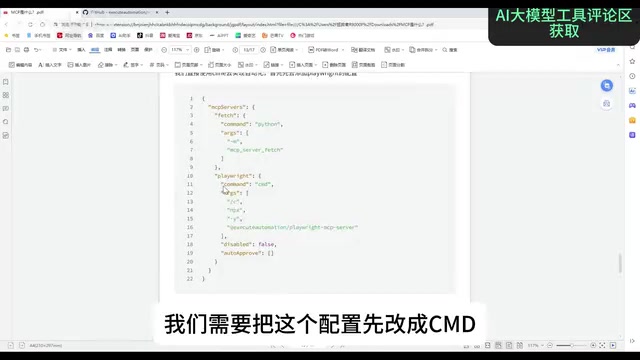
Once configured, you can instruct it to "open the GitHub login page, enter username User and password 123456." The model will invoke the Playwright MCP service, determine the URL, navigate to the site, and sequentially fill in the username and password fields — completing the entire automated sequence.
Playwright is Microsoft's open-source cross-browser automation framework supporting Chromium, Firefox, and WebKit, originally designed for end-to-end testing. When wrapped as an MCP service, the model can drive a real browser via natural language instructions to perform clicks, text input, screenshots, and page navigation — essentially exposing Playwright's API as a "toolset" callable by the model. Compared to Selenium, Playwright offers better support for modern web applications (single-page apps, dynamically rendered content) and includes built-in auto-wait mechanisms that reduce failures caused by page load timing issues. In practice, browser operations involve substantial data transfer (e.g., screenshots), so token consumption per conversation can be significantly higher than pure text tasks — keep an eye on your usage.
Map Service (Baidu Maps)
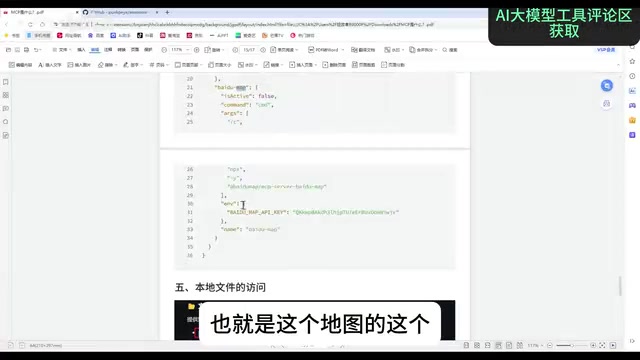
Most map services on GitHub are designed for international use and don't work well domestically, so the tutorial uses Baidu Maps Open Platform instead. You'll need to register an account, create an application, apply for an AK (API Key), and fill the AK into your MCP configuration.
In testing, asking it to "plan a weekend travel itinerary for Shanghai" sometimes didn't trigger the MCP service — the model would respond from its built-in knowledge instead. Framing the request more specifically, such as "query the geographic coordinates of Shanghai" or "check the weather in Shanghai," reliably triggered the Baidu Maps service. This is a good reminder: the precision of your prompt directly affects whether MCP gets invoked.
Local File Access (Filesystem)
The fourth service is the local filesystem. Find the filesystem service on GitHub and configure it. Windows requires a platform-specific configuration format, and the path in the config must be replaced with your actual local path.
Once set up, simply ask "what files are on my desktop?" and the model will call the file tool, read the specified directory, and list all files on your desktop. This type of operation is straightforward and works well for having AI help you organize and search through local materials.
Database Service (MySQL)
The final service is database operations. Find the Node.js version of the MySQL MCP service, install it via the provided command, and configure it per the documentation — filling in the local host address, username, password, and the target database name.
Once configured, you can query your database with natural language. For example, asking "list all table names in the lm database" will cause the model to read and enumerate every table. Asking "retrieve all data from the students table" will have it automatically generate the SQL query, execute it, and format the results as requested. For everyday data retrieval and summarization, this approach eliminates the need to write SQL manually.
When allowing a model to directly operate a database via MCP, setting proper security boundaries is critical. The higher the privileges of the database account specified in the MCP config, the greater the risk of accidental operations (e.g., executing DROP TABLE). In production environments, it is strongly recommended to create a dedicated read-only account for MCP, or explicitly restrict which databases and tables are accessible in the config, following the principle of least privilege. For development and testing, configure MCP to connect only to a test database, completely isolated from production data. Also note that natural language to SQL translation is not always precise — for complex queries, the model may generate inefficient or incorrect SQL. It's advisable to have the model output the SQL statement it intends to run, review it manually, and then execute — avoiding irreversible data changes.
Summary and Recommendations
The core value of the Cline + MCP combination is upgrading a large model from "just a chatbot" to an automation assistant that "can call anything." The setup process itself isn't complicated — the key challenges come down to three areas:
- Cross-platform configuration differences: Windows users in particular need to watch out for
cmd,npx, path formatting, and other syntax differences from the Mac/Linux defaults in documentation. - Service stability: Occasional MCP service errors are common. Restarting the service and retrying is usually enough to fix them.
- Prompt precision: Whether the model calls MCP depends heavily on how specific the instruction is. Vague requests often lead the model to answer from its built-in knowledge rather than triggering an external service.
Once you've mastered these five foundational services — search, browser, maps, files, and database — you'll be well-positioned to explore more capabilities in the MCP marketplace and hand off repetitive tasks to AI automation.
Related articles
 Tech Frontiers
How Do You Stop AI Agent Emails From Sounding Like AI? One Developer's Solution
AI agent emails always sound like AI? A developer shares reright: a rewrite step that validates numbers, names, and links, preventing humanizers from tampering with key info. Test data and integration details inside.
 Tech Frontiers
Starlink Mobile: SpaceX's Carrier Ambitions and the 5G Deployment Challenge
SpaceX plans to make Starlink Mobile a mainstream carrier, deploying thousands of direct-to-cell satellites and building a terrestrial 5G network to challenge AT&T, Verizon, and T-Mobile. This article analyzes its dual-track strategy, 5G deployment challenges, and the competitive landscape.
 Tech Frontiers
OpenAI Raises Another $11 Billion, Valuation Hits $1.25 Trillion
OpenAI has raised an additional $11 billion in a new funding round at a valuation of $1.25 trillion. The deal is not yet closed and is expected to be completed in the coming weeks, further consolidating its leading position in AI.