Codex Complete Beginner's Guide: From Installation to Real-World Use

A full walkthrough of OpenAI Codex, the AI agent that goes beyond chat to take real action on your files and browser.
Codex is OpenAI's AI agent tool that sets itself apart from chatbots by autonomously reading and writing files, running terminal commands, and operating browsers. This guide covers the desktop client end-to-end: account setup, three permission tiers, Projects vs. Conversations, model selection, the annotation workflow, plugin and skill ecosystems for generating Word/Excel/PPT files, automation scheduling, and three execution environments (Local, Worktree, Cloud). Advanced tips include AGENTS.md for persistent rules, Git-based version control, and pairing Codex with Claude Code for dual-AI collaboration.
What Codex Actually Is: From AI Chat to AI Action
Codex is an AI agent tool developed by OpenAI. And to be clear — this isn't just an "AI coding tool." While it started in programming contexts, it has since evolved into an all-in-one assistant capable of writing code, creating presentations, building spreadsheets, drafting Word reports, operating browsers, and even producing videos.
The fundamental difference between Codex and conversational tools like ChatGPT comes down to one word: action. Here's an analogy: imagine you're renovating your home. ChatGPT is like a consultant who gives you great advice — move the stove to the left, repaint the cabinets in off-white — but won't lift a finger. Codex is the contractor who actually shows up, takes measurements, draws blueprints, moves the stove, paints the walls, and sends you a photo when the job is done.
More importantly, Codex can directly open folders on your computer, create files, run programs, search the web, operate browsers, and even commit code to repositories and deploy applications when finished. That's the dividing line between an "agent" and a "chatbot."
The concept of an "AI agent" is worth unpacking. Traditional AI Q&A tools are essentially single-turn input/output systems: you ask, it answers, and that's the end — what you do with the response is entirely up to you. Agents are different. They operate in a closed loop of perceive → plan → execute → feedback: perceiving the current environment (your file system, browser state, terminal output), autonomously breaking goals into steps, calling tools to execute each step, and adjusting based on results. This self-directed loop is what fundamentally separates agents from chatbots. OpenAI's Operator is an agent focused on browser interaction, while Codex is oriented toward code and file systems — together they form OpenAI's push into the agentic space.
Four Ways to Use Codex and Account Requirements
Codex comes in four forms: a command-line interface (Codex CLI), a VS Code extension, a desktop client, and a web version. All four have the same underlying capabilities and largely overlapping features, but when it comes to ease of use, feature completeness, and beginner-friendliness, the desktop client is the recommended starting point — and that's what this guide focuses on.
You'll need a ChatGPT account, ideally with a Plus or Pro subscription. Free accounts do work, but the usage quota is very limited and runs out quickly. Plus users get 30–150 messages per 5-hour window, which is enough for everyday use; heavy users or teams should consider Pro.
Compared to similar tools like Claude Code, Codex offers a notable advantage: more generous quotas, more frequent resets, and fewer account restrictions. There are two login methods:
- ChatGPT account login: Uses your existing subscription quota at no extra cost, gives you immediate access to the latest models, and unlocks advanced features like cloud tasks.
- API Key login: Model updates come slower, cloud tasks aren't available, and you're billed per usage — large jobs can burn through significant credits fast.
The conclusion is straightforward: unless you have a specific reason not to, subscribing to Plus and logging in with your ChatGPT account offers the best value.
Interface Overview: Projects vs. Conversations
After logging in, you'll see the main interface. The left sidebar has four function buttons (new conversation, search, plugins, automation), and the center shows two core lists: Projects and Conversations.
Understanding the difference between these two is key to using Codex effectively:
- Conversations work like chatting with ChatGPT in a desktop app — ideal for quick tasks like research, copywriting, translation, or Q&A.
- Projects are linked to a folder on your computer. Any files Codex generates (presentations, spreadsheets, Word docs, code, images) are saved to that folder, keeping everything organized and accessible.
A simple rule of thumb: if the task involves generating files, use a Project; if you're just asking something quickly, use a Conversation. A single project can contain many conversations, each handling a specific task.
Three Permission Modes
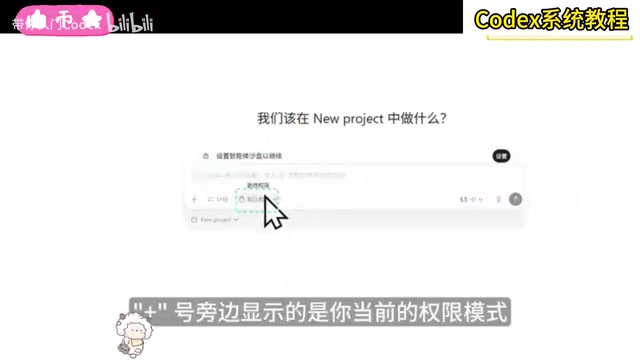
Since Codex can directly modify files and run commands, it has a permission system with three levels:
- Default (safest): Codex can only operate within the current project folder. Accessing the internet, running terminal commands, or touching files outside the folder all require your approval. Best for beginners.
- Auto-review: Codex evaluates risk on its own. Safe operations proceed automatically; risky ones trigger a confirmation dialog. Think of it as a built-in approval layer.
- Full access (highest): Codex can do anything without interrupting you. Maximum efficiency — but only recommended once you're familiar with its behavior and have Git backups in place.
Suggested progression: use Default for the first week, switch to Auto-review in week two, and only consider Full access once you're experienced and have proper backups.
The tiered permission design is fundamentally a tradeoff between efficiency and controllability. Codex-type agent tools require permission controls because they have real system-level capabilities — deleting files, executing shell commands, reading and writing arbitrary paths. Mistakes here can be hard to undo. Git version control acts as a safety net: as long as your project is under Git management, any files Codex breaks can be restored with git checkout or git revert. The advice to "start with lower permissions, then gradually expand as you add Git backups" follows a core principle: the higher the permissions, the more important Git becomes — the two should always be used together, not in isolation.
Choosing Your Model and Thinking Depth
In the bottom-right corner of the input box, you can switch between models and thinking intensity. The GPT-5.5 series offers the strongest capabilities and is recommended as the default for complex coding, refactoring, and debugging. Smaller mini models are better suited for simple tasks — faster and easier on your quota. The Codex-optimized model variants remain highly capable for complex engineering tasks.
Thinking intensity has four levels: Low (minimal reasoning, fastest but prone to basic mistakes), Medium (recommended for everyday use), High (suited for feature development with real complexity), and Ultra (smartest but slowest — reserved for bugs that normal modes can't crack).
There are also two speed settings: Standard and Fast. Fast is about 1.5× quicker but consumes more quota. Standard is fine for most use cases; switch to Fast when you're in a hurry.
Hands-On Workflow: Annotations, Commits, and Version Control
You can create a project two ways: start a blank project from scratch, or link an existing folder (for projects with existing code or files). Once created, just describe what you need in plain language in the input box.
As Codex works, you can watch its thought process in the main area — which files it's analyzing, what it plans to do, and why. Under non-Full-access permissions, it will prompt you before executing sensitive operations: approve once, approve for the entire conversation, or reject and let it find another approach.
After generating a web page, Word document, presentation, or spreadsheet, you can click the filename to preview it directly, with the content displayed in a side panel. One of the most useful features is the annotation tool in the top-right: select anything you're not satisfied with, write your thoughts, and send — Codex will make targeted revisions.
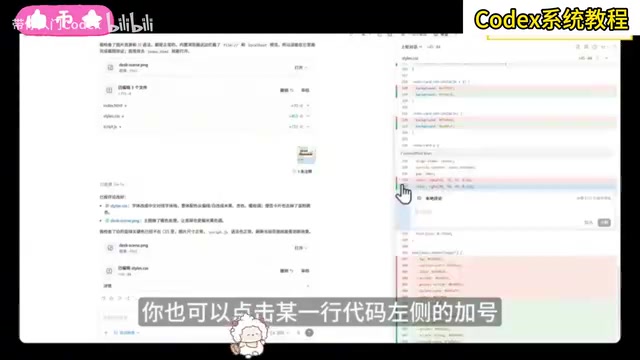
Once changes are complete, the bottom panel shows exactly what was modified — green for additions, red for deletions. If you're happy with the result, you can commit directly from within Codex and push to GitHub. If not, just click undo to revert.
Queue, Interrupt, and Parallel Tasks
- Queue: While Codex is working on Task A, you can submit Task B — it will start automatically when A is done.
- Interrupt: Click the guidance button next to a message to inject new instructions into the currently running task, adjusting it on the fly.
- Parallel: Open a new conversation to run multiple tasks simultaneously, even across different projects. Note that memory isn't shared between conversations, but all conversations within the same project can access the same files.
Plugins and Skills: The Core of an All-Purpose Assistant
Skills are pre-written execution steps packaged as Markdown files. Codex reads them and follows the steps in order — essentially an instruction manual it executes automatically. The most commonly used built-in skill is imagegen, which lets you generate images directly in a conversation.
Plugins are one level above skills: a plugin typically bundles multiple skills together with the ability to connect to external applications. For example, the computer use plugin can take control of your entire computer, and internally contains skills for operating apps, recording the screen, sending keyboard input, and more.
To trigger a plugin, type @ to bring up the plugin list; type $ to trigger a skill. You can even use a plugin and a skill in the same message. Note that some plugins are currently Mac-only.
Office Productivity in Practice
With the plugin ecosystem, Codex can handle a wide range of everyday office work:
- Use the
documentplugin to generate a Word analysis report complete with table of contents, tables, and conclusions. - Use the
spreadsheetsplugin to generate color-coded Excel comparison tables. - Use the
presentationplugin to create business-style slide decks.
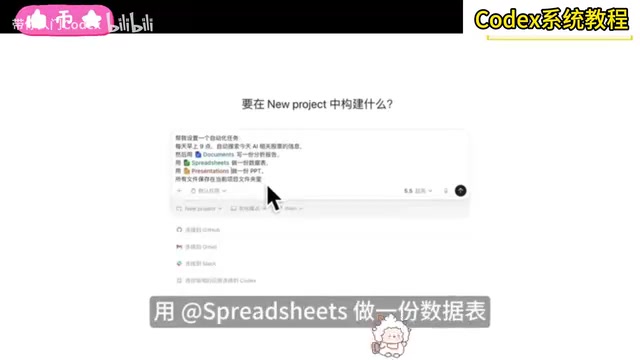
You can even request a Word document, Excel spreadsheet, presentation, and cover image all in a single instruction — four files, one shot. And if you need to do the same thing every day, use the Automation feature to set up a scheduled task. Just make sure to run the task manually in a regular conversation first to verify the output meets your expectations before converting it to a recurring job — otherwise you risk burning quota on flawed results.
Three Execution Environments and Advanced Tips
When starting a new conversation, you can choose from three runtime environments:
- Local: Codex directly modifies files in your project folder. Best for minor edits, but if something breaks, you'll need to revert manually — always back up first.
- Worktree: Codex creates a parallel copy of your project in the background and works on the copy without touching the original. Ideal when multiple AI sessions are working on the same project simultaneously to avoid conflicts. When done, you can merge, create a new branch, or discard the copy.
- Cloud: Tasks are sent to a server for execution, so your computer doesn't need to stay on. Suited for long-running jobs, but requires linking a GitHub repository and involves some configuration complexity — beginners can skip this for now.
Controlling Browsers and Your Computer
With the BrowserUse plugin installed, Codex can open browsers on its own, visit websites, click, fill out forms, take screenshots, record the screen, and scrape information — only asking for your input when a login is required. Combined with the computer use plugin, it can control your entire machine: for example, autonomously opening Chrome, searching a platform, downloading content without watermarks, and saving it to a desktop folder.
BrowserUse and computer use represent two different levels of AI agent control. BrowserUse is "browser-level control" — typically built on automation frameworks like Playwright or Puppeteer, where the AI interacts directly with the browser's DOM structure. This makes it precise and fast, but limited to the browser. computer use is "OS-level control" — the AI perceives the screen through screenshots, then simulates mouse clicks and keyboard input to operate any application. In theory it can control anything on your computer, but because it relies on visual recognition, it's slower and more sensitive to interface changes. Anthropic's Claude first brought computer use to public attention in 2024, and OpenAI and others have since followed — marking a major milestone in AI agents moving from "text-only" to "real desktop environment" operation.
AGENTS.md: An Onboarding Manual for Your AI
Create an AGENTS.md file in your project's root directory, and Codex will automatically read it at startup and treat it as a set of working rules. Since memory isn't shared between conversation windows, writing your rules into this file means you don't have to repeat yourself every time — like giving a new employee an employee handbook. Keep it under 150 lines to avoid crowding out the AI's working memory.
The design philosophy behind AGENTS.md comes from a real need in AI engineering: "persistent system prompts." Every conversation window in a large language model starts with an independent context — it doesn't automatically remember rules you emphasized in a previous session (like "don't touch unrelated files," "use Chinese for comments," or "use camelCase for function names"). By writing these rules into AGENTS.md in the project root, Codex automatically injects them into the context for every new conversation — essentially giving every session a pre-loaded "rule sheet." This mirrors the same thinking behind .editorconfig and eslint config files in software teams: put agreements in writing, don't rely on verbal reminders. The 150-line limit is there to prevent an overly long system prompt from crowding out the model's effective context window, causing it to "forget" critical information during complex tasks.
Built-In Terminal and Dual-AI Collaboration
Press Cmd+J (or Ctrl+J on Windows) to open the bottom terminal panel. Its working directory automatically follows the current conversation, and Codex can read terminal output to determine server status and catch errors.
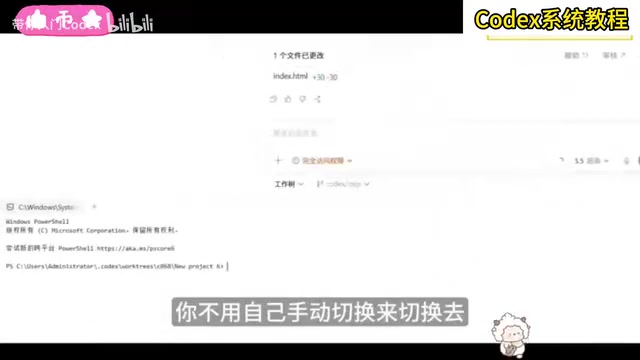
A useful trick: if you also have Claude Code installed, you can type claude directly in Codex's built-in terminal to launch it — letting two AIs divide and conquer. Codex handles browser control, image generation, and task management, while Claude Code can focus on optimizing front-end code and visual details.
Six Principles for Effective Use
- Use Projects for anything involving files — Conversations are just for quick questions.
- One task per conversation — The more focused the conversation, the better the AI performs.
- For complex tasks, ask for a plan first — Use planning mode to have Codex outline its approach before taking action.
- Define your "done" criteria clearly — For example: "all tests pass, manually verified it works, no unrelated files were changed."
- Commit frequently — Make a Git commit after every small milestone so you can roll back quickly if something breaks.
- Let Codex review Codex's own code — Open a new conversation and ask it to audit the changes from the previous session for security and performance issues.
For common issues: when you hit quota limits, just wait for the 5-hour rolling reset. If Codex breaks your code, discard the copy in Worktree mode, or use full undo / git checkout in Local mode. If Codex starts touching unrelated files, explicitly state in both AGENTS.md and your task instructions: "don't make unrequested optimizations — only modify the specified files."
Codex has evolved from a pure coding tool into a versatile AI-powered work assistant covering operations, content creation, data analysis, and more. Whether you're a marketer, photographer, or content creator, you don't need to know HTML, CSS, or JavaScript — just describe what you need in plain language. But its power ultimately depends on you: the better you understand your own project and the more clearly you can articulate your needs, the higher the quality of what it delivers.
Related articles

Random Pruning of the DPO Computation Graph: 1.4x Training Speedup and Lower Peak Memory
DPO training too slow and memory-hungry? This paper proposes a random pruning framework for the DPO computation graph, sampling independently across position, sequence, and branch dimensions; branch pruning achieves a 1.426x step-time speedup and cuts training time by about 30%, with in-depth attribution of memory and time gains.

Why Does JEPA Underperform MLM in Longitudinal EHR Representation Learning?
New study compares JEPA and MLM for longitudinal EHR representation learning on MIMIC-IV: three JEPA variants train stably without collapse but underperform MLM; target size, not heterogeneity, drives prediction error.

Transfer Learning + Visible Light Communication: A New Approach to Energy-Efficient Indoor Positioning
A study proposes a transfer learning-based visible light communication indoor positioning method, achieving 47% accuracy improvement on the BOSCH factory dataset, 67.5% model efficiency under high noise, and introducing the ME composite metric for energy-efficient positioning in energy-constrained industrial IoT scenarios.