Codex Complete Guide: From Installation to Hands-On Practice, Master the AI Computer Assistant in One Session

Codex tutorial: from installation to Plan Mode, demonstrating a hands-on AI assistant with café data.
The article covers a Bilibili Codex tutorial that uses a café's messy data to demonstrate this desktop AI assistant's full workflow. Codex differs from Doubao/DeepSeek by directly operating the user's file system for real tasks like organizing files and building reports. It walks through switching to Daily Work mode, creating project folders, organizing mixed-format files into Excel while catching data anomalies, then Plan Mode's plan-confirm-execute flow, desktop pet task visualization, and multi-round dashboard iteration—plus tips and limitations.
Codex is freeing AI from the chat box. It's no longer just a conversational bot that answers questions—it's a desktop assistant that can directly operate your computer, help you organize files, create reports, and even run tasks automatically. In this step-by-step tutorial from Bilibili creator "Computer Monogatari" (计算机物语), a real café's messy data is used as a case study to fully demonstrate Codex's entire workflow from installation to advanced usage.
What Is Codex: An AI Assistant That Can Take Action
Like Doubao and DeepSeekAd, Codex provides an input box and a chat interface, but the core difference lies in the boundaries of its permissions. Doubao can only chat with you, whereas Codex can directly operate your computer's file system and complete actual work on your local machine—organizing files, creating reports, reading work content, writing weekly reports, making PPTs, operating the browser, building complex software, and even setting up scheduled tasks to run automatically while you sleep.
The creator emphasizes in the video that using Codex requires no technical knowledge—a few simple sentences can produce something cool. It's already available in the Microsoft and Apple app stores—just search and install. Once opened, the interface looks very similar to the web version of Doubao, with an input box in the center and a sidebar on the left.
First Thing: Adjust the Working Mode
Right after opening Codex, the creator suggests changing one setting first: the working mode. This option controls how much technical detail Codex shows you. After switching to "Daily Work," Codex's capabilities stay the same, but it won't throw a bunch of incomprehensible technical jargon at you, making the experience much better. This detail shows that Codex's design already takes non-technical users' barriers to entry into account.
Project Folders: Letting Codex Know Where to Work
Since Codex works directly on your computer, it needs a working folder. These folders are called "projects" in Codex and are displayed in the sidebar. The creator's approach is to create folders by task type—that is, different projects—so everything is clear at a glance. Below the input box, you can select the project for the current conversation, and Codex can then directly read all the files in that project to complete the task.
Hands-On Case: Organizing Café Data
The creator prepared a real folder named "Computer Monogatari Café," stuffed with a pile of sales records, invoices, and inventory lists in formats ranging from spreadsheets and PDFs to images—in a word, "a mess."
The task he gave Codex was: tidy up these files and extract the information into a single Excel file for easy reference.

This seemingly entry-level task is actually quite laborious to execute. Codex needs to analyze files, move files, modify file contents, and create new files. A few minutes later, the task was complete: the folder was organized by purpose, and a detailed data spreadsheet was generated—sales data and product rankings categorized, with line items from PDF invoices extracted as well.
More importantly, the creator deliberately planted some traps in the files, and Codex actually found them: it flagged missing transaction records and pointed out anomalies in two invoices. This shows that Codex doesn't just mechanically execute instructions—it also has the ability to understand and verify data content.
For tasks like organizing reports and writing daily summaries that require reading computer files and summarizing them, Codex is already more than capable.
The "extract information into Excel" mentioned in the article involves document parsing capabilities: when faced with PDF invoices and images, Codex first needs to perform OCR (optical character recognition) to convert text in images into processable text, then extract structured information by field (amount, date, product name, etc.), and finally write it into the spreadsheet. The difficulty here isn't generating the spreadsheet, but aligning unstructured data—invoices from different sources have varying layouts and inconsistent field names, requiring the model to understand semantics rather than simply match positions. This also explains why Codex could incidentally discover missing transaction records: it formed a judgment about data integrity while comparing entries one by one.
Advanced Play: Plan Mode and a Visual Dashboard
After the basic tasks, the creator raised the difficulty. He directly added a file in the command line, had Codex read the specified summary table, and then asked it to use the data in the table to create a visual dashboard for the café, showing sales, expenses, costs, inventory, and other business conditions, along with an analysis of items that need attention.
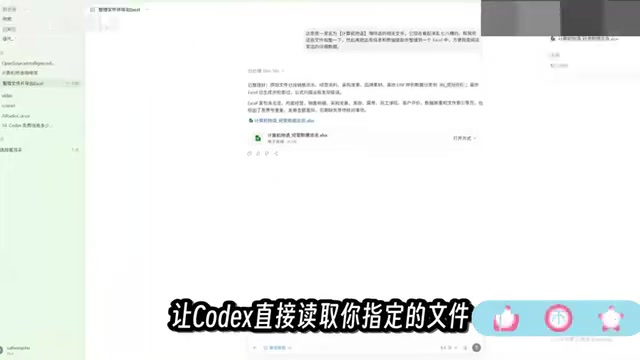
This is a complex task, so the creator switched to "Plan Mode."
How Plan Mode Works
For complex tasks, Codex doesn't execute directly. Instead, it first plans a detailed execution checklist based on the requirements, confirms task details with you, and only then takes action.

In the demo, Codex proactively asked the creator questions and continued working after he made selections. Once the creator confirmed, it could continue adjusting the plan content or submit it for execution directly. This "plan first, confirm, then execute" flow greatly improves the controllability of complex tasks and reduces the risk of AI acting on its own.
"Plan Mode" is essentially a human-in-the-loop interaction design: the AI first breaks the task down into a reviewable checklist of steps, explicitly exposing "what to do" and "how to do it" to the user, rather than hiding decisions in a black box and executing directly. This mode is becoming increasingly common in agent products because complex tasks often involve multi-step file reads/writes and external calls—once the direction goes wrong, the cost of correction is far higher than a few seconds of confirmation before execution. Plan Mode also lets users add constraints at the checklist stage (e.g., specifying data ranges, excluding certain files), effectively moving requirement clarification earlier and reducing repeated rework.
Desktop Pet: Visualizing Task Status
The creator also showed an interesting detail: by typing a slash in the input box, you can find a "pet" feature. Clicking it makes a little pet appear on your desktop, and you can place it anywhere on your computer. Besides being cute, it displays all the tasks currently being executed—click on it to see task progress. The pet's appearance can be changed in settings. This design seems lightweight, but in fact it visualizes background task status so users always know what the AI is doing.
The "pet" displaying task progress corresponds to the task queue and state machine during agent execution: a complex request is split into multiple subtasks executed serially or in parallel, each with states such as waiting, running, completed, and failed. Traditional desktop software expresses this information with progress bars or tray icons, while Codex uses a desktop pet—a skeuomorphic载体 (carrier)—to reduce users' anxiety about "what's happening in the background." Slash commands (e.g., typing / to bring up a function menu) are a common shortcut mechanism in chat-style interfaces, letting users invoke hidden features without remembering where the entry points are.
The Finished Dashboard and Iteration
After the dashboard was done, the creator rated it "very professional," containing everything requested, with suggestions and key items listed at the bottom. He admitted that he isn't a sales professional and can't judge its practicality, but invited relevant professionals to evaluate whether this dashboard could help run a company better.
He then continued to iterate: feeling the theme wasn't satisfactory, he asked for a more modern, intuitive, Apple-style theme. After Codex finished, the creator felt it really had that Apple vibe. This iteration process showcases Codex's ability to continuously modify existing outputs rather than generate everything in one shot.
Usage Tips and Limitations
Several practical tips can be distilled from this tutorial: create project folders by task type so Codex has clear context boundaries; switch to "Daily Work" mode for everyday use to reduce information noise; always enable Plan Mode for complex tasks, reviewing the execution checklist before giving the go-ahead; and make good use of the add command to specify files, preventing Codex from reading irrelevant content.
What the video doesn't cover includes Codex's permission boundaries for handling sensitive data, rollback mechanisms after task failures, and resource usage when running multiple projects in parallel. The creator also explicitly states that the dashboard's commercial value needs to be judged by professionals themselves. For users who want an AI assistant that can take action, Codex's barrier to entry is indeed low—but before handing complex tasks to it, the confirmation step in Plan Mode is worth taking seriously.
One-line Summary
Codex tutorial: from installation to Plan Mode, demonstrating a hands-on AI assistant with café data.
Paragraph Summary
The article introduces a step-by-step Codex tutorial from Bilibili creator "Computer Monogatari," using a café's messy data as a case study to demonstrate the complete workflow of this desktop AI assistant. The core difference between Codex and Doubao/DeepSeek is that it can directly operate the user's computer file system to complete real tasks like organizing files, creating reports, and building software. The tutorial suggests switching to "Daily Work" mode initially to hide technical details, and creating project folders by task type to provide Codex with context. In practice, Codex organized a folder mixing spreadsheets, PDFs, and images and generated an Excel summary, and even discovered missing transaction records and invoice anomalies. The advanced section demonstrates Plan Mode's "plan first, confirm, then execute" flow, desktop pet task status visualization, and multi-round dashboard iteration. The article concludes with usage tips and notes limitations not yet covered, such as sensitive data permissions and failure rollback.
Related articles

Zero-Code Replication of a $10,000 3D Website with Claude Code: A Six-Tool Breakdown
Bilibili creator Yomi used Claude Code plus five free tools to build a 3D product landing page quoted at $10,000 overseas—zero code. Breakdown of the six-tool division of labor, image-to-3D workflow, and the core collaboration method: "give AI a reference, not 'make it look better.'"
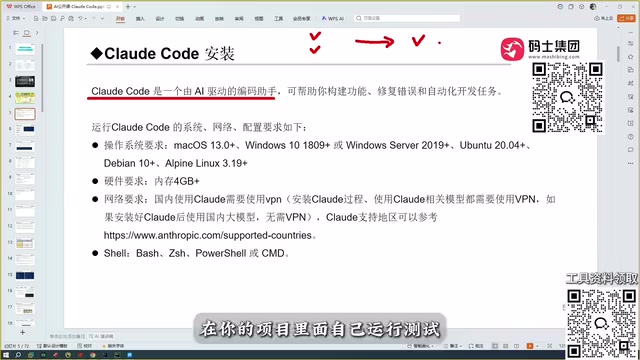
Claude Code in Practice: Install, Connect Models, Calculate Tokens, and Ship a Full-Stack Project with a Single Document
Based on a Bilibili public course demo, this covers Claude Code installation, model connection, token cost calculation, and the practical path of shipping a full-stack project with a single document, plus comparisons with Copilot, Cursor, Trae, and other coding assistants.
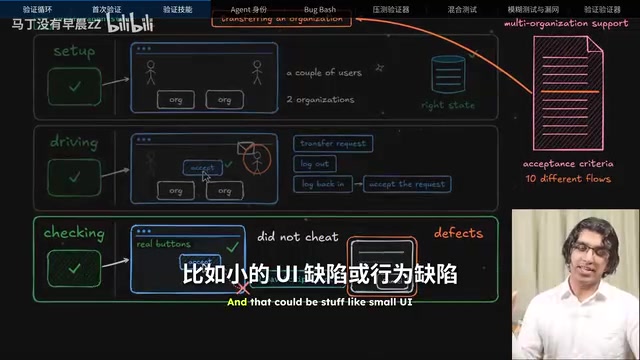
Who Accepts AI-Written Code? A 25-Minute Deep Dive into Verification Loops and the New Code Review Paradigm
After AI writes lots of code, how should Code Review verify it? This article breaks down the Claude Code team's verification loop framework: surface-level end-to-end verification, setup/drive/check three-stage skills, hybrid end-to-end testing and reliability checklists, and how to tighten the loop when issues slip through.