Codex for Absolute Beginners: Connect to Domestic LLMs + Four Hands-On Case Studies

Zero-background users connect Codex to domestic LLMs and master core AI programming skills through four cases.
Organized from Bilibili creator Digital Life Kazik's Codex beginner tutorial for readers with zero technical background. Covers three-step installation, connecting to DeepSeek via CC Switch with usage monitoring, interface modes, must-install plugins, and four hands-on cases: PPT Skill, dynamic charts, AnySearch deep research, and a seven-step workspace using plan mode, explaining context quota and compression, agents.md rules, and four general capabilities.
Title
Codex for Absolute Beginners: Connect to Domestic LLMs + Four Hands-On Case Studies
Meta Description
A Codex beginner tutorial: three steps to download, install, and connect to the DeepSeekAd domestic LLM, with CC Switch for provider switching. Covers essential plugins and skills, plus four hands-on case studies: PPT creation, dynamic charts, deep research, and building a personal workspace.
Article Content
Codex is an AI coding tool released by OpenAI, but many people's first reaction after installing it is—now what? Bilibili creator "Digital Life Kazik" released a Codex beginner tutorial billed as "the most humanities-student-friendly on the entire internet," covering everything from download and installation to connecting domestic LLMs, plus four hands-on cases: PPT, dynamic charts, deep research, and a workspace. It covers almost all the high-frequency scenarios where ordinary people use AI coding tools. This article breaks down and organizes the core information from the video, suitable for readers with zero technical background to get started quickly.
Three-Step Installation: Download, Install, Connect an LLM
Codex has now merged with ChatGPT—just search for Codex to find the download entry, and the installer will automatically match your operating system. After installation you need to log in with a ChatGPT account, but domestic users can't use GPT, so the key step is swapping the "brain" for a domestic LLM.
The creator uses an analogy: the LLM is the brain, responsible for thinking and planning; Codex is the hands and feet, responsible for execution and implementation. Once the two are separated, you need a conversion tool called CC Switch to bridge them. In CC Switch's toolbar, select Codex, add DeepSeek as a provider, fill in the API Key obtained from the DeepSeek platform, and click enable to complete the switch.
After a successful switch there's one easily overlooked setting: open the usage query and save the configuration. This panel displays Token consumption in real time, and after topping up you can also see your balance. The creator calls it the "cyber popsicle"—always knowing how much you've spent.
What is an API Key: An API Key is a string of secret keys generated by an LLM service provider, essentially your "ID card + payment card" for calling that service. Codex itself doesn't produce intelligence; it needs to send conversation content to the LLM backend, and that request must carry the API Key for the provider to identify and bill it. So when connecting Codex to DeepSeek, you must first register an account on the DeepSeek open platform, create a Key, and top up, then fill the Key into CC Switch. Once a Key leaks, others can use your quota to make purchases, so don't paste it into public repositories or chat groups.
The role of CC Switch: CC Switch is a local configuration switching tool. It doesn't proxy model requests; it helps you rewrite Codex's configuration file, replacing the default address pointing to OpenAI with a third-party compatible endpoint. That's also why you need to "enable" after switching providers—essentially making Codex read the new configuration on next launch.
Interface and Must-Install Plugins: Bare Metal Needs "Left and Right Hands" First
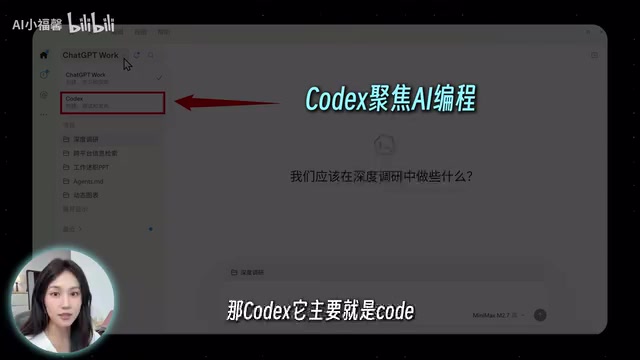
The top-left corner of the Codex main interface has two modes: ChatGPT Work and Codex. Work leans toward office scenarios—making spreadsheets and writing documents; Codex mode focuses on AI programming. Switch flexibly based on task type.
A freshly installed Codex is bare metal, so you need to install plugins and Skills first. Plugins are like an external toolbox, letting Codex call external tools or databases; Skills are more like operation manuals, making Codex work according to fixed procedures.
There are two must-install plugins. The first is Computer Use—after installing it, Codex can call apps on your computer, and automatic screenshots and reading window contents rely on it. The second is the black plugin for making visualization charts. The creator specifically mentions that after a redesign it disappeared from the public interface and can only be found via search, but in testing its results are far better than other similar plugins, producing dynamic charts successfully on the first try.
The creator basically didn't install the other plugins—more plugins isn't better, and most ordinary people won't use them at all.
The difference between plugins and Skills: Plugins and Skills are two different extension mechanisms in Codex. Plugins target "capabilities" and usually exist as MCP (Model Context Protocol) services, adding external tools Codex can call, such as operating a browser, reading a database, or controlling local applications; Skills target "processes" and are generally a Markdown operation manual plus supporting resources, telling Codex what steps to follow and what templates to use for a certain type of task. Simply put, plugins determine whether Codex "can do it," while Skills determine whether it "does it well." That's also why making a PPT requires installing a Skill first, while making dynamic charts requires installing a plugin first.
Case 1: Making a PPT with a Skill
The first case uses the PPT Skill open-sourced by AI blogger Zhang Zayla, containing 34 good-looking templates. The workflow: switch to Work mode, create a new project and bind a local folder, granting Codex full access to that folder so that all conversations and materials are archived in the project for easy retrieval later.
Next, copy the address of that Skill from GitHub, have Codex install it, and agree that "when making PPTs later, please call this Skill." For actual production, first have the AI organize the PPT copy and upload it as an attachment, then give the instruction: call the specified template, reasonably use and expand the template styles according to the content, and if the content is too long, make it in batches.
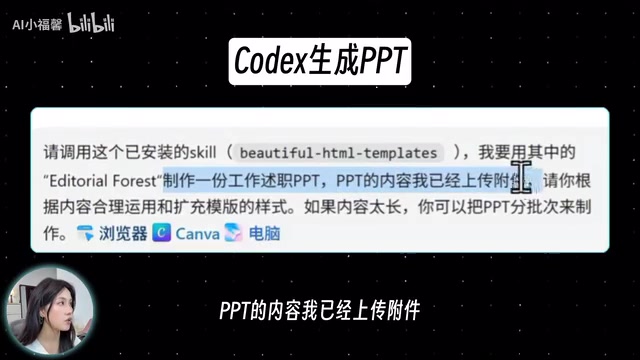
The creator emphasizes that this version of the prompt was revised four or five times and is the best-performing version in testing. The generated result is a local web-page-format PPT that can only be opened on the local machine—sending it to others won't work. When presenting, either project it directly or have Codex deploy the web page online.
Case 2: Making Dynamic Charts with a Plugin
Dynamic charts are a scenario the creator only got working after trying multiple methods, finally succeeding on the first try with the aforementioned black chart plugin. The workflow: create a new project in Work mode, upload the data spreadsheet, and use a prompt requiring "while ensuring data accuracy, fully consider the aesthetics of data visualization, and match an appropriate dynamic chart style," then select the installed chart plugin from the plus menu before sending.
After generation, if you don't know where the file is saved, just ask Codex for the path and paste it into the folder address bar and press Enter to open it. It's likewise web-page format and can likewise be fine-tuned through continued conversation.
Case 3: Deep Research Needs a Skill to Add Depth
A common problem with using AI to retrieve information is that it's "too broad and not deep enough." The creator recommends installing the AnySearch auxiliary search Skill—again copy the GitHub address to have Codex install it, and agree that it will be automatically called for deep research later.
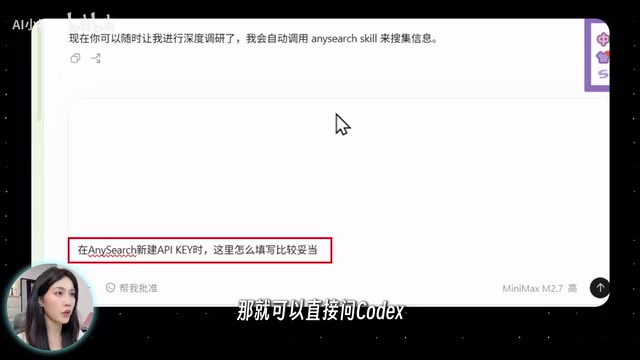
After installation, Codex will prompt you to configure an API Key for better research results. After registering on the AnySearch official website, create a new API Key, which requires a name and quota. What if you're unsure about the quota? The creator simply threw this question to Codex, which used the Computer Use plugin to automatically screenshot the current page and gave a conservative quota suggestion (10000).
Once you have the Key, just send it to Codex. Here the creator also explains a common beginner confusion—context quota. Each project is like a notebook with a page limit; every round of conversation is recorded, and Codex must read from the beginning before each reply. If you chat too long and the notebook fills up, the conversation may end abruptly before finishing. There are two solutions: click fork to start a new conversation (equivalent to adding blank pages), or type a slash to call the "compress" function, packaging and compressing the earlier conversation. The creator measured that after compression, context usage dropped from 73% to 14%.
Context window and compression: An LLM's context window refers to the upper limit of the total tokens it can "see" in a single conversation, including system prompts, historical conversation, uploaded files, and the upcoming reply. Codex re-sends the entire project history to the model before each reply, so the longer the conversation, the higher the usage, and when it hits the limit it will truncate or error. The "compress" function called with a slash essentially has the model summarize earlier conversation into a shorter summary, replacing the original text to free up space; starting a new branch keeps the original conversation and starts a clean session line. Both can only alleviate, not break through, the model's own window limit, so complex projects are still best split into phases.
Case 4: Building a Personal Workspace in Seven Steps
The last case uses Codex's plan mode to build a project management workspace for a content team. Plan mode suits complex tasks where "you haven't thought it through at all," letting the AI plan first and then execute. The whole process has seven steps:
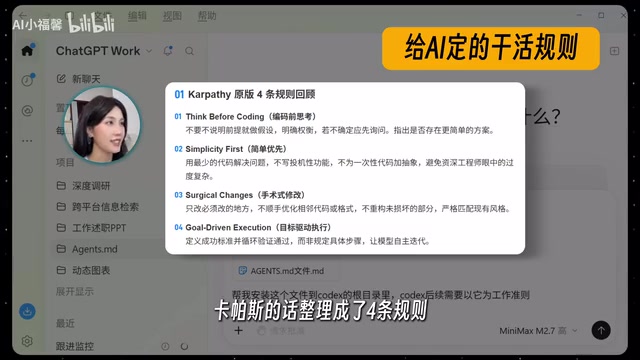
Step 1, set the rules. Create an agents.md project instruction file in the Codex root directory—equivalent to the working rules set for the AI, which Codex reads before starting work each time. The creator mentions that someone organized AI community figure Karpathy's four rules into such files, bringing the AI programming error rate down from 41% to 11%. The creator sent these four rules to Codex and had it adjust them for beginners.
Step 2, explain the needs and pain points. Clearly state what you do, what your business is, what problems you've encountered, and what you want the AI to do, and emphasize clarifying the requirements before formal programming, asking the AI to offer professional opinions to avoid writing code right away. At the same time, turn on plan mode so Codex breaks down the task and lists the problem checklist.
Step 3, lock the MVP. Minimum viable product—first build only one core feature (such as a work plan table), and iterate on the rest later; don't try to eat the whole thing at once.
Step 4, produce requirements docs, technical docs, and a demo. A demo is a must—you can see in advance what the interface looks like and how it interacts, and accept and give feedback early.
Step 5, formal AI programming. Switch to Codex mode and send the requirements doc, technical doc, and demo together.
Step 6, testing and iteration. Test extensively yourself, have Codex fix any problems you find directly, and once satisfied move to the second round of adding features.
Step 7, deploy online. You can skip this if it's only for yourself; if it's for the team, you must deploy it to the public internet.
agents.md and rule files: agents.md is a conventional project-level instruction file placed in the repository root, which Codex automatically reads before starting work each time. It differs from the requirements you temporarily raise in the chat box—the latter only applies to the current session, while agents.md is a persistent "employee handbook" that constrains all subsequent conversations. Common contents include: tech stack and directory conventions, files that must not be modified, tests that must be run before committing, code style requirements, and so on. The reason Karpathy's four rules work is that they turn engineering discipline like "think it through before acting" and "make small, verifiable changes" into hard constraints the AI must follow every time, rather than relying on the user to remind it repeatedly.
MVP and plan mode: MVP (minimum viable product) refers to an initial version that keeps only one core loop and just needs to run, aiming to get something acceptable as early as possible. Plan mode has Codex output a task breakdown and problem checklist before writing code, and execute after you confirm, avoiding large rework after going off track. The two work together, exactly corresponding to "do the right thing first, then do the thing right."
The General Capabilities Behind the Four Cases
Looking back at these four cases, they actually correspond to the four core capabilities of AI coding tools: using Skills to solidify processes (PPT), using plugins to extend boundaries (dynamic charts), using APIs to supplement professional capabilities (deep research), and using plan mode to manage complex tasks (workspace). One line the creator repeats in the video is—you don't need to memorize feature points by rote; master these four high-frequency scenarios and you can apply them by analogy to your own needs. For zero-background users, this may be a more practical path to getting started than memorizing shortcuts.
One-line Summary
Zero-background users can connect Codex to domestic LLMs and master AI programming's core capabilities through four cases.
Paragraph Summary
The article is organized from Bilibili creator "Digital Life Kazik"'s Codex beginner tutorial, aimed at readers with zero technical background. It first covers three installation steps: download and install Codex, log in to your account, then use CC Switch to switch the backend to domestic LLMs such as DeepSeek, and enable usage query to monitor Token consumption. It then explains interface modes and must-install plugins, emphasizing that more plugins isn't better—Computer Use and a hidden black chart plugin are enough. It then breaks down four hands-on cases: using the PPT Skill to generate a web-page PPT, using the chart plugin for dynamic charts, using the AnySearch Skill to supplement deep research, and using plan mode to build a personal workspace in seven steps, and explains key concepts such as context quota and compression, and agents.md rule files. Finally it summarizes four general capabilities: Skills solidify processes, plugins extend boundaries, APIs supplement professionalism, and plan mode manages complex tasks.
Related articles
Underdog Saluki 27B: A Practical Guide to Tool Calling Under 2-Bit Quantization
An in-depth look at Underdog Saluki 27B's GSQ-RCO-based 2-bit quantization, covering GGUF header structure, memory usage analysis, and BFCL tool-calling test points under native llama.cpp.

GPU-unlock: Unlocking the FP/BF16 Instruction Issue Rate of Nvidia 3000-Series GPUs
gpu-unlock explores the FP16/BF16 instruction issue rate limits of Nvidia 3000-series GPUs, covering measurement methods, unlocking approaches, community debates, and implications for GPU performance optimization.

Cognition Open-Sources Devin Vulnerability Fixes Plugin: AI Agent Automatically Patches Critical PHP/Node.js/GitLab RCE Flaws
Cognition open-sources Devin Vulnerability Fixes, with 3 MIT-licensed agent skills targeting critical RCE flaws in PHP, Node.js, and self-hosted GitLab—automating inventory, patching, testing, and one PR per repo.