Codex for Beginners: 13 Hands-On Projects from Installation to Building Websites and Blender Modeling
Codex beginner hands-on tutorial: 13 scenarios covering installation, permissions, website building, and Blender modeling.
Based on a Bilibili Codex beginner hands-on tutorial, this article systematically organizes the complete journey from registration and installation to advanced usage. It first points out the essential difference between Codex and ordinary chat tools: Codex is an agent tool that can read local files, operate autonomously, and deliver finished products, with the model as its brain. It then explains installation settings, interface modules, three permission tiers, four model options, project and context management, and three memory mechanisms. The practical section selects 13 scenarios including environment setup, GPT image generation for personal websites, Skill packaging, MCP connection to Blender modeling, CapCut control via computer plugin, Canva layered design conversion, scheduled tasks, and mobile control. The author also gives beginner pitfall reminders: don't enable full access, turn off the reset count consumption switch, use plan mode for complex tasks, and manually compress or start a new conversation when context is nearly full.
Codex for Beginners: 13 Hands-On Projects from Installation to Building Websites and Blender Modeling
A recent hands-on Codex tutorial on Bilibili prepared 13 practical scenarios, covering registration and installation, website creation, Blender modeling, CapCut control, and more—essentially explaining Codex's everyday usage thoroughly. After watching this content, you'll be able to have AI help you install software, build websites, edit videos, and even turn AI-generated images into editable design files.
What Exactly Is Codex: From Talking to Doing
The author opens by highlighting the core difference between Codex and ordinary chat tools. With chat tools, you ask a question and get an answer; if you need to look at materials and files, you have to manually copy and paste. Codex, on the other hand, can directly read files on your computer, search for information online on its own, and when you give it a task, it delivers a finished product. In one sentence: one only talks, the other can actually do things.
This positioning determines all the subsequent usage. Codex is essentially an agent tool, and the model is the brain that operates this tool—the two cannot work independently.
Environment Preparation and Installation: Don't Ignore These Settings
Preparation has two steps: network environment and account registration. The author recommends registering with a Google or Microsoft email; registration requires phone number verification. The network part is not covered in detail.
For installation, Codex and the GPT desktop app are integrated. Search for the GPT desktop app, download the appropriate version, double-click to install, and log in. After logging in, there's a key setting: go to General options in settings. If the interface is in English, change the language option to auto-detect; if your computer is in Chinese, it will display in Chinese.
Subscription plans come in 5 tiers: Free, $20, $100, $200, $500. The free version has very limited quota and can't use the latest models; the author recommends beginners start with the $20 tier.
Interface and Conversation Bar: Understand Permissions and Models First
Codex's interface is divided into 5 modules from left to right: function area and project area, workspace and conversation bar, results area. Beginners don't need to worry about all the buttons—just find the dialog box to complete your first task.
The conversation bar includes file upload, run permissions, model selection, speech-to-text, voice chat, and other functions. The most convenient way to upload files is to directly copy files or images and paste them with shortcuts.
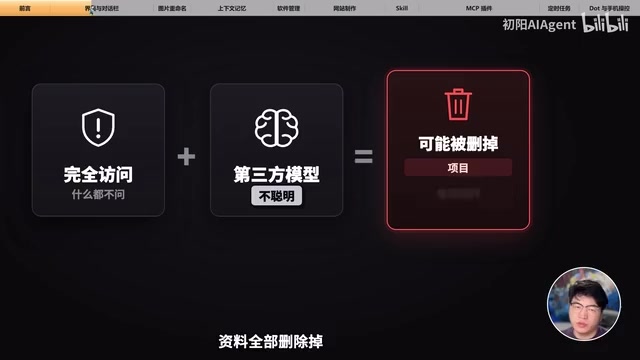
Permission settings are where beginners most easily stumble. There are three permission options: request approval, help me approve, and full access. The author strongly recommends newcomers use "help me approve"—Codex automatically assesses risk, automatically approving when there's no risk, and rejecting or asking the user to confirm when there is risk. Full access gives Codex all permissions with no questions asked—especially when connecting third-party models that aren't smart enough, it could delete your entire project or important materials. The author mentions the popular online case of "formatting the computer," which is basically caused by a model that isn't smart enough.
For model selection, the author introduces four models:
- GPT-6.2 Astra: Flagship model, suitable for complex programming, architecture design, deep research, and particularly difficult problems. $8/M input tokens, $40/M output tokens
- GPT-6.2 Short: Sub-flagship, cheap and powerful, suitable for developing websites, modifying code, and debugging. $2 input, $10 output
- GPT-6.1 Tyra: Focuses on vision, computer operation, and writing, such as screenshot analysis and browser operation. $1 input, $5 output
- GPT-6 Lula: Fast and cheap, suitable for organizing materials, simple Q&A, and batch repetitive work. $0.1 input, $0.5 output
After selecting a model, you also need to choose thinking depth, usually ranging from light, medium, high, to very high. The higher the level, the longer the thinking and the better the task completion. The lightning icon is quick mode—when enabled, it's 1.5x faster, but quota consumption is double.
The Relationship Between Agents and Models
The article repeatedly mentions that Codex is an agent tool and the model is its "brain"—this distinction is crucial for understanding all subsequent features. An agent is a system that can autonomously perceive the environment, make decisions, and execute actions. It doesn't generate "intelligence" but is responsible for organizing task workflows, calling tools, reading/writing files, and executing commands. The model is responsible for reasoning and generating content, deciding "what to do next." As an analogy, the model is like the driver's brain, and the agent is like the entire car—including the steering wheel, accelerator, navigation, and sensors. With only a brain and no car, ideas can't be realized; with only a car and no brain, it can't move. This also explains why model selection directly affects Codex's performance: the same agent with a stronger model will improve task completion and accuracy, but the agent's permissions and tool capabilities remain unchanged.
Project and Context Management: The Key to Saving Tokens
Click the plus sign next to the project to add a folder, telling Codex to prioritize this directory when modifying or finding files. Right-click on a project to directly open its folder.
The author demonstrates a practical task: a bunch of images named with English gibberish, and asks Codex to rename them based on their actual content. The blue parts in the reply can be clicked to see the results on the right.
Regarding context, each time you send a message, Codex sends the previous conversation content to the model—this is context. Type a slash to see the remaining context percentage. When it's almost full, Codex automatically compresses, summarizing previous content into a brief, but details may be lost. The author recommends manually typing slash to compress when context is nearly full but you still need to continue the task; if it's a new task, start a new conversation—this saves tokens and works better.
For quota, the status bar shows the daily limit and reset time. Plus members have a 5-hour limit, while Pro only has a weekly limit. The author specifically reminds: in usage management, scroll down to find "Allow assistant to use reset count"—be sure to turn it off, otherwise the official reset cards might be used when the quota is about to automatically refresh, which is very wasteful.
Memory Function: Don't Confuse the Three Types of Memory
Codex has three types of memory: GPT memory, Codex local memory, and agent.md. GPT memory is for web-based chat and doesn't interoperate with Codex; Codex local memory is stored in local files—when enabled, after a period of inactivity, it summarizes habits and project background in the background.
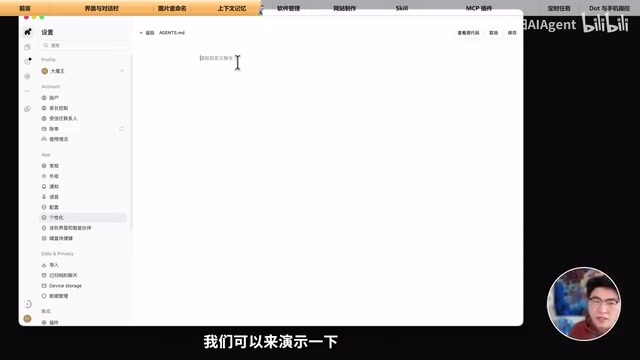
The most commonly used is agent.md—a local file equivalent to an instruction manual for Codex, loaded every time a new conversation starts. The author demonstrates giving Codex a rule: "respond in both Chinese and English in every reply." When starting a new chat and asking "who are you," Codex follows the rule perfectly. The author also compiled a general rules prompt that can be sent to Codex to put into the global agent.md.
Industry Background of AGENTS.md
The agent.md mentioned in the article (commonly written as AGENTS.md in the community) is not unique to Codex but is an open convention gradually forming in the AI programming tools field. Its core idea is: place a plain text description file in the project root directory, specifying project structure, coding standards, common commands, and precautions. AI tools read it before starting work each time, avoiding repeated explanations of background. The advantage of this approach is that it's completely localized, version-controllable, portable with the project, and the same file can be reused across different AI tools. For individual users, you can put globally applicable preferences (such as reply language, code style) in global configuration, and project-specific information in the AGENTS.md in the project directory—both take effect together.
13 Selected Practical Projects: Setting Up Environments, Building Websites, Modeling
Setting Up Environments and Open Source Tools
Previously, installing Python, Git, or Node.js required typing commands line by line following tutorials, and getting stuck when errors occurred. Now you can directly tell Codex to install Git, and it's done quickly. Popular open source AI tools from early this year like Xiaolongxia and Aiman City are troublesome to install, and many people pay others to install them—with Codex, you save that money. The author also shares a tip: popular open source projects are all on GitHub, so before making a tool, have Codex search GitHub first—if there's a ready-made one, just have it installed.
Generating Images to Build a Personal Website
This is the scenario the author focuses on demonstrating, in two steps: first generate a satisfactory website mockup, then build the website based on the reference image.
Why generate an image first? Because GPT's direct website creation aesthetics may not meet expectations—first use an image to lock down the style. When generating images, create a new project called Personal Website, send the prompt to Codex to call the image generation function, and continue communicating if not satisfied.
Before the second step of building the website based on the image, the author introduces plan mode: after enabling plan mode in the plus sign or slash menu, Codex won't start working immediately but will first think and write a detailed plan, starting only after approval. The benefit is thinking clearly before acting, resulting in more precise work and preventing going off track midway.
If you want to ask other questions during execution without interrupting, use side chat in the slash menu. After the website is done, Codex's built-in browser can open it directly, and the annotation function in the upper left corner lets you mark modifications directly on the page—for example, changing colors to red or characters to girls—and Codex will modify according to the annotations.
Skill: Packaging Processes into Skills
Skill in Chinese is 技能, equivalent to giving Codex an operation manual. The author demonstrates packaging the personal website creation process into a Skill: send a prompt asking Codex to make the entire process into a Skill folder, name it in Chinese "New Brutalism," and install it where Codex can recognize it. Then just call this Skill in a new conversation without pasting two prompts again—Codex will follow the process.
Technical Background of MCP Protocol
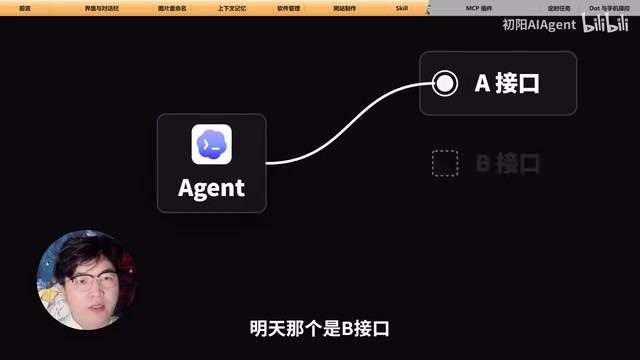
MCP stands for Model Context Protocol, a communication protocol proposed and open-sourced by Anthropic, aimed at letting AI models connect to external tools and data sources in a unified way. Before MCP, every software wanting AI to call its functions had to develop a separate interface—equivalent to each software having its own dedicated charging cable. MCP defines standard request and response formats; software only needs to implement an MCP server once, and all AI clients supporting MCP can use it directly. The author's Type-C analogy is very apt. It should be noted that MCP only solves the "connection" problem, not the "how to use" problem—specifically how to call and in what order still relies on Skills or prompts for guidance.
MCP: Connecting Codex to External Software
The author specifically distinguishes Skill and MCP: Skill teaches the agent how to do things, while MCP is an interface letting the agent use external software functions. Previously different software had different interfaces, like Android and Apple each having their own charging cable; now everyone uses Type-C—one cable for all. MCP follows the same logic: most software vendors use this protocol, so the agent only needs MCP as one protocol.
Configuring MCP doesn't require doing it yourself—let Codex do it. The author demonstrates having Codex add the Blender MCP server, first having Codex design a 3D image of the Cloud Code character, and after being satisfied with the result, starting modeling—completed in a few minutes. This is a real 3D model, not a generated image. Previously 3ds Max and C4D had long learning curves; now you can have Codex operate Blender to model directly.
Two Fun Plugins: Computer Control and Canva
Plugins are toolkits that can install Skills or MCPs. The author recommends two:
Computer Use: Codex normally works through the command line, but some software can only be clicked with a mouse and doesn't provide an MCP interface—this is when the computer plugin is needed to see the screen and operate with a mouse like a human. The author demonstrates having Codex generate 10 travel images, then opening CapCut to make a scenic travel Vlog—the entire process without manual operation, and the result is quite good.
Canva: Image generation is powerful now but has a fatal pain point—the output is a single flat image that can't be repositioned or dragged. The Canva plugin solves this: after authorization, send the image to Codex and have it use Canva to convert it into a layered editable design file, where every line of text can be modified individually and elements can be dragged freely. The author reminds that if you don't want to log in within Codex, you can right-click to open in the default browser.
Scheduled Tasks and Mobile Control
Scheduled tasks are suitable for things you need to do regularly every day, such as summarizing yesterday's AI chat records, checking daily hot news, or organizing the download directory. The author demonstrates having Codex create a task that executes in one minute, moving the day's files in the download directory into a folder named with today's date.

The disadvantage of local scheduled tasks is that the computer needs to be on or Codex needs to be running. If you don't want to depend on the local computer, you can use the personal assistant in GPT—it has its own cloud computer, remembers things you've discussed, and can follow up on tasks long-term. The author gives several examples: daily organizing new trending GitHub projects (only giving at most 5 truly worth trying, written as a daily report image), monitoring important and urgent email matters, website operation management (proactively investigating user ticket feedback bugs and calling Codex to fix them), and preparing meeting materials in advance.
The personal assistant has three notes: only Pro and above members can use it; it has a separate quota that doesn't consume Codex's normal quota, but calling Codex to do work will consume it; when tasks involve local files, the computer still needs to be on. For operations like sending emails and messages, always have it confirm before sending.
For mobile control, open GPT on your phone, tap the menu in the upper left corner to enter Codex, and you can control Codex on your computer to work. The personal assistant is used for computer-mobile control, while Codex uses your own computer—there's a difference between the two.
Final Thoughts
The value of this tutorial lies in breaking down Codex's complete journey from installation to advanced usage into 13 reproducible scenarios, each actually done once. Several reminders from the author are worth remembering: newcomers shouldn't enable full access; turn off the reset count consumption switch; enable plan mode for complex tasks to align requirements first; manually compress or start a new conversation when context is nearly full. These details determine whether Codex saves you time or causes you trouble.
One-line Summary
Codex beginner hands-on tutorial: 13 scenarios covering installation, permissions, website building, and Blender modeling.
Paragraph Summary
Based on a Bilibili Codex beginner hands-on tutorial, this article systematically organizes the complete journey from registration and installation to advanced usage. It first points out the essential difference between Codex and ordinary chat tools: Codex is an agent tool that can read local files, operate autonomously, and deliver finished products, with the model as its brain. It then explains basic configurations including installation settings, interface modules, three permission tiers, the positioning and pricing of four models, project and context management, and three memory mechanisms. The practical section selects 13 scenarios, including setting up environments, using GPT image generation to build a personal website, packaging processes with Skills, connecting to Blender for modeling with MCP, controlling CapCut with the computer plugin, converting to layered design files with Canva, as well as scheduled tasks and mobile control. The author also gives beginner pitfall reminders: don't enable full access, turn off the reset count consumption switch, use plan mode for complex tasks first, and manually compress or start a new conversation when context is nearly full.
Related articles
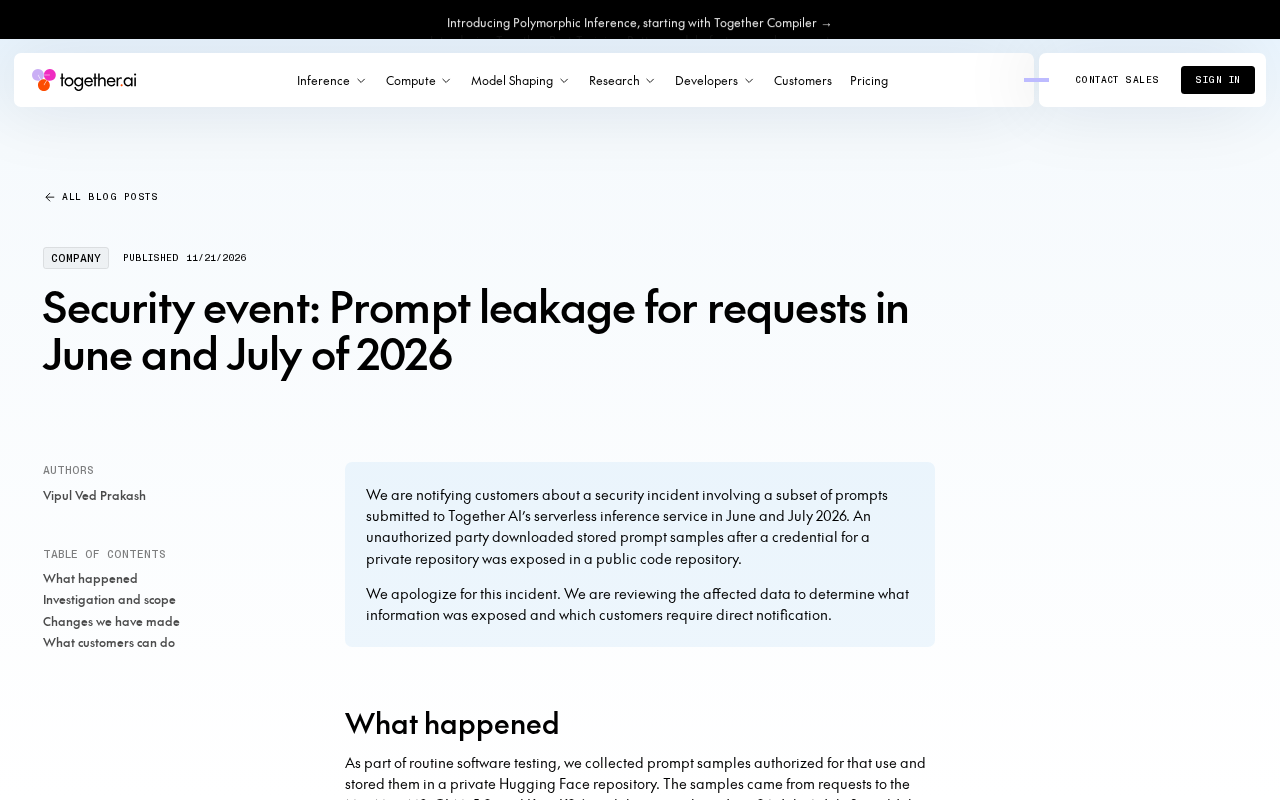
Together.ai Reportedly Exposes Prompt Leakage Vulnerability: Request Handling Mechanism Raises Concerns
Together.ai is reportedly exposed on Hacker News for request prompt leakage. This article analyzes the incident background, the isolation challenges of multi-tenant inference platforms, and the security implications for developers and the AI infrastructure industry.

Python + AI from Scratch: Environment Setup and Core Concepts Guide
An introduction to a beginner Python and AI course: why Python is the top choice for AI, how to set up a versatile development environment, five core use cases, and AI talent demand analysis.
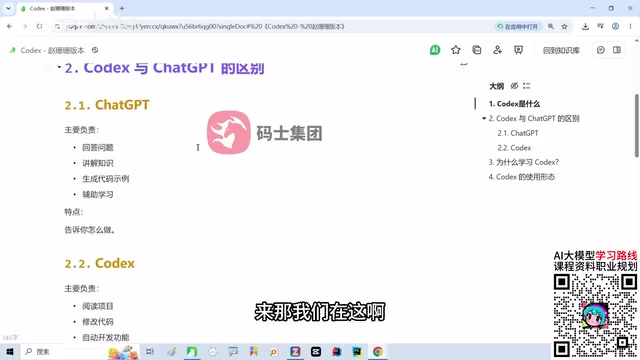
OpenAI Codex Complete Guide: From Installation to Hands-On Practice, a Full Breakdown of the AI Coding Agent
OpenAI Codex complete guide: the essential difference between Codex as an AI coding agent and ChatGPT, its four usage forms—CLI, web, plugin, and APP—and their scenarios, plus why developers should learn Codex in the AI era.