Codex + Zotero Literature Management Automation Workflow Configuration Tutorial

Breaking down the Codex + Zotero MCP plugin + Skill literature automation workflow, covering configuration, testing, and pitfalls.
This article breaks down an automated literature workflow based on Codex, the Zotero MCP plugin, and Skill, aiming to let AI handle the full chain from search and filtering to download and import. It covers three key configuration toggles—enabling the server, enabling write operations, and verifying the port (default 23120)—and using the local MCP route to skip API Key application. A real test on "visual detection" highlights the importance of boundary conditions in prompts and verifying collection placement, metadata, PDF openability, and full-text status. The original plugin lacks attachment supplement capability, so a fixed version is needed, along with common troubleshooting tips and the open-access-only compliance limit.
Every day spent scouring databases for papers, downloading PDFs, and importing them into reference management tools—this repetitive routine consumes a huge amount of researchers' time. A creator on Bilibili shared an automated workflow based on Codex and Zotero, with the core idea of letting AI take over the complete chain of "search—filter—download—import." This article breaks down the principles, configuration steps, and real-world pitfalls of this solution.
What This Workflow Actually Does
The entire solution consists of three parts: Skill (workflow definition), Codex (task initiator), and the Zotero MCP plugin (actual execution end).
According to the creator, you only need to tell the AI a research topic, and it will automatically combine keywords to search external academic databases, filter candidate papers based on title and abstract information, verify DOIs, and check for duplicates in Zotero—reusing existing papers and available PDFs wherever possible, and downloading and adding the rest.
There's an easily overlooked detail here: bibliographic entries and attachments are two different things. Having a paper's title, authors, and publication information in Zotero doesn't mean the PDF has been downloaded. The goal of this workflow is to get both organized as thoroughly as possible.
MCP (Model Context Protocol) plays the role of a bridge here. Codex initiates tasks, the Zotero plugin provides tool interfaces such as finding literature and adding entries, and MCP handles passing calls and results. Skill determines the execution flow, the plugin provides actual capabilities—all three are indispensable.
MCP (Model Context Protocol) is an open standard proposed by Anthropic at the end of 2024, aiming to provide a unified communication interface between AI models and external tools and data sources. Before MCP, every external service integration (such as databases, file systems, third-party applications) required separately written adapter code, with high maintenance costs. MCP abstracts these interactions into a standardized protocol: the server declares which "tools," "resources," and "prompt templates" it can provide, while the client (such as ChatGPT desktop, Claude Desktop, etc.) initiates calls through a unified format. In this solution, the Zotero MCP plugin is the server, exposing tool interfaces such as finding literature, adding entries, and supplementing attachment downloads; Codex (here referring to the agent capability of ChatGPT desktop) acts as the client, deciding when to call which tool according to the flow defined by the Skill. Understanding this layered structure helps quickly determine whether a problem lies in the connection layer, permission layer, or workflow layer when troubleshooting.
Preparation Before Installation: Two Files, Two Locations
You need to prepare two installation packages: one is the XPI plugin file to be installed into Zotero, and the other is the Skill archive to be given to Codex. Their installation locations are completely different—don't confuse them.
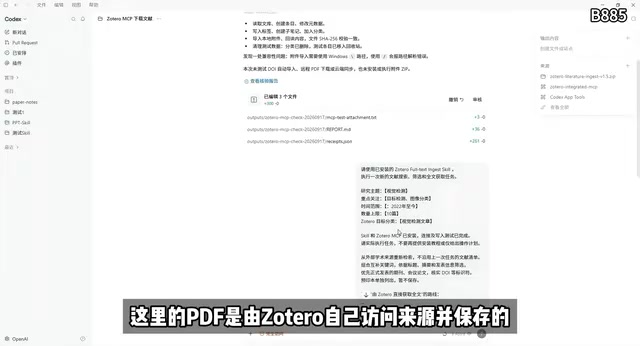
The creator specifically notes that the demonstration uses a fixed version plugin adapted for local Skills, not the official 1.6.0 version. This point is crucial, and the reason will be explained later.
To install the Zotero plugin: open Zotero's plugin management page, select "Install from File," and choose the XPI file. If a version with the same plugin ID was previously installed, Zotero will prompt you to replace it.
Plugin Configuration: Three Key Toggles
After installing the plugin, confirm it's enabled, then go into the plugin settings. Three configurations directly determine whether the workflow can run:
First, enable the server. This allows clients to connect; otherwise, Codex cannot communicate with Zotero.
Second, enable write operations. Without this option, the AI can only query files, not add entries or attachments. This is the root cause of many people finding after configuration that it can "only query, not write."
Third, verify the port number. The creator used the system default 23120, and this port number must remain consistent when configuring Codex later.
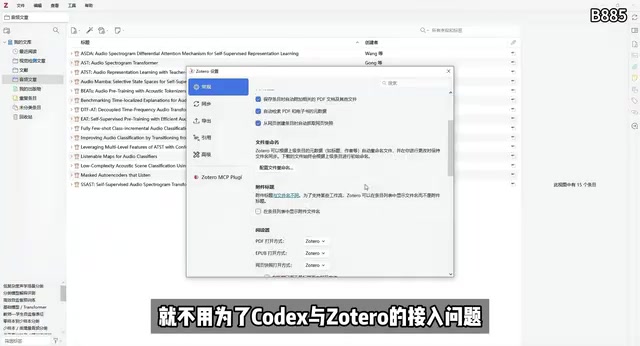
Additionally, check Zotero's general settings to confirm PDF-related options are checked. The advantage of going the local MCP plugin route is that you don't need to apply for an API Key from the Zotero website, saving a cumbersome authorization process.
Connecting the MCP Service in Codex
Open ChatGPT desktop, go to settings, find MCP management in the plugin settings, and click to add an MCP server:
- Service name:
Zotero - Connection method:
Streamable HTTP - Address: the address corresponding to the plugin (default 23120, must match the plugin settings)
Save and restart.
Installing the Skill is even simpler—just drag the archive into Codex's chat box and let it install. Be clear about the distinction: MCP configuration establishes the connection, Skill defines the workflow, and the two cannot replace each other.
After configuration, it's recommended to do a connectivity test first, using a prompt to have the AI actually call the MCP tool. Passing this step only means the connection and capabilities are ready; whether PDFs can actually be saved still needs to be verified with real papers.
Streamable HTTP is a transport method supported by the MCP protocol, suitable for communicating with local or remote persistent services. Compared to the earlier SSE (Server-Sent Events) approach, it is simpler in connection establishment, reconnection after disconnection, and bidirectional message passing, and is currently a common option when configuring local services in MCP clients. When you select Streamable HTTP in Codex and enter an address like http://127.0.0.1:23120, the client is actually initiating an HTTP request to that local port, with the MCP server in the Zotero plugin responding. Therefore, the port number must exactly match the one in the plugin settings; otherwise, connection timeouts or connection refused errors will occur. If there is a firewall or security software on the machine, also confirm that local loopback communication on that port is not blocked.
Real Task Test: Boundary Conditions Matter More Than Prompt Length
The creator ran a complete test using "visual detection" as the topic, focusing on object detection and image classification directions, with a time range from 2022 to the present, a limit of 10 papers, and a Zotero collection specified as "Visual Detection Papers."
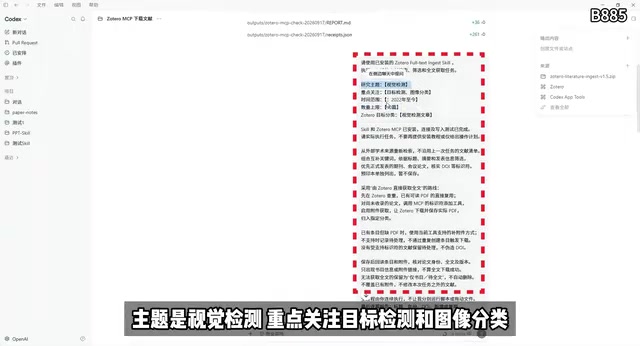
The key to this prompt is not its length, but clearly stating the boundary conditions:
- Search externally from scratch; don't pick a few papers from the existing Zotero library to pass off as new results
- Prefer formally published papers
- Report PDF save failures honestly; don't cover them up
- On the first run, verify one paper first, confirm the download step works, then continue
The execution flow is: first search and filter candidate papers, verify identifiers and check for duplicates once confirmed, then Zotero adds entries by identifier and attempts to retrieve PDF attachments. If a bibliographic entry already exists but the PDF is missing, use the supplementary download interface to save it from the official address.
Result Verification: Don't Just Look at One Sentence in the AI Report
The test result was that all 10 papers were downloaded. But the creator emphasizes that after entering Zotero, you need to check four things:
- Whether the papers entered the specified collection
- Whether the title, authors, year, and DOI information are complete
- Whether the attached PDFs can open normally
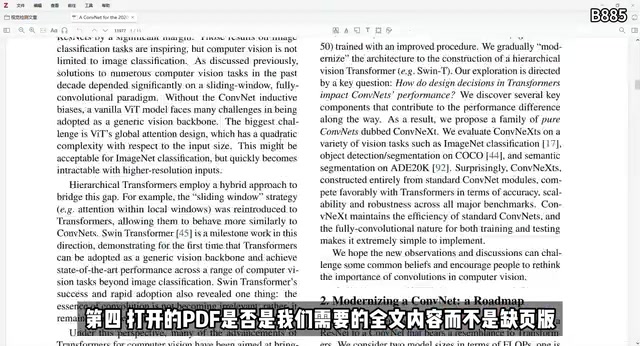
- Whether the opened PDF is the needed content, not a missing-pages version
The AI report should also state specifically what it checked. The report shown by the creator includes the number of new bibliographic entries, the number of PDFs actually saved, and which ones still need processing—these data points should be examined separately, not dismissed after seeing a single "download successful."
A Flaw in the Original Plugin and Its Fix
During actual testing, the creator encountered a typical problem: DOI import succeeded, the paper title was already in the library, but the PDF was not downloaded. Investigation revealed that Zotero's query did not return the full-text address.
The root cause is that the original MCP plugin did not provide a tool to "supplement downloads for existing entries." So the creator added an interface on top of the open-source Zotero MCP plugin—after the AI verifies the official PDF address, it can have Zotero directly save the attachment to the original entry. This is why it was mentioned earlier that the fixed version plugin should be used instead of the official version.
DOI (Digital Object Identifier) is a string used in academic publishing to permanently identify a paper, in the form 10.xxxx/xxxxx. Through the DOI, Zotero can query content registration agencies such as CrossRef for the paper's title, authors, journal, year, and other metadata, and automatically create an entry based on it—this is the meaning of "DOI import succeeded." However, metadata and full-text PDFs are two independent acquisition paths: metadata queries return bibliographic information, while full-text PDF addresses often require additional parsing steps (such as through Unpaywall, publisher open interfaces, or page scraping). The original plugin only implemented the former, so it could not automatically complete attachments when only bibliographic information was available. The "supplementary download" tool added in the fixed version essentially lets the AI first locate a legitimate open-access PDF address, then call Zotero's attachment save interface to attach the file to an existing entry, thereby completing the last link from bibliography to full text.
Common Troubleshooting Guide
If you encounter problems after configuration, you can troubleshoot using the following approach:
- Cannot connect: Check whether Zotero is open, whether the service ports match, and whether read/write permissions are enabled on both ends
- Only bibliography, no PDF: Check whether the supplementary download capability works properly and look at the specific error message
- Write failure: Confirm whether "Enable Write Operations" is turned on in the plugin settings
The creator also clearly states a limitation: access restrictions cannot be bypassed; only open-access literature can be downloaded. The goal of this tool is to reduce repetitive operations, not to replace legitimate access to academic databases.
The limitation of "only downloading open-access literature" involves two types of access models in academic publishing: open access (OA) literature is paid for by authors or institutions and allows free public download, commonly seen in arXiv, PubMed Central, DOAJ-indexed journals, and more; subscription-based literature, on the other hand, is controlled by publishers through IP identification, institutional login, or paywalls. This automated tool can only access the publicly available PDF addresses of the former and cannot bypass paywalls—this is both a technical boundary and a compliance boundary. For subscription-based literature, researchers still need to obtain it through their institution's library subscriptions, interlibrary loan, or by contacting the authors directly. Only by positioning the tool as "reducing repetitive operations" rather than "replacing legitimate access channels" can it be used safely and sustainably in daily research.
Summary
The value of this Codex + Zotero workflow lies in connecting literature search, filtering, importing, and verification into an automated chain. The configuration itself is not complicated, but a few key points—port consistency, write permissions, and the fixed version plugin's supplementary download capability—determine whether it can truly run. It's recommended to first verify the entire process with a small task, then expand to your own research topics.
One-line Summary
Breakdown of the Codex + Zotero MCP plugin + Skill literature automation workflow, covering configuration, testing, and pitfalls to avoid.
Paragraph Summary
This article breaks down an automated literature workflow based on Codex, the Zotero MCP plugin, and Skill, aiming to let AI take over the complete chain from search, filtering, downloading, to importing. The solution consists of three parts: Skill defines the workflow, Codex initiates tasks, and the Zotero MCP plugin handles actual execution. During configuration, pay attention to three toggles—enable the server, turn on write operations, and verify the port number (default 23120)—and use the local MCP route to avoid applying for an API Key. Through a real test on the topic of "visual detection," the article emphasizes that prompts should specify boundary conditions clearly, and result verification should separately check the collection, metadata, PDF openability, and whether it is the full text. It also points out that the original plugin lacks the ability to "supplement attachment downloads," requiring the fixed version plugin, and provides common troubleshooting ideas and the compliance limitation of "open-access literature only."
Related articles

Random Pruning of the DPO Computation Graph: 1.4x Training Speedup and Lower Peak Memory
DPO training too slow and memory-hungry? This paper proposes a random pruning framework for the DPO computation graph, sampling independently across position, sequence, and branch dimensions; branch pruning achieves a 1.426x step-time speedup and cuts training time by about 30%, with in-depth attribution of memory and time gains.

Why Does JEPA Underperform MLM in Longitudinal EHR Representation Learning?
New study compares JEPA and MLM for longitudinal EHR representation learning on MIMIC-IV: three JEPA variants train stably without collapse but underperform MLM; target size, not heterogeneity, drives prediction error.

Transfer Learning + Visible Light Communication: A New Approach to Energy-Efficient Indoor Positioning
A study proposes a transfer learning-based visible light communication indoor positioning method, achieving 47% accuracy improvement on the BOSCH factory dataset, 67.5% model efficiency under high noise, and introducing the ME composite metric for energy-efficient positioning in energy-constrained industrial IoT scenarios.