Complete Practical Guide to Developing Power Automate Cloud Flows with GitHub Copilot

Use GitHub Copilot with Power Platform Skills to build Power Automate cloud flows using natural language.
This guide walks through using GitHub Copilot's Power Platform Skills plugin to develop Power Automate cloud flows entirely through natural language. It covers environment setup, Azure CLI authentication, real-world demos of generating automation flows, credit cost analysis, the Skills directory structure, Auto Pilot mode, and current limitations with desktop flows.
Microsoft Power Automate has always offered three ways to create flows: from blank, from templates, and with the built-in Copilot. But few people know that you can also leverage Power Platform Skills powered by GitHub Copilot to directly generate, modify, and debug cloud automation flows using pure natural language. Based on a complete hands-on demonstration, this article covers the prerequisites, workflow, and real-world experience of this AI-assisted automation development approach.
Preparation: Choose One of Two Client Options
To enable the ability to develop Power Automate flows with GitHub Copilot, you first need to install the tooling. Choose one of two approaches:
- GitHub Copilot CLI (Command-line version): Type
copilotin your terminal to launch the interactive interface; - GitHub Copilot Desktop Client: A graphical interface with a more comfortable experience, recommended for beginners.
Regardless of which approach you choose, the core requirement is loading the Power Platform Skills plugin. Power Platform Skills is a set of specialized plugin capabilities developed by Microsoft for the GitHub Copilot ecosystem. It's essentially a predefined Agent instruction set that wraps API operations for various Power Platform components (Power Automate, Power Apps, Power Pages, etc.) into skill units that large language models can understand and invoke. This design follows the "Tool Use/Function Calling" paradigm in current AI Agent architectures—the LLM is responsible for understanding user intent and planning execution steps, while Skills provide the concrete execution capabilities.
In the desktop client's plugin settings, you'll see multiple Skills. If you're only using Power Automate, it's recommended to disable unrelated Skills to reduce noise. The command-line version typically auto-loads the corresponding capabilities after installation.
One detail worth emphasizing that's easy to stumble on: It's recommended to create a new empty folder as your working directory and ensure you have full permissions on that folder. Using directories with unknown origins or restricted permissions will almost certainly cause invocation failures due to permission issues. You can right-click on the folder to open Copilot.
How to Invoke Power Platform Skills
After opening the interface, type a forward slash / to bring up the function list. Beyond default functions, the Power Automate plugin itself has approximately 10 built-in Skills, including creating flows (create/build flow), debugging flows (debug), checking flows, deduplication (dedup), and more. Simply type a keyword, the tool will automatically search for and apply the corresponding Skill, then enter your natural language instruction.
Azure Login Authentication: Establishing the Cloud Connection
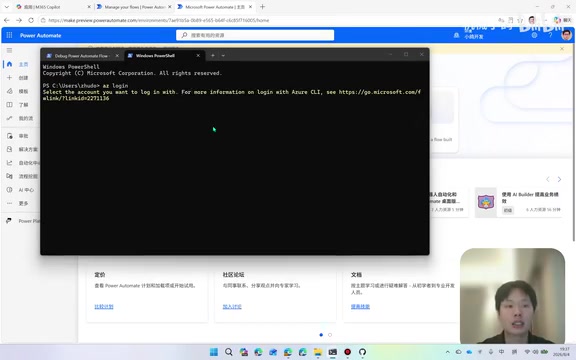
Many people encounter errors on their first invocation—this is actually normal behavior. The reason is that this connection method doesn't rely on Power Automate's API, nor is it MCP; it requires an authentication layer—because your flow data resides under your cloud account.
Azure CLI (Command Line Interface) is Microsoft's cross-platform command-line tool for managing Azure resources. The way to establish this connection is through Azure CLI login: run az login, select your account and confirm. After the browser indicates successful login, press Enter, and the tool will detect your account information and complete the connection. The az login command triggers an OAuth 2.0 authorization flow. After completing authentication through the browser, an Access Token is cached locally. Power Platform Skills reuses this token to access the user's Power Automate environment. Unlike traditional API Keys or Service Principals, this authentication method directly binds to the user identity, enabling access to all flows and connector resources under that user's account. Subsequent calls to related commands will no longer trigger authentication errors.
Hands-On Demo: Generating an Email Attachment Auto-Save Flow with a Single Sentence
The demo requirement is simple: When I receive a new email with attachments, save the attachments to a designated folder in OneDrive. This type of requirement isn't hard to build manually and can also be achieved with templates, but the focus of the demo is showcasing the AI's complete workflow chain and real-world thresholds.
After entering the instruction, the tool first starts an MCP Server (flow agent). MCP (Model Context Protocol) is an emerging protocol standard that standardizes interactions between large language models and external tools. In this scenario, the MCP Server acts as a middle layer between the AI model and the Power Automate cloud service. If startup fails, you'll get an error; upon successful startup, the browser automatically opens the corresponding interface. Then you can observe the AI continuously invoking different tools: get connector to fetch connectors, list connection to list connections, finding OneDrive's create file command, supplementing connections, and then progressively executing subsequent operations.
When the user issues a natural language instruction, the AI Agent calls different tool functions through the MCP protocol, with each call being an independent tool interaction. Here you need to understand Power Automate's Connector system: connectors are pre-built API wrappers. Currently, the Microsoft ecosystem has over 1,000 standard connectors and custom connectors. Each connector represents an external service (such as Outlook, OneDrive, Teams, SharePoint, etc.) and contains two types of capabilities: Triggers and Actions. When generating a flow, the AI needs to first find available connectors through get connector, then confirm the user's authorized connection instances through list connection, before it can correctly configure parameters for each step.
The entire process is entirely based on natural language conversation with the AI, which autonomously makes decisions and executes actions. There's a key point here: what's consumed is AI credits, not tokens.
Real Costs: 55 Credits and Over Ten Minutes of Processing Time
From the demo, even a seemingly simple flow like "save email attachments to OneDrive" took the AI approximately over ten minutes and consumed 55 credits. Another even simpler flow—"forward emails containing tasks to myself"—used over 20 credits with a single instruction. Clearly, the credit consumption of this approach is not low.

GitHub Copilot's credit billing model differs from traditional token-based billing. Each time the Agent completes a full "think-decide-execute" cycle, it consumes credits, rather than simply charging based on input/output text length. This means more complex tasks (requiring more rounds of tool calls and reasoning) consume more credits. This also explains why a seemingly simple flow requires substantial credit consumption—behind the scenes, the AI performed multiple connector queries, parameter configurations, and validation operations.
If you don't have enough credits, don't worry. GitHub Copilot CLI supports custom models: you can connect cheaper domestic models, as well as local Ollama and third-party models—just configure the URL and API Key to switch. By connecting local models (such as open-source models running on Ollama) or domestic LLM APIs, you can bypass GitHub's credit system, though you may sacrifice some reasoning quality and tool-calling accuracy, while gaining better cost control.
Skills Directory Structure: Revealing How the AI Works
The tool installs to the user directory by default. If installed on the Copilot side, it generates a .copilot configuration folder; it also writes to a .cloud folder—you can find it in both locations. Inside, you'll see the power-platform-skills directory containing approximately 18 folders, covering Canvas Apps, Code Apps, Model-Driven Apps, Mobile Apps, Power Pages, and this article's protagonist: Automate.

Each Skill directory contains readme, agent.md, and other Markdown files. These are essentially a set of rule specifications: what it can do, how to do it, and which functions to call during execution—all clearly documented. These Markdown files are effectively the AI Agent's "System Prompts," defining the Agent's behavioral boundaries, available tool lists, and execution strategies in specific scenarios. This approach of organizing and managing Agent capabilities in pure text form reflects the "Prompt as Code" design philosophy in current AI engineering—treating prompts as version-controllable, auditable, and reusable engineering assets. Unless you know exactly what you're changing, it's not recommended to modify these files—treat them as reference material only.
Auto Pilot Mode and Flow Verification
By default, each step requires pressing Enter to confirm. If you enable Auto Pilot mode, the entire process becomes fully automated—unless sensitive operations require secondary confirmation, no manual intervention is needed. Auto Pilot mode's design draws from the balance between "Human-in-the-Loop" and "fully autonomous" paradigms in the AI Agent domain—the default step-by-step confirmation mode ensures users have awareness and control over each operation, while Auto Pilot mode suits advanced users who have full confidence in the process, significantly improving efficiency.
Verifying AI-Generated Power Automate Flows
After the flow is generated, open Power Automate's "My Flows" page and you'll see the newly created flow "Auto-save email attachments to OneDrive folder." Entering the new designer to inspect reveals an interesting phenomenon:
- When building manually, saving attachments typically requires two or three steps;
- When AI generates it, it directly uses
create filecombined withfxfunctions to accomplish everything in one step, implementing the requirement in the simplest way possible.
The fx functions here are part of Power Automate's expression language, based on Microsoft's Workflow Definition Language. They allow embedding dynamic expressions within flow steps to handle data transformation, string operations, conditional logic, and more. The reason AI can accomplish in one step what humans need multiple steps for is that it can directly combine multiple expression functions within parameters, without needing to split steps for readability as human developers typically do.
Next, send a test email with attachments to trigger the flow (there may be a slight delay on first trigger). Check OneDrive, and you'll see the automatically created directory and saved files with normal previews—the entire requirement was implemented in just two steps.

Advantages and Current Limitations of AI-Assisted Development
Compared to traditional Copilot auto-generation, GitHub Copilot Power Platform Skills has clear advantages:
- Accurate parameter filling: Previously, Copilot-generated flows often had missing or incorrect parameters. With AI enhancement, it understands flow semantics and knows how to configure each action;
- More streamlined implementation: AI tends to complete tasks in the simplest way rather than mechanically stacking conventional steps;
- Explainable and inspectable: Each action can be opened to view what was executed and the results. Everything is ultimately saved as JSON files and distributed to the cloud.
This "explainability" is also a highly valued characteristic in current AI Agent design. Generated flows are stored in standard JSON format (conforming to Power Automate's OpenAPI flow definition specification), meaning they can be version-controlled, code-reviewed, and deployed across environments—fully integrated into enterprise-grade DevOps pipelines.
Iteration is equally convenient. If you want to add functionality to a flow, such as "also send me a notification via Teams," simply continue describing your needs in natural language, and the AI will iterate and optimize on the existing flow.
Current Limitations and Applicable Boundaries
It's important to recognize clearly that: Desktop flows (Power Automate Desktop) can technically be done at this stage, but not done well. Power Automate Desktop is Microsoft's RPA (Robotic Process Automation) tool that automates by simulating user actions like clicks and inputs in the local desktop environment—fundamentally different from cloud flows' API-calling model. Desktop operations involve UI element recognition, screen coordinate positioning, window handle management, and other complex local environment variables, placing higher demands on AI's precise control capabilities. This AI capability currently performs well on cloud flows, while the desktop side still awaits more efficient Skills and plugin updates.
Summary
This combination of GitHub Copilot + Power Platform Skills genuinely changes the traditional development approach for Power Automate. As long as you understand Power Automate and can clearly articulate your requirements, AI can help you develop cloud flows. Its pain points lie in relatively high credit consumption and lengthy generation times, but connecting domestic or local models can effectively reduce costs. For users who want to drive automation development with natural language, this is a new paradigm worth trying.
From a broader perspective, this approach represents the evolution direction of "AI-assisted low-code/no-code development": from initial drag-and-drop visual editing, to embedded Copilot conversational assistance, to today's Agent-based fully autonomous development. As model capabilities improve and tool ecosystems mature, AI directly operating enterprise-level platform APIs to deliver complete business processes is transitioning from experimental to production-ready.
Related articles

Random Pruning of the DPO Computation Graph: 1.4x Training Speedup and Lower Peak Memory
DPO training too slow and memory-hungry? This paper proposes a random pruning framework for the DPO computation graph, sampling independently across position, sequence, and branch dimensions; branch pruning achieves a 1.426x step-time speedup and cuts training time by about 30%, with in-depth attribution of memory and time gains.

Why Does JEPA Underperform MLM in Longitudinal EHR Representation Learning?
New study compares JEPA and MLM for longitudinal EHR representation learning on MIMIC-IV: three JEPA variants train stably without collapse but underperform MLM; target size, not heterogeneity, drives prediction error.

Transfer Learning + Visible Light Communication: A New Approach to Energy-Efficient Indoor Positioning
A study proposes a transfer learning-based visible light communication indoor positioning method, achieving 47% accuracy improvement on the BOSCH factory dataset, 67.5% model efficiency under high noise, and introducing the ME composite metric for energy-efficient positioning in energy-constrained industrial IoT scenarios.