Complete Tutorial: Build a Free AI Code Editor with DeepSeek + VS Code

Build a free Cursor alternative using DeepSeek R1 API, VS Code, and the Roo Code plugin.
This tutorial walks you through setting up a zero-cost AI code editor by combining DeepSeek R1's free API (via OpenRouter), VS Code, and the Roo Code plugin. It covers environment setup, API key configuration, and demonstrates generating a complete Snake game from a single natural language prompt—offering a powerful free alternative to Cursor.
Introduction: A Free Alternative to Cursor
AI code editors have become essential productivity tools for developers, but subscription costs for tools like Cursor deter many users. AI code editors are development tools that deeply integrate Large Language Models (LLMs) into the code-writing workflow. Products like Cursor embed AI capabilities directly within the editor, enabling features such as automatic code completion, natural language code generation, and intelligent refactoring. Cursor is built on VS Code's open-source core, with its Pro version costing around $20/month. GitHub Copilot and Windsurf are similar competitors. For individual developers and students, this ongoing expense is far from trivial.
In reality, you can build a zero-cost AI programming environment using DeepSeekAd R1's free API combined with a VS Code plugin. This article provides a step-by-step walkthrough of the entire setup process—even beginners can follow along easily.
What does the final result look like? Simply type one sentence—"Write a Snake game in Python"—and the AI automatically handles everything from creating files and writing code to installing dependencies, truly achieving "conversational programming."
Environment Setup: Two Essential Tools
Installing Python
First, go to the official Python website to download and install the version appropriate for your operating system. The installation process is straightforward—just make sure to check the "Add Python to PATH" option. This option adds Python's executable path to your system environment variables, allowing you to use the python and pip commands directly from the command line in any directory without typing the full installation path. If you forget to check this option, you may encounter a "python is not recognized as an internal or external command" error when running commands later. Python is the foundational runtime environment—all AI-generated code depends on it for execution.
Installing VS Code
The second essential tool is Microsoft's VS Code editor. It's currently the most popular free code editor, with its full name being Visual Studio Code. Built on the Electron framework, it supports Windows, macOS, and Linux. The core reason VS Code has become developers' top choice is its rich plugin ecosystem—the extension marketplace currently hosts over 50,000 plugins covering virtually every programming language and development scenario. After downloading and installing, you can navigate to your project directory via the command line and open VS Code directly with the code . command.
Core Steps: Installing and Configuring the Roo Code Plugin
Installing the Roo Code Extension
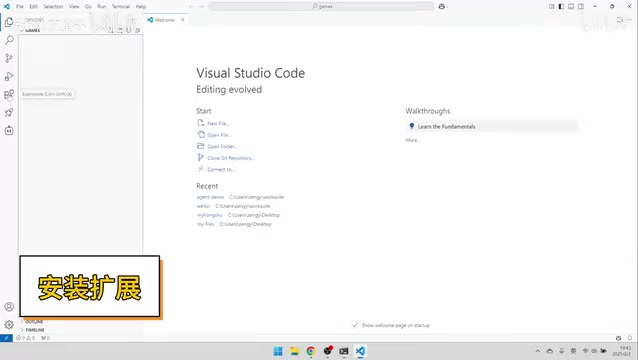
After opening VS Code, click the Extensions icon on the left sidebar and type "Roo Code" in the search bar. Find the extension with the small rocket icon and click Install. Once installed, a dedicated Roo Code icon will appear in the VS Code sidebar—this is your entry point for interacting with AI.
Roo Code (formerly Roo Cline) is an open-source VS Code AI programming assistant plugin. Its core design philosophy is "Agentic Coding"—meaning the AI doesn't just generate code snippets but acts as an autonomous agent capable of executing complete development tasks. It leverages VS Code's Extension API to gain file read/write, terminal command execution, and workspace management capabilities, then exposes these capabilities to the large model in the form of Tool Use. During reasoning, the model can autonomously decide which tools to call and in what order, enabling end-to-end automation from requirement understanding to code delivery. Compared to using Cursor directly, the biggest advantages of this approach are that it's completely free and highly customizable.
Obtaining a Free API Key
The most critical step in configuring Roo Code is obtaining an API Key. An API Key is essentially a secret string used for authentication—think of it as a "pass" for accessing AI services. Every time Roo Code sends a request to the large model, it needs to include this Key to verify your identity and access permissions.
Here I recommend using the OpenRouter platform, which is an AI model API aggregation platform—similar to an "app store" for APIs. OpenRouter unifies models from dozens of providers including OpenAI, Anthropic, Google, Meta, and DeepSeek into OpenAI-compatible API interfaces, so developers only need to integrate with one platform to switch between different models. It also provides free access channels for certain models (versions labeled as Free), which typically have rate limits and queue-waiting mechanisms, suitable for light usage scenarios.
Here are the specific steps:
- Open the OpenRouter website
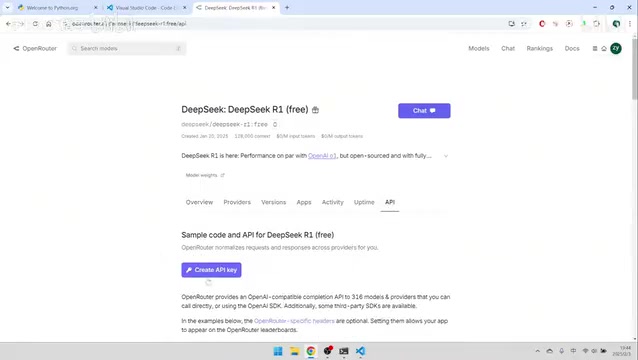
- Find the DeepSeek R1 model—make sure to select the version labeled "Free"
- Go to the API Key management page and click "Create" to generate a new Key
- Give your Key a name and click Create
- Copy the generated API Key
Security Note: Although this tutorial uses a free API, proper API Key security management is still very important. Don't commit your Key to public code repositories like GitHub, don't expose your Key in screenshots shared on social media, and consider creating separate Keys for different purposes to facilitate tracking and revocation. If a Key is compromised, immediately delete it in the OpenRouter dashboard and generate a new one.
Configuring Plugin Parameters
Return to the Roo Code settings interface in VS Code and paste the copied API Key into the corresponding input field. There are several other important configuration items:
- Model Selection: Make sure to select "DeepSeek R1 Free"—this is the free version. DeepSeek R1 is a reasoning-enhanced large language model developed by DeepSeek. Unlike regular large models that output answers directly, R1 employs a Chain-of-Thought reasoning mechanism that displays the complete thinking process before generating the final answer. This "slow thinking" mode makes it particularly strong in mathematical reasoning, code generation, and logical analysis tasks, achieving performance comparable to OpenAI's o1 series models on multiple programming benchmarks.
- Permission Settings: Check the permission boxes for "Write Files," "Read Files," "Create Files," etc., to ensure the AI has sufficient operational permissions. These permissions correspond to Roo Code's Agent capabilities—only by granting file operation and terminal execution permissions can the AI truly complete the entire workflow autonomously, from creating projects to running code.
- Language Settings: Set the prompt area to "Use Simplified Chinese" (or your preferred language), so the AI's responses and comments will be in your chosen language.
Once these configurations are complete, your free AI code editor is ready to go.
Hands-On Demo: Generating a Snake Game with One Sentence
Issuing the Task
In the Roo Code chat box, type: "Write a Snake game in Python," then click Send.
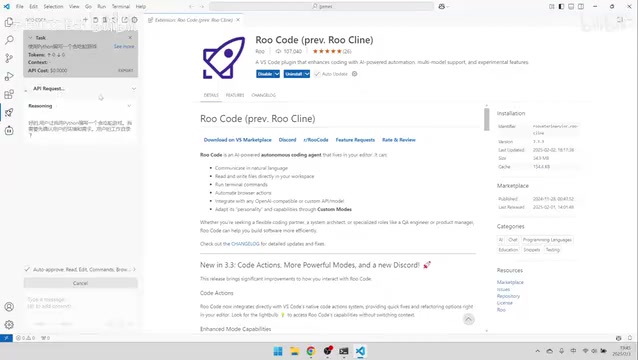
After receiving the instruction, the AI immediately begins working. You can clearly see its complete thinking process: first identifying the current operating system environment (e.g., Windows 11), then planning implementation steps—what to do first, second, third—with very organized reasoning. This is DeepSeek R1's Chain-of-Thought reasoning mechanism at work. It doesn't rush to output code but first performs systematic task decomposition and solution planning, an approach that significantly improves the quality of complex task completion.
AI Automatically Executes the Full Workflow
DeepSeek R1's execution process roughly breaks down into the following stages:
1. Installing Dependencies
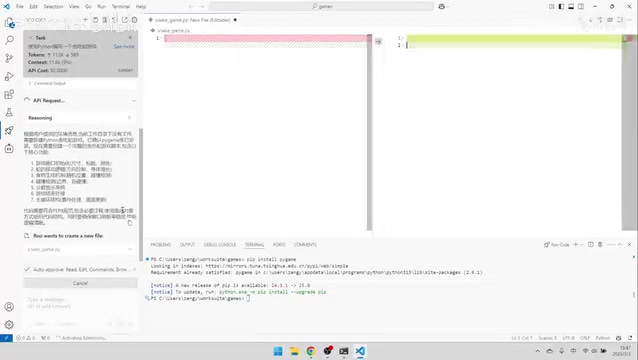
The AI determines that the Pygame library is needed for the game's graphical interface and automatically generates the pip install pygame command. Pygame is the most classic 2D game development library in the Python ecosystem, built as a wrapper around SDL (Simple DirectMedia Layer). It provides essential game development features including graphics rendering, audio playback, keyboard/mouse event handling, and collision detection. Thanks to its clean, intuitive API design and one-line pip installation, Pygame is often the go-to tool for programming education and rapid prototyping—which is why the AI chose it for implementing the Snake game. Simply click the "Run Command" button, and it will automatically open the terminal and execute the installation.
2. Creating Files and Writing Code
After dependencies are installed, the AI automatically creates a Python file and begins writing game code line by line. The entire process is fully automated—you can watch the code being generated in the editor in real time. This showcases the advantage of Roo Code's Agent architecture—the AI directly manipulates VS Code's file system through tool-calling interfaces, rather than simply outputting code in a chat window for users to manually copy and paste.
3. Running Tests
After the code is written, the AI also generates the run command python snake_game.py—click Execute to launch the game and test it.
A Note on Network Issues
During use, since the tool needs to interact with remote API servers, you may occasionally encounter network interruptions or lag. This is especially common with free APIs because free-tier requests enter a shared queue and may need to wait during peak hours, with noticeably increased response latency. Roo Code will automatically retry in these cases—usually just wait a moment and it will recover. If connection issues occur frequently, check your network environment or try again later.
Pros and Cons Analysis
Advantages
- Zero Cost: DeepSeek R1 provides a free API through OpenRouter with no subscription fees required. Compared to Cursor Pro at $20/month and GitHub Copilot at $10/month, the economic advantage of this setup is very clear
- Strong Reasoning Ability: DeepSeek R1 has excellent deep-thinking capabilities. Its Chain-of-Thought reasoning mechanism enables systematic problem analysis and solution planning for complex programming tasks, resulting in high-quality code generation
- Transparent and Controllable: The entire thinking and execution process is fully visible, and users can intervene and adjust at any time. This is superior to the relatively "black box" AI decision-making experience in products like Cursor
- Great Extensibility: Built on the VS Code ecosystem, it can be combined with other plugins like Git version control, Docker containers, and language-specific debuggers to build a complete development toolchain
Limitations
- Free APIs may have rate limits and response speed fluctuations. OpenRouter's free tier typically limits requests per minute, and peak-hour latency can reach tens of seconds
- For complex projects, a single conversation may not perfectly implement all requirements—multiple rounds of iterative dialogue may be needed
- Details like Chinese character display may require manual adjustment
- Free API model versions may differ from paid versions, with potentially slightly different performance on extremely complex reasoning tasks
Conclusion
Through the combination of DeepSeek R1's free API + VS Code + Roo Code plugin, we've successfully built a zero-cost AI code editor. Its core capabilities—understanding natural language instructions, automatically planning execution steps, and generating and running code—are already sufficient for everyday programming assistance needs.
For developers on a budget who still want to experience AI-powered programming, this is undoubtedly the best free alternative to Cursor available today. I encourage you to try it yourself—beyond Snake games, you can also have the AI help you build web pages, data analysis scripts, automation tools, and various other projects. As open-source large model capabilities continue to improve and the API ecosystem matures, this "mix-and-match" style AI development environment will only grow more powerful.
Related articles

Zero-Cost Local Jarvis: Open-Source Voice Cloning and Task Automation in Practice
AI Workshop shows how to build a zero-cost local Jarvis with Ollama and Voice Studio: local model switching, open-source voice cloning, file retrieval, and tool-calling tests, with setup steps and hardware trade-offs.

Mistral Large 4 Released: 1T-Parameter MoE Tops Western Open-Source Leaderboard
Mistral releases its flagship Mistral Large 4: a 1T-parameter MoE architecture activating only 49B parameters at inference, trained from scratch on 3,800 Grace Blackwell GPUs, topping the Western open-weight leaderboard with third-party endorsements in law, finance, and cybersecurity.

Mistral Large 4 Review: Can Europe's Strongest Open-Source Model Challenge the US and China?
Mistral Large 4 (L-Charm) review: trillion-parameter MoE, standout cybersecurity benchmarks but behind Kimi K3 in software engineering, 3,800 GPUs, a key step for European sovereign AI.