Connect Gemini to Obsidian: Three Steps with the Agent Client Plugin
Use the Agent Client plugin to call the local Gemini CLI and bring AI chat into Obsidian.
This article introduces a lightweight way to connect Gemini to Obsidian: no API Key needed—instead, the third-party Agent Client plugin calls the locally installed Gemini CLI, wrapping the command-line engine into a sidebar chat panel. Steps: verify the CLI runs in the terminal, install and enable the plugin (disable Restricted Mode), switch the provider to Gemini, and send a test message. It also covers common failure points like PATH, Node version, and authorization, and reminds readers to assess plugin maintenance and note privacy.
Obsidian, as a local-first knowledge management tool, has long lacked native AI chat capabilities. If you want Gemini to answer questions and organize content directly in your note vault, you don't actually need complex API configuration—by using the Agent Client plugin to call the Gemini CLI already installed on your machine, you can get it working in just a few minutes. This tutorial breaks down the steps clearly and adds a few pitfalls that weren't mentioned in the video but are easy to hit in practice.
Prerequisites: First Confirm the Gemini CLI Works
The core idea of this approach is "the plugin provides the interface, the CLI provides the engine." Agent Client does not connect directly to Google's cloud API; instead, it calls the Gemini CLI already installed on your computer to perform inference. So the first step is not to open Obsidian, but to verify that the CLI itself runs.
Open a terminal and run the Gemini CLI once to confirm it starts normally, throws no errors, and can complete a simple conversation. If this step fails, no amount of clicking in the plugin will connect later. Common problems include an outdated Node version, the CLI not being added to PATH, or account authorization not yet completed on first use—it's best to resolve all of these in the terminal first.
According to the YouTube tutorial author's demonstration, this step is the one most easily skipped and most prone to problems in the whole process. Once the CLI works, open Obsidian and load your vault.
What is Gemini CLI: Gemini CLI is Google's official open-source command-line tool, built on Node.js. Once installed, you can chat directly with the Gemini model in the terminal, and it also supports invocation via parameters or scripts. It uses Google account OAuth authorization; the first run guides you through login, after which credentials are cached locally. Therefore, it is not calling some local model—it forwards requests from the terminal to Google's cloud inference service. Understanding this is important: the reason Agent Client doesn't need an API Key is that the CLI handles authorization itself, and the plugin merely acts as a front-end interface for the CLI.
PATH and the Node environment: PATH is the environment variable the operating system uses to find executable commands. If the terminal reports command not found after installing Gemini CLI, it usually means its installation directory wasn't written to PATH, or the Node version doesn't meet requirements. The plugin also relies on PATH when calling the CLI in the background, so being able to run it in the terminal is a prerequisite for the plugin to connect.
Install and Enable the Agent Client Plugin
Once in Obsidian, click the gear icon in the lower-left corner to open settings. In the left sidebar, find "Community Plugins" and click "Browse" to enter the plugin marketplace.
Type "Agent Client" into the search box, find the corresponding plugin in the results, and click install. After installation, be sure to click "Enable"; otherwise, no entry will appear in the sidebar. Once enabled, close the settings window, and a robot icon should appear in the left sidebar.
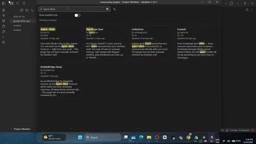
There's a detail here: if you previously turned on "Restricted Mode," the plugin marketplace cannot install any third-party plugins, so you need to turn it off in settings first. The video tutorial assumes viewers are already in an installable state and doesn't specifically mention this.
Restricted Mode: This is Obsidian's security mechanism. When enabled, it blocks loading of any third-party plugins, protecting users when opening vaults from unknown sources. It may be enabled by default in some scenarios; while enabled, you can browse the plugin marketplace, but installation and enabling are blocked. Disabling Restricted Mode means you trust the plugin code in the current vault, so you should only disable it for vaults you created or that come from trusted sources.
Community plugins vs. official plugins: Obsidian plugins are divided into core plugins (officially built-in, such as Daily Notes and Outline) and community plugins (third-party developed, requiring manual installation). Agent Client belongs to the latter; its code is maintained by the community, and Obsidian does not perform security review, which is also why the original article suggests checking the GitHub repository's maintenance status.
Switch to Gemini in the Plugin Panel
Click the robot icon in the sidebar to open the Agent Client panel. Click the three-dot menu in the upper-right corner of the panel, and a list of selectable AI providers will pop up.
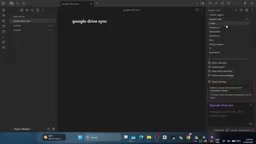
Select Gemini from the list, then wait a few seconds; the plugin will automatically try to connect to your local Gemini CLI installation. This connection process depends on the CLI being callable in the system path, which is why the prerequisite checks emphasized earlier are so important. Once connected, type a simple prompt into the chat box and send it. If Gemini returns content normally, the entire chain is working.
Agent Client's multi-provider design: Plugins like this typically abstract a unified chat interface and then adapt to different backend engines (such as Gemini CLI, Claude Code, etc.), which is why a provider switch menu appears in the upper-right corner of the panel. Selecting Gemini essentially tells the plugin to "forward messages to the local gemini command," and the plugin will detect whether that command exists and try to establish a session. If detection fails, the interface often only shows a connection error without explaining why—which is why troubleshooting should first go back to the terminal to verify the CLI.
Practical Usage After a Successful Connection
Once connected, you can chat directly with Gemini in the Agent Client panel, using the current vault's context for Q&A, summarization, rewriting, and more. Compared with switching to a browser and copying and pasting, embedding AI chat in your note-taking tool makes the workflow much more continuous.
At the end, the video author recommends an advanced Obsidian course on Udemy for learning more workflow tips. But as far as this tutorial is concerned, the core chain is complete: CLI ready → install plugin → select Gemini → test conversation. It can be done in four steps, with no need to apply for an API Key or configure additional proxies.
A Few Practical Suggestions Worth Noting
Keep the CLI version usable. The plugin depends on the local CLI. If a later CLI upgrade or Node environment change causes the command to stop working, the plugin will disconnect as well. When you can't connect, first go back to the terminal and verify.
Judge the plugin marketplace source yourself. Agent Client is a third-party community plugin. Before installing, it's advisable to check its GitHub repository's update frequency and issue status to confirm its maintenance state.
Conversation content still flows locally. Since inference is initiated through the local CLI, note content does not first pass through a plugin relay server, but the request is ultimately still sent to Google's model service. For sensitive notes, evaluate this yourself.
Overall, the value of this approach lies in turning the "AI assistant" into a permanent panel within the Obsidian interface, rather than yet another web tab you need to switch to. For users who already use Gemini CLI daily, it costs almost nothing extra.
One-line Summary
Use the Agent Client plugin to call the local Gemini CLI and bring AI chat into Obsidian.
Paragraph Summary
This article introduces a lightweight way to connect Gemini to Obsidian: instead of applying for an API Key, it uses the third-party Agent Client plugin to call the locally installed Gemini CLI, wrapping the command-line engine into a sidebar chat panel. The process has four steps: first confirm in the terminal that the CLI runs properly, then install and enable the plugin in Obsidian (Restricted Mode must be disabled), then switch the provider to Gemini in the panel, and finally send a test message to verify the chain. The article also points out common failure points, such as the CLI not being added to PATH, an outdated Node version, or incomplete account authorization, and reminds readers to evaluate the plugin's maintenance status and note privacy.
Related articles
AWS Launches Official Agent Toolkit: Letting AI Agents Directly Build and Manage AWS Applications
AWS launches the official Agent Toolkit, letting AI coding agents directly build and manage AWS apps across CDK, CloudFormation, Serverless, Bedrock Agents, and DevSecOps.
Does Agentic AI Need Its Own "Second Foundation"? A Three-Loop Architecture Explored
Inspired by Asimov's Foundation series, a multi-agent AI architecture hypothesis proposes execute, verify, and adapt control loops to reduce correlated errors and improve trust in AI results.
Rewriting a Commercial Engine in Jai: The Trade-off Between Performance and Productivity
Exploring the engineering practice of rewriting a commercial game engine in Jai: compile-time metaprogramming and data-oriented design advantages, plus ecosystem maturity and learning curve challenges.