Connecting Claude AI via MCP Protocol: A Configuration Guide for Automated Drawing in Revit and AutoCAD

Use the MCP protocol to let Claude AI control AutoCAD and Revit through natural language commands.
This article presents a complete configuration guide for using MCP (Model Context Protocol) to let Claude AI directly operate AutoCAD and Revit. MCP defines a communication standard between AI models and external tools, enabling designers to drive software through natural language — drawing, reading views, and more — without manually navigating the interface. The three-step process covers: setting up the runtime environment (Claude desktop client, Git, Python), deploying software plugins (Revit Add-ins and AutoCAD AutoLISP scripts added to the Startup Suite), and configuring a JSON-format MCP connection file in the Claude client with correct local paths. The core value lies in enabling automation of repetitive tasks like batch annotations and component generation, though the setup still carries a technical barrier best suited for power users.
Let AI Directly Control CAD Drawing: MCP Protocol Is the Key
Can AI directly control AutoCAD and Revit to handle drafting work? This question, repeatedly debated across the architecture and construction industries, is finally getting a clear answer. The key lies in a technology called MCP (Model Context Protocol). Through MCP, large language models like Claude AI can act as a "command center," invoking locally installed design software tools to translate natural language instructions into actual drawing operations.
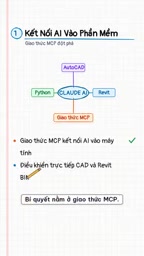
Simply put, MCP defines a communication standard between AI models and external tools. When you type "draw a circle with radius 1000 in AutoCAD" or "read the Revit view" into a chat window, the AI automatically identifies your intent, activates the corresponding tool, and executes the action immediately. This means designers no longer need to manually navigate the software interface step by step — instead, they drive the software through conversation.
MCP (Model Context Protocol) was officially open-sourced by Anthropic in late 2024, with the goal of solving the "fragmented integration" problem between AI large language models and external tools. Before MCP, every AI application had to develop separate interfaces for each tool, making maintenance extremely costly. MCP's core idea is to define a unified client-server architecture: the AI model acts as the "MCP client," while various external tools (databases, software, APIs) act as "MCP servers" — both sides communicate using the same protocol. This is analogous to how the USB standard unified hardware connectivity. With a common standard, any protocol-compliant tool can be invoked by any compatible AI model, eliminating the need to repeatedly develop adaptation layers. In the AutoCAD/Revit context, plugins play the role of MCP servers, receiving instructions from Claude and translating them into native software operations.
Environment Setup: Desktop Client and Core Dependencies
The first step to getting the entire workflow running is setting up the environment. The configuration path is fairly straightforward and can be summarized around a few key dependencies:
Installing Core Components
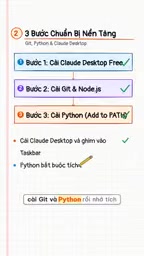
- Claude Desktop Client (free version is sufficient): This is the entry point for AI conversation and MCP connectivity.
- Git: Used for obtaining and managing relevant scripts and configuration files.
- Python: MCP server-side scripts typically depend on a Python runtime environment.
These three are the most fundamental prerequisites. Python and Git are nearly standard in the AI toolchain. When installing, it's recommended to check the option to "Add to system PATH" to avoid issues where the command line can't locate the programs later.
Enabling Software Recognition Options
There's an easily overlooked detail during installation — you need to check the appropriate application recognition option (the "app 2.0"-related setting mentioned in the video) so the system can correctly identify and mount the subsequent plugins. The most common failure point in configuration tools is almost always one of these "unchecked by default" options.
Plugin Deployment: Connecting Revit and AutoCAD to MCP
Once the environment is ready, you move on to the substantive plugin deployment phase. This step is what extends MCP's "reach" into the design software.
Installing Plugins for Revit and AutoCAD
- Revit: Copy the corresponding Add-in files into Revit's plugin directory. Revit loads third-party extensions via its Add-in mechanism, so placing files in the correct directory is a prerequisite for activation.
- AutoCAD: Copy the AutoLISP-related scripts into the AutoCAD directory, then use a command (such as Upload/loading into the Startup Suite) to add them to the startup items, ensuring they load automatically every time AutoCAD opens.
Adding scripts to the Startup Suite is a practical tip — without it, you'd have to manually reload the scripts every time you restart the software, disrupting workflow continuity.
AutoLISP is AutoCAD's built-in scripting language, based on a Lisp dialect, and has evolved alongside AutoCAD since the 1980s — making it one of the longest-standing secondary development methods in the AutoCAD ecosystem. It allows developers to directly call AutoCAD's drawing commands and modify the graphics database via scripts, without requiring an external compilation environment. The Startup Suite is a mechanism provided by AutoCAD whereby any LSP scripts added to it are automatically executed each time the software starts — essentially setting up "startup extensions" for AutoCAD. Revit's Add-in system is a different framework: built on the .NET framework, it works by placing a .addin descriptor file and corresponding DLL in a specific directory, which Revit automatically scans and loads at startup. This is Revit's officially recommended plugin distribution method. Both mechanisms share a similar underlying logic — allowing third-party code to embed into the runtime environment at software startup, thereby gaining access to the software's internal APIs.
Configuration Files and Path Modifications
Once the plugins are in place, you'll need to open the Claude client's settings page, paste the MCP service configuration file (a JSON-format connection config), and modify the paths and username to match your own machine. Parameters like the username and file paths in the configuration file must match your local environment exactly — otherwise the connection will fail. This is the step that requires the most careful verification in the entire process.
Real-World Results: Conversation as Drawing
Once all configurations are complete, the method of use returns to its most natural form: chatting.
Type "draw a circle of 1000 in AutoCAD" and the AI will automatically invoke the drawing tool and execute it instantly. Ask it to "read a Revit view" and the AI will likewise trigger the corresponding function and return the result. The entire process no longer requires navigating through menus layer by layer — instead, intent drives software action. This is exactly what an AI Agent looks like when deployed in an engineering design context.
What This Means for Architectural Design Workflows
The value of this solution doesn't lie in simple operations like "drawing a circle" — it lies in the extensible path it demonstrates. When AI can read model information and invoke drawing and modeling commands, complex repetitive tasks (batch annotations, component generation, view organization, etc.) become candidates for automation.
For BIM and construction drawing professionals, MCP provides a standard interface that lets large language models truly "get their hands dirty," rather than merely offering advice or generating text. Of course, this type of configuration still has a non-trivial technical barrier — environment setup, path configuration, plugin compatibility issues can all become stumbling blocks, making it better suited for technically inclined users who are willing to tinker.
As AI Agents continue to deepen their application in design and construction, the connection between software and large language models will only become smoother. Understanding how MCP works and how to configure it is the first step toward keeping pace with this wave of tool transformation.
The fundamental difference between an AI Agent and a conventional AI chat assistant lies in "execution capability." Traditional AI conversation can only output text suggestions, leaving the user to manually operate the software; an AI Agent has the ability to call external tools and can autonomously complete the loop of "perception → planning → execution." In engineering design contexts, this means AI can not only tell you "how to annotate a grid" but can also complete that operation directly in Revit or AutoCAD. BIM (Building Information Modeling) workflows contain a large number of rule-driven, highly repetitive tasks — such as batch-modifying component parameters, automatically generating title blocks per code, and calculating material quantities. These are exactly the ideal entry points for AI Agents. The MCP protocol provides a standardized technical foundation for this direction, enabling community developers to continuously write MCP server plugins for different software and progressively expand the AI Agent's coverage across the design toolchain.
Related articles

When Did Paid Childcare Become the Norm? Working Mothers and the Evolution of Childcare
When did paid childcare become the norm? This article traces the evolution from the rise of childcare centers in the 1970s–80s and the 1990s linking of federal subsidies to work requirements, to declining stigma and rising costs, and explores advocates' 25-year effort to catch up with other countries on childcare and paid parental leave.

Red Flags for Product-Market Fit: A Practical Guide from Top VCs and the Superhuman Founder
Investors from Iconiq and Sapphire Ventures and Superhuman founder Rahul Vohra share PMF red flags and practical methods, including the 40% disappointment rule, retention curves, and acquisition costs.

What Task Should AI Agents Take Over Most? Heated Reddit Discussion
Reddit discussion: Which task do you most want AI agents to take over completely? Cross-app data migration, CRM updates, and report generation top the list, but insufficient reliability and the trust gap are the biggest obstacles to automation adoption.