Connecting Roblox Studio to Gemini via MCP: A Practical Guide

Via the MCP protocol, Gemini can directly connect to and operate on Roblox Studio projects.
Roblox Studio's built-in MCP Server toggle registers your open project session as an AI-callable server and lists Gemini CLI in Quick Connect. Gemini CLI must be installed locally or the option won't appear. Once connected, Gemini can create Luau scripts, inspect objects, modify content, and assist testing instead of just outputting text. The guide covers setup, connection, troubleshooting, and security warnings.
When AI Coding Assistants Step into Roblox Studio
Roblox Studio is turning AI clients from "code generators watching from the sidelines" into "collaborators actively operating on your project." According to a workflow shared by a YouTube tutorial channel, via MCP (Model Context Protocol), Gemini can directly read and operate on your currently open Roblox Studio project—not just handing you a snippet of Luau code to paste manually, but actually participating in script creation, object inspection, and testing.
The connection chain is simpler than you'd expect: Roblox Studio ships with a built-in MCP Server toggle and lists supported clients—including Gemini CLI—in the Quick Connect area. For Roblox creators used to accelerating development with AI, this means a substantive upgrade to the way they work.
MCP (Model Context Protocol) is an open standard proposed by Anthropic to standardize how AI applications communicate with external data sources and tools. Before MCP, connecting AI assistants to external systems typically relied on vendor-specific plugins or API adapter layers, forcing you to rewrite integration logic for every tool. MCP's idea is to decouple the "AI client" from the "tool/resource server": the server exposes its capabilities (such as reading files, calling functions, querying databases) under a unified protocol, and the client issues requests under the same protocol. Because the protocol is standardized, any MCP-capable AI client can connect to any MCP-implementing server, and vice versa. Roblox Studio's built-in MCP Server toggle brings exactly this idea into the game engine—Studio acts as the server, exposing the capabilities of the project session, and clients like Gemini CLI can call them according to the protocol.
Prerequisites: Two Things You Can't Skip
Before connecting, confirm that your local environment meets two conditions.
Latest version of Roblox Studio. Make sure you have the latest version installed and are signed in to your Roblox account. This seems basic, but an outdated version may hide the MCP-related options.
Gemini CLI installed. This is the key dependency for the connection. If Gemini CLI is not installed on your computer, the Gemini option will not appear in Roblox Studio's Quick Connect list—this is the first hurdle where many people get stuck.
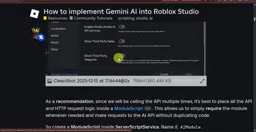
Gemini CLI is a command-line interface tool released by Google that packages Gemini model capabilities into a form you can call directly from the terminal, commonly used for code generation, file operations, and automating tasks. Its key difference from the web version of Gemini is that it runs in the local terminal, can access the current working directory, execute shell commands, and interact with local processes—this is precisely what makes it capable of acting as an MCP client to connect to Roblox Studio. Roblox Studio's Quick Connect decides whether to show the corresponding option by detecting whether such a CLI program is installed locally, so without Gemini CLI installed, the entry will not appear in the list. Installation typically requires a Node.js environment and is done via a package manager such as npm; for creators unfamiliar with the command line, this step is the easiest place to get stuck in the entire process.
Enabling MCP Server: Turning Studio into a Server AI Can Call
After entering Roblox Studio, locate the Assistant panel. Click the three-dot menu on the panel and select "Manage MCP Servers." In the settings that appear, turn on the "Enable Studio as MCP Server" toggle.
The essence of this action is: registering the currently open Roblox Studio session as an MCP server, allowing external AI clients to communicate with it via the protocol. Once enabled, Studio will display the available AI client connection options.
This step is the core of the entire chain. Without turning on this toggle, the subsequent Quick Connect flow is out of the question.
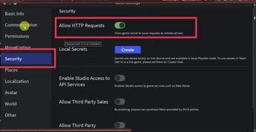
Luau is the scripting language used by Roblox, derived from Lua 5.1 with features like a gradual type system added, and it is the core tool driving game logic, UI, and interactions. In the MCP workflow, what Gemini generates and modifies is exactly Luau scripts: it doesn't just output a block of text code but calls Studio's interfaces via the protocol to create scripts as instances in the project, attach them to specified objects, and read properties of existing objects in the scene. Understanding Luau's role in a Roblox project helps clarify the boundaries of this kind of AI collaboration—what it can operate on are structured elements like scripts, objects, and properties, not the engine's underlying rendering or physics implementation.
Connecting Gemini CLI via Quick Connect
Once MCP Server is enabled, find the Gemini CLI option in the Quick Connect area. If it already appears in the list, simply select it to start the connection flow.
If Gemini CLI does not appear, it means it is not yet installed locally or the installation is incomplete. In that case, finish installing Gemini CLI first, then restart Roblox Studio to let Quick Connect re-detect it. Roblox currently lists Gemini CLI as one of the officially supported Quick Connect clients, so once your environment is ready, it should be recognized normally.
After selecting Gemini CLI, follow the on-screen connection instructions to complete the remaining steps. Once connected, keep Roblox Studio open with your game project loaded—MCP communication depends on an active Studio session.
What You Can Do After Connecting
Once the MCP connection is established, the interaction between Gemini and Roblox Studio is no longer a one-way "question and answer" mode. You can directly ask Gemini to perform specific project-related tasks:
- Create Luau scripts: generate scripts on demand and associate them with the project
- Inspect game objects: read existing objects in the scene and their properties
- Modify project content: directly adjust in-game objects
- Assist with testing: help verify functionality during development
The key difference here is that MCP lets the AI client communicate directly with the active Roblox Studio session, rather than just outputting plain-text code. AI-generated results can act on the actual project, eliminating manual copy-pasting and repeated adjustments.
What to Do If the Connection Fails
If Gemini cannot connect, troubleshoot in this order:
- Confirm Roblox Studio is running
- Confirm the MCP Server toggle is on
- Confirm Gemini CLI is installed correctly
- If Gemini still doesn't show in Quick Connect, restart Roblox Studio
Most connection issues stem from the Gemini CLI installation step or from Studio not being restarted so Quick Connect hasn't refreshed.
Security Reminder: Trust Is the Prerequisite
An MCP client has the ability to read and modify the content of your open Roblox project. That means once connected, Gemini can access the scripts, objects, and structure in the project. The tutorial specifically emphasizes: only connect to AI clients you trust.
For team collaboration scenarios, this is especially worth noting—if your Studio has a project open containing sensitive logic or unreleased content, you should assess the boundaries of data access before connecting a third-party AI client.
Who This Workflow Is For
The approach of connecting Gemini to Roblox Studio via MCP delivers the most obvious value for indie developers and teams in the rapid prototyping stage. It reduces the friction of constantly switching between the IDE and an AI chat window, bringing AI closer to an "assistant that can actually do things" rather than an "advisor that can only talk."
That said, the current flow still relies on CLI tool installation and configuration, which poses a certain barrier for creators unfamiliar with command-line operations. As Roblox refines its MCP support and more AI clients join the Quick Connect list, this flow is expected to become even simpler.
For Roblox developers already using Gemini to assist with programming, spending a few minutes to complete this connection setup could pay off in a sustained boost to everyday development efficiency.
One-line Summary
Via the MCP protocol, Gemini can directly connect to and operate on Roblox Studio projects.
Paragraph Summary
Roblox Studio has a built-in MCP Server toggle; once enabled, it registers the current project session as a server that AI can call and lists supported clients like Gemini CLI in Quick Connect. The prerequisite is that Gemini CLI is installed locally—otherwise the option won't appear. After connecting, Gemini no longer just generates text code; it can directly create Luau scripts, inspect game objects, modify project content, and assist with testing, eliminating manual copy-pasting. The article walks through the full flow from enabling MCP Server, connecting via Quick Connect, to troubleshooting failures, and reminds readers that MCP clients can read and write project content, so only trusted AI clients should be connected. This workflow is most valuable for indie developers and rapid-prototyping teams, though the CLI installation and configuration barrier remains.
Related articles

Chain of Thought Isn't Just for AI: How Humans Can Use CoT to Improve Thinking Quality
Chain of Thought isn't just a prompt trick for large models. Starting from a Hacker News discussion, this article analyzes why CoT works for human thinking too, breaks down actionable ways to transfer it, and highlights the key differences between human CoT and machine CoT.
Cloudflare Teams Up with OpenAI: Closi…
Cloudflare Teams Up with OpenAI: Closing the Loop from Vulnerability Discovery to Defense with AI
Cloudflare uses OpenAI Daybreak to investigate security vulnerabilities and generate reviewable remediation plans, while developers use Codex to boost coding efficiency and quality.

Orca Multi-Agent Orchestration in Practice: A Guide to Parallel Collaboration with Claude and Codex
Orca is Stable AI's free open-source agent workbench supporting 34 agents like Claude Code and Codex in parallel. Learn its Git worktree isolation, multi-model orchestration, and mobile management.