CSS Anchor Positioning: A New UI Positioning Approach Without JavaScript

CSS Anchor Positioning lands in Chrome 125 and Safari 26, using pure CSS to replace JavaScript for dynamic tooltip, popover, and menu positioning.
CSS Anchor Positioning has shipped in Chrome 125 and Safari 26 and is part of Interop 2025. Using anchor-name to define anchors and position-anchor to associate them, it lets tooltips, popovers, and menus handle initial positioning and overflow fallbacks without JavaScript. Developers position elements via the anchor() function or the position-area shorthand, the latter based on a 3×3 grid around the anchor. position-try-fallbacks supports flip-block/flip-inline defaults and custom @position-try options tried in list order. anchor-size() makes sizes follow the anchor, and dynamic re-anchoring enables guiding animations. In-development anchor queries will support styling based on fallback state. Currently position-area doesn't support smooth transition animations—traditional positioning properties are still needed.
CSS Anchor Positioning: A New UI Positioning Approach Without JavaScript
For years, developers have had to rely on JavaScript to build UI components that require dynamic positioning—tooltips, popovers, menus, and the like. CSS Anchor Positioning changes that: it has shipped in Chrome 125 and Safari 26, been included in Interop 2025, and is expected to reach cross-browser support within the year.

What Problem Does Anchor Positioning Solve?
Picture a typical scenario: there's an icon button in an action bar whose purpose isn't obvious, so you want to show a tooltip above the button explaining it. The traditional approach is to position the tooltip with position: absolute alongside a position: relative container. But when the button sits near the top of the viewport, the tooltip gets clipped.
The old solution was to write JavaScript to detect the viewport, use Intersection Observer, measure element positions, then flip or reposition the tooltip. A seemingly simple task required a lot of code. CSS Anchor Positioning builds this logic directly into the browser's CSS engine, handling both initial positioning and repositioning automatically.
The Core Mechanism: The Relationship Between Anchor and Positioned Element
Using anchor positioning takes two steps. First, define the anchor: name an element via the anchor-name property, using a dashed identifier such as --my-anchor. Any element can be an anchor.
Second, associate the positioned element: on the element to be positioned (such as the tooltip), set position: absolute and position-anchor: --my-anchor to establish the binding between the two. If you're using a popover and a trigger element, this step can be omitted—the popover relationship automatically creates an implicit anchor.
A dashed identifier is an extension of the naming rules for CSS custom properties. It begins with two hyphens (such as --my-anchor), can be recognized by the CSS variable system, and also serves as a unique identifier in anchor positioning. The benefit of this naming convention is that it's naturally isolated from keywords that might appear in existing CSS property values, avoiding conflicts with reserved words like auto and none, and it makes it easy for developers to name anchors semantically. It's worth noting that dashed identifiers are case-sensitive: --MyAnchor and --myanchor are treated as two distinct anchor names.
The anchor() Function and the position-area Shorthand
There are two ways to do initial positioning. The anchor() function is embedded within inset properties such as top, right, bottom, and left. For example, bottom: anchor(top) aligns the bottom edge of the tooltip with the top edge of the anchor, placing it above the anchor. This syntax reads almost like natural language, making the logic intuitive. You can also use logical properties (such as inline-end instead of right), which is especially important for multilingual UIs.

position-area is a more powerful shorthand. It creates a 3×3 grid around the anchor, and the positioned element can be placed in any of the nine cells. position-area: top center places the element in the center cell directly above the anchor. There's a difference between top center and top alone: the former is confined to the center cell, while the latter spans all columns. Using the span syntax lets you span multiple cells, such as position-area: top span-left.
Fallback Positioning: position-try-fallbacks
When the browser detects that the preferred position would cause overflow, anchor positioning lets you quickly define fallbacks. The position-try-fallbacks property accepts a comma-separated fallback list, which the browser tries from left to right.
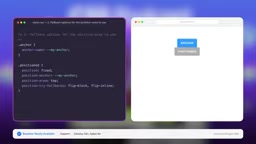
There are two built-in default fallback values: flip-block (vertical flip) and flip-inline (horizontal flip), which cover most scenarios. More complex cases require custom fallbacks, implemented via the @position-try rule. For example, consider an anchored menu with a submenu that initially appears to the right (position-area: right span-bottom), but on narrow screens you want it to appear below when there isn't enough space. The default flip won't work here, but you can define @position-try --bottom { position-area: bottom; } and then reference it in position-try-fallbacks: --bottom, flip-block, flip-inline. Custom fallbacks and browser defaults can be mixed together.
On the podcast, Bramus specifically confirmed the order of execution: the browser really does try the list from left to right, skipping the first option that causes overflow and continuing to the next.
In the context of anchor positioning, overflow refers to the positioned element being clipped by the viewport edge or extending beyond the scrollable area. When evaluating fallback options, the browser uses the positioned element's containing block and the viewport as references to compute whether the current position-area or inset value would cause the element to be partially or completely invisible. If the preferred position produces overflow, the browser tries the next option in the list. It's important to note that the overflow determination is based on geometric calculations rather than actual rendering results, so a shrinking viewport or a dynamically changing anchor size can trigger different fallbacks. Understanding this mechanism helps when troubleshooting why a fallback isn't taking effect—often it's because the browser doesn't consider the current option to be truly overflowing.
anchor-size and Dynamic Re-anchoring
The anchor-size() function lets the positioned element's size follow the anchor. For example, making a popover's width equal the trigger button's width: width: anchor-size(width).

Another notable feature is dynamic re-anchoring, which enables animations with a shared pointer or visual guide element. Juna demonstrated its use in tutorial UIs, action bars, scroll spies, and carousel markers—an icon moving between different anchors to create a guiding effect.
Anchor queries are essentially a special variant of container queries. Container queries allow developers to apply different styles based on a container's size changes, while anchor queries extend the query condition to the fallback state the positioned element is currently in. When the browser switches to a fallback position (such as flip-block) due to overflow, the positioned element's outer layer exposes a queryable container state. After establishing a query context with container-type: anchored, a rule like @container anchored(fallback: flip-block) can target it precisely. This lets decorative details such as the tooltip's pointing arrow, background color, and shadow direction automatically adjust with the fallback position, without JavaScript listening for position changes.
Upcoming: Anchor Queries
An in-development feature is anchor queries, also known as fallback-position container queries. It allows styling different parts of the positioned element based on the fallback position currently in use. A typical use case is adding a small triangle to a tooltip that points to the anchor: pointing down when positioned above, and up when positioned below. The usage is to first set container-type: anchored on the positioned element, then use @container anchored(fallback: flip-block) to modify styles for a specific fallback state. This API is still in development.
Current Limitations and Transition Animations
If you want an anchor to transition smoothly between positions—whether from dynamic re-anchoring, fallback switching, or position changes triggered by screen size changes—you must use positioning properties like top and left or their logical equivalents. Currently, position-area cannot be used. The reason is that browsers haven't yet implemented smooth transitions and position interpolation logic for position-area. Bramus says this is technically complex work, and if you need this capability, voices from the developer community will push browser vendors to prioritize it.
Chrome's DevTools support for anchor positioning is also not yet complete, and the team is working on improvements. You can experience anchor positioning firsthand through the interactive tool built by Juna at anchor-tool.com.
Position interpolation is one of the core mechanisms of CSS transitions and animations. When a property's value between two keyframes can be computed smoothly by number or proportion, the browser can generate intermediate frames. For inset properties like top and left, the values are usually lengths or percentages, and the interpolation rules are relatively straightforward. But position-area's values are semantic descriptions of grid cells (such as top center and span-left). Transitioning from "center cell above" to "center cell below" requires the browser to first resolve them into concrete coordinates, then interpolate at the coordinate level, while also handling the effects of anchor size changes. This logic hasn't yet been implemented, so when you need animation effects, you should fall back to explicit inset properties and manually compute the target positions.
Related articles

From Photons to Production: An Open-Source Computer Vision Engineering Reading Path
Reddit user open-sources a computer vision engineering reading path with 16 chapters from image formation to production deployment, emphasizing primary sources, dependency order, and reproducible benchmarks to help engineers understand why models fail and build reliable vision systems.

Prompt Failures? The Truth About Why AI Agents Struggle in Production—and How to Fix It
A Reddit developer built Agents with Copilot and Gemini but faced unstable behavior. This article analyzes three gaps in prompt engineering for Agent scenarios and offers three practical paths to reliable Agent deployment, including structured prompts, workflow-first approaches, and building an evaluation loop.

Tesla Robotaxi to Open Private Vehicle Access Next Year: Promise or Pipe Dream?
At its Q3 earnings call, Tesla said owners can add their cars to the Robotaxi fleet next year. We analyze the technical basis, Musk's missed deadlines, business logic, and competition.