Cursor Beginner's Complete Guide: Build a Python Project from Scratch with AI

Cursor is an AI-powered code editor that lets beginners build complete projects using natural language through three conversation modes.
Cursor is a deeply AI-integrated code editor built on a VSCode-style interface, with its AI chat panel and three modes — Agent (autonomous coding), Ask (Q&A), and Manual (suggestions) — at its core. This article walks through a complete Python student management system build, showcasing Cursor's full pipeline from tech selection and code generation to automatic dependency conflict resolution. Claude models are recommended for production use, while free models suffice for general questions. Notably, while Cursor drastically lowers the coding barrier, developers must still configure their own Python and database environments, and AI-generated code requires human review.
Cursor is widely regarded by developers as one of the most powerful AI coding tools available today. At its core, it's a code editor with built-in AI chat capabilities — the interface looks very similar to VSCode, but the key difference is that it offloads a large portion of the coding work to AI. This article is based on a hands-on tutorial from a Bilibili creator, covering Cursor's download and installation, its core features, and a complete Python project development walkthrough. It's designed as a beginner-friendly reference for those starting from zero.
What Is Cursor and How to Download It
Cursor is an AI-powered code editor designed to let developers generate and manage code through natural language conversations. Downloading it is straightforward: search for the official Cursor website, go to the download page, and select the installer for your operating system. One important note: you must create an account before using the tool — the first launch will walk you through the registration process.
Once installed, using it feels similar to any standard editor: start by opening a folder as your workspace. The tutorial demonstrates creating a new directory called "Cursor Workspace" on your disk, then opening it in the editor to start sending prompts and instructions to the AI.
Three Panels and Three Conversation Modes
Cursor's interface is divided into three main areas. On the left is the project directory, showing your file and folder structure. In the center is the code editor, which feels identical to VSCode or any other standard code window. On the right is what sets Cursor apart from other editors — the AI chat panel. The tutorial repeatedly emphasizes that the directory on the left and the code in the center are almost entirely generated through that right-side AI panel, making it the most important part to master.
The AI chat offers three modes, and understanding the difference between them is key to using Cursor effectively:
- Agent mode: The AI proactively takes over the coding process — generating files, writing code, and managing the project. Best for scenarios where you want AI to deliver a complete project directly.
- Ask mode: The AI answers your specific questions without creating files or making sweeping changes. Ideal for consulting and lookups.
- Manual mode: Hands full coding control back to the developer, with AI only offering reference suggestions.
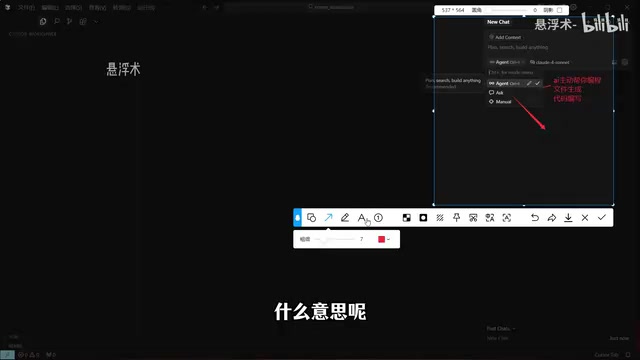
Simply put: choose Agent when you want AI to write code for you, Ask when you just have a question, and Manual when you only want reference suggestions.
From a product design perspective, Cursor's three modes represent different levels of human-AI collaboration. Agent mode relies on the underlying model's tool-use (Tool Use / Function Calling) capabilities — the AI can actively read and write the file system and execute terminal commands, enabling it to handle multi-step tasks like "build a project from scratch." Ask mode is closer to traditional conversational Q&A; the model only outputs text without triggering any file operations, making it suitable when you want explanations or suggestions without disturbing existing code. Manual mode resembles early GitHub Copilot-style autocomplete, where the AI suggests code snippets based on cursor context and the developer decides whether to accept them. Understanding these fundamental differences helps you make more precise choices based on task granularity, and avoids accidentally modifying large amounts of files by misusing Agent mode.
Model Selection: Prioritize Claude for Production
The AI chat panel also lets you select which large language model to use, with both paid premium models and some free options available. The tutorial's recommendation is straightforward: if your project is headed for production, go straight for the Claude model series. The creator considers it the strongest coding model available, and argues that the cost is negligible compared to the value of a project actually being deployed.
For general questions that don't involve production code, you can freely switch to other models, including free options. This "tiered model selection by use case" approach has real practical value for keeping costs under control.
Claude is a large language model series developed by Anthropic, with current versions including Claude 3.5 Sonnet and Claude 3 Opus. Anthropic has invested heavily in model safety and instruction-following, which makes Claude particularly capable at accurately understanding contextual intent in multi-file, multi-step code generation tasks — reducing "hallucinated" errors. Cursor's built-in model list typically also includes OpenAI's GPT-4o, Google's Gemini series, and various open-source or low-cost options. Premium paid models are billed by token usage, so for production projects with frequent modifications and iterations, it's worth estimating the cumulative cost upfront. Free or low-cost models can struggle with complex requirements, producing logic gaps or incomplete code — but they're perfectly adequate for learning and prototyping.
Hands-On: Building a Student Management System with AI
The tutorial walks through the complete workflow from a "complete beginner" perspective. The first step is using Ask mode to consult on tech stack choices: with the prompt "I want to build a student management system in Python — can you recommend a tech stack?", Claude provided framework suggestions and recommended a suitable combination based on the "small project" requirement.
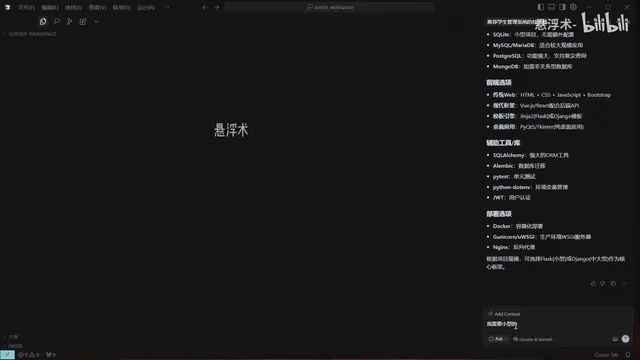
Once the approach was decided, the tutorial switches to Agent mode to have the AI generate the code. The AI first outlines the project structure, then incrementally builds the directory through commands, automatically generating module files for login, registration, and student management, along with a startup script and documentation.
A key setting during generation is auto-run. When a command fails and needs to be re-executed, you can choose to be prompted each time, or enable auto-run to let the AI handle everything end-to-end — it will automatically check errors, apply fixes, and re-run without any human intervention. The tutorial enables auto-run throughout, handing full control to the AI.
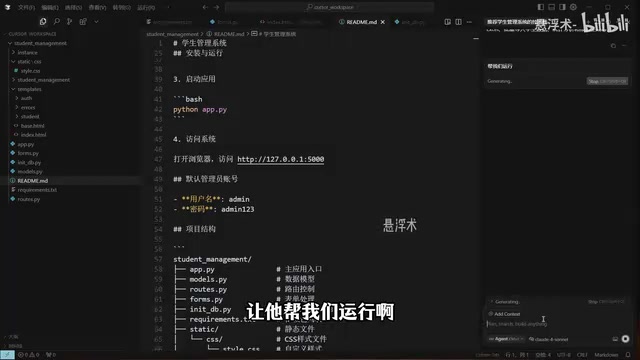
Newly generated files are flagged in yellow or red, asking whether to save them. You can approve them one by one, or wait until everything is generated and save them all at once.
Running and Debugging: AI Automatically Resolves Dependency Conflicts
Once the code is written, the AI runs the project directly. During this process, it automatically installs dependencies and resolves version compatibility issues. The creator specifically points out: this kind of dependency conflict might take an experienced developer half an hour to diagnose, and an inexperienced one could spend two hours without finding the cause — whereas the AI pinpointed the issue almost instantly and reinstalled the correct dependency version.
The application ultimately launches at 127.0.0.1:5000. After copying the address into a browser and logging in with the default credentials, the student management interface appears. The tutorial tests adding, editing, deleting, and viewing student records — all working correctly. Two real issues also surfaced during testing: the validation message when adding a student is in English (student ID must be 3–20 characters), and the grade record feature throws a null error.
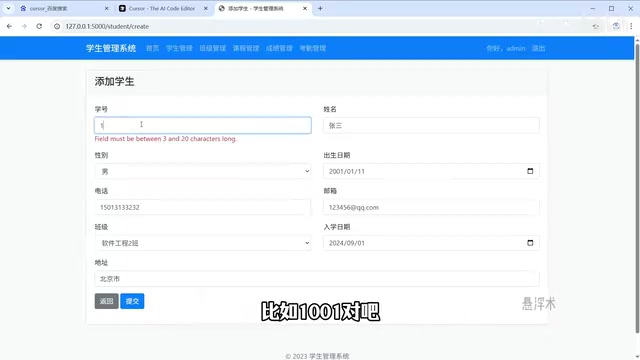
The creator explains this is because only the "student management" feature was fully implemented during the demo — the other features are in a "not yet implemented" state. Completing them is straightforward: just describe all the requirements in the chat and wait for the AI to finish executing.
Environment Setup Before You Start
At the end of the tutorial, there's a reminder about something beginners often overlook: the entire demo was conducted in a pre-configured development environment. To replicate the same results, you'll need to install the appropriate runtime yourself — for example, Python and Flask-related dependencies. For the database, the demo uses SQLite; if you want to use MySQL, you'll need to install the MySQL environment separately.
In other words, Cursor dramatically lowers the barrier to writing code, but setting up the basic runtime environment is still something developers need to handle themselves. Understanding this prevents the confusion of "the AI generated the code but it won't run."
"Runtime environment" and "development tool" are two distinct concepts — and this is often the biggest point of confusion for newcomers. Cursor is a development tool, responsible for writing and managing code. Python interpreter, pip package manager, Flask framework, SQLite or MySQL database — these are the runtime environment, determining whether the code can actually execute on your machine. For the student management system in this article, at minimum you'll need Python 3.x installed with pip available. Flask, SQLAlchemy, and other dependencies can be automatically installed by the AI via terminal commands in Agent mode. If you switch to MySQL, you'll also need to install MySQL Server separately and set up the corresponding database and user permissions. Windows users should note that Python must be added to the system PATH, otherwise terminal commands will throw a "command not found" error. It's recommended that beginners independently verify their Python environment before using Cursor for the first time — run python --version in the terminal and confirm it outputs a version number before starting AI-assisted coding.
Summary
Cursor's core value lies in making "conversation as programming" a reality: from tech stack selection and code generation to dependency debugging, AI can take over a substantial portion of the work. For beginners, the key is mastering when to use each of the Agent / Ask / Manual modes, choosing the right model for the task, and setting up your runtime environment beforehand — then you'll be able to build a fully functional project. That said, as the demo revealed (missing features, English validation messages), AI-generated output still requires human review and iteration. Describing your requirements clearly is the essential skill for getting the most out of tools like this.
Related articles

From Photons to Production: An Open-Source Computer Vision Engineering Reading Path
Reddit user open-sources a computer vision engineering reading path with 16 chapters from image formation to production deployment, emphasizing primary sources, dependency order, and reproducible benchmarks to help engineers understand why models fail and build reliable vision systems.

Prompt Failures? The Truth About Why AI Agents Struggle in Production—and How to Fix It
A Reddit developer built Agents with Copilot and Gemini but faced unstable behavior. This article analyzes three gaps in prompt engineering for Agent scenarios and offers three practical paths to reliable Agent deployment, including structured prompts, workflow-first approaches, and building an evaluation loop.

Tesla Robotaxi to Open Private Vehicle Access Next Year: Promise or Pipe Dream?
At its Q3 earnings call, Tesla said owners can add their cars to the Robotaxi fleet next year. We analyze the technical basis, Musk's missed deadlines, business logic, and competition.