Cursor Complete Beginner's Guide: Build a Full Python Project with AI from Scratch

Step-by-step guide to using Cursor AI to generate a complete Python project from scratch with natural language.
This guide covers the full workflow of using Cursor, the AI-assisted coding tool: installation, workspace overview, and four AI modes (Agent, Plan, Debug, Ask). Using a student information management system as a practical example, it demonstrates how to research a tech stack with Ask mode, generate code with Agent mode, confirm changes via Keep/Keep All, auto-install dependencies, resolve version conflicts, and run the final app — with a note that AI-generated code still requires developer review.
AI coding tools are changing the way developers work. For beginners and developers looking to boost productivity, AI-assisted coding tools like Cursor offer a shortcut from natural language to runnable code. This article is based on a hands-on tutorial and walks you step by step through everything — from downloading and installing Cursor to generating a complete student information management system.
Download & Installation: Up and Running in Minutes
The barrier to installing Cursor is remarkably low. Open your browser, search for the official website, and you'll find the download link right on the homepage. Just click to download the installer. One thing to note: Cursor requires you to log in with an account, so it's a good idea to register one while the installer is downloading. Once installation is complete, log in and you'll land directly in the workspace.
The entire installation process is no different from any standard desktop application — no complex environment setup required. That's a big part of why it's so beginner-friendly.
The Workspace: Three Panels and Four AI Modes
When you first open Cursor, the center of the screen presents a few key entry points. Select Open Project to open a project folder — you can choose an existing directory or specify a location where you want the AI to generate a new project. The tutorial demonstrates creating a new empty folder on the D: drive called "Cursor" to use as the project root.
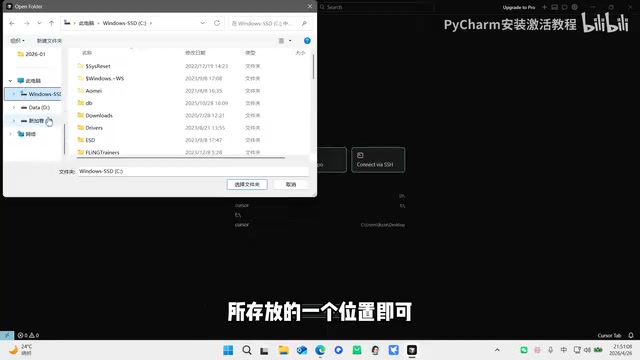
Once inside the workspace, the interface is divided into three main panels:
- Left panel — File Explorer: Displays all files in the current project folder. For a newly created empty folder, this will be blank.
- Center panel — Code Editor: Where you view and edit code.
- Right panel — AI Interaction: The heart of Cursor — this is where you chat with the AI to generate code.
How to Choose Between the Four AI Modes
The right-hand panel offers four working modes, each with a distinct purpose. Understanding them is key to using Cursor effectively:
- Agent: Full-pipeline collaboration — hand the entire project over to the AI and let it handle development autonomously.
- Plan: Plan before executing — the AI first outputs a detailed step-by-step plan, waits for your confirmation, then executes it step by step.
- Debug: Focused error analysis — pinpoints issues in your code without making any additional development changes.
- Ask: Conversational Q&A — similar to tools like ChatGPT, great for research and discussion, but won't actively modify any files.
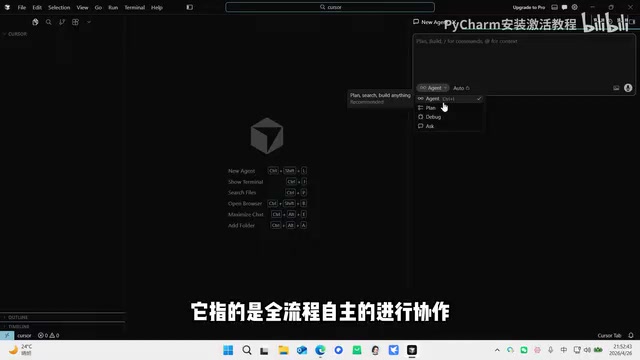
In practice, a useful workflow is to start with Ask mode for technical research, then switch to Agent mode to let the AI do the actual implementation. This "ask first, build second" approach helps ensure the generated code aligns more closely with your expectations.
Under the hood — what is Agent mode? Agent mode is essentially an AI agent capable of autonomously calling tools, reading and writing files, and executing commands. Unlike a standard conversational AI that only "talks," an Agent actually "acts" — creating files, writing code, running terminal commands, and chaining together multiple steps until a task is complete. This capability comes from combining a large language model with a tool-calling mechanism (Function Calling / Tool Use): the model reasons about what action to take next, the host application executes it, and the result is fed back to the model for the next round of reasoning. This is why Agent mode is powerful — but also why it warrants care. Each "confirm" dialog is essentially a human checkpoint in the AI's autonomous action chain, preventing accidental file overwrites or unintended command execution caused by model misjudgment.
Hands-On: From Prompt to a Complete Project
Suppose you want to know what technologies are needed to build a Python project with a frontend UI. Start by switching to Ask mode and typing: "What technologies are needed to build a Python project with a frontend user interface?" The AI will generate a document-style response — the experience is similar to using ChatGPT or any other Q&A tool.
Once you've identified your tech stack, switch to Agent mode and enter your requirement: "Based on the current technology stack, generate a simple student information management system." At this point, Cursor will show a confirmation dialog with a few options:
- Run: Approve the current step only.
- Always Allow: Approve all operations in the current phase.
- Skip: Choose this if you don't want to approve the operation.
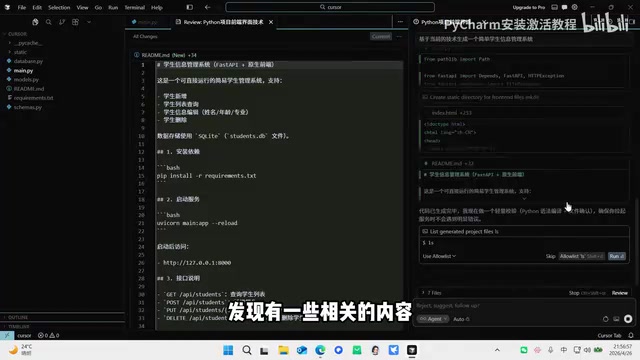
After confirming, files generated by the AI will begin appearing in the left-hand file explorer. Clicking into any file, you'll notice most of the content is wrapped in color-coded highlights — these are Cursor's visual markers indicating what has been modified.
The Confirmation System: Keep and Keep All
One important design principle in Cursor is that it never forcibly overwrites files — all changes require manual confirmation. For individual files, click Keep to accept the changes, or click the undo option next to it if you disagree.

If confirming file by file feels tedious, wait until all files have been generated, then find the summary panel. It lists every modified file along with the change details. Click Keep All to approve everything at once. This batch confirmation feature is a significant time-saver on large projects.
Running and Verifying: Dependency Installation and Auto-Validation
Once code generation is complete, the AI proactively runs a lightweight validation and asks whether you'd like it to verify the results on your behalf. If issues are detected during validation, the tool will flag them for you.
Launching the project typically requires installing dependencies, and Cursor will prompt you to confirm the installation. Even more helpful: during startup, it checks for version conflicts between packages. If a conflict is detected, it automatically formulates a resolution — significantly reducing the environment errors that often trip up beginners.
Once the project starts successfully, Cursor provides an access URL. Click it to open the student information management system in your browser — you can enter a student's name, student ID, age, major, and other details to add a record, which then appears in the list below. Editing and deleting records are also supported. A fully functional web app with complete CRUD capabilities is up and running.
What's really happening with dependency installation? The "dependency installation" mentioned here refers to Python's package management system. The Python ecosystem relies on
pipto pull third-party libraries from PyPI (the Python Package Index), and all required packages are typically listed in arequirements.txtfile. A "version conflict" occurs when different libraries require incompatible versions of the same underlying dependency — for example, Library A requiresFlask>=2.0while Library B requiresFlask<1.5, making it impossible to satisfy both simultaneously. Traditionally, developers have to manually trace and adjust version constraints, which is particularly painful for newcomers. When Cursor "automatically detects conflicts and formulates a solution," it's actually the AI analyzing the error logs and generating fix commands (such as pinning a specific version or swapping a dependency) — not a native conflict-resolution feature at the tooling level. Complex conflict scenarios may still require manual intervention.
Tips and Takeaways
This hands-on walkthrough demonstrates that Cursor's core value lies in translating natural language requirements into runnable code, while delegating the most error-prone parts of traditional development — file confirmation, dependency installation, and version conflict resolution — to the AI.
For beginners, here are a few key tips:
- Use Ask mode for upfront research — clarify your approach before diving into development.
- Agent mode is great for rapid prototyping — but always review critical changes step by step.
- Don't panic when errors occur — switch to Debug mode and let the AI locate the problem.
One important caveat: AI-generated code is not always perfect. The idea that AI will "write flawless code every time with no further errors" — as sometimes suggested in tutorials — is closer to an ideal than reality. In practice, developers still need a basic ability to review code and understand the logic the AI produces. That understanding is what allows you to truly leverage these tools to their full potential.
Related articles

Random Pruning of the DPO Computation Graph: 1.4x Training Speedup and Lower Peak Memory
DPO training too slow and memory-hungry? This paper proposes a random pruning framework for the DPO computation graph, sampling independently across position, sequence, and branch dimensions; branch pruning achieves a 1.426x step-time speedup and cuts training time by about 30%, with in-depth attribution of memory and time gains.

Why Does JEPA Underperform MLM in Longitudinal EHR Representation Learning?
New study compares JEPA and MLM for longitudinal EHR representation learning on MIMIC-IV: three JEPA variants train stably without collapse but underperform MLM; target size, not heterogeneity, drives prediction error.

Transfer Learning + Visible Light Communication: A New Approach to Energy-Efficient Indoor Positioning
A study proposes a transfer learning-based visible light communication indoor positioning method, achieving 47% accuracy improvement on the BOSCH factory dataset, 67.5% model efficiency under high noise, and introducing the ME composite metric for energy-efficient positioning in energy-constrained industrial IoT scenarios.