Cursor Rule Files Not Working? The .mdc Extension Is the Key

Cursor rules need the .mdc extension plus Always apply to work automatically every conversation.
The article explains that many developers find Cursor ignoring their rules, and the root cause is the file extension: .md files are skipped, and only .mdc is recognized. Changing the extension isn't enough—you also need Always apply: true in the rule file so rules apply automatically in every conversation. The author recommends writing rules before building the app, splitting rules into multiple .mdc files for complex projects, and keeping rule content specific, summarized as "one file, every conversation, zero repetition."
Many developers have run into the problem of Cursor ignoring their rule files—even when the rules are written clearly, the AI still does whatever it wants. The issue often comes down to an easily overlooked detail: the file extension.
Common Reasons Rule Files Get Ignored
According to hands-on experience shared on a YouTube channel, Cursor has strict requirements for rule file extensions. If you save your rules as a .md file, Cursor will simply ignore it—you must use the .mdc extension for it to take effect. This detail isn't prominently emphasized in the official documentation, which is why many developers stumble on it.

The video demonstrates a typical scenario: a developer writes clear rules, but the AI still doesn't follow them. After troubleshooting, it turns out the rule file was in .md format, while Cursor only recognizes .mdc files. Once the extension was changed to .mdc, the rules took effect immediately.
Cursor's Rules mechanism is one of its core features that sets it apart from ordinary AI code completion tools. Rules are essentially persistent instructions that developers write in natural language to constrain the AI's behavior when generating code, modifying files, and replying in conversations—for example, enforcing a consistent code style, specifying export methods, or requiring comments. Rules are typically divided by scope into project-level and global-level: project-level rules live in the project directory and apply only to the current repository, making them easy for teams to share; global rules apply across all of a user's projects. When loading rules, Cursor parses file metadata to determine how they should be activated, so the file format itself is a prerequisite for whether a rule can even be recognized. Understanding this makes it clear why a seemingly trivial detail like the file extension directly determines whether rules work—it's not a matter of content, but the very first gate in the loading pipeline.
How to Make Rules Apply Automatically in Every Conversation
Using the correct extension alone isn't enough. To have rules applied automatically in every conversation, you need specific configuration within the rule file. The video mentions that you can set Always apply: true to ensure the rules always take effect without having to manually remind the AI each time.
The actual workflow is: first write the rule file and enable always-apply, then have the AI build the app. This way the AI reads and follows the rules before writing code, rather than patching things up afterward. The video shows that once the rules took effect, the AI added comments as required, used named exports, and produced code that matched the expected structure.
.mdc is Cursor's custom rule file format, which can be thought of as a superset of Markdown: the body is still plain Markdown text, but the file header can carry a block of metadata (a frontmatter or similar configuration section) that declares how the rule should be activated. Common activation modes include always apply, auto-attach by file path, let the AI decide whether to load based on the description, and manual reference only. Always apply: true corresponds to the always-apply mode, where the rule is injected into the context of every conversation, making it more sensitive to token consumption and instruction conflicts. By contrast, on-demand loading modes suit rules that should only apply when working with specific directories or specific language files, avoiding irrelevant instructions that could interfere with the model's judgment. Which mode to choose depends on the scope and stability requirements of the rule.
Organizing Rules Across Multiple Files
For scenarios that need multiple rules, you can split them into multiple .mdc files. The video demonstrates creating six rule files, each responsible for a different set of rule items, and Cursor is able to accept and apply them all.

The benefit of this approach is clearer rule management, and rules for different projects can be maintained independently. The video's author emphasizes that with this approach the app runs properly and there's no need to repeatedly remind the AI to follow the rules throughout the conversation.
Splitting rules into multiple files reflects a basic principle of context engineering: the more focused the instructions, the higher the model's compliance accuracy. When a single file stacks a large number of rules, instructions can easily override each other, priorities become unclear, or key constraints get buried. When split by topic (e.g., one file each for code style, naming conventions, comment requirements, and testing standards), each rule's scope is clear, making it easy to enable, disable, and iterate individually. This organization also fits version collaboration better: different rule files can be committed and reviewed independently, and teams can trace the modification history of a specific rule. For general rules reused across projects, you can extract them into shared templates and copy or reference them directly in new projects.
Practical Tips and Caveats
First, check the extensions of your existing rule files and make sure they're .mdc, not .md. Second, explicitly set Always apply: true in the rule file so rules don't get missed. Third, for complex projects, consider splitting rules into multiple files for easier maintenance and reuse.
The video's author sums up the core principle in one line: one file, every conversation, zero repetition. This simple adjustment can significantly improve the Cursor experience and reduce the cost of repeated back-and-forth communication.

Note that the content of the rule file itself also needs to be clear and specific. The rules demonstrated in the video include specific instructions such as requiring the AI to add comments and use named exports—clear rules like these are easier for the AI to execute accurately.
One-line Summary
Cursor rules must use the .mdc extension and set Always apply to take effect automatically in every conversation.
Paragraph Summary
The article points out that many developers find Cursor ignoring the rules they've written, and the root cause is the file extension: saving as .md gets skipped entirely, while .mdc is required for recognition. Changing the extension alone isn't enough—you also need to set Always apply: true in the rule file so rules apply automatically in every conversation without repeatedly reminding the AI. The author recommends writing the rules first, then having the AI build the app, so the code conforms to the constraints before it's generated. For complex projects, rules can be split into multiple .mdc files managed separately, and Cursor will accept and apply them all. The article emphasizes that the rule content itself should also be specific and clear—such as requiring comments and named exports—and summarizes the core principle as "one file, every conversation, zero repetition."
Related articles

HN Warning: Don't Use AI to Write Comments, or They'll Be Auto-Deleted
Hacker News warns that AI-written comments will be automatically deleted. This article analyzes HN's automated enforcement mechanism, the community's attitude toward AI-generated content, and what it means for creators using AI tools responsibly.

AI Product Manager Systematic Course for Beginners: Three Modules Explained with Pitfall Avoidance Guide
Breakdown of Bilibili's 100-episode AI product manager course: Foundation builds large model and Prompt cognition, Advanced tackles Agent workflows and RAG knowledge bases, Practice completes projects like personal knowledge bases and intelligent customer service. Includes learning roadmap and pitfall avoidance tips.
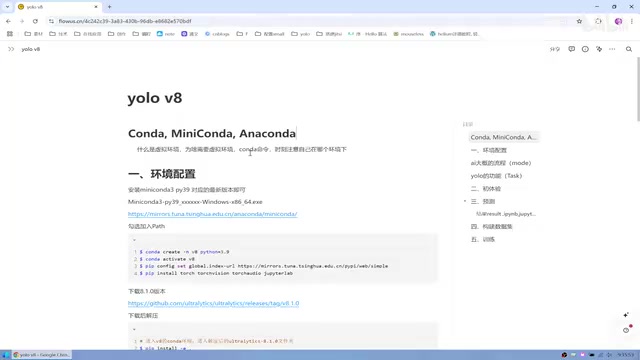
YOLO Object Detection for Absolute Beginners: Environment Setup and Core Concepts
Learn YOLO object detection from scratch: Python basics, VS Code, Miniconda environment setup. A Bilibili tutorial guides you step by step, with a desktop icon recognition project as your hands-on goal.