Daybreak Blue Application and Enablement: Complete Process Guide
Daybreak Blue access configuration guide: from enterprise verification to role authorization and API key enablement.
Based on the official demo video, this article outlines the complete process for cybersecurity teams to apply for and use the frontier AI model Daybreak Blue. First is the application stage: complete third-party ID verification, fill in enterprise information and the intended use form, and accept the terms of service in the Trusted Access area of the admin console. After approval, a global toggle is visible in the Model area, but to avoid enabling access for everyone by default, the presenter uses role edit overrides in Roles to implement role-based authorization. Then, as a regular user, the presenter verifies in Codex: an authorization banner appears in the General area, and a Daybreak toggle appears in the model selector. Finally, for automation scenarios, configure the API: create a new project (the default project is not supported), enable Daybreak Blue, add project members, and create a time-limited key. The entire article emphasizes compliance, traceability, and the principle of least privilege.
Cybersecurity teams can now apply to use frontier AI models to strengthen their defenses, and Daybreak Blue is designed for exactly this purpose. Based on the official demo video, this article walks through the complete process—from enterprise verification and permission requests to user-level and API-level access configuration—to help you quickly enable and verify access in your environment.
Preparation Before Applying: Enterprise Verification and Purpose Statement
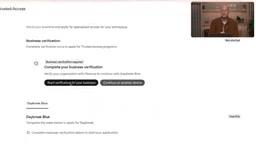
The video begins in the Trusted Access area of the admin console. This area is divided into two parts: enterprise verification and the Daybreak Blue application entry point. After clicking "start verification for your business," the system redirects to a third-party verification service, which requires you to present identification to complete ID verification according to your region's requirements. You then need to fill in your enterprise details; once submitted, the application enters a review status.
Several necessary steps follow: fill out the intended use form, confirm acceptance of the Daybreak Blue terms of service, and then formally submit the access request. After submission, the status changes to "under review" and eventually becomes verified and approved. The entire process emphasizes compliance and traceability, and enterprises must ensure the information is truthful and complete.
Trusted Access is a mechanism in enterprise-grade AI platforms for controlling access to high-risk or frontier models. It typically requires organizations to complete identity verification and compliance approval before they can apply for specific capabilities. ID verification is generally handled by third-party identity providers (such as Persona, Onfido, etc.), confirming the applicant's identity through uploaded government-issued documents and liveness detection, with the verification results returned to the platform and bound to the organization's account. Accepting the terms of service at the compliance level means the organization commits to complying with usage policies—for example, prohibiting the use of models for offensive purposes—which is also a common threshold in cybersecurity model approvals.
Enabling Daybreak Blue in Model Settings
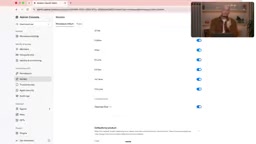
Once the application is approved, the next step is to enable model access for the environment in the Model area. At the bottom of the page, you can see the Daybreak Blue toggle. However, the video specifically cautions: this toggle enables access for all users in the workspace, while most organizations want to control permissions based on roles. Therefore, the presenter cancels this global action and instead goes to the Roles area.
In Roles, the presenter has already created a role and added users. By creating an edit override and enabling Daybreak Blue separately within it, after saving, members of that role gain access through this override. This approach implements the principle of least privilege, avoiding enabling access for everyone by default.
Role override is a fine-grained authorization method in the RBAC (Role-Based Access Control) system: declaring the enablement or disablement of a specific capability (such as a particular model) at the role level, overriding the organization-level default settings. Compared with a global toggle, the override mechanism allows different roles within the same workspace to have different model permissions, making it easier to minimize authorization by job function. The principle of least privilege requires subjects to receive only the minimum access scope necessary to perform their responsibilities. Security teams especially need to follow this when introducing frontier models to reduce the risk of model misuse or data leakage.
Verifying User Access: Authorization Status in Codex
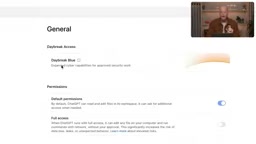
After configuration is complete, you need to verify whether users actually have access. The presenter enters Codex as a regular user and sees a banner at the top of the General area in user settings, indicating authorization to use Daybreak Blue. After returning to the homepage, a Daybreak toggle appears in the model selector, which users can enable themselves to access frontier models under the control of Daybreak Blue.
This verification step is critical: it confirms that the role override has taken effect and that the user-facing interface correctly reflects the permission status.
Configuring API Keys for Automation
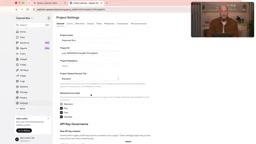
For teams that need to build automation or harnesses, access permissions also need to be granted to API keys. The presenter navigates to platform.openai.com and goes to project management. Note that the default project cannot enable Daybreak Blue, so a new project must be created. The presenter creates a project named "Daybreak Blue" and successfully enables the Daybreak Blue toggle at the bottom of the project settings and saves it.
Next, the presenter adds a demo member to the project members so that they can create API keys and interact with the model. Finally, a new API key is created, named "Daybreak Key," set to expire after one day, and clicked to create. In this way, automated processes can use the Daybreak Blue model through this key.
An API key is a credential for programmatically calling models. It is usually managed with a project as its scope and can be set with an expiration time to reduce the risk window after a leak. Platforms often set project-level toggles for frontier models, requiring explicit enablement before the project's keys are allowed to call them, which forms multi-layer control alongside organization-level or role-level authorization. The project member mechanism determines who can create, rotate, or revoke keys under the project, so adding members should follow separation of duties to avoid excessive concentration of key management permissions.
Process Review and Key Takeaways
The entire process can be summarized in four stages: applying for access (enterprise verification, purpose form, terms of service), environment configuration (through role overrides rather than a global toggle), user verification (authorization banner and model selector in Codex), and API configuration (creating a new project, adding members, creating a key). Each stage reflects attention to security and permission control.
For organizations looking to strengthen their cybersecurity defenses, Daybreak Blue provides a compliant and controllable path to access frontier model capabilities. By following the steps above, you can smoothly enable and verify access in your environment.
One-line Summary
Daybreak Blue access configuration guide: from enterprise verification to role authorization and API key enablement.
Paragraph Summary
Based on the official demo video, this article outlines the complete process for cybersecurity teams to apply for and use the frontier AI model Daybreak Blue. First is the application stage: complete third-party ID verification, fill in enterprise information and the intended use form, and accept the terms of service in the Trusted Access area of the admin console. After approval, a global toggle is visible in the Model area, but to avoid enabling access for everyone by default, the presenter uses role edit overrides in Roles to implement role-based authorization. Then, as a regular user, the presenter verifies in Codex: an authorization banner appears in the General area, and a Daybreak toggle appears in the model selector. Finally, for automation scenarios, configure the API: create a new project (the default project is not supported), enable Daybreak Blue, add project members, and create a time-limited key. The entire article emphasizes compliance, traceability, and the principle of least privilege.
Related articles
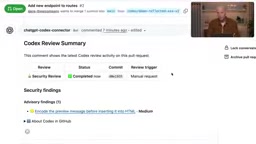
Codex Security: A Configuration Guide to Automatically Blocking Vulnerabilities at the PR Stage
OpenAI engineers demonstrate Codex Security PR Reviews: automatically scan for vulnerabilities at the GitHub PR stage, have AI generate fix commits and re-verify, with repository-level automatic review and alert threshold configuration.
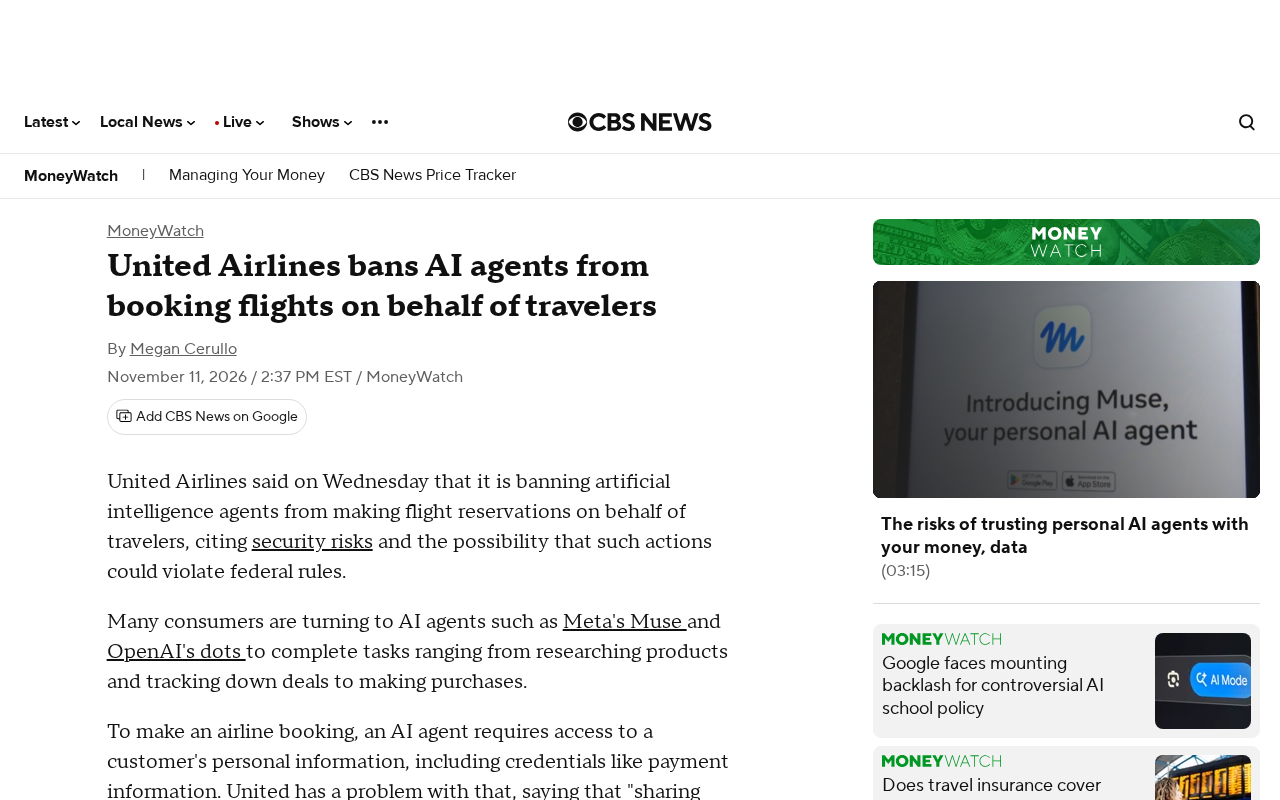
United Airlines Bans AI Agents from Booking Flights, Escalating the Battle Between Airlines and Intelligent Agents
United Airlines bans AI agents from booking flights for travelers, sparking Hacker News debate. This analysis examines channel control, risk logic, the trust gap in the agent economy, and practical impacts on travel AI developers.
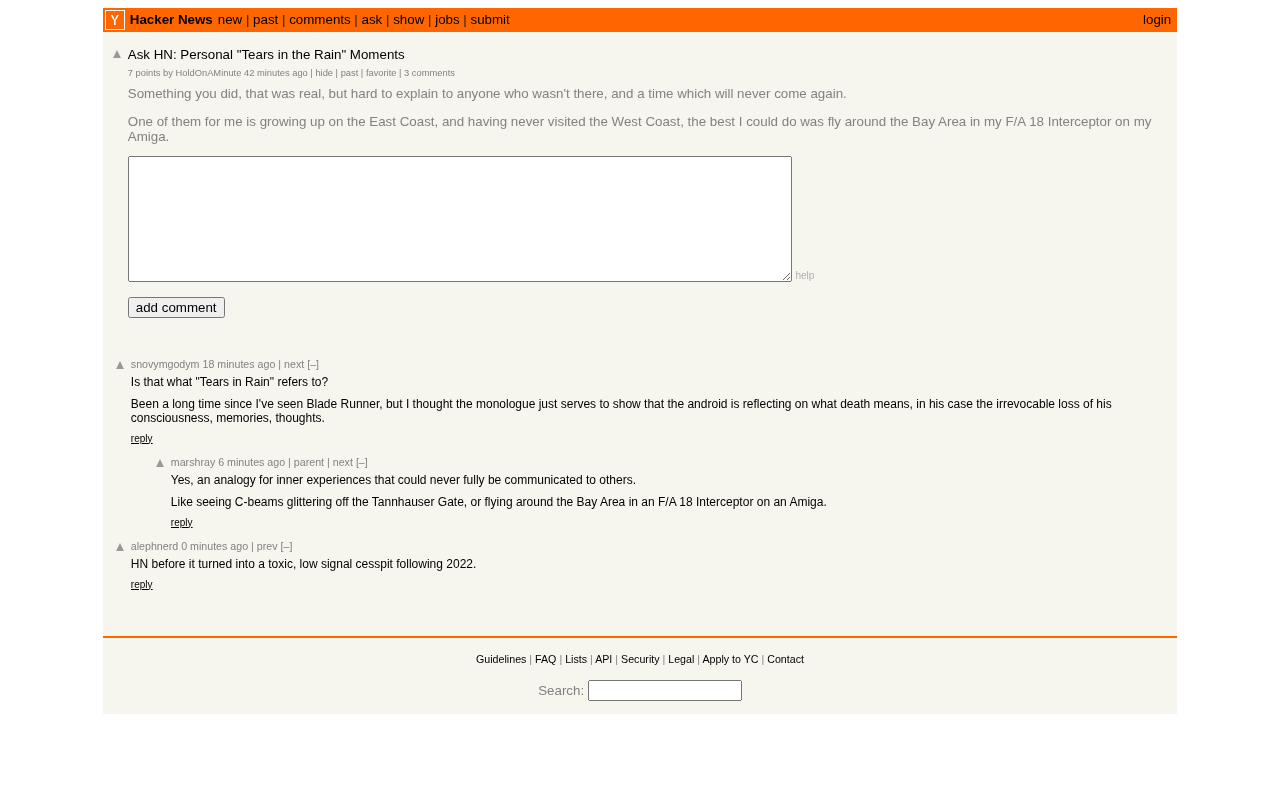
Tech Workers' 'Tears in the Rain' Moments: Hacker News Debates the Boundary Between AI and Humanity
A Hacker News post, "Personal Tears in the Rain Moments," sparks discussion of emotional experience in the tech community. This article interprets the tech-humanist thinking behind the topic and explores the unique value of tech workers in the AI era and the metaphor of fading memory.