DeepSeek + 3 Tools: Generate a Professional PPT in 5 Minutes
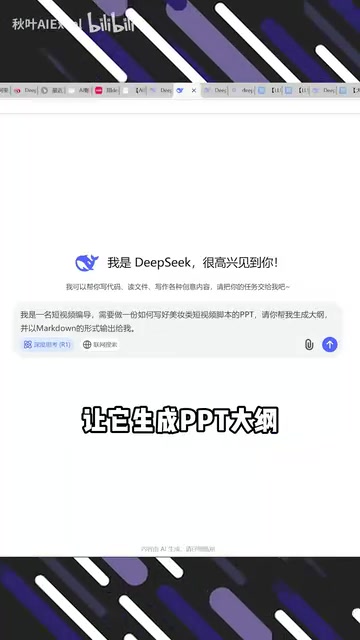
Use DeepSeek to draft an outline, then generate a polished PPT with Tongyi, Kimi, or Coze in minutes.
This guide introduces a "divide and conquer" approach to rapid PPT creation: use DeepSeek to generate a structured outline, then feed it into one of three free tools — Tongyi Efficiency PPT, Kimi PPT Assistant, or Coze PPT Generation Assistant — to handle the visual output. Tongyi supports outline re-editing for structural fine-tuning, Kimi offers the simplest one-click experience, and Coze suits users already working within its ecosystem. The article emphasizes that AI output is best treated as a first draft, with human review still needed for layout details.
Why AI-Powered PPT Creation Is Becoming a Workplace Essential
Building a PowerPoint has always been one of the most time-consuming tasks at work. From drafting an outline and organizing content to tweaking layouts and color schemes, the whole process can easily eat up hours. Today, by using a large language model like DeepSeek to generate a structured outline and pairing it with dedicated PPT generation tools, you can compress the entire workflow to just a few minutes.
The core idea behind this approach is division of labor: let DeepSeek handle what it does best — text content and logical structure — while tools like Tongyi, Kimi, and Coze take care of visual presentation and template application. All three generation paths are completely free, making them ideal for students and professionals who need to deliver presentations fast.
Step 1: Generate a PPT Outline with DeepSeek
Every method in this guide starts with the same action — get DeepSeek to produce a clear, well-structured outline. This step is the cornerstone of the entire workflow, because the quality of the outline directly determines how logical and complete your final PPT will be.
Open DeepSeek and enter a prompt specifying your topic, target audience, and approximate length. Once the outline is generated, copy the full text — you'll use it in all three methods below.
Practical tip: The more specific your outline, the closer the final result will match your needs. In your prompt, ask DeepSeek to organize content using a "Cover → Table of Contents → Sections → Summary" hierarchy, and have it annotate key points for each slide. This helps downstream tools parse the content and create more sensible page breaks.
DeepSeek is a large language model developed by the company DeepSeek, known for its strong Chinese language comprehension and long-form reasoning capabilities. In the context of PPT outline generation, its strength lies in interpreting loosely worded prompts and producing well-structured, hierarchical text — for example, breaking down "create a quarterly report" into sections like Background, Data, Issues, and Action Plan, each with 2–4 bullet points. Compared to asking a PPT tool to "auto-generate" directly, running your content through DeepSeek first effectively prevents the common problems of disjointed logic and cluttered bullet points. It's recommended to specify your audience (e.g., "for non-technical management") and expected slide count (e.g., "10–12 slides") in the prompt, so the model can calibrate content density accordingly.
Three Free PPT Generation Paths
Once you have your outline, choose any of the following tools to handle the visual output. All three follow a nearly identical workflow — the main differences are in template style and generation speed.
Method 1: Tongyi Efficiency PPT
Go to the Tongyi website, navigate to the Efficiency PPT feature, click Create, and paste your copied outline. Once you've confirmed the outline looks right, you can add a presenter name or make further edits to the outline directly on the page.
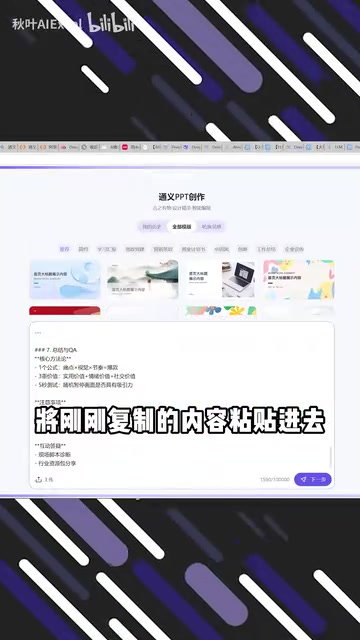
Click next to choose a template, wait a few dozen seconds, and a ready-to-use PPT will be automatically generated. Tongyi's advantage is its flexible outline editing step, making it a great fit for situations where you need fine-grained control over the structure.
Method 2: Kimi PPT Assistant
Open the Kimi website, select Kimi+ PPT Assistant, paste your outline, click Generate PPT in One Click, and pick a template you like.

Kimi's workflow leans heavily toward a one-click experience — it has the fewest steps of the three, making it the best choice for users who prioritize speed and aren't too concerned with layout details.
Method 3: Coze PPT Generation Assistant
Open the Coze website, search for PPT Generation Assistant under More, enter your outline, select a template, and receive a finished presentation.
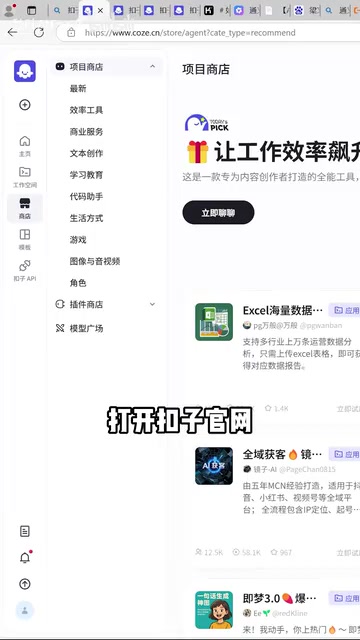
Coze is an AI agent platform, and PPT generation is just one of many capabilities it offers. If you're already using Coze to build other workflows, handling PPT creation there as well keeps everything in one place.
Coze is an AI agent development platform launched by ByteDance. It lets users combine multiple AI capabilities — text generation, image processing, web search, and more — into automated workflows called "Bots" or "Agents." The PPT Generation Assistant on the platform is a pre-built agent (by third parties or the platform itself) specifically packaged for presentation use cases. For users who already rely on Coze for other tasks — such as drafting weekly reports or summarizing meeting notes — calling the PPT function within the same platform avoids constant switching between websites and makes it easy to embed PPT generation into a longer automated pipeline.
Which Tool Should You Choose?
Based on hands-on testing, the core steps across all three tools are nearly identical: you need a DeepSeek-generated outline as your "raw material," then follow three steps — paste, select a template, and wait for the output.
- If you care about controlling the content structure, Tongyi offers the most flexible outline editing.
- If you just want to get something done fast, Kimi's one-click generation is the easiest.
- If you're already embedded in the Coze ecosystem, Coze's PPT Assistant minimizes tool-switching overhead.
One important caveat: AI-generated PPTs work best as a first draft. After the template is applied, details like image-text alignment, consistent font sizes, and visual emphasis on key points still require a human review pass before the deck is truly presentation-ready.
Wrap-Up
The essence of AI-assisted PPT creation is separating "writing content" from "doing design" and handing each task to the tool that handles it best. DeepSeek owns the logic and copy; Tongyi, Kimi, and Coze own the visual output. Master the core principle of "outline first, then pick your tool" — and no matter what new platforms emerge in the future, you'll be able to hit the ground running.
Related articles

Complete Guide to Running Your Own Local DeepSeek: Web Access, Knowledge Base & Privacy
Step-by-step guide to deploying a private DeepSeek locally using Ollama, Chatbox, and AnythingLLM — with web access, RAG knowledge base, and full privacy.
AI Agent Development: A 4-Stage Learning Roadmap from Beginner to Enterprise-Level Practice
A complete AI Agent learning roadmap from zero to enterprise-level: covering ReAct, multi-agent collaboration, Prompt tuning, RAG, MCP, and real-world projects.
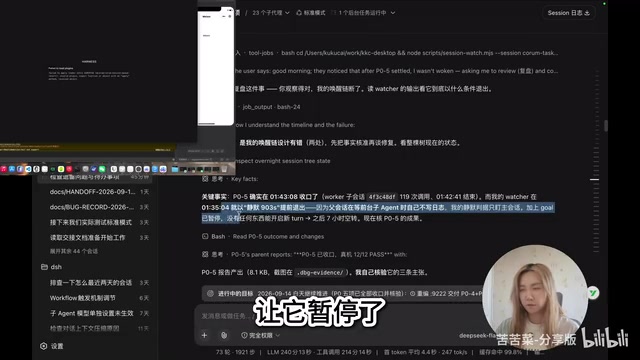
A New DeepSeek Harness Experiment: Agent Supervising Agent for Self-Evolution
A developer built an "Agent supervising Agent" self-evolution system using DeepSeek Harness, with a ledger mechanism enabling near-unattended overnight software iteration.