DeepSeek Harness Desktop App Released: Installation Guide & Model Configuration

DeepSeek Harness goes desktop with one-click install, multi-model support, and Agent plugins — no CLI needed.
DeepSeek Harness now offers a desktop app for macOS (Apple Silicon only) and Windows 10+, replacing the previous command-line setup with a one-click installer. After logging in, your Web history syncs automatically and new users can claim a limited-time ¥6 credit. The app supports third-party online models via OpenRouter (including free-tier models) and local models via LM Studio, plus built-in Agent plugins, slash commands, and Word/PPT/Excel document skills — fully consistent with the CLI version.
DeepSeek Harness Desktop App Is Finally Here
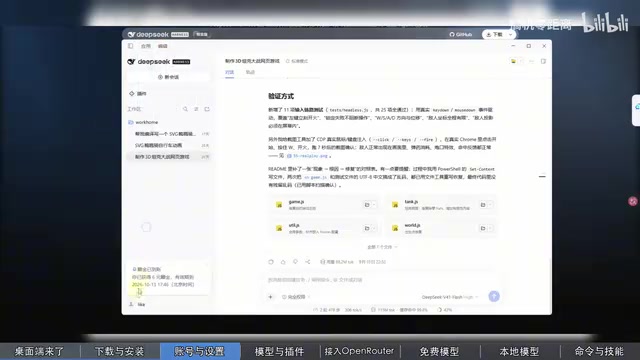
DeepSeekAd Harness previously required command-line usage — users had to install Node.js, open a terminal, and type a series of commands, making the barrier to entry relatively high and the process cumbersome. Now, the official desktop application has launched, offering one-click installers for macOS and Windows 64-bit, dramatically lowering the cost of getting started.
For everyday users, this means no runtime environment setup required — just download, install, and log in to start using it right away. According to hands-on testing shared by a Bilibili creator, the desktop app also offers a limited-time perk for first-time users: log in with your DeepSeek account and receive a ¥6 RMB credit, valid for one week. You can view this credit on the Capacity page under your profile settings. Note that this is a promotional offer with potential time restrictions — it was still available as of the video's publish date (October 6th), but availability may vary.
Download & Installation Notes
When downloading from the DeepSeek Harness official website, make sure to select the version that matches your system. Two key limitations are worth noting:
- The macOS version only supports Apple Silicon (M-series chips) — older Intel-based Macs are not currently supported.
- The Windows version requires Windows 10 or later — simply click to download and install.
Once installed, the desktop app supports account login as well as custom default configuration. A notable advantage after logging in: it automatically syncs all your Web history, including previous test records, token usage, conversation counts, and more — a seamless transition from the browser experience.
Interface & Basic Settings
The desktop app's overall design mirrors the Web version. In the settings menu, users can view their account balance and credit balance, along with a range of personalization options:
- General Settings: Workspace permissions (e.g., full consent), interface language (switchable to Chinese).
- Appearance: Supports system default, dark mode, and light mode.
- Performance & Usage: Choose how much detail to display in messages (compact or full).
One privacy-related detail: when using official models, the app defaults to uploading SenseLog data to help improve the DeepSeek model. If you're privacy-conscious, this option can be disabled directly in the settings.
The app comes with a rich set of built-in Agent plugins and preset modes, each with clear descriptions. Users can also create their own Agent modes, switch between them freely, and specify a custom workspace directory.
Configuring Third-Party Online Models (OpenRouter Example)
DeepSeek Harness desktop supports connecting to third-party models using the standard OpenAI API format, which means a wide range of online model services can be integrated. Here's how to set up OpenRouter:
- Go to Models in Settings, click Add New Model, and select OpenRouter.
- Log in to the OpenRouter platform, navigate to your dashboard, and create an API Key in the top-right corner (you can set an expiration, e.g., 7 days).
- Copy the generated key, paste it into the API Key field in DeepSeek Harness, and save.
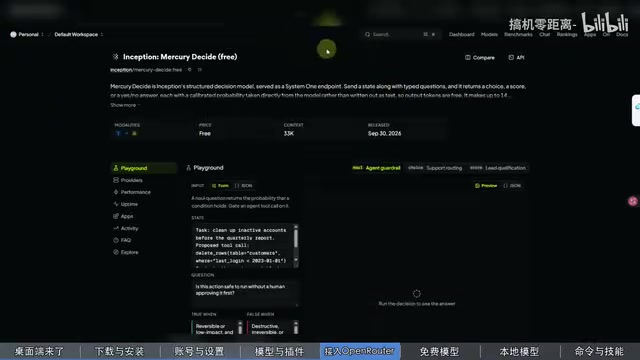
Once added, click Fetch Available Models and the app will pull the full model list from OpenRouter. Models with the FREE suffix are free to use — including some large open-source models.
Here's a practical tip: if you don't want to manually switch models every time the platform updates, you can select the OpenRouter Free aggregate option, which automatically routes to the latest available free model when new ones are added. In testing, selecting this option routed queries to free models such as Llama, with no charges incurred.
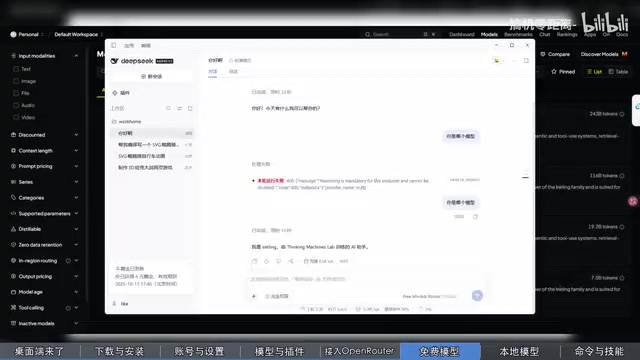
If you want to pin a specific free model (such as an open-source version of Qwen3), you can open the custom settings in the edit panel, filter by free models, and select one individually.
OpenRouter is a unified API platform that aggregates multiple AI model providers. Developers need only a single API Key to access models from dozens of providers including OpenAI, Anthropic, Meta, Google, and more — without registering or managing separate credentials for each. The platform uses the standard OpenAI API format, so any OpenAI-compatible client (including DeepSeek Harness) can connect seamlessly. OpenRouter charges on a per-token basis, but regularly introduces free-tier models — typically community versions of major open-source models (e.g., Meta Llama, Mistral) — marked with a "FREE" suffix in the model list. Note that free models usually have rate limits and may be less responsive than paid models during peak hours.
Configuring Local Models (LM Studio)
For users who prioritize privacy, the desktop app also supports connecting to locally deployed LLMs. With LM Studio, you can search and download models directly without manually managing model files, then run them entirely on your own machine.
The setup process is similar to configuring a third-party online model:
- Download and load your desired model in LM Studio, then start the Local Server.
- Note the access address — the default port is
localhost:1234. - In DeepSeek Harness, add a custom model, set the API address to
localhost:1234/v1, and select the OpenAI standard format. - Click Fetch Available Models to automatically pull the models loaded in LM Studio, then save.
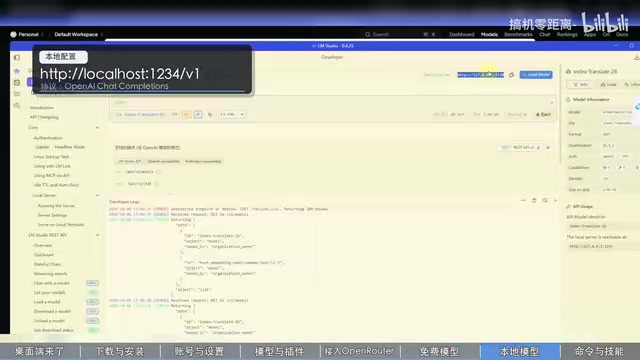
The first time you call a local model, the system needs to load it into memory, so the initial response may be slightly slower. After loading, since everything runs locally, subsequent requests are very fast. In testing, requesting a local translation model to translate "中国" as "China" was fast and accurate.
LM Studio is a local LLM management tool designed for general users, offering a graphical interface that lets you search, download, and run quantized GGUF-format models from platforms like Hugging Face — no inference code required. Its built-in local server feature starts an OpenAI API-compatible HTTP service on a specified port (default: 1234), so any application supporting the OpenAI interface can use LM Studio as a local inference backend. Performance depends heavily on hardware: the more GPU VRAM available, the larger the model parameters you can load and the faster the inference. If VRAM is insufficient, models are partially or fully loaded into system RAM or even disk, which significantly reduces speed. When choosing a local model, you typically need to balance model capability against hardware constraints — quantization precision (e.g., Q4, Q8) also affects output quality and resource consumption.
Built-in Skills & Useful Commands
The desktop app retains the full set of capabilities from the standard Harness version, accessible via slash commands:
- Global command: Sets a goal that must be completed before stopping — includes automatic verification checkpoints along the way.
- Plan command: Drafts a task plan and executes it step by step.
- Context compression: Compresses long conversations to reduce token usage.
- Permission toggle: Flexibly adjust permissions for the current session.
- Export conversation: Exports the current conversation as a ZIP archive.
The app also includes built-in document processing skills, supporting the creation and editing of Word documents, PowerPoint presentations, and Excel spreadsheets — consistent with the standard version.
Slash commands are a common interaction pattern in AI coding assistant tools. Typing / followed by a keyword in the chat box triggers predefined functional workflows, eliminating the need to memorize complex prompt templates. The difference between the Global and Plan commands lies in execution strategy: Global mode loops continuously until the task passes verification — ideal for automated tasks with clear completion criteria; Plan mode first generates a structured execution plan for the user to review before proceeding step by step, making it better suited for scenarios requiring human oversight. The context compression feature addresses the rapid token consumption that occurs in long conversations — as conversation history accumulates, the number of tokens the model must process increases and costs rise. Compression distills the history into a summary, preserving key information while reducing token usage for subsequent requests.
Summary
The release of the DeepSeek Harness desktop app fundamentally transforms a command-line tool into a "download and use" desktop application, while retaining the full feature set: multi-model support (online third-party and local deployment), Agent plugins, and document processing skills. For users who want a lower barrier to entry while still having the flexibility to configure their own model sources, this is a worthwhile upgrade. The limited-time ¥6 credit also provides a zero-cost opportunity to try it out — though availability of the promotion should be confirmed with official sources.
Related articles

Random Pruning of the DPO Computation Graph: 1.4x Training Speedup and Lower Peak Memory
DPO training too slow and memory-hungry? This paper proposes a random pruning framework for the DPO computation graph, sampling independently across position, sequence, and branch dimensions; branch pruning achieves a 1.426x step-time speedup and cuts training time by about 30%, with in-depth attribution of memory and time gains.

Why Does JEPA Underperform MLM in Longitudinal EHR Representation Learning?
New study compares JEPA and MLM for longitudinal EHR representation learning on MIMIC-IV: three JEPA variants train stably without collapse but underperform MLM; target size, not heterogeneity, drives prediction error.

Transfer Learning + Visible Light Communication: A New Approach to Energy-Efficient Indoor Positioning
A study proposes a transfer learning-based visible light communication indoor positioning method, achieving 47% accuracy improvement on the BOSCH factory dataset, 67.5% model efficiency under high noise, and introducing the ME composite metric for energy-efficient positioning in energy-constrained industrial IoT scenarios.