Double Your Vibe Coding Efficiency: Replace Keyboard Typing with Voice Input for Requirements

Use Windows voice input (Win+H) to speak requirements instead of typing for faster Vibe Coding.
This article shares how to leverage Windows' built-in voice input feature (Win+H) to dramatically improve Vibe Coding efficiency. Since Vibe Coding shifts the developer's work from writing code to writing prompts, voice input — which is 2-4x faster than typing — becomes a powerful zero-cost tool to reduce keyboard fatigue and streamline AI-driven development workflows.
Introduction: The Hidden Pain Point of Vibe Coding
In the Vibe Coding workflow, we're accustomed to describing requirements to AI in natural language and letting it generate code. But many people overlook one question — how many words do you type every day?
Vibe Coding is a concept proposed by OpenAI co-founder Andrej Karpathy in early 2025. It refers to developers fully immersing themselves in a conversational flow with AI, describing their intent through natural language, and letting large language models generate complete code implementations. Unlike traditional AI-assisted programming (such as GitHub Copilot's code completion), Vibe Coding emphasizes that developers barely write code directly. Instead, they take on the roles of "requirement describer" and "code reviewer." This paradigm shift means the developer's core work changes from "writing code" to "writing prompts" — keyboard input shifts from programming languages to natural language, but the volume of input doesn't decrease. It may even increase.
When you spend an entire day conveying requirements to AI through text input boxes, repeatedly hammering the keyboard to describe feature logic and organize requirement documents, finger and wrist fatigue accumulates rapidly. Vibe Coding freed your hands from writing code, only to shift the burden to "writing requirements."
Today I'm sharing an extremely simple yet remarkably effective tip: use Windows' built-in voice input feature to describe requirements with your voice instead of your hands, making the Vibe Coding experience even smoother.
Windows Voice Input: The Overlooked Productivity Tool
One-Key Activation: Win + H
Windows has a built-in voice input feature that requires no third-party software installation. Simply press the Win + H keyboard shortcut, and a small voice input floating window appears on screen, showing a "Listening" status.

This feature is powered by Microsoft Azure Cognitive Services' speech recognition engine, using deep neural network models for real-time speech-to-text conversion. Starting with Windows 11, this feature received significant enhancements, supporting both offline and online recognition modes. In online mode, voice data is sent to Microsoft's cloud for processing, yielding higher recognition accuracy; offline mode processes locally with lower latency. Under the hood, it uses Transformer-based acoustic models and language models with joint decoding, dynamically adjusting recognition results based on contextual semantics — which is why it delivers fairly accurate recognition in most scenarios, including Chinese.
The floating window can be dragged anywhere on screen without blocking your workspace. Press the shortcut to start recording, press again to stop — the interaction logic is very intuitive.
Key Settings: Choosing the Right Microphone Is Step One
Click the settings icon on the floating window, and you'll see several core configuration options:
- Select microphone: This is the most critical step. Your computer may have multiple audio devices connected (monitor built-in microphone, external webcam microphone, etc.). You need to manually select the microphone you're actually using; otherwise, the system may not correctly recognize your speech.
- Voice input launcher: Recommended to enable for easy access anytime.
- Automatic punctuation: Whether to enable this depends on your actual experience (more on this later).
- Filter inappropriate content: Enable as needed.
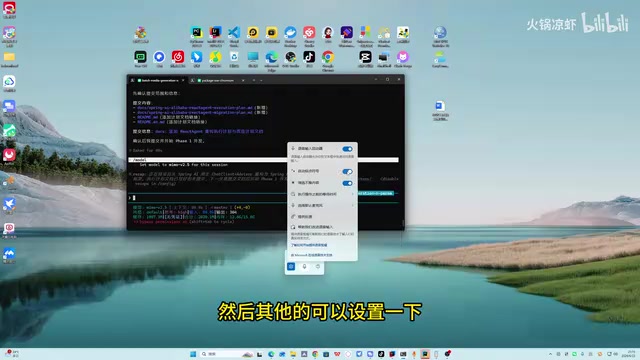
I recommend checking all these options first, then fine-tuning based on your actual usage experience.
Practical Demo: Using Voice Input in Vibe Coding
Scenario 1: Voice Input Directly in the AI Chat Box
Mainstream AI coding tools like Cursor and Windsurf provide Chat panels as the core human-machine interaction interface. Cursor is deeply customized based on VS Code, integrating large models like GPT-4 and Claude, supporting direct AI conversations within the editor for code generation, refactoring, and debugging. Windsurf (launched by Codeium) is known for its Cascade feature, which automatically senses project context and executes multi-step code modifications. What these tools have in common is a text input box where developers describe requirements in natural language, and the AI generates corresponding code changes — and this input box is precisely the primary use case for voice input.
The workflow is very straightforward:
- Click your cursor into the input box of your AI coding tool (such as Cursor, Windsurf, etc.)
- Press Win + H to activate voice input
- Simply speak your requirement aloud, for example: "Help me develop according to the execution plan we've written"
- After speaking, press Win + H again to stop recording
- Review the recognition result, confirm it's correct, then send
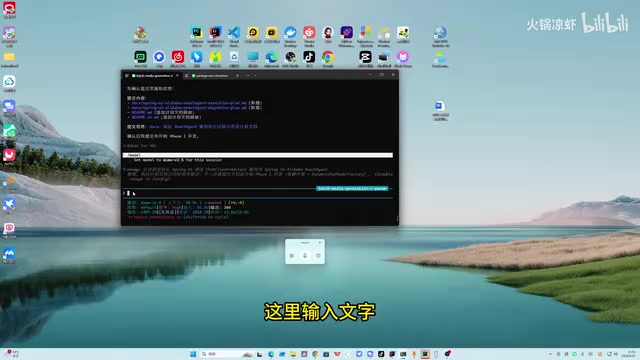
Note one detail: Make sure to stop recording promptly after stating your requirement. Since voice input continuously listens, if you don't manually stop it, anything you say afterward (like talking to yourself or chatting with a colleague) will be captured in the input box.
Scenario 2: Writing Requirement Documents
Voice input isn't just for AI chat boxes — it's equally efficient when writing requirement documents. For example, create a new text file, position your cursor in the editing area, then quickly voice-input your requirement description:
"Help me develop an API endpoint that integrates with GPT Imager 2 requests"

In just a few seconds, you can input a complete requirement description — more than twice as fast as manual typing.
The Trade-off with Automatic Punctuation
During testing, I noticed a minor issue: the automatic punctuation feature can sometimes be "overly eager." When you pause slightly while speaking, the system automatically inserts periods or commas, causing sentences to be inappropriately broken up.
If you find that punctuation placement in the recognition results is off, I recommend turning off automatic punctuation in settings and either adding punctuation manually or letting the AI interpret your semantic breaks on its own. After all, AI's natural language understanding is strong enough to correctly parse your intent even without punctuation.
The Underlying Logic of Efficiency Gains
Why can voice input significantly boost Vibe Coding efficiency? There are three core reasons:
-
Input speed difference: The average person types about 40-80 words per minute, while normal-paced speech can reach 150-200 words per minute — a 2-4x efficiency improvement. There's deep cognitive science behind this: keyboard input involves a multi-step cognitive chain of "internal language encoding → visual-motor conversion → fine finger motor control," with each step consuming working memory resources. Voice output is humanity's most primitive and natural form of information expression, with shorter cognitive pathways and higher degrees of automation. A 2016 Stanford University study showed that voice input on mobile devices was 3 times faster than keyboard input, with a lower error rate.
-
Reduced cognitive load: Describing requirements verbally is closer to the natural thinking process. It eliminates the "idea → organize text → keyboard input" conversion, replacing it with a direct "idea → speak" flow that keeps thinking more fluid. In Vibe Coding scenarios, this advantage is even more pronounced because requirement descriptions are already natural language — there's no need to worry about syntactic precision as with writing code, and AI can tolerate and correct colloquial expressions.
-
Reduced physical fatigue: Repetitive Strain Injury (RSI) caused by prolonged keyboard use is one of the major occupational health risks facing software developers. The most common forms are tendinitis and carpal tunnel syndrome, caused by chronic damage to tendons and nerves from repetitive micro-movements of the fingers and wrists. According to the U.S. Bureau of Labor Statistics, RSI accounts for nearly one-third of all occupational illness reports. In Vibe Coding mode, although you no longer need to write code, the large volume of natural language input can cause similar strain. Voice input fundamentally changes the physical channel of human-computer interaction, shifting the burden from hands to vocal cords — and vocal cords have far greater endurance than finger joints under normal usage intensity.
As the video author put it, the most frequently used keyboard shortcut in the future might no longer be Ctrl+C or Ctrl+V, but Win+H.
Advanced Tips: Taking Your Voice Input Experience to the Next Level
If you want to further optimize your voice input experience, consider the following:
- External professional microphone: Compared to a laptop's built-in microphone, an external microphone significantly improves recognition accuracy, especially in noisy environments. Directional microphones (such as cardioid pattern) effectively filter ambient noise, while USB microphones with noise cancellation offer great value for money.
- Develop voice input habits: Build a rhythm of "stop after finishing a segment" to avoid leaving voice input on for too long and capturing unintended speech.
- Alternative for Mac users: macOS Dictation received a major upgrade in macOS Ventura and later versions, supporting on-device offline speech recognition powered by the Apple Neural Engine for better privacy. Users can activate it by pressing the Fn key or Globe key twice. Additionally, OpenAI's open-source Whisper model is a powerful alternative — trained on 680,000 hours of multilingual audio data, it supports speech-to-text in 99 languages with recognition accuracy approaching human levels on multiple benchmarks. Developers can deploy Whisper locally (using lightweight implementations like whisper.cpp) for completely offline, privacy-friendly, high-accuracy voice input — particularly suitable for enterprise development environments with data security requirements.
- Combine with AI polishing: Voice-input text may not be perfectly formatted. You can quickly input via voice first, then have AI help polish and organize it into a structured requirement document. This "voice dictation + AI refinement" workflow maximizes the strengths of both tools.
Conclusion
The essence of Vibe Coding is "driving development with natural language," and voice input is the most natural form of natural language input. A single Win+H shortcut — zero cost, zero learning curve — can take your Vibe Coding efficiency to the next level. If you spend every day chatting with AI to write code, I strongly recommend trying this tip today.
Key Takeaways
Related articles
DeepSeek Open-Sources DeepInfer: What Is an Inference Framework Actually For?
DeepSeek open-sources its inference framework DeepInfer under Apache 2.0, supporting DeepSeek V4.1 Flash offline inference. This article explains its request scheduling, FlashMLA/DeepGEMM compute optimization, DSPark speculative verification acceleration, and what it means for developers and ordinary users.
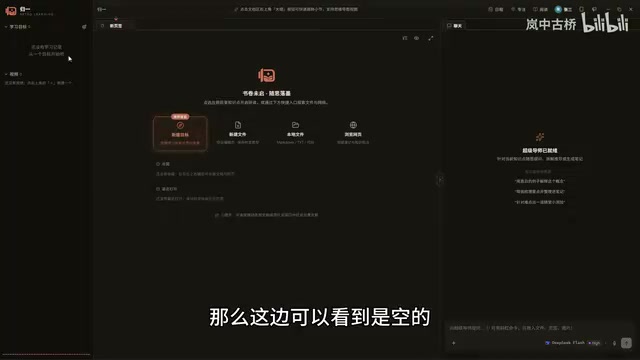
Open-Source AI Learning Agent: A Full Workflow Experience from Topology Graphs to Exam Generation
Explore an open-source AI learning agent: built on DeepSeek API, it constructs knowledge systems via topology graphs, with automatic document generation, notes, super documents, and exams. Learn about its Agent workflow and design highlights.

DeepSeek Whale Girl Open-Source MV Meme: AI Industry Coded Slang About Pivoting to Closed Source
Bilibili's DeepSeek Whale Girl rap MV uses fictional memes to tease the AI open-source vs. closed-source debate, with lyrics full of industry slang. This article explains the meme culture, the Whale Girl symbol, and the open/closed tension.