Enterprise-Grade Claude Code in Practice: A Complete Guide from Setup to Git Workflow

A complete practical guide to Claude Code, from environment setup to enterprise-grade Git workflows.
This article outlines the full path of Claude Code from CLI installation and switching to domestic LLMs, to project analysis, code generation, and conversational Git workflows. It covers CC's command system and engineering collaboration techniques to help developers land enterprise-grade applications quickly.
Claude Code: From a Command-Line Tool to an Engineering Collaborator
Since its debut, Claude Code (hereafter abbreviated as CC) has quickly gained popularity among developers thanks to its powerful code understanding and generation capabilities. Initially, it was just a command-line tool—analyzing project code through conversation, understanding file relationships, and offering modification suggestions. With continuous version iterations, today's CC has evolved from a simple programming assistant into a true "engineering collaborator."
Based on a systematic tutorial from a Bilibili content creator, this article outlines the complete path of CC from environment setup to enterprise-grade practice, helping developers get up to speed and put it into action quickly.
Three Leaps in Core Capabilities
The evolution of CC's capabilities shows three clear directions:
First is the strengthening of context awareness. Early on, CC could only understand a single file, but now you can directly ask detailed questions about the entire project structure, and it can perform global analysis. This shift upgrades CC from a "file-level assistant" to a "project-level partner."
Second is its engineering orientation. In the past, the focus was on programming ability; now CC can implement Skills, build automated testing logic, and even work alongside the SDD (Spec-Driven Development) workflow. Developers can encapsulate the experience accumulated in real work into Skills, thereby significantly boosting efficiency.
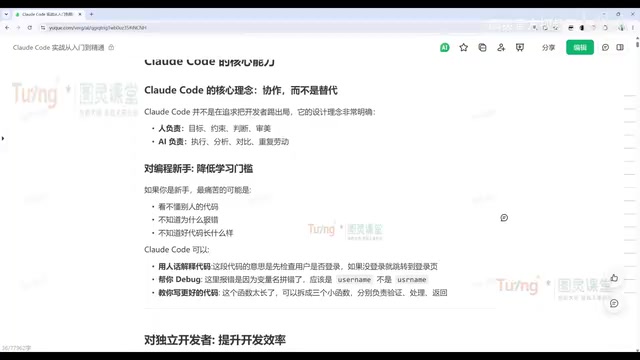
Third is the transition from a conversational tool to a real partner. Unlike the pure conversational mode of the web version, CC can help you modify code, run tests, handle deployments, and even integrate various plugins to complete complex tasks. What humans need to do is "set goals, impose constraints, make judgments, and control aesthetics," while execution, analysis, comparison, and repetitive labor are handed over to the AI.
Value for Different Roles
For programming beginners, CC can help read obscure open-source code, locate errors, and fix tricky production issues. For independent developers, through multi-Agent orchestration, you can simultaneously launch multiple roles such as product, development, testing, and operations, dramatically reducing the time cost of the entire front-end and back-end workflow. For teams, CC's greatest value lies in standardization—using CLAUDE.md to enforce team development standards, building Skills for code review, Issue analysis, and more, reducing communication and Code Review costs, and helping newcomers integrate into projects quickly.
Environment Setup: CLI Installation and Switching to Domestic Models
Installing the CLI Version
CC currently comes in three main forms: the Web version (used directly in the browser, suitable for simple conversations), the CLI command-line version, and the plugin version integrated into editors such as VS Code, PyCharm/IDEA. The tutorial author recommends using the editor plugin as the primary tool for daily development due to its higher level of visualization, but the basic CLI commands are equally worth mastering.
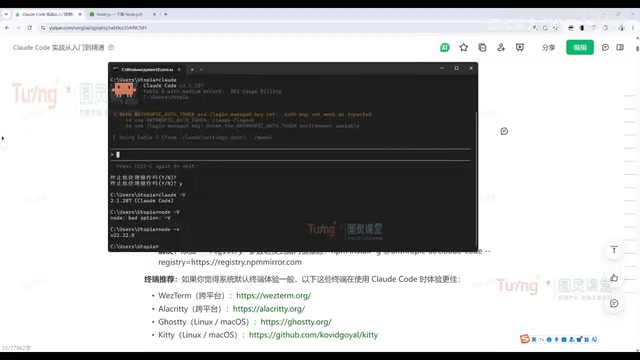
Installing the CLI requires just one command: Mac, Linux, and WSL users use the official script, while Windows users use the irm command. After installation, run claude -v to check the version—seeing the version number means the installation was successful.
Note: You need to set up the Node.js environment before installation. After downloading and installing Node.js, run
node -vto verify (the tutorial uses version 22.2.0). If network issues cause installation to fail, you can resolve them by switching to a domestic npm mirror source.
Switching to Domestic Large Language Models
Due to network reasons, access to CC's official models is not stable enough within China. The tutorial provides a practical solution—using the CC Switch tool to quickly switch to a domestic LLM.
The specific steps are as follows:
- Download the corresponding version from the CC Switch project page (Windows users can choose the portable version to unzip and use, or the MSI installer version; note the distinction between ARM and AMD64 architectures)
- Open the CC Switch interface and select the Claude Code configuration item
- Add a domestic model (DeepSeek V4, Kimi, Tongyi Qianwen, etc. are recommended), only filling in the API key while keeping the other addresses at their defaults
- Enable the configuration, check "Local Routing" in the settings, and restart CC for it to take effect
After switching, use the /model command in the conversation window to view and select models such as DeepSeek. Domestic models still have some gap in performance compared to the official models, but they offer better stability and are more friendly to domestic developers.
Getting Started Quickly: From Project Analysis to Code Generation
The Most Common First Step: Analyzing the Project Structure
When using CC for project development, the most common first action is to have it analyze the project structure. Whether you're a new intern facing an unfamiliar codebase or encountering a certain open-source project for the first time, you just need to switch to the project directory and enter "help me analyze the project," and CC will sort through each module one by one. In the demonstration, it accurately identified an admin management system built on a Vue front end.
For users unfamiliar with CC's capabilities, you can also directly ask through conversation, "What can I do with CC," and let it teach you how to use it—meaning you don't even need to consult the official documentation.
Code Generation and Modification Workflow
The tutorial demonstrates having CC implement the bubble sort algorithm in Python and automatically add a test file. CC's modification workflow follows a fixed process:
- Locate files: automatically find the files that need modification in the project
- Show changes: present the modifications to the user for preview
- Approval confirmation: the user approves changes one by one, or accepts them all at once
- Execute changes: implement the code changes after confirmation
Understanding this "locate—show—approve—execute" loop is the foundation for using CC efficiently.
Git Workflow: Making Version Management as Simple as a Conversation
CC's deep integration with Git is an important manifestation of its engineering capabilities. Through a hands-on demonstration, the tutorial completes the entire Git workflow without manually writing a single line of code—relying solely on conversation.
Full Conversational Operations
Typical scenarios include:
- Creating a project and pushing it: "Help me create a personal tech blog project, using only HTML+CSS+JS," followed by "commit and push the code"
- Pulling a remote repository: "Help me pull the XX project," and CC automatically invokes Git commands to complete it
- Creating a branch for development: "First create a dev branch, then implement three different sorting algorithms in the dev branch, commit and push"
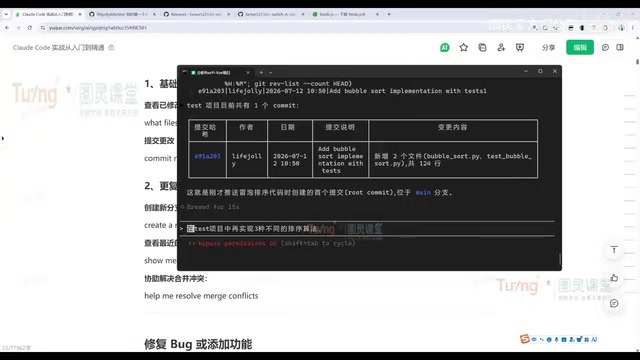
- Querying commit history: "Query how many Commits the Test project has, output in table format"
Throughout the process, developers don't need to memorize tedious Git commands—they just describe their needs in natural language, and CC invokes the corresponding commands to complete operations such as committing, pushing, and branch switching.
Automated Bug Discovery and Fixing
A more advanced usage is building an automated loop of "discover problems—organize problems—solve problems." The tutorial demonstrates having CC analyze the problems in the dev branch code and output them to an issue.md file—it identifies multiple dimensions such as correctness issues, discrepancies between documentation and implementation, and portability issues. Then you simply say, "Refer to issue.md to fix all the problems, commit and push," and CC can fix them one by one.
CC's problem-handling logic is: understand context → analyze code logic → locate the root cause → implement a solution → run tests to verify the fix. This process essentially achieves automated Code Review.
Command System: Internal Slash Commands and External Headless Mode
CC's commands fall into two categories. Internal slash commands are used within the conversation window:
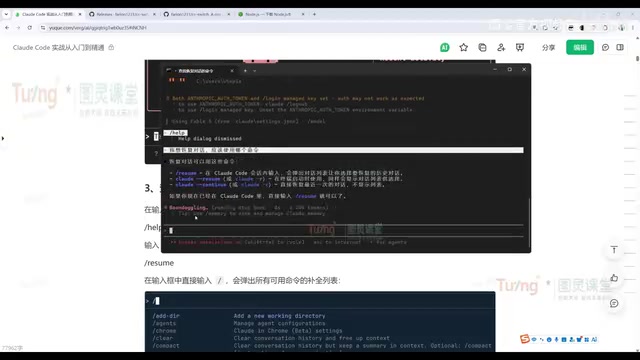
/clear: clear the current conversation and start a new session/help: view the list of available commands/model: switch models (e.g., switch to DeepSeek)
External commands are executed directly in the terminal:
claude -p: headless mode, executing a single task without entering an interactive conversation. For example,claude -p "analyze the Test project structure"outputs the result directly to the consoleclaude -c/claude --continue: resume the previous conversation, used frequentlyclaude -r/claude --resume: view the history conversation list and choose one to resumeclaude commit: directly invoke Git to commit code externally
Headless mode is especially suitable for scripted, automated scenarios, embedding CC's capabilities into existing engineering workflows.
Conclusion
Claude Code has completed its transformation from a command-line code assistant into a full-process engineering collaborator. For individual developers, it's an efficiency multiplier; for teams, it's a vehicle for unified standards and knowledge accumulation.
Mastering environment setup (especially the domestic model switching solution), conversational workflows, Git integration, and the command system is the first step to unlocking its enterprise-grade value. What truly determines success or failure is no longer how many commands you memorize, but whether you can clearly set goals, impose constraints, and make sound judgments.
Related articles

Alibaba Launches Happy Shrimp: AI-Powered One-Click Complete Song Generation
Alibaba launches Happy Shrimp, an AI music generation tool that creates complete songs with lyrics, melody, arrangement, and vocals from natural language descriptions. In-depth analysis of its core features, differentiation from competitors like Suno, and industry impact.
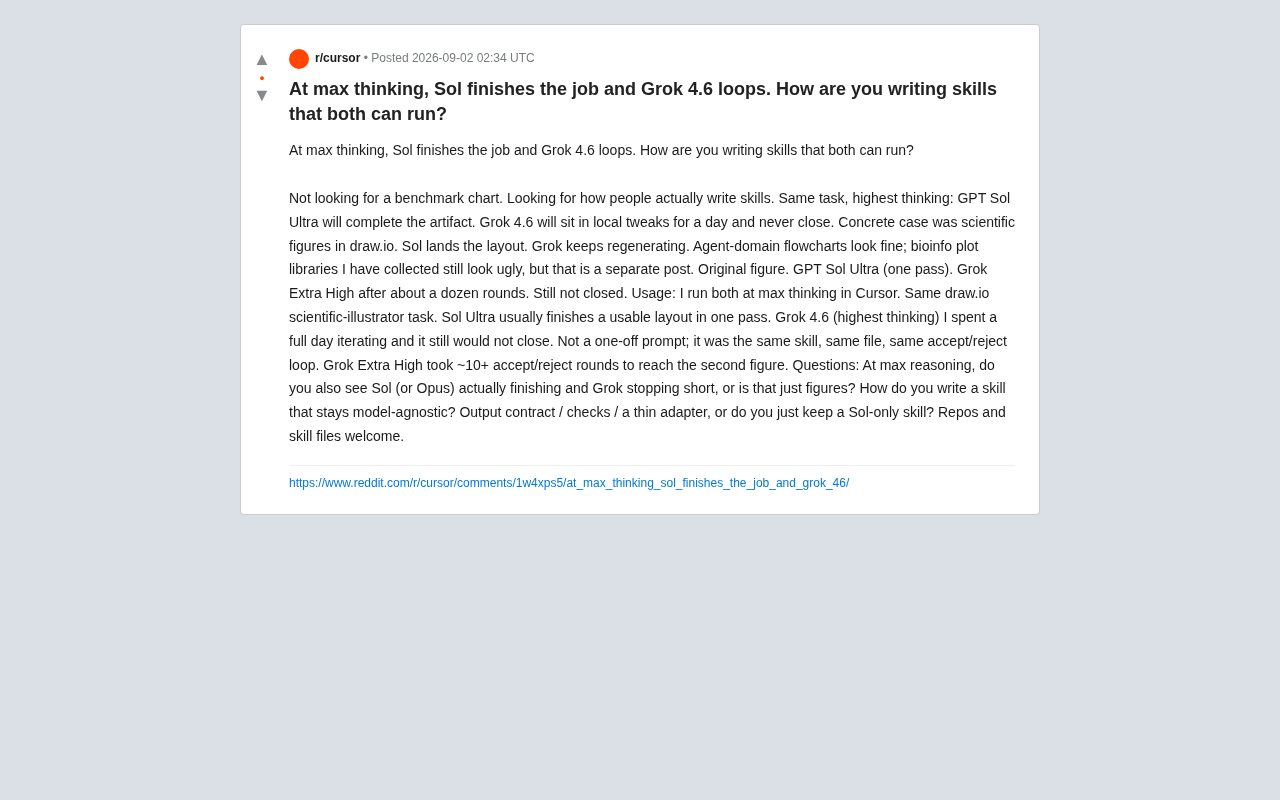
GPT Sol Ultra vs Grok 4.6: Real-World Task Completion Benchmark in Reasoning Mode
Developer benchmark reveals GPT Sol Ultra completes draw.io scientific diagrams in one iteration while Grok 4.6 fails to converge despite maximum reasoning mode, exposing that reasoning depth ≠ task delivery capability.
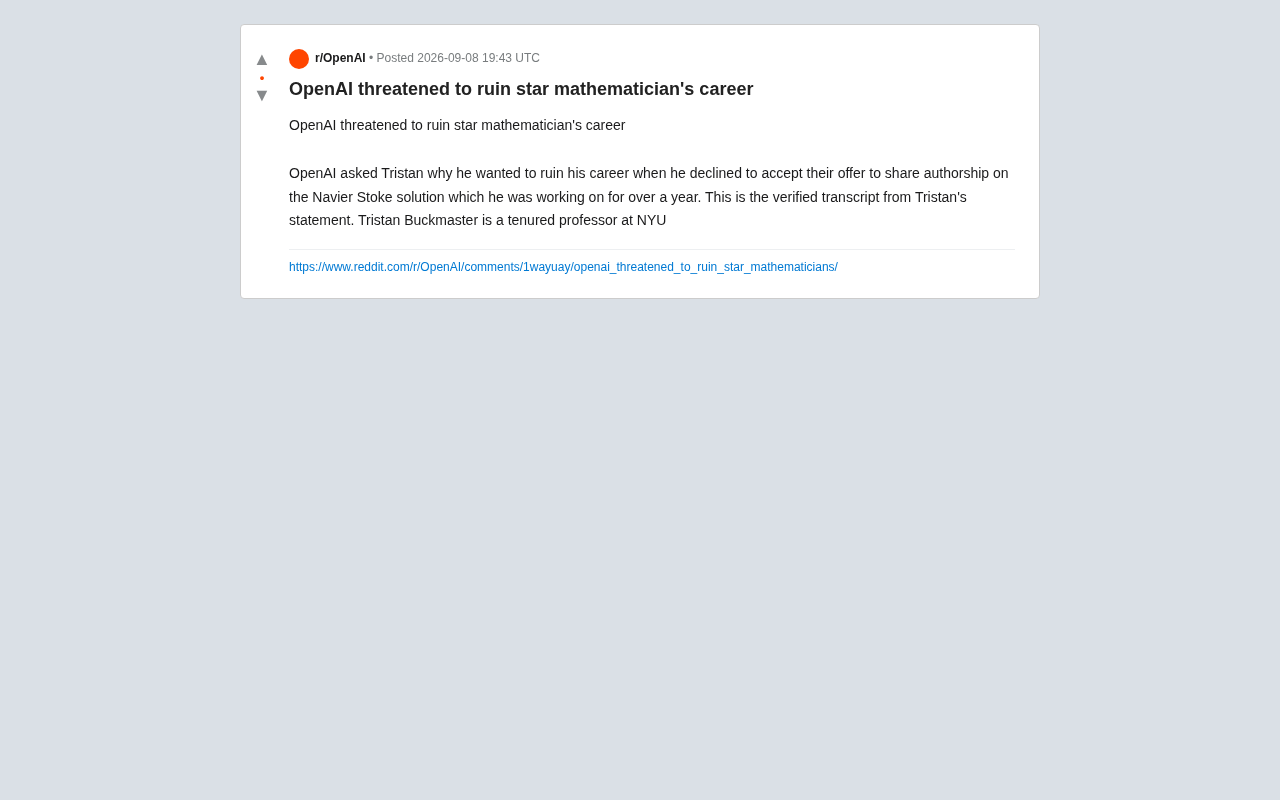
OpenAI Authorship Dispute: The Battle Over Academic Boundaries in the AI Era
OpenAI disputes authorship with mathematician Tristan Buckmaster over Navier-Stokes research, raising ethical questions about AI involvement in science.