First Steps into AI: Setting Up a Python Data Science Environment with Anaconda

Set up a Python AI/data science environment in three steps using Anaconda, Prompt, and Jupyter Notebook.
This article offers a beginner-friendly guide to setting up a Python environment for AI and data analysis using Anaconda, which bundles NumPy, Pandas, Matplotlib, and other key libraries out of the box — eliminating version conflicts and manual installs. It recommends Python 3 and covers two essential tools post-installation: Anaconda Prompt for managing libraries via conda commands, and Jupyter Notebook for interactive, browser-based coding. Once these three steps are complete, learners can focus entirely on algorithms and data rather than environment troubleshooting.
Setting up your environment is often the first major hurdle when learning artificial intelligence and data analysis. Many beginners get stuck right here — you need to install a whole suite of Python libraries like NumPy, Pandas, and Matplotlib, and doing it manually one by one is not only tedious but prone to version conflicts and errors. This article walks through a beginner-friendly environment setup strategy built around one core idea: use the Anaconda integrated environment to resolve all dependencies in one shot.
Why Anaconda Instead of Installing Libraries Manually
If you're doing AI or data analysis, you'll almost certainly need Pandas, NumPy, and Matplotlib. Without an integrated environment, you'd have to download Python from the official site and then install each library individually via pip. That approach works, but the barrier is high for newcomers — any hiccup with networking, versioning, or dependency resolution can bring everything to a halt.
Anaconda's value lies in bundling everything together. It ships with the Python interpreter and the most commonly used data science libraries already included. Once Anaconda is installed, NumPy, Pandas, and Matplotlib are already there — no extra steps needed. For anyone who wants to focus on learning algorithms and data analysis rather than wrestling with environment setup, this is the most hassle-free option.
Which Version to Choose: Python 2 or Python 3
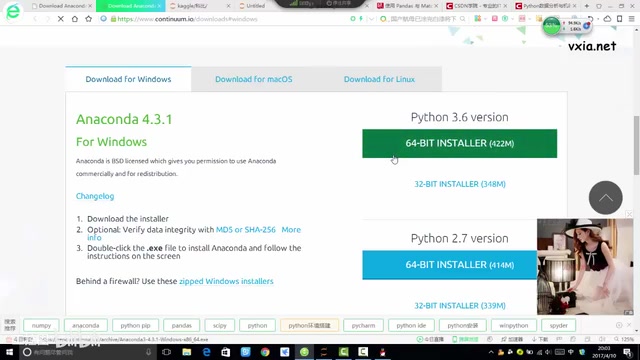
Anaconda provides installers for Windows, macOS, and Linux, with most users on Windows. During download, you'll see two Python versions available — one newer, one older. For data analysis and AI learning, the differences between the two aren't really the focus — the syntax variations won't affect your understanding of core concepts.
That said, if you don't have any Python environment on your machine yet, it's best to go with the newer Python 3 version. Download the 64-bit installer for a 64-bit system, or the 32-bit version for a 32-bit system. This gives you better long-term compatibility and avoids the risk of working with a deprecated version.
If downloading from the official site is slow (overseas servers can be sluggish at times), look for a domestic mirror. The installer is a standard .exe file — just double-click it, click through the prompts, choose your installation directory, and you're done.
Under the hood, Anaconda is powered by a package and environment management system called conda. Compared to Python's built-in pip, conda's key advantage is that it can manage not just Python packages but also non-Python system-level dependencies (such as C/Fortran-compiled numerical libraries), and it automatically checks version compatibility before installing anything — significantly reducing the risk of a new library breaking existing ones. conda also supports creating isolated "virtual environments": different projects can use different versions of Python and their respective libraries without interfering with each other. This feature may not be immediately useful to beginners, but it becomes invaluable as your projects multiply.
Two Core Tools After Installation
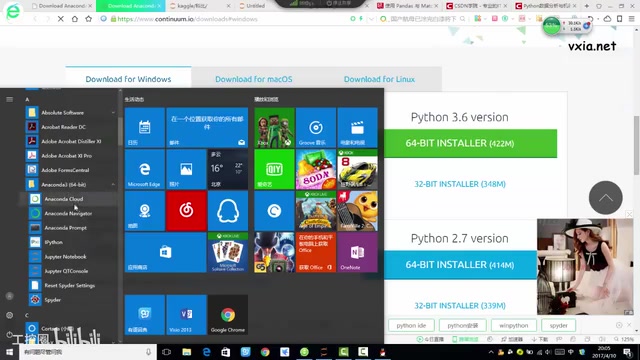
Once Anaconda is installed, you'll find an Anaconda folder in the Start menu containing several executable programs. For beginners, only two really matter: Anaconda Prompt and Jupyter Notebook. Master these two and you have everything you need for day-to-day learning.
Anaconda Prompt: The Command Line for Managing Libraries
Anaconda Prompt looks a lot like the Windows CMD terminal, but it's specifically designed to work within the Anaconda environment. CMD is a general-purpose system terminal, while Prompt is focused on Anaconda-related operations — they serve different purposes.
Once you open Prompt, the most commonly used commands are:
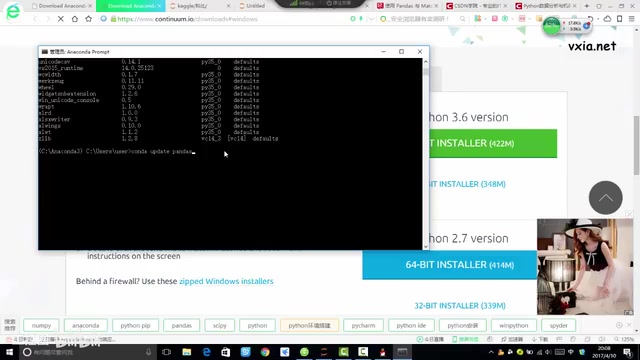
conda list: Lists all libraries currently installed in your Anaconda environment. Running this returns a long list of results, where you can verify that Pandas, Matplotlib, and other libraries are already in place.conda install <library-name>: Installs a new library. Just type the command followed by the library name and hit Enter.conda update <library-name>: Updates a specific library. The libraries bundled with Anaconda may be slightly outdated, and this command lets you upgrade them to newer versions.
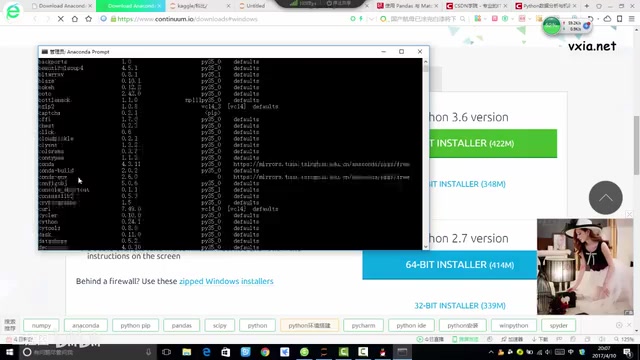
When you run conda list, you'll find Pandas, Matplotlib, and similar libraries in the output — confirming that Anaconda has indeed pre-installed the most commonly used packages. Later, when you get to TensorFlow, you'll need to run conda install once to add it; for most other learning scenarios, no additional library installation is necessary.
Jupyter Notebook: Writing Code in the Browser
The second essential tool is Jupyter Notebook — this is where you write and run code, serving as your interactive execution environment. Unlike traditional IDEs such as PyCharm, Notebook runs in a browser as an interactive programming environment.
Opening Notebook brings up a web-based interface. To create a new file, click the "New" button in the upper right corner, where you can choose to create a new folder or a new Python file. Selecting Python 3 creates a script file where you can write and run code right away.
Notebook's strength is its "write and run immediately" workflow — code can be executed in blocks with results visible instantly. This makes it especially well-suited for data analysis, where you frequently experiment and need to observe intermediate outputs. It's exactly why Notebook has become the standard tool in data science and AI education.
Jupyter Notebook files use the .ipynb extension (short for Interactive Python Notebook). Its core design revolves around cells: each cell can independently contain either code or written explanations (in Markdown) and can be executed on its own. When a code cell is run, its output — including charts — appears directly below it, creating an "executable document." This design lets you interweave code, results, and written commentary just like a lab report, making it easy to iterate and share. Unlike IDEs such as PyCharm, which require running an entire script file, Notebook lets you re-run a single cell, dramatically improving the efficiency of exploratory analysis.
Wrapping Up: Get Your Environment Running Before You Start Learning
Environment setup may feel tedious, but it's a step you can't skip on the path to learning AI. Without a properly configured environment, none of the code exercises that follow will be possible. The entire process can be summarized in three steps: download and install Anaconda (Python 3 recommended) → use Anaconda Prompt to manage and update libraries → write code in Jupyter Notebook.
Once these three steps are done, you'll have a ready-to-use data analysis and AI learning environment. You can direct your full attention to understanding algorithms and processing data — without burning energy on dependency headaches.
Related articles

OpenCode Makes DeepSeek V4.1 Flash Free, AI Daily Roundup
AI daily roundup: OpenCode makes DeepSeek V4.1 Flash free, StepFun Step5 Preview and Ling 3.1 Flash open-sourced, Grok Voice 3.0 tops speech leaderboard, Matrix Game 4.0 open-sourced, and the EU opens its first AI Act enforcement probe into OpenAI and Anthropic.

DeepSeek V4.1 Flash 1017 Released: Reasoning and Coding Upgrades, Search and Fetch API Now Available
DeepSeek releases V4.1 Flash 1017 with major gains in reasoning, coding, and agentic tasks, plus web search and fetch APIs at 5 yuan per 1,000 requests. Tencent Hunyuan open-sources High Memory 2.0, Perplexity open-sources multimodal decision models, and MOFCOM seeks comments on AI export catalog.

DeepSeek V4.1 Flash Gray Test Comparison: Godot + Rust Box Selection Feature Hands-On
A Bilibili creator compares the suspected DeepSeek V4.1 Flash gray-test version using a real Godot + Rust project: same prompt for Blender-style box selection, old version mis-selects on click and rolls back, new version gets it right in one pass.