Free 32GB VRAM GPU on Kaggle: A Complete Guide to Running Local AI Models at Zero Cost
Run local AI models for free using Kaggle's dual T4 GPUs, Ollama, and a Cloudflare tunnel.
This guide walks through a completely free local LLM deployment setup: use Kaggle's dual NVIDIA T4 GPUs (32GB VRAM, ~30 hrs/week) to install Ollama in a Notebook, pull models from Hugging Face (including uncensored models in Q4/Q6 quantization), expose the local Ollama API via a Cloudflare tunnel, and connect it to AI clients like Hermes Agent. Key details include prefixing shell commands with `!`, executing cells in order, and retrying on first-run timeouts. Ideal for personal learning and model testing, but not suited for continuous production use due to weekly quota limits and ephemeral tunnel URLs.
Many people want to run uncensored or large-parameter AI models locally, but hit a very practical wall: consumer GPUs simply don't have enough VRAM to load the models. This guide is based on a hands-on tutorial shared by a Bilibili creator, and walks through a completely free solution — using Kaggle's dual T4 GPUs (32GB VRAM combined), paired with Ollama and a Cloudflare tunnel, to turn a local model into an API service any AI client can call.
Why Kaggle for Free GPU
Kaggle is a data science community owned by Google. Once you register and verify your phone number, you can enable GPU acceleration in Notebooks. The most useful perk: you can select two NVIDIA T4 GPUs, each with 16GB of VRAM, totaling 32GB — with about 30 free hours per week.
According to the tutorial author's experience, this quota is more than sufficient for personal testing. He ran sessions across multiple weeks without ever hitting the 30-hour cap — the key habit is closing the Notebook immediately after each session, so idle time doesn't silently drain your hours. Compared to cloud GPU services that charge by the hour, this setup is extremely friendly for developers and hobbyists on a budget.
One important note: if you skip phone number verification, the platform will typically only assign a CPU-only environment, which won't meet the compute requirements for AI model inference. So verifying your phone number and selecting "GPU T4 x2" under the "Accelerator" option in Notebook settings is a required first step.
The NVIDIA T4 is a GPU designed for data center inference workloads, built on the Turing architecture, with 16GB GDDR6 VRAM and 320 Tensor Cores per card. Compared to consumer GPUs (like the RTX 4090 with 24GB), the T4 has slightly lower memory bandwidth and FP32 throughput — but its advantages are low power consumption and extremely wide availability in cloud environments. Dual T4s with a combined 32GB VRAM means you can load significantly larger models. For example, a 70B-parameter model requires roughly 35–40GB of VRAM after Q4 quantization — a single T4 can't handle it, but dual T4s largely can. Quantization refers to compressing model weights from 32-bit or 16-bit floating point down to lower-precision integers like 4-bit or 6-bit, trading a small amount of accuracy for a dramatic reduction in VRAM usage. Q4 means 4-bit quantization; Q6 means 6-bit, which is more accurate but uses more VRAM.
How Kaggle Notebooks Work
Kaggle's Notebook environment differs from a traditional server — there's no persistent terminal window. Instead, it's organized as a series of "cells," each containing a single block of code. Each command needs to go into its own cell and be executed by clicking the play button.
This introduces a common beginner mistake: when running shell commands in a Notebook, you must prefix the command with an exclamation mark !, otherwise the system treats it as Python code and throws an error. The tutorial author emphasizes this repeatedly — installation, model pulling, and all similar operations must follow this syntax.
The core idea behind the entire workflow is: Kaggle is only used for one-time environment setup; day-to-day usage doesn't happen here. Once the model is running and the tunnel is established, all interaction moves to external AI clients like Cloud Code or Hermes Agent — you never need to return to the Notebook interface.
Installing Ollama and Pulling a Model
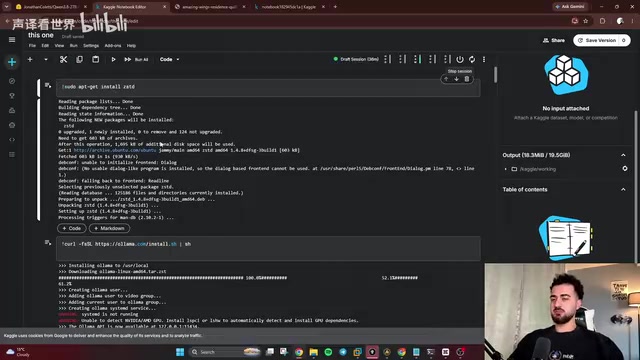
With the environment ready, the first step is installing Ollama's dependencies, then running the install script to deploy Ollama itself. After installation, you can't call it directly like a local terminal — instead, run the ollama serve command to start the service.
When the screen prints a message saying Ollama has started and is listening on a port and local IP, the service is running correctly. At this point, Ollama is providing an API service inside the Kaggle server — but it's listening locally only, and the outside world still can't reach it.
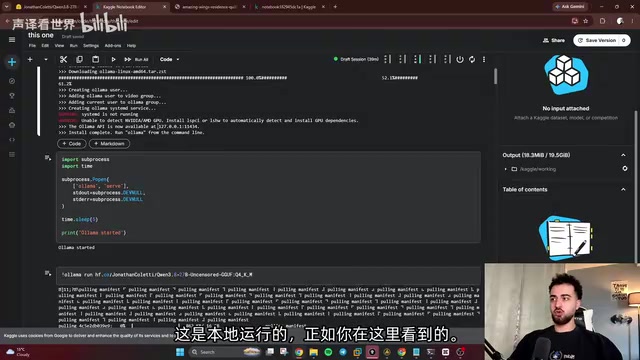
For model downloads, Hugging Face is the recommended source. When filtering for "text generation" models on Hugging Face, you can directly select "Ollama" as the deployment method, and the page will generate the corresponding pull command. If you're looking for a specific type (such as uncensored models), you can filter with tags like other:uncensored and sort by downloads to find popular options.
The author notes that the page uses green checkmarks to indicate which quantization versions can run on a T4 GPU. He tested both Q6 and Q4 quantization and found both responded smoothly and quickly. Copy the pull command, paste it into the Notebook (remember the exclamation mark), and download progress will appear line by line.
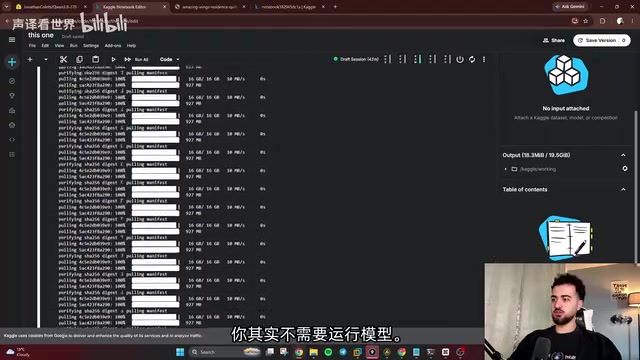
Worth noting: after the model finishes downloading, it will attempt to run automatically — but you can stop this immediately. Since we're not planning to chat directly inside Kaggle, we just need the model files in place.
Ollama is an open-source local LLM runtime framework. Its core function is wrapping model downloading, loading, inference, and API serving into a unified command-line tool. It has a built-in HTTP interface compatible with the OpenAI API (listening on localhost:11434 by default), so virtually any client that supports a "custom OpenAI endpoint" can call it without any extra configuration. The model format Ollama primarily supports is GGUF (a quantized model format defined by the llama.cpp project), and models on Hugging Face marked with the "Ollama" deployment method are already packaged in this format. The ollama serve command starts the background API service process, while ollama run starts an interactive chat interface on top of it. The reason the tutorial stops the auto-run after pulling the model is that we only need the API interface provided by serve — we don't need an interactive session inside the Notebook.
Opening External Access with a Cloudflare Tunnel
This is the most critical piece of the entire setup. Ollama is currently only listening inside the Kaggle server; external clients have no way to reach its API. The solution is to use a Cloudflare Tunnel, which maps the local IP to a publicly accessible URL.
The steps: download the Cloudflare tool, unpack it, then run the tunnel command pointing at the local Ollama port. Once the command executes successfully, Cloudflare returns a public URL — this is the "Base URL" you'll enter into your AI client.
The author recommends opening that URL directly to verify: if the page shows "Ollama is running," the tunnel is working. If it doesn't display correctly, go back to the top of the Notebook and re-execute the cells one by one — many failures come down to having skipped clicking the play button on one of the cells.
Cloudflare Tunnel (formerly Argo Tunnel) is a reverse proxy service provided by Cloudflare. Here's how it works: a client program called cloudflared runs locally and proactively establishes an outbound, encrypted connection to Cloudflare's edge nodes. Because the connection flows outward, no inbound ports need to be opened, and it's not blocked by NAT or firewalls. When external users access the public URL assigned by Cloudflare, requests are forwarded through Cloudflare's edge nodes back to the local service. The mode used here is Cloudflare Tunnel's "Quick Tunnel" — no account login required. A random subdomain URL is generated instantly when you run the command, and it expires immediately when the session ends. This is the root cause of the limitation mentioned later — "you need to reconfigure every time you restart." If you want a fixed URL, you'll need to register a Cloudflare account and create a named tunnel.
Connecting to an AI Client — Real Results
The final step is connecting the service to an AI client. Using Hermes Agent as an example, find the "Custom Endpoint" option in settings and fill in the following:
- Base URL: Paste the public URL generated by Cloudflare, and make sure to append
/v1at the end - API Key: Enter
OLAMA(local Ollama doesn't validate a real key) - Model: Select the downloaded model from the dropdown
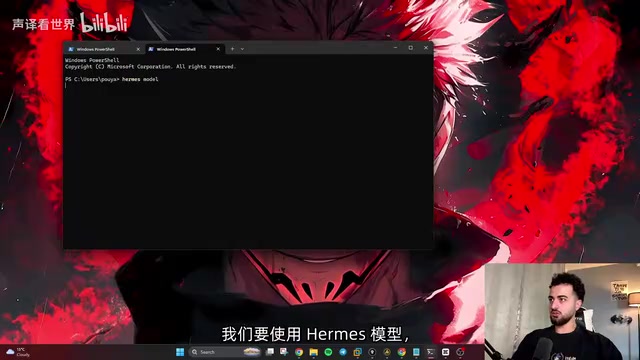
The first time you run the model after configuration, you'll very likely hit a timeout — this is normal. The author says this happens to him almost every first run; just send the message again and it responds fine.
What surprised the author most was the speed comparison: he had previously run the exact same model on a paid cloud server, and this free Kaggle setup was actually faster. For anyone who just wants to experience local LLMs without paying for cloud GPU time, this is genuinely a high-value path.
Use Cases and Limitations
At its core, this approach "borrows" Kaggle's free compute for model inference — making it well-suited for personal learning, model testing, and lightweight use. But it's important to be clear-eyed about its boundaries:
The 30-hour weekly quota rules it out for 24/7 production environments. The Cloudflare quick tunnel URL expires when the session ends, requiring reconfiguration on every restart. And Kaggle Notebooks have an auto-disconnect mechanism for idle sessions — leaving it unattended for too long may interrupt the service.
In short, it's an excellent free sandbox, but not a substitute for a real deployment. If you want to try uncensored models, test different quantization levels, or simply get a feel for local LLMs without a high-end GPU, this zero-cost solution is absolutely worth trying.
Related articles
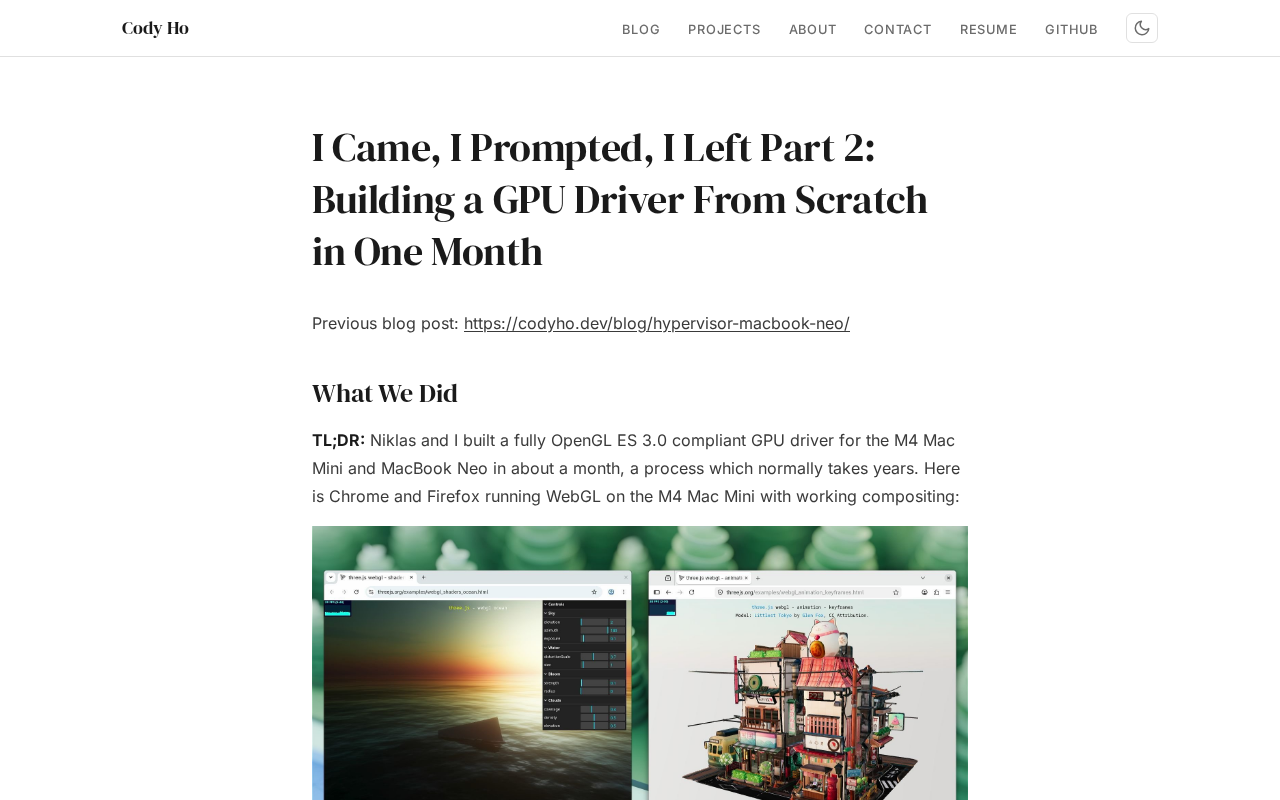
The Technical Challenges of Developing a Linux GPU Driver for the M4 Mac Mini in One Month
Developer Cody Ho built a Linux GPU driver for the M4 Mac Mini in one month. We break down the core challenges of reverse engineering Apple Silicon's closed GPU architecture.
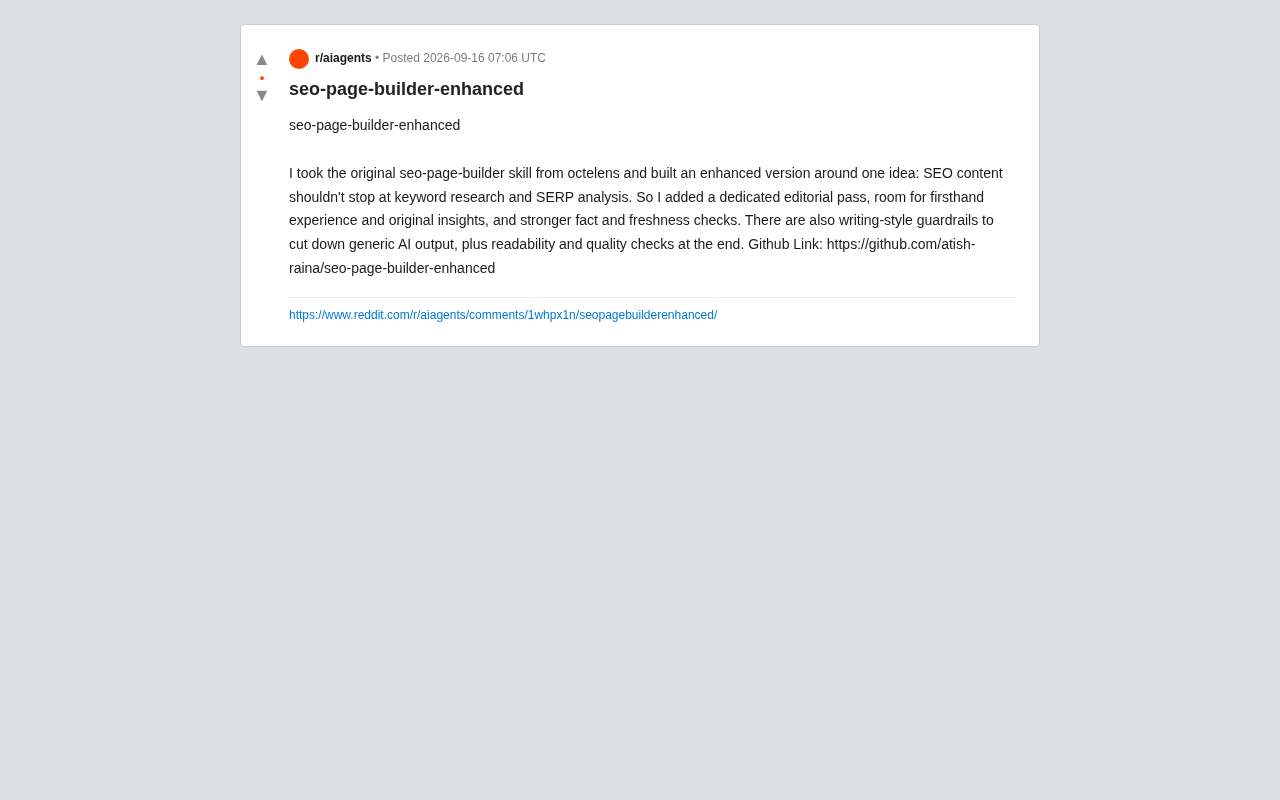
SEO Page Builder Enhanced: Breaking Free from Generic AI-Generated SEO Content
An open-source enhanced SEO content tool that adds editorial review, firsthand experience, fact-checking, and writing-style guardrails to combat generic AI content.
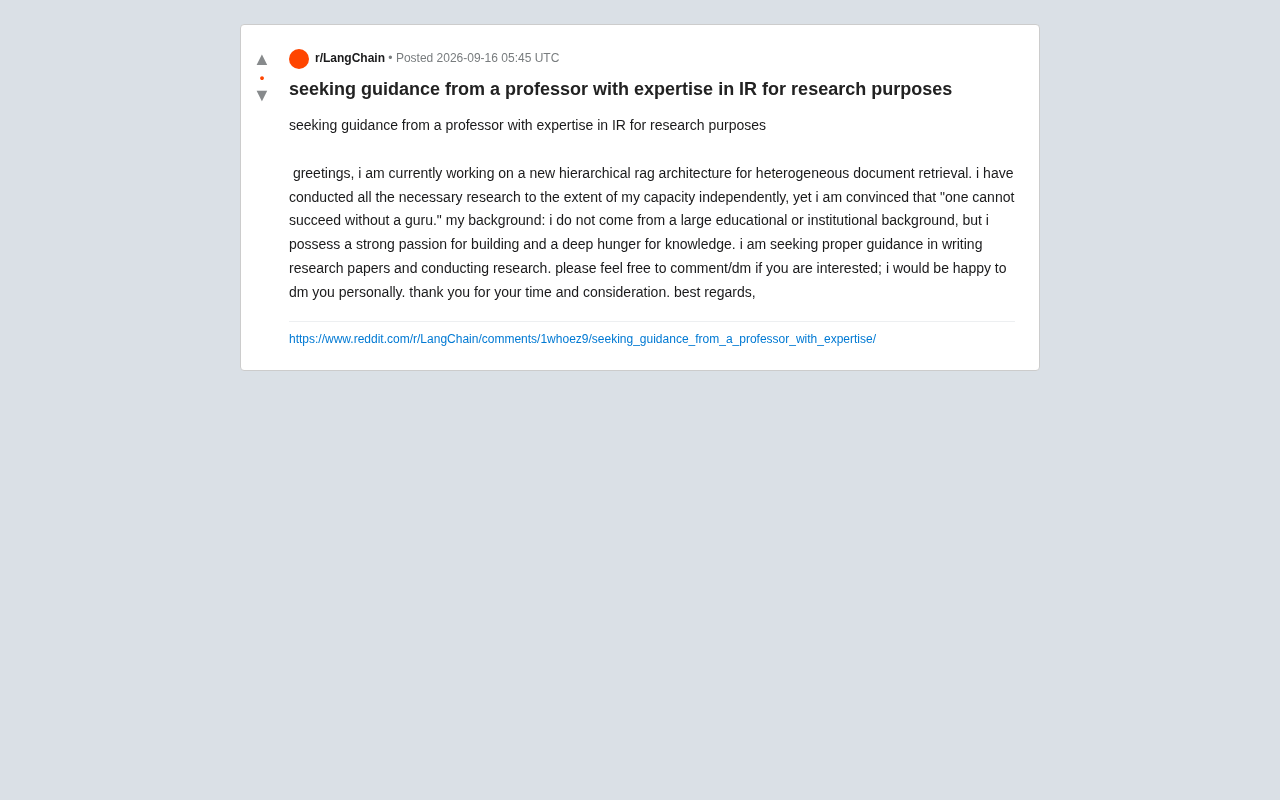
Hierarchical RAG Architecture Research: How Independent Developers Can Break Into Academic Research
An indie developer on Reddit seeks IR professor guidance for hierarchical RAG research. This article explores the technical background and practical advice for independent AI researchers facing academic barriers.