Getting Started with Claude Code: A Practical Guide to Environment Setup and Git Workflow Automation

A practical beginner's guide to Claude Code setup, domestic model switching, and Git workflow automation.
This guide walks through Claude Code's evolution into an AI engineering collaborator, covering CLI installation, switching to domestic LLMs, project analysis, and fully automated Git workflows including bug detection and fixing—helping beginners quickly harness AI-assisted programming.
Claude Code (hereafter referred to as CC) has evolved from a simple command-line code analysis tool into an AI engineering collaborator capable of spanning the entire workflow—from requirements and development to testing and deployment. Based on hands-on tutorial content from a Bilibili creator, this article systematically walks through CC's core capabilities, environment setup methods, and the most commonly used Git workflow automation practices in enterprise-level projects, helping beginner developers get up to speed quickly.
From Code Assistant to Engineering Collaborator
Claude Code started out as merely a command-line dialogue tool used to analyze project code, understand file relationships, and offer modification suggestions. With rapid version iteration, today's CC has fully strengthened its capabilities and is vastly different from its early form.
The most significant changes are reflected across three dimensions:
- Context awareness: Upgraded from understanding a single file to analyzing an entire project structure. You can directly ask architecture-level questions and get thorough analysis.
- Engineering orientation: No longer limited to writing code, it can implement complete engineering workflows such as SDD (Spec-Driven Development), automated testing, and code review.
- Customizability: Through the Skill mechanism, developers can distill their real-world work experience into reusable skill modules.
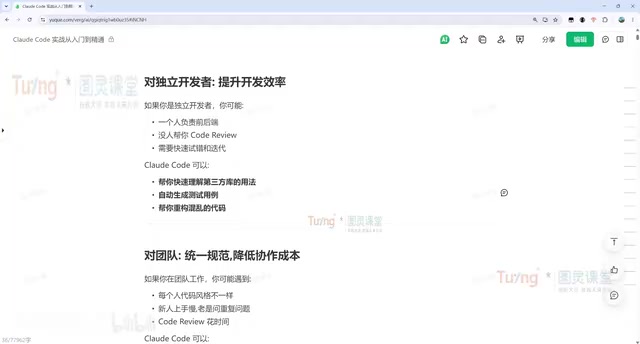
In other words, CC is transforming from a tool aimed at programming scenarios into a genuine work partner. The human's role focuses on setting goals, defining constraints, and making judgments, while the AI handles executing analysis, comparing solutions, and resolving repetitive labor. For independent developers, CC can significantly cut down the time cost of frontend and backend development; through multi-Agent orchestration, it can even play multiple roles—such as product, development, testing, and operations—within the same project.
The Value of Claude Code for Team Collaboration
For teams, CC's core value lies in unifying standards and reducing communication costs. Common pain points in team development—inconsistent code style, slow onboarding of newcomers, veterans interrupted by repetitive questions, and time-consuming Code Reviews—can all be effectively alleviated with CC.
With the CLAUDE.md configuration file, teams can enforce development standards across all members; through custom Skills, CC can be dedicated to analyzing Issues, checking code compliance, and performing Code Reviews. Even when a project lacks documentation, CC can quickly analyze the entire codebase, helping newcomers understand the big picture. Tasks that previously required installing numerous automated build plugins can now be handed off to AI.
Claude Code Environment Setup: Installation and Switching to Domestic Models
CC currently comes in three main versions: a Web version usable directly in the browser, a command-line CLI version, and a plugin version integrated into IDEs such as VS Code and PyCharm. For day-to-day enterprise development, the IDE plugin version offers the best experience, but mastering the basic CLI commands remains essential, since the visual interface is essentially just calling the underlying commands.
Installing the Claude Code CLI
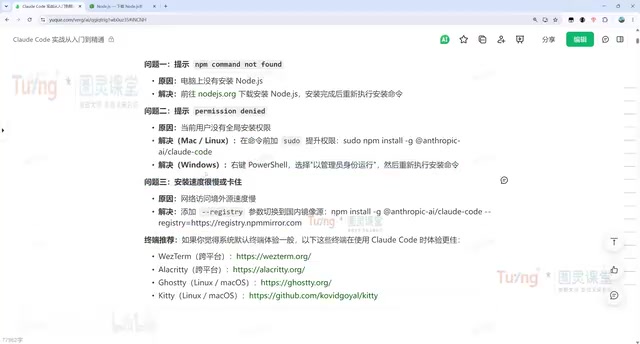
Installing the CLI is very simple and can be done with a single command. For Mac, Linux, and WSL environments, use the corresponding shell installation command; for Windows, use the dedicated command. After installation, run claude -v to check the version number—if it displays correctly, the installation was successful.
A prerequisite for installation is having a properly configured Node.js environment. You should first download and install Node.js, then run node -v to confirm. If you encounter network issues during installation, it's recommended to switch to a domestic npm mirror, which will greatly improve download speeds.
Switching to Domestic LLMs
Due to network reasons, access to CC's official models is restricted in China. In practice, it's recommended to switch to a domestic LLM for a more stable experience. The tutorial recommends using the open-source tool CC Switch for quick switching.
The specific process is as follows:
- Download the version for your architecture from the GitHub Release page (Windows users can choose the portable version to extract and use directly, or opt for the MSI installer)
- Open the CC Switch interface, click the plus sign to add a model configuration, select a domestic model such as DeepSeek, Kimi, or Tongyi Qianwen, and enter the API key
- Enable local routing in the settings, then restart CC for it to take effect
After switching, you can confirm the currently used model via the model option in the window. Although domestic models still have a certain performance gap compared to the official models, their advantage is stability, which is sufficient for most development scenarios.
Hands-On Practice: Project Analysis and Basic Dialogue
When using Claude Code to develop enterprise-level projects, the first step is usually to have it analyze the project structure. Simply switch to the project directory and enter "analyze this project for me," and CC will lay out the project type (such as a Vue frontend admin management system), the various functional modules, and file relationships. This is especially useful for newcomers who have just joined or developers encountering a project for the first time.
For basic code writing, such as "implement a bubble sort algorithm in Python," CC will automatically complete the code and include tests. You can then add further requirements on top of this, such as "help me add a more complete test file," and it will modify the original file accordingly.
CC's Modification Workflow
CC follows a fixed process for each modification:
Locate relevant files → Display the changes → Wait for user approval and confirmation → Execute the modification
Users can approve changes one by one, or choose to accept all of them. Understanding this workflow is an important prerequisite for using CC efficiently.
Git Workflow Automation in Practice
One of Claude Code's most practical capabilities is making Git operations as natural as everyday conversation. Developers no longer need to memorize cumbersome Git commands—they simply express their intent in natural language.
From Creating a Project to Pushing Code
The following is a complete demonstration of an automated Git workflow:
- Ask CC to "create a personal tech blog project implemented with HTML+CSS+JS"
- Pull a remote repository via dialogue: "pull the Test project from GitHub for me"
- "Move the local files into the Test project and commit and push the code"
Throughout the process, CC automatically calls the corresponding Git commands, with no need for the user to interfere with the underlying operations.
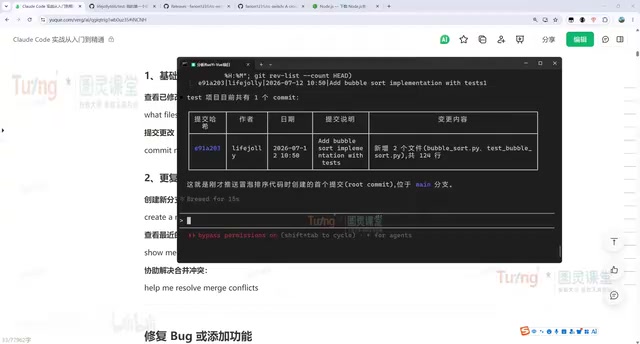
You can also query commit history, such as "query how many commits the Test project has, and display each commit's description in a table"; you can also create a new branch for feature development, such as "first create a dev branch, implement three different sorting algorithms in it, then commit and push." CC will first create the branch, write the code, run automated tests, and finally automatically commit and push to the corresponding branch.
Automated Bug Detection and Fixing
Going further, CC can achieve a closed loop of automated bug detection and fixing:
- Detecting issues: Ask CC to "analyze what problems exist in the dev branch code and output them to issue.md," and CC will autonomously locate the issues and organize them into a document, covering correctness issues, discrepancies between documentation and implementation, portability issues, and more
- Fixing issues: Then ask it to "refer to issue.md, fix all the problems, and commit and push," which completes the entire fixing process—all without manually changing a single line of code
CC's problem-handling logic is: understand the context → analyze the code logic → locate the root cause → propose a solution → automatically run tests to verify the fix. This process is essentially also a form of automated code review practice.
Claude Code Common Commands Cheat Sheet
CC's commands fall into two categories: external terminal commands and in-dialogue slash commands.
External terminal commands:
| Command | Description |
|---|---|
claude -v | View the current version number |
claude -c | Resume the last conversation (most commonly used) |
claude -r | Display the list of historical conversations and select one to resume |
claude -p "task description" | Headless mode—directly execute a single task and output the result |
claude commit | Directly invoke Git to commit code |
claude update | Update to the latest version |
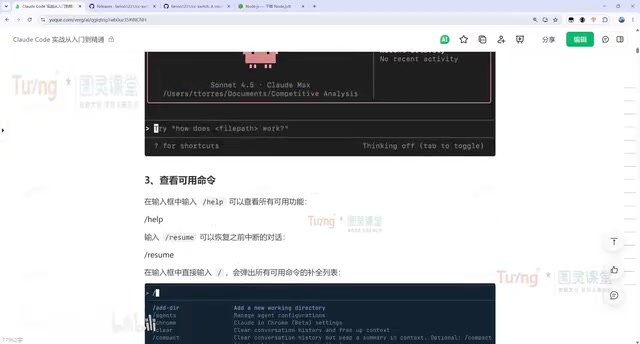
In-dialogue slash commands:
/login, /resume, /clear, and others are commonly used slash commands, among which /clear is used to clear the current conversation history and start a fresh session.
It's worth mentioning that if you're unsure how to use a certain command, you can simply ask CC directly via dialogue (such as "which command should I use to resume a conversation"), and it will provide the answer directly, with no need to consult the official documentation.
Conclusion
The value of Claude Code lies not in replacing developers, but in freeing them from tedious, repetitive labor. From environment setup and project analysis to fully automated Git workflows, CC already has the capability to become a "genuine work partner."
For teams and independent developers looking to improve engineering efficiency, mastering CC's core usage and workflows will become a key skill in the AI era. More advanced capabilities—such as deeper multi-Agent collaboration, MCP service integration, and Skill customization—can further unlock its potential in enterprise-level scenarios.
Related articles

Alibaba Launches Happy Shrimp: AI-Powered One-Click Complete Song Generation
Alibaba launches Happy Shrimp, an AI music generation tool that creates complete songs with lyrics, melody, arrangement, and vocals from natural language descriptions. In-depth analysis of its core features, differentiation from competitors like Suno, and industry impact.
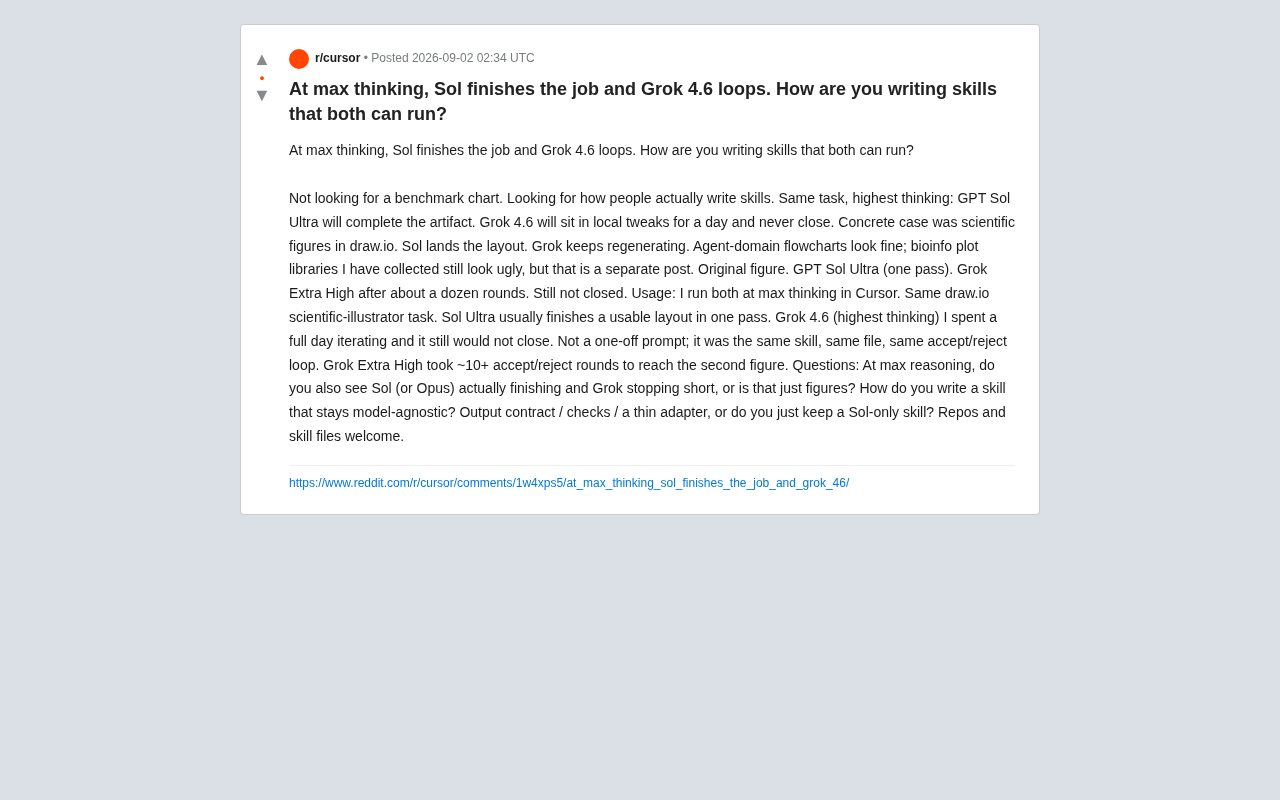
GPT Sol Ultra vs Grok 4.6: Real-World Task Completion Benchmark in Reasoning Mode
Developer benchmark reveals GPT Sol Ultra completes draw.io scientific diagrams in one iteration while Grok 4.6 fails to converge despite maximum reasoning mode, exposing that reasoning depth ≠ task delivery capability.
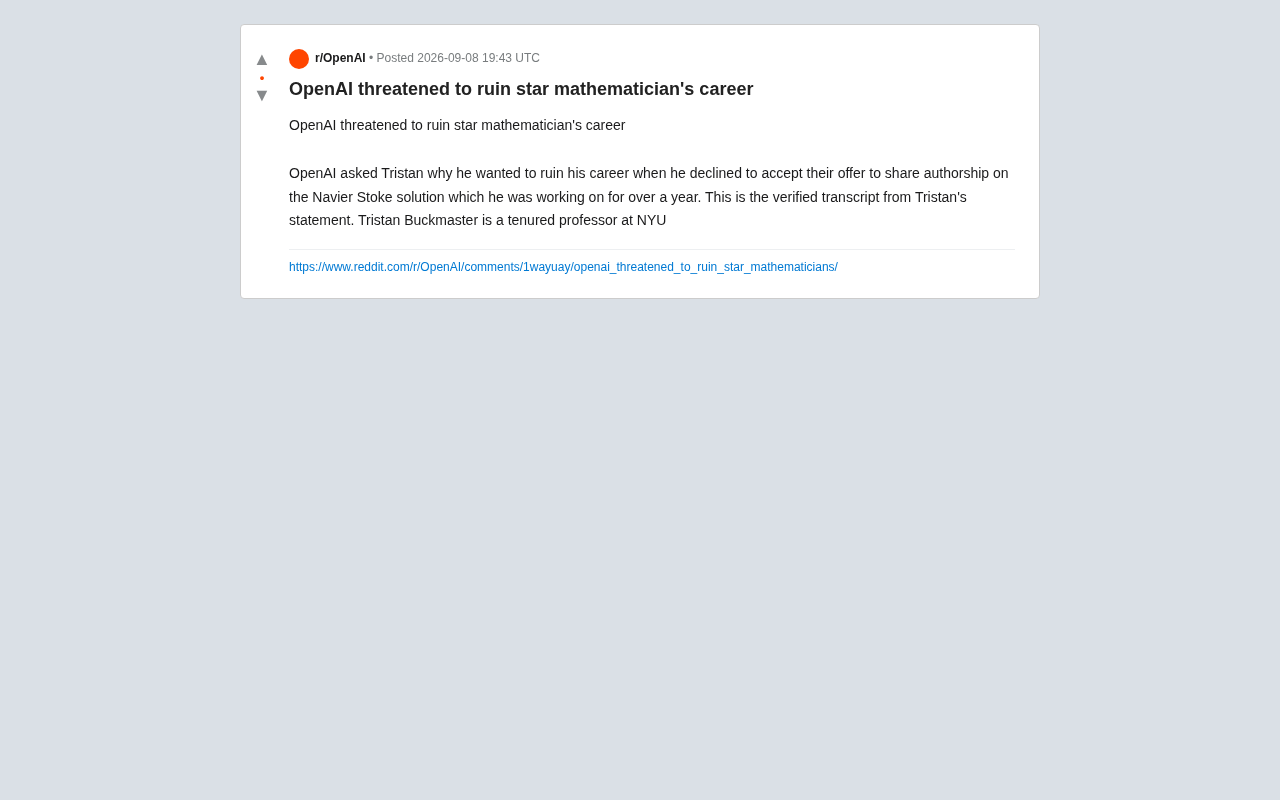
OpenAI Authorship Dispute: The Battle Over Academic Boundaries in the AI Era
OpenAI disputes authorship with mathematician Tristan Buckmaster over Navier-Stokes research, raising ethical questions about AI involvement in science.