Getting Started with Claude Code: Environment Setup, Common Commands, and Git Workflow in Practice

A comprehensive beginner's guide to Claude Code covering setup, commands, and Git workflow automation.
This article provides a complete getting-started guide for Claude Code, covering its evolution from a simple CLI tool to a full engineering collaboration platform. It walks through environment setup, switching to domestic LLMs via cc-switch, essential session management commands, project analysis workflows, and demonstrates how to complete entire Git workflows through natural conversation — from branch creation to automated code review and bug fixing.
Claude Code: From Command-Line Tool to Engineering Collaboration Platform
Claude Code (referred to as CC below) has seen continuously rising popularity since its release, but many people still think of it as merely a "command-line code editor." In reality, with rapid version iterations, CC has evolved from a tool purely focused on programming scenarios into a genuine development collaboration platform.
The original CC was just a command-line version with capabilities limited to analyzing project code, understanding file relationships, and offering modification suggestions. Today's CC has made leaps across multiple dimensions:
- Enhanced Context Awareness: Previously limited to understanding single files, it can now directly answer detailed questions about entire project structures and provide thorough analysis;
- Engineering-Oriented: No longer focused solely on coding ability, it can now implement complete engineering workflows including SDD (Specification-Driven Development), automated testing, build deployment, and more. SDD is a development methodology driven by specification documents as its core. Unlike traditional TDD (Test-Driven Development), it emphasizes defining clear behavioral specifications, interface contracts, and acceptance criteria before coding, with AI then automatically generating code and tests based on these specifications. In the context of AI-assisted development, developers only need to describe "what the system should do," and AI implements the specific logic according to the specifications — the human role shifts from "code writer" to "specification definer";
- Customizable Capabilities: Through the Skill mechanism, real-world development experience can be distilled into reusable skill modules, significantly improving efficiency. Skills are essentially a high-level reusable prompt engineering template system — developers can encapsulate frequently used work patterns (such as specific code review processes, architectural design templates, test generation strategies, etc.) into standardized Skill files for team sharing. This borrows from the DevOps concept of "Infrastructure as Code," turning development experience into "code" as well, so knowledge no longer depends on individual memory but becomes version-controlled, iterable engineering assets.
In other words, the user's role transforms into "establishing goals, imposing constraints, making judgments, and maintaining aesthetic standards," while AI handles execution, analysis, comparison, and repetitive work.
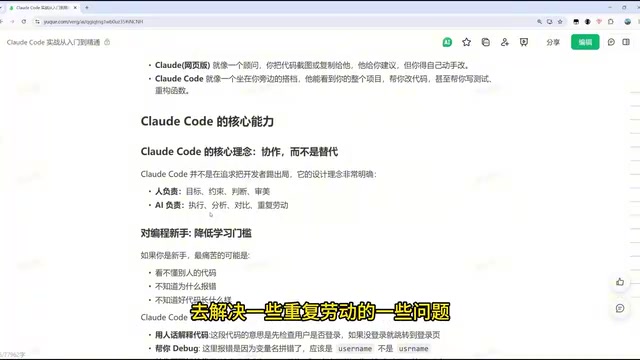
Value for Different Audiences
Programming Beginners: When facing complex open-source project code or tricky production errors, CC can not only explain code but also discover legacy bugs, locate performance issues, and fix them one by one. This is significant for new developers — the traditional learning path requires beginners to spend months understanding project architecture before they can start contributing code, while CC compresses this process to conversation-level interactions.
Independent Developers: Whether frontend or backend, they can leverage multi-Agent orchestration to launch multiple development roles — product, development, testing, review, etc. — achieving engineering automation and dramatically reducing the previously high time costs for solo developers. The core idea of multi-Agent orchestration comes from microservice architecture in distributed systems — breaking a large task into multiple smaller tasks, each handled by a specialized Agent. For example, a "Product Manager Agent" handles requirements analysis and user story writing, a "Developer Agent" handles code implementation, a "Testing Agent" handles writing and running test cases, and a "Review Agent" handles code quality auditing. This pattern allows independent developers to simulate a complete team collaboration workflow without constantly switching mental contexts between multiple roles.
Team Collaboration: Teams can unify development standards through CLAUDE.md, and build various Skills to handle architecture documentation generation, code standards checking, Issue analysis, Code Review, and more. CLAUDE.md is CC's project-level configuration file, placed in the project root directory, functioning similarly to .editorconfig or .eslintrc, but targeting the AI assistant rather than the IDE or Linter. Teams can define technology stack descriptions, coding standards, architectural constraints, naming conventions, prohibited patterns, etc. CC reads this file first as a "system prompt" when loading a project, ensuring all AI-generated code follows the team's unified standards. Even without project documentation, newcomers can quickly understand the entire project's details with CC's help.
Environment Setup: Installing Claude Code and Switching to Domestic Models
CC currently comes in three main versions: a Web version (used directly in the browser, suitable for simple conversations), a CLI command-line version, and a plugin version integrated into VS Code, Cursor, PyCharm, and other editors. The plugin version in VS Code or PyCharm is recommended since visual operations are more efficient, though basic commands still need to be mastered. The three versions serve different purposes: the Web version is good for quickly validating ideas and simple Q&A; the CLI version suits server environments and automation script integration; the plugin version is the best choice for daily development, as it can directly read the context of files open in the editor, reducing the overhead of manually specifying paths.
CLI Installation Steps
Installing the CLI itself only requires one command, but the prerequisite is having Node.js configured. Node.js is a JavaScript runtime environment based on Chrome's V8 engine. CC's CLI tool is built on Node.js and distributed via npm (Node Package Manager), which is why you need to install Node.js before installing CC:
- Go to the Node.js official website to download and install (version 22.x recommended — this is the current LTS long-term support version with the best stability and compatibility), then run
node -vto verify; - Choose the installation command corresponding to your operating system (Mac / Linux / WSL use one set of commands, Windows uses another);
- After installation, run
claude -vto check the version number — seeing the version means success.
If you encounter network issues installing via npm, you can switch to a domestic mirror source for acceleration (such as the Taobao mirror https://registry.npmmirror.com). Updating is very simple — just run claude update. CC will also proactively suggest upgrading when it detects a new version.

Switching to Domestic LLMs: cc-switch Configuration Tutorial
Due to network restrictions, Claude's official models are inconvenient to access from China. The solution is to use the cc-switch tool to quickly switch to domestic large models like DeepSeek V4, Kimi, Tongyi Qianwen, etc. cc-switch works by starting a local proxy service that intercepts API requests from CC and forwards them to domestic model API endpoints, while handling request format adaptation (since different model providers have different API formats).
Configuration steps:
- Download the architecture-appropriate version from the cc-switch project's release page (regular users choose AMD64, i.e., x86_64 architecture, suitable for most computers with Intel/AMD processors; choose the ARM version for Apple Silicon Macs or ARM servers);
- Extract and use directly (or choose the msi installer for a traditional installation flow);
- Open the interface, select the Claude Code type, click the plus sign to add a new model (e.g., DeepSeek), enter the API key (other addresses typically don't need modification);
- Click enable and turn on the switch, then check "Local Routing" in settings;
- Restart CC, and you can use the
/modelcommand to see and switch between configured models.
Domestic models have advantages in stability and access speed, with no concerns about connection interruptions from network fluctuations. However, there's still a gap compared to Claude's official models in complex code reasoning, long-context understanding, and instruction-following precision. If using an official subscription (such as Claude Pro or Max plans), follow the official login flow — note that official accounts have daily Token usage limits, and exceeding them triggers rate-limited mode.
Quick Start: Common Commands and Project Analysis
Mastering basic commands is a prerequisite for using CC efficiently. You can view all available commands via /help, but a cleverer approach is to directly ask in conversation: "What command should I use to resume a conversation?" CC will teach you how to do it, virtually eliminating the need to consult official documentation. This reflects a unique advantage of CC as an AI tool: it is its own documentation system.
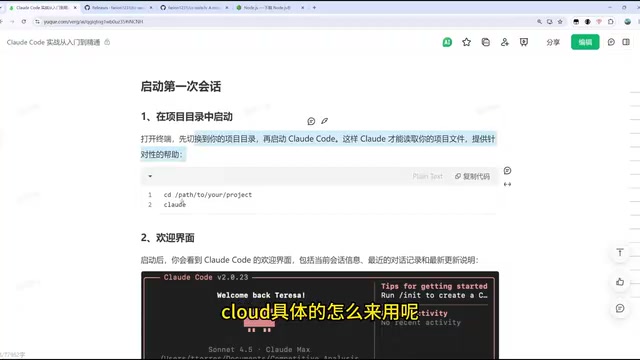
Key Session Management Commands
claude --resume: View the historical conversation list and choose one to resume. CC retains recent conversation history, with each conversation having a unique ID;claude -c(continue): Directly resume the last conversation — this is the most frequently used command. It fully preserves the previous context, allowing you to seamlessly continue your previous work after an interruption;/clear: Clear the current conversation history and start a fresh session. When accumulated context causes slow or confused responses, clearing and starting over is a common strategy.
The importance of session management lies in the fact that AI capability is highly dependent on context quality. A clean, focused conversation context significantly improves CC's output quality, while a context cluttered with irrelevant information can cause the AI to "lose its way."
First Step for Enterprise Projects: Analyzing Project Structure
In actual development, the first step with CC is usually to have it analyze the project structure. After navigating to the project directory, type "Analyze my project," and CC automatically identifies the project type (e.g., a frontend admin management system based on Ruoyi-Vue) and analyzes each module. Ruoyi-Vue is a widely-used open-source admin framework in China, built on Spring Boot + Vue.js, with a project structure representative of enterprise-level Java Web applications, including modules for permission management, code generation, and system monitoring.
CC's approach to analyzing projects works as follows: it first scans root directory configuration files (such as package.json, pom.xml, build.gradle, etc.) to determine the tech stack, then recursively analyzes the directory structure and key files, ultimately building a logical model of the project. This is especially useful for new interns or developers encountering an unfamiliar project for the first time — without existing documentation, CC can map out the full project picture. Additionally, you can have it write basic code (like a bubble sort algorithm), and after writing, CC automatically generates tests and runs them for verification.
Claude Code's Standard Modification Workflow
For each modification, CC follows a fixed process:
- Locate Files: Automatically find the relevant files in the project that need modification — CC uses file names, import relationships, function call chains, and other information for intelligent location;
- Display Changes: Present the changes to the user in diff format, clearly marking added, deleted, and modified lines;
- Approval Confirmation: Users can approve or reject changes one by one. This step is the critical point for humans to maintain control — CC won't directly modify files without authorization (unless the user has enabled auto-approve mode);
- Execute Changes: Apply the changes after confirmation.
If tests exist in the project, CC also automatically runs tests to verify the fix. Understanding this workflow is fundamental to mastering CC. The core philosophy behind this process design is "AI suggests, humans decide" — it ensures that AI's efficient execution capability complements human judgment, rather than letting AI completely take over the development process.
Git Workflow in Practice: Completing Development Entirely Through Conversation
This section demonstrates how to make Git operations as simple as everyday conversation — the entire process requires no manual code changes, all driven through dialogue. Git is currently the world's most widely-used distributed version control system. While its commands are powerful, the learning curve is steep (over 30 commonly-used commands, with parameter combinations making it even more complex). CC's conversational interaction perfectly solves this pain point.
From Project Creation to Code Push
Complete Git workflow demonstration: first have CC create a pure HTML+CSS+JS personal tech blog project, then through the dialogue "Help me pull," pull from an empty GitHub repository, followed by "Move files to the Test project, commit and push the code." CC automatically invokes the corresponding Git commands (git clone, git add, git commit, git push, etc.) to complete the entire flow — users never need to memorize Git command details.
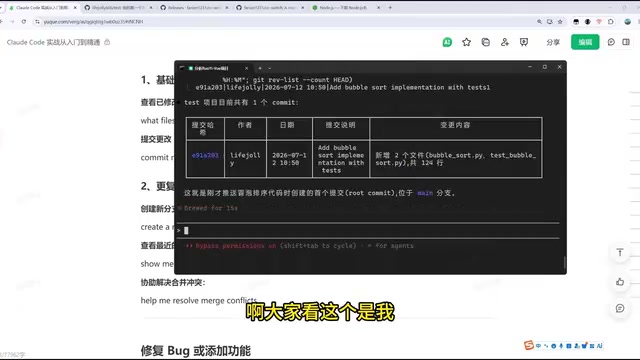
Branch Management and Automated Bug Fixing
CC can also handle more complex scenarios: creating a dev branch, implementing three sorting algorithms in the branch, automatically running 12 tests all passing, then committing and pushing — the complete flow. Branch management is a core practice in team collaboration — typically the main branch (main/master) stays stable, and all new features and bug fixes happen in independent branches, merged back to the main branch via Pull Requests. CC reduces the operational cost of this workflow to nearly zero.
Even more valuable is the automated problem discovery and fix loop:
- Have CC analyze what issues exist in the dev branch code and output an
issue.md; - CC automatically identifies multiple categories of problems including correctness issues, documentation-implementation mismatches, design and portability concerns;
- Then tell it to "fix all issues referencing issue.md, commit and push" — CC locates and fixes them one by one.
This is essentially an automated Code Review and fix cycle. Traditional Code Review requires senior engineers to spend significant time reading code line by line, identifying issues, and writing comments, followed by developers fixing them one by one — the entire cycle can take days. CC compresses this process to the minute level. CC's problem-handling logic consistently follows: understand context → analyze code logic → locate root cause → provide solution → run tests to verify.
Headless Mode: Direct Command-Line Invocation
Besides entering an interactive conversation window, you can use claude -p (headless mode) to execute single tasks directly as commands. The concept of Headless Mode borrows from the browser domain — headless browsers (like Puppeteer, Playwright) can perform web operations without a graphical interface. CC's headless mode allows developers to embed AI calls into Shell scripts, CI/CD pipelines (such as GitHub Actions, Jenkins), scheduled tasks (Cron Jobs), and other automation flows.
For example, claude -p "Analyze the project structure of the Test directory" outputs results directly to the console without entering a conversation window — ideal for scripting and automation scenarios. Similarly, claude commit can invoke Git commits directly outside of conversation. More advanced uses include: calling headless mode in Git pre-commit hooks for code standards checking, having CC automatically analyze root causes of test failures in CI flows, or automatically generating changelogs before deployment.
Summary
Claude Code has grown from a command-line programming assistant into an engineering collaboration tool covering the entire "analysis — development — testing — commit — fix" workflow. For beginners, it lowers the barrier to understanding complex projects; for independent developers, it enables multi-role parallel engineering automation; for teams, it brings the possibility of unified standards and knowledge accumulation.
This article focused on the getting-started essentials — core capabilities, environment setup, common commands, and Git workflows. More advanced topics such as MCP services (Model Context Protocol — an open standard from Anthropic for standardizing communication between AI models and external tools, databases, and APIs, enabling CC to connect to virtually any external system), SubAgent coordination (where the main Agent can spawn multiple subtasks for parallel processing, similar to a multi-threaded operating system model), Skill customization, Hooks workflow automation (an event-driven mechanism similar to Git Hooks that automatically triggers preset scripts before or after CC performs specific operations), and engineering integration with domestic tools will be explored further in hands-on project articles.
Related articles
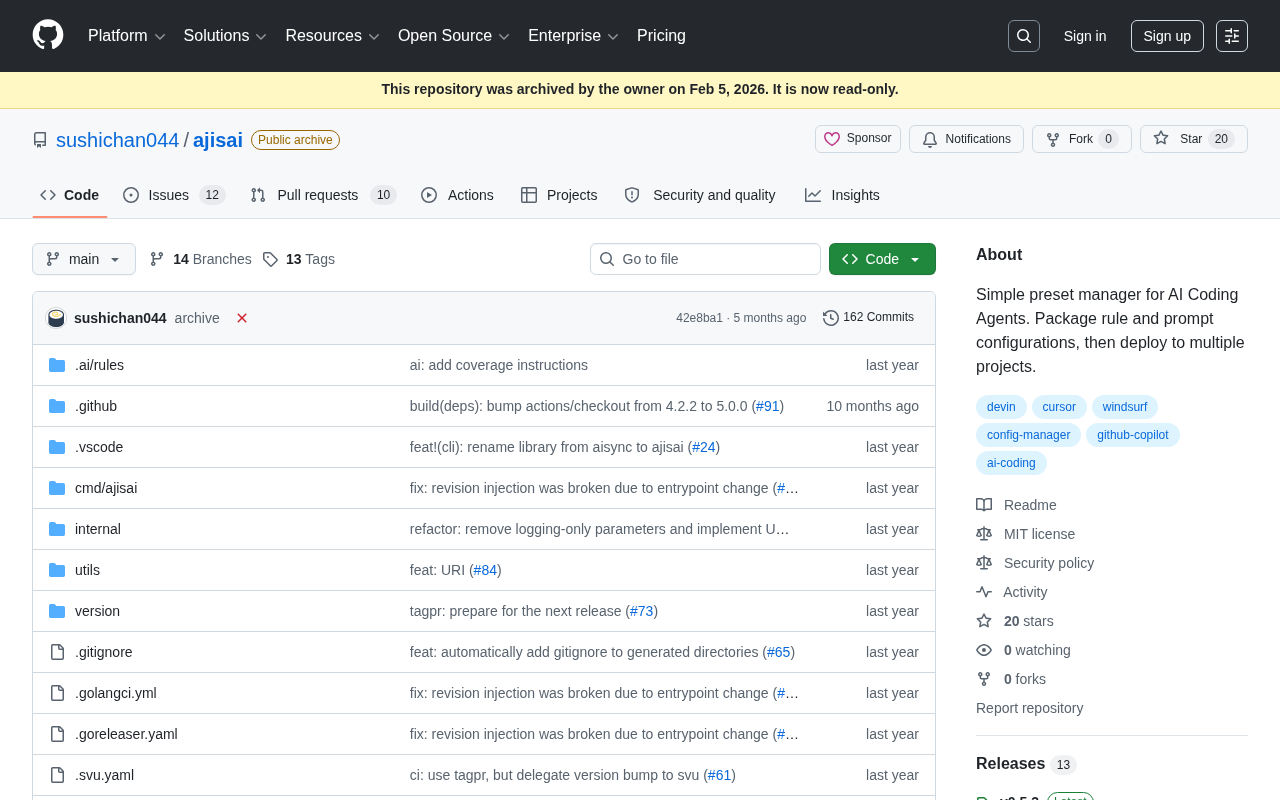
ajisai: A Preset Management Tool for Unifying Rules and Prompts Across AI Coding Assistants
ajisai is a Go-based preset manager for AI coding assistants like Cursor and Claude Code. Package rules and prompts once, deploy everywhere. Early-stage but promising.
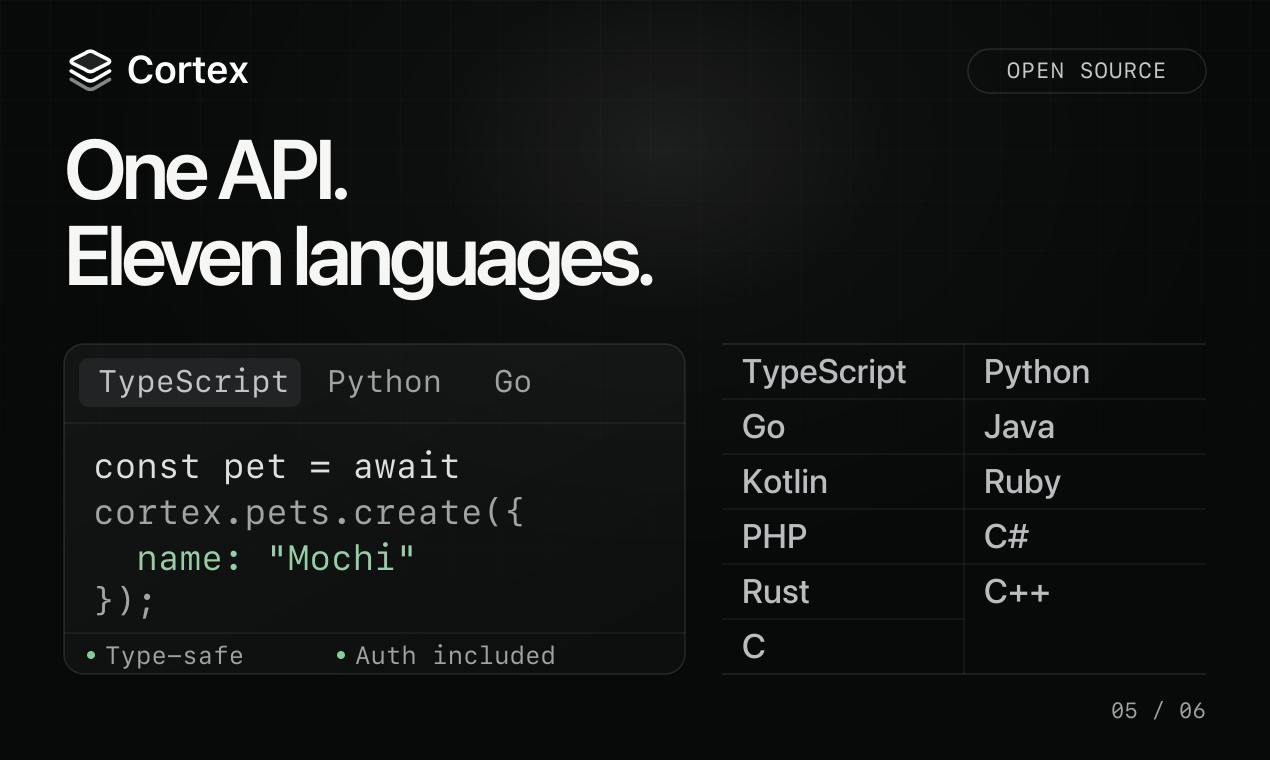
Cortex: Convert API Specs into Docs, SDKs, and MCP Servers in One Click
Cortex is an open-source tool that converts OpenAPI, GraphQL, gRPC and more into interactive docs, typed SDKs in 11 languages, and MCP servers for AI agents.
ABrush: An AI Studio Built for Digital Artists
ABrush is an AI studio for digital artists, ranked #4 on Product Hunt. It embeds leading AI models into existing workflows to remove repetitive tasks, speed up iteration, and keep artists in control.