Getting Started with DeepSeek Harness: A Complete Guide to Node.js Installation and Configuration

A beginner's guide to installing Node.js and configuring npm environment variables for DeepSeek Harness on Windows.
This article summarizes a beginner tutorial on configuring the Node.js runtime environment for the AI agent framework DeepSeek Harness. Key steps include verifying the environment with `node -v` and `npm -v`, installing Node.js to a non-C drive path with no Chinese characters, checking Add to Path, reopening the command prompt to verify success, using `npm config set` to redirect package downloads and cache to a custom directory, and updating system environment variables with a new `NODE_PATH` entry and updated `Path`. Once complete, you're ready for DeepSeek Harness multi-agent and workflow setup.
DeepSeek Harness is an AI agent framework tool that requires a Node.js runtime environment. Setting up that environment correctly is the very first step. Bilibili creator Pange walks through the entire process — from installing Node.js to configuring environment variables — in his beginner-friendly tutorial. This article summarizes that hands-on walkthrough to help newcomers avoid common configuration pitfalls and lay a solid foundation for building multi-agent teams and configuring workflows.
Why You Must Configure the Node.js Environment First
DeepSeekAd Harness depends on Node.js for both installation and execution — there's simply no getting around it. Before you do anything else, confirm whether a working Node.js installation already exists on your machine.
The check is straightforward: press Windows + R, type cmd, and hit Enter to open a command prompt. Then run these two commands:
node -v— check the Node.js versionnpm -v— check the npm package manager version
If either command fails to print a version number and returns an error instead, Node.js is either not installed or the installation is broken. You'll need to go through the full installation process. This step looks trivial, but it's the critical checkpoint that determines whether everything downstream will work.
Node.js is a JavaScript runtime built on Chrome's V8 engine, allowing JavaScript code to run outside the browser — on a server or your local machine. npm (Node Package Manager) is bundled with Node.js and handles downloading, installing, and managing third-party libraries a project depends on. AI framework tools like DeepSeek Harness are typically distributed as npm packages, and their internal dependencies are automatically resolved and fetched through npm as well. This is why Node.js and npm form the lowest layer of infrastructure for running such tools — version incompatibilities or misconfigured paths will break the installation process.
Step-by-Step Node.js Installation
Head to the Node.js official website and navigate to the download page. Click "Get Node.js" and you'll see the default Windows download option. If you're on a Mac, use the dropdown to find the appropriate version before downloading.
Once the installer is downloaded, open it and follow the wizard: click Next → accept the license agreement → click Next again. You'll then reach the installation directory selection screen. This is where Pange highlights a detail that's easy to overlook — do not use the default C drive installation path.
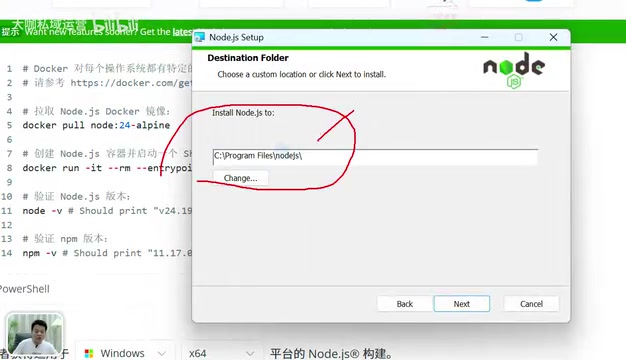
By default, Node.js installs to the C drive. As you install more packages and plugins over time, C drive space gets eaten up fast, which slows down your entire system. It's recommended to switch to a different drive (such as the F drive) and create a dedicated folder there (for example, named Node.js). One important reminder: do not use Chinese characters in the directory name, as this can cause path parsing issues.
During installation, make sure to check the Add to Path option. This automatically adds Node.js to your system environment variables. Then click Next through the remaining screens until installation begins — the process is quick, just wait for it to finish.
Post-Installation Verification: Why You Need to Open a New Window
After clicking Finish, the next step is verifying the installation succeeded. Here Pange points out a trap that trips up many beginners: you must open a brand-new command prompt window.
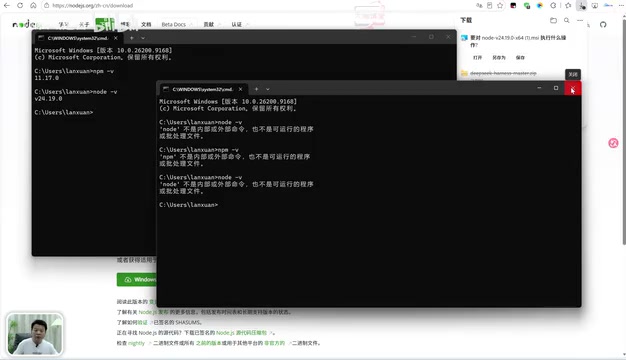
If you run node -v and npm -v in the same window you had open before installing, the system will likely still say "is not recognized as an internal or external command" — because that old window never loaded the updated environment variables. Press Windows + R, type cmd, open a fresh window, and run those two commands again. If both print version numbers, Node.js is installed successfully.
This is a small detail, but it's the root cause of many people incorrectly concluding that their installation failed. Opening a new window is a necessary step for validating your environment.
Configuring Environment Variables: Preventing C Drive Bloat
Configuring environment variables is optional, but strongly recommended. Without it, all downloaded packages and plugins will land on the C drive by default. As your use of DeepSeek Harness deepens and plugin packages accumulate, that puts serious pressure on C drive space.
The approach is to redirect both the download and cache directories to another drive. Here's how:
- Inside your custom directory (e.g., a
Tooldirectory), create a new folder namednode_home - Inside it, create two subdirectories:
node_global(for downloaded packages and plugins) andnode_cache(the cache directory — this one is required)
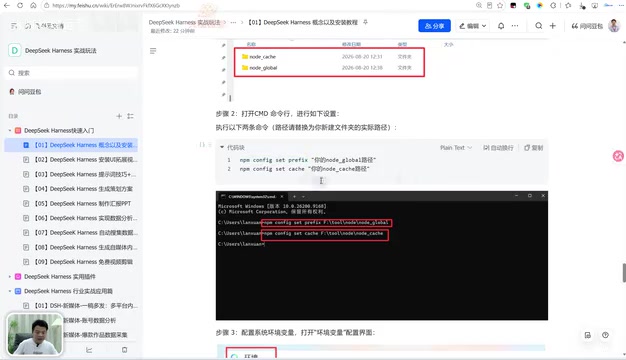
Once the folders are created, configure npm with two commands:
- Set the
prefixto point to thenode_globaldirectory, telling npm to download content there - Set the
cachepath to point to thenode_cachedirectory
After running these commands, you'll see some configuration files automatically generated inside the cache directory, confirming the settings took effect.
The node_global and node_cache directories correspond to two types of local npm storage: the former holds tool packages installed globally via npm install -g along with their executables; the latter holds compressed package caches that npm keeps to speed up repeat downloads. By default, npm writes both to the user's AppData directory on the C drive. In development environments with frequent dependency installs, the cache directory in particular can balloon to several gigabytes. By explicitly specifying paths with npm config set prefix and npm config set cache, you move all of this to a non-system drive with plenty of space — and make it easier to clean up or back up later.
The Final Step: System Environment Variables
Configuring the npm directories alone isn't enough — you also need to tell the system where to find them. That requires editing the system environment variables.
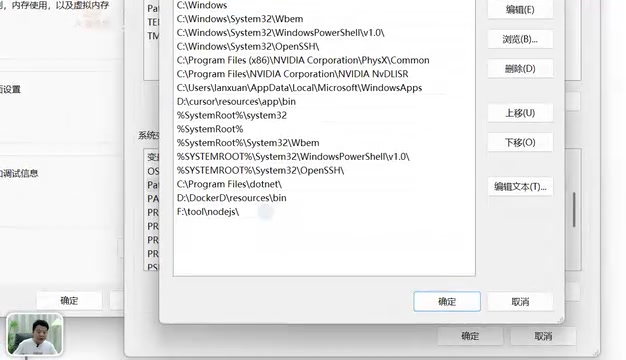
Navigation path: right-click "This PC" → Properties → Advanced system settings → Environment Variables. In the system variables section:
- Create a new variable: name it
NODE_PATH, and set its value to thenode_modulesdirectory insidenode_global - Edit the Path variable: double-click to open it, then add two new entries — one with the full path to
node_global, and one with%NODE_PATH%(referencing the variable you just created)
Click OK to save everything, and the configuration is complete. To verify, paste the test command from the tutorial notes into your command prompt and run a download. After a moment, check whether content has appeared inside the node_modules folder. If it has, npm downloads are now successfully directed to your custom directory — nothing will be written to the C drive anymore.
Summary
With that, the Node.js environment and environment variable configuration are fully in place, providing a solid foundation for using DeepSeek Harness going forward. The key takeaways from the entire process are: change the drive during installation, avoid Chinese characters in directory names, check the Add to Path option, open a new window to verify, and use environment variables to redirect packages and caches off the C drive.
These steps may seem tedious, but they're exactly what determines whether an AI agent framework will run stably down the road. With the environment set up, you're ready to dive into DeepSeek Harness itself — exploring multi-agent team building, workflow configuration, plugin development, and more advanced capabilities.
Related articles

Random Pruning of the DPO Computation Graph: 1.4x Training Speedup and Lower Peak Memory
DPO training too slow and memory-hungry? This paper proposes a random pruning framework for the DPO computation graph, sampling independently across position, sequence, and branch dimensions; branch pruning achieves a 1.426x step-time speedup and cuts training time by about 30%, with in-depth attribution of memory and time gains.

Why Does JEPA Underperform MLM in Longitudinal EHR Representation Learning?
New study compares JEPA and MLM for longitudinal EHR representation learning on MIMIC-IV: three JEPA variants train stably without collapse but underperform MLM; target size, not heterogeneity, drives prediction error.

Transfer Learning + Visible Light Communication: A New Approach to Energy-Efficient Indoor Positioning
A study proposes a transfer learning-based visible light communication indoor positioning method, achieving 47% accuracy improvement on the BOSCH factory dataset, 67.5% model efficiency under high noise, and introducing the ME composite metric for energy-efficient positioning in energy-constrained industrial IoT scenarios.