Getting Started with DeepSeek Harness: Node.js Setup and Environment Variable Configuration Guide

Set up Node.js and npm environment variables for DeepSeek Harness while keeping plugin packages off the C drive.
This article, based on a beginner tutorial by Bilibili creator Pange, covers the complete Node.js environment setup required before using the DeepSeek Harness LLM office automation tool. It walks through verifying the environment with `node -v` and `npm -v` in a fresh CMD window, installing Node.js outside the C drive with no Chinese characters in the path, and configuring npm's prefix and cache paths alongside `NODE_PATH` and `Path` system environment variables to redirect all global plugin packages to a designated directory — preventing C drive bloat.
DeepSeek Harness is an office automation tool powered by large language model capabilities, and both its installation and runtime depend entirely on a Node.js environment. In this beginner-friendly tutorial, Bilibili creator Pange walks through the entire process — from installing Node.js to configuring environment variables. This article is based on that video and is designed to help you fully set up the underlying environment before you start using DeepSeek Harness.
Why You Must Set Up the Node.js Environment First
Installing and running DeepSeekAd Harness has a hard dependency on Node.js. This is the foundational prerequisite for the entire tutorial. Without a properly configured environment, none of the subsequent steps — plugin discovery, model integration, or hands-on projects — will work.
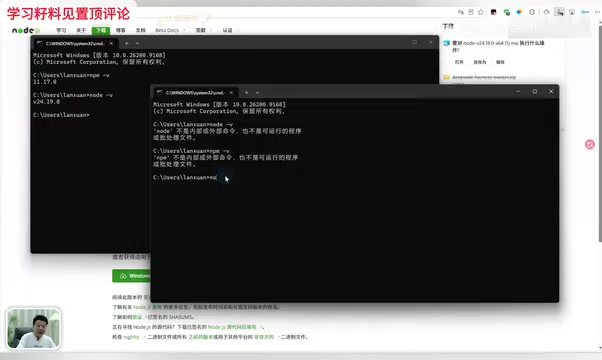
Verifying whether your environment is ready is straightforward: press Windows + R to open a CMD window, then run node -v and npm -v. If both commands output version numbers, Node.js is properly installed. If you see an error like "not recognized as an internal or external command," it likely means Node.js isn't installed or the installation failed, and you'll need to go through the installation process from scratch.
There's one detail beginners often miss: when verifying the installation, always open a new CMD window before running the commands. If you use a CMD window that was already open before installation, the system will still fail to recognize the commands — leading to the confusing situation where you've installed Node.js but it still reports an error.
Node.js is a JavaScript runtime built on Chrome's V8 engine, allowing JavaScript code to run independently outside the browser. It comes bundled with npm (Node Package Manager), the world's largest open-source software package ecosystem. AI office automation tools like DeepSeek Harness choose Node.js as their runtime foundation for two key reasons: Node.js offers powerful asynchronous I/O capabilities well-suited for connecting to multiple LLM APIs, and npm provides an extremely convenient mechanism for plugin distribution and dependency management.
node -vchecks the core Node.js runtime version, whilenpm -vchecks the package manager version — both must work correctly for the rest of the installation to proceed smoothly.
Key Steps for Installing Node.js
The installation itself isn't complicated. Download the installer from the official website and select the version that matches your operating system. Windows users download the Windows version directly; Mac users select the appropriate version number from the dropdown list.
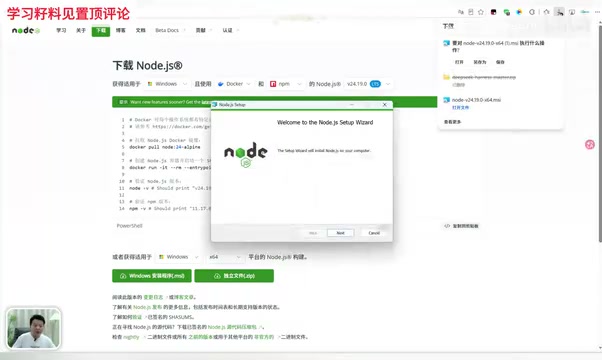
After double-clicking the installer, click through the Next prompts and accept the license agreement. The critical part is choosing the installation directory. The default path points to the C drive, but Pange strongly recommends changing the installation directory to a different drive (for example, a Node.js folder under F:\Tool). The reason is practical: a full C drive will slow down your entire system, and moving utility software to another drive is a smart long-term habit. Also note that the directory path should not contain Chinese characters, as this can cause path recognition issues later.
During installation, there's one option you absolutely cannot skip — check Add to PATH, which automatically adds Node.js to the system path. Then continue clicking Next and start the installation. The process is quick; just wait a moment and click Finish.
Environment Variable Configuration: Keeping Plugin Packages Off the C Drive
Configuring environment variables is where this tutorial really delivers its value. Pange notes that this step is "optional," but strongly recommends doing it. The reason: if you skip it, all software packages and plugins downloaded via npm will accumulate on the C drive by default. As you use DeepSeek Harness more deeply, plugin packages pile up quickly and put enormous pressure on your C drive.
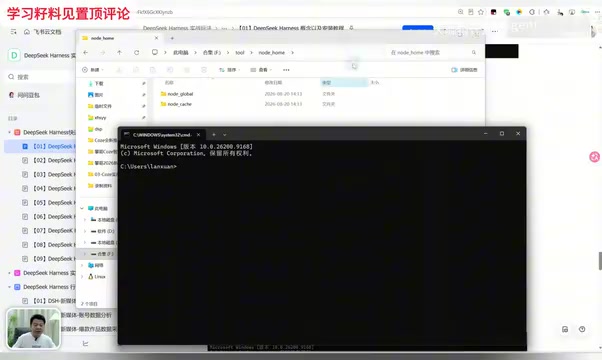
The configuration involves two steps. The first is creating a directory structure: inside the Tool directory, create a node_home directory, then inside it create two subdirectories — one for storing downloaded packages and plugins, and another as a cache directory (the video emphasizes that the cache directory is required).
The second step is telling npm about these two directories via commands. Open a new command window and run the commands to set the prefix and cache: the prefix points to your global directory so npm knows where to place downloaded content, and the cache points to the cache directory. After running these commands, some files will be automatically generated in the cache directory, confirming the configuration took effect.
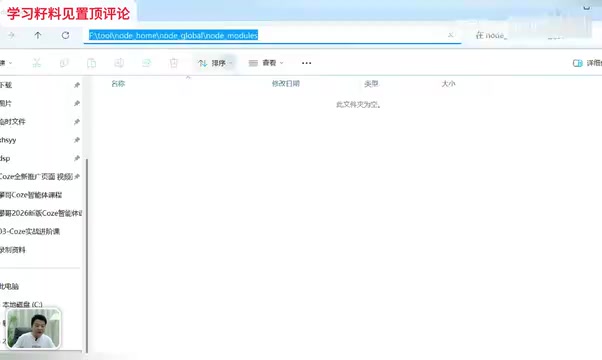
npm's prefix and cache are two independent configuration items, and understanding the difference between them clarifies why you need two separate subdirectories. The prefix determines where packages installed with
npm install -g(global install) are stored — these packages are placed in anode_modulessubfolder under the prefix directory, with corresponding executable files also generated there. The cache, on the other hand, is npm's temporary buffer during downloads, storing compressed packages for reuse so they don't need to be downloaded again. Since the two directories serve different purposes, they must be configured separately. A missing cache directory will cause npm commands to fail — which is exactly why the video specifically emphasizes that the cache directory must be created.
The Final Step: System Environment Variables
Setting npm's directories alone isn't enough — you also need to tell Windows where to find this content. Navigate to: right-click "This PC" → Properties → Advanced system settings → Environment Variables.
Under system environment variables, create a new variable (named NODE_PATH in the video), with the value pointing to the node_modules folder inside your global directory. Then edit the Path variable and add two entries: the path to the global directory, and a reference to the variable you just created using the percent-sign syntax (%NODE_PATH%).
After saving everything, you can verify using a test command from the tutorial notes: paste the command into a CMD window and run it. After the download completes, go to the node_modules folder under your global directory — if the downloaded content appears there, your environment variables are configured correctly. From this point on, everything npm downloads will go to your designated directory and will no longer pollute the C drive.
Windows environment variables have two layers: "User variables" and "System variables." User variables only apply to the currently logged-in account, while system variables apply to all accounts. When configuring
NODE_PATHandPath, it's recommended to work in the "System variables" section to ensure tools run correctly regardless of permission level. ThePathvariable is a special list — Windows iterates through it whenever executing any command to locate the corresponding executable file. Adding the global directory toPathis what allows the system to directly recognize and call tools installed globally via npm. The%NODE_PATH%syntax using percent signs is Windows's variable reference notation, equivalent to writing the full path directly, but with the advantage that updatingNODE_PATH's value will automatically propagate to all references.
Summary and Next Steps
While this tutorial only covers the environment preparation before using DeepSeek Harness, building this foundation is critical for everything that follows — plugin discovery, prompt optimization, and multi-model integration. A few key points worth double-checking: always open a new window for verification, keep the installation directory off the C drive and free of Chinese characters, and configure environment variables to control where plugin packages are stored.
Once your Node.js environment is ready, you can move on to installing and using DeepSeek Harness itself. For beginners looking to master LLM-powered office automation, taking the time to get the environment right will save you a tremendous amount of debugging time down the road.
Related articles

From Photons to Production: An Open-Source Computer Vision Engineering Reading Path
Reddit user open-sources a computer vision engineering reading path with 16 chapters from image formation to production deployment, emphasizing primary sources, dependency order, and reproducible benchmarks to help engineers understand why models fail and build reliable vision systems.

Prompt Failures? The Truth About Why AI Agents Struggle in Production—and How to Fix It
A Reddit developer built Agents with Copilot and Gemini but faced unstable behavior. This article analyzes three gaps in prompt engineering for Agent scenarios and offers three practical paths to reliable Agent deployment, including structured prompts, workflow-first approaches, and building an evaluation loop.

Tesla Robotaxi to Open Private Vehicle Access Next Year: Promise or Pipe Dream?
At its Q3 earnings call, Tesla said owners can add their cars to the Robotaxi fleet next year. We analyze the technical basis, Musk's missed deadlines, business logic, and competition.